
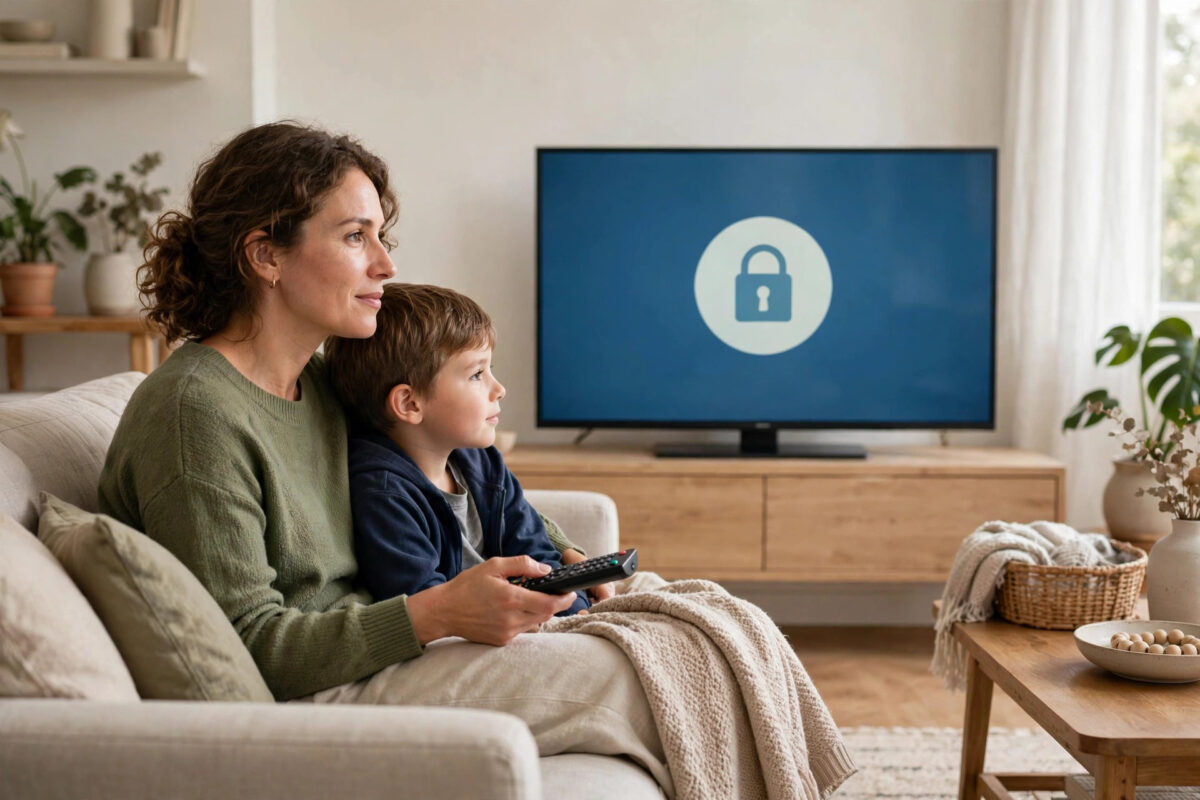
Streaming apps make it easy for anyone in the house to start watching in seconds. That convenience becomes a problem when a child can open an adult profile, rent a film by accident, or wander into content meant for older viewers. PIN locks and parental controls fix all of this, and most families can set them up in under fifteen minutes.
Quick Answer
Create a separate kids profile with an age rating limit on each streaming app, then set an account PIN that protects adult profiles, purchases, and setting changes. On Netflix this is done in Account and Profile controls, on Prime Video in Parental Controls under Settings, and on Disney Plus in the profile’s parental settings. Use a PIN your children do not know and store it somewhere safe.
What PIN Locks and Parental Controls Actually Do
These tools do three different jobs, and it helps to know which is which. First, age ratings limit what a profile can browse and play, so a young child’s profile simply does not offer adult titles. Second, a profile PIN stops children from switching into an unprotected adult profile. Third, a purchase PIN stops accidental or unauthorised rentals, purchases, and subscriptions being added to your bill.
No single switch covers all three jobs on most services. A common mistake is setting only the age limit and leaving profiles open, which a curious child can bypass in seconds by tapping a parent’s picture. Setting all three layers gives you real protection instead of the feeling of protection.
Setting Up Controls on Netflix
Netflix manages controls per profile from your account page on a browser. You will need your account password for some changes, which is a good extra layer of safety.
- Sign in to Netflix in a browser and open Account settings.
- Scroll to Profiles and Parental Controls and choose the child’s profile.
- Set the maturity rating to the level that matches your child’s age.
- Use Title Restrictions to block specific shows or films if needed.
- Return to the profile list and open your own adult profile.
- Turn on Profile Lock and create a four-digit PIN for that profile.
- Repeat the profile lock for every other adult profile in the home.
Netflix may ask for your account password before showing the PIN setup, and the PIN then applies whenever that profile is opened on a new device or after sign-out. You can read the details in Netflix’s official parental controls guide. Also check the separate option that requires a PIN for certain maturity levels across the account if your service region offers it.
Setting Up Controls on Prime Video
Prime Video uses a five-digit PIN and viewing restrictions that apply across your devices. Because Prime Video is tied to your Amazon account, the same PIN can also guard purchases, which makes it especially valuable.
- Open Prime Video and go to Settings, then Parental Controls.
- Create a Prime Video PIN when prompted and confirm it.
- Turn on Purchase Restrictions so rentals and purchases need the PIN.
- Set Viewing Restrictions by choosing the highest age rating allowed without a PIN.
- Choose which of your devices these restrictions apply to, and include every TV and tablet your child uses.
- Create or edit a kids profile for everyday viewing by younger children.
- Test by trying to play an adult-rated title and a paid rental.
Amazon explains these options in its help pages on Prime Video parental controls and PIN settings. Remember that some devices, such as certain smart TVs, manage their own Prime Video PIN separately, so test on each screen your family actually uses.
Setting Up Controls on Disney Plus and Other Apps
Disney Plus lets you set a content rating for each profile and protect profiles with a PIN as well. Open Edit Profiles, choose the profile, set its content rating, and turn on the profile PIN. For younger children, the Junior Mode option gives a simpler interface and age-appropriate content only.
Other apps follow the same pattern even when menu names differ. Apple TV, YouTube, and BBC iPlayer all offer some mix of restricted profiles, rating limits, and PIN or password protection. YouTube deserves special attention in many homes: use YouTube Kids for younger children, or turn on Restricted Mode and use supervised accounts for older ones. If an app has no built-in controls, use the TV’s own app lock or the device’s screen-time tools as a backstop.
Once your streaming apps are sorted, it is worth applying the same thinking to the television itself. Our guide to using smart TV parental controls and app locks on your television covers channel locks, app locks, and viewing schedules built into most modern sets.
Choosing and Protecting a Good PIN
A PIN only works if your children cannot guess it. That rules out birthdays, house numbers, the year you married, and simple runs like 1234 or repeated digits. Children who watch you type will also learn a PIN surprisingly fast, so enter it out of sight, in the same way you shield a bank card PIN.
- Pick a random four or five digits with no family meaning.
- Use a different PIN from your phone unlock code and bank card.
- Store it in a password manager or a sealed note kept away from the TV.
- Change it if you suspect your child has worked it out.
- Share it only with the adults who genuinely need it.
Testing Your Setup Like a Child Would
After setting everything up, spend two minutes testing it with fresh eyes. Open the TV, try to enter an adult profile, and see whether the PIN stops you. Open the kids profile, search for an adult title you know, and confirm it does not appear or asks for a PIN to play. Try to rent a paid film and confirm the purchase PIN appears before any payment step.
Also test the everyday experience. If controls are so strict that normal family viewing becomes a battle of constant PIN prompts, parents tend to switch everything off within a week. Adjust the rating level to your child’s real age, not the youngest possible setting, so the system stays in place long term.
Common Mistakes to Avoid
- Protecting only the child’s profile: Adult profiles left unlocked are an open door; lock them all.
- Forgetting purchase protection: Rating limits do not stop paid rentals unless the purchase PIN is switched on too.
- Using an obvious PIN: Birthdays and simple patterns are the first things children try.
- Setting up one app and stopping: Each service has separate controls, so repeat the process on every app your family uses.
- Missing one device: A tablet or bedroom TV without restrictions undoes the living room setup.
- Never reviewing the settings: Raise rating levels as children grow, and review blocked titles every few months.
Conclusion
Strong streaming safety rests on three layers working together: a kids profile with the right age rating, a PIN on every adult profile, and a PIN for purchases. Set them up on Netflix, Prime Video, Disney Plus, and any other app in your home, choose a PIN your children cannot guess, and test the result yourself. A short setup today prevents awkward surprises and unexpected bills for years.
Frequently Asked Questions
What happens if I forget my streaming PIN?
Every major service lets the account holder reset the PIN after signing in with the account password or confirming by email. Follow the parental controls page in your account settings and choose the reset or forgot PIN option.
Can my child bypass controls by using a browser?
Profile locks and ratings apply to your account on browsers too, as long as the child uses the same account. Protect the account password itself, and consider device-level controls for older children who could create their own accounts.
Do parental controls block live TV in streaming apps?
It depends on the service. Some apply ratings to live channels, while others treat live content separately. Check the specific app’s controls and use your TV’s channel lock if live content is a concern.
Should teenagers have the same restrictions as young children?
Usually not. Most services offer several rating levels, so set teenage profiles to a teen rating rather than a young-child rating. This keeps protection in place without blocking suitable content and sparking workarounds.
Does one PIN work across all my streaming apps?
No. Each service keeps its own PIN and settings. You can choose the same number for convenience if it is not easy to guess, but you must set it up separately in every app.



Leave a Reply