
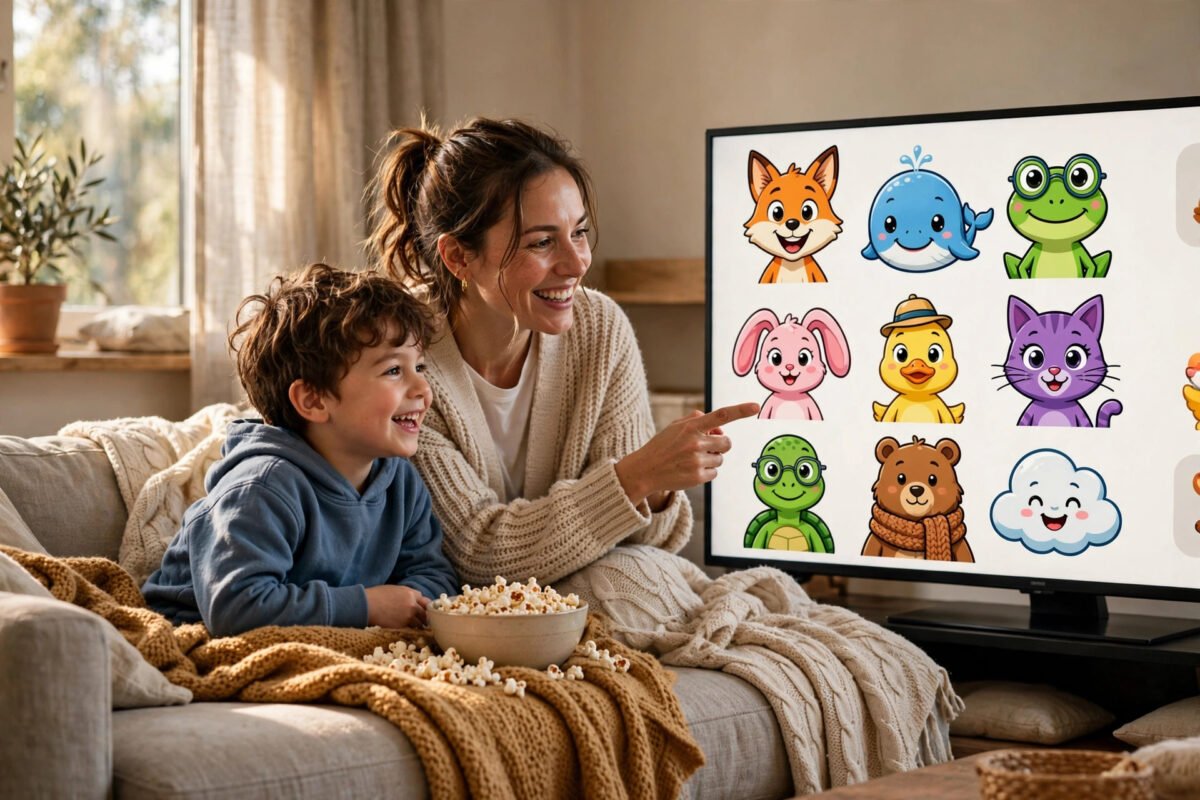
A kids profile is the simplest way to make streaming safe and calm for children. Instead of worrying about what might appear on the home screen, your child gets a space filled only with age-appropriate shows, a simpler layout, and their own favourites and history. Both Disney Plus and Netflix do this well, and each profile takes just a few minutes to create.
Quick Answer
On Disney Plus, open Edit Profiles, add or select your child’s profile, turn on Kids Profile or Junior Mode, and set the content rating. On Netflix, choose Add Profile or Manage Profiles, create the profile, mark it as a kids profile, and set the maturity rating in Profile and Parental Controls. Add a PIN to your own adult profiles so your child stays in their safe space.
Why a Kids Profile Is Better Than Sharing Yours
Sharing an adult profile creates problems in both directions. Children see posters and recommendations for films they should not watch, and one tap can start something unsuitable. At the same time, your recommendations fill up with cartoons, your continue-watching row becomes a mix of everyone’s half-finished episodes, and anything your child watches affects what the service suggests to you.
A dedicated kids profile solves all of it at once. The catalogue is filtered by age before your child even starts browsing. The interface is often brighter and simpler, with bigger pictures and fewer menus. Their watch history stays separate, downloads stay in one place, and you gain controls over ratings and specific titles that simply do not exist on a shared profile.
How to Create a Kids Profile on Disney Plus
Disney Plus builds every account around profiles, and you can have several profiles on one subscription. You can create a profile from a browser, the mobile app, or your TV, and the steps look almost the same on each.
- Open Disney Plus and sign in with the main account.
- Select your profile picture to open the profile menu.
- Choose Edit Profiles, then Add Profile if you are making a new one.
- Pick a character picture your child will recognise easily.
- Type your child’s name for the profile.
- Turn on the Kids Profile option if it appears during setup.
- Set the content rating to match your child’s age.
- Save the profile and open it to check what the home screen shows.
Using Junior Mode for Younger Children
For very young children, look for Junior Mode in the profile settings. Junior Mode gives the simplest possible experience: a child-friendly design, content chosen for young viewers, and no access to more mature sections. It is an excellent choice for preschool children who use a tablet by themselves for short periods.
Disney explains profile and rating options in the Disney Plus help centre guidance on parental controls and profiles. While you are in the profile settings, also add a PIN to the adult profiles on the account. Without that step, a child can leave the kids profile with one tap on your picture.
How to Create a Kids Profile on Netflix
Netflix also supports several profiles per account, and a Netflix Kids profile comes with its own filtered catalogue and a distinctive, simpler home screen.
- Open Netflix and go to Manage Profiles or Add Profile.
- Select Add Profile and enter your child’s name.
- Tick or toggle the option that says this profile is for a child, often labelled Kids.
- Choose a profile picture and save.
- Open the new profile once to confirm the kids home screen appears.
- On a browser, go to Account, then Profiles and Parental Controls.
- Select your child’s profile and set the maturity rating to the right level.
- Block any specific titles you do not want, even if they fall inside that rating.
The maturity rating is the heart of the setup. Netflix levels range from content for very young children up to teen levels, and the profile will only browse and play titles at or below the level you choose. Netflix describes these choices in its official parental controls and profile guidance. Review the level once or twice a year, because the gap between suitable content at age five and age nine is very large.
Fine-Tuning the Profile After Setup
Creating the profile is step one. A few small adjustments make it work much better day to day.
Personal Touches That Help
- Let your child choose their profile picture so they always pick the right one.
- Add a short list of favourite shows together on the first day.
- Download a few trusted episodes for travel if your plan allows downloads.
- Set subtitle and audio language defaults your child understands.
- Check the viewing activity page in your account now and then to see what they actually watch.
Viewing activity is an underused tool. It shows titles and dates for each profile, which helps you spot anything unexpected and gives you great conversation starters about what your child enjoys. If something unsuitable somehow appeared, you can also hide titles from the profile from the same account area on Netflix.
If your family uses more than these two services, repeat the same approach everywhere rather than leaving gaps. Our guide to setting up parental controls across all your streaming apps brings the ratings, PINs, and purchase locks for the main services together in one place.
Managing More Than One Child
Brothers and sisters of different ages should usually have separate profiles. A profile set for a ten-year-old is not right for a four-year-old, and one shared rating always ends up too strict for one child and too loose for the other. Separate profiles also end arguments about whose episode the continue-watching row should show.
Profiles are limited on each service, so count before you create. If you run out of slots, combine the two closest ages and set the rating for the younger of the two. Grandparents and regular babysitters do not need their own profiles in most homes; a single guest or family adult profile is usually enough.
Common Mistakes to Avoid
- Leaving adult profiles unlocked: A kids profile only protects children who stay in it, so add PIN locks to adult profiles.
- Setting the rating once and forgetting it: Children outgrow levels quickly; review ratings every few months.
- Sharing one kids profile between very different ages: The catalogue will be wrong for at least one child.
- Skipping the title block list: Some titles within a rating may still trouble your child; block them individually.
- Using your child’s real full name: A first name or nickname is enough for a profile label.
- Assuming downloads follow the profile: Check downloaded content on shared tablets, because downloads belong to the device as well as the profile.
Conclusion
A kids profile on Disney Plus and Netflix takes minutes to create and pays you back every single day. Set the content rating carefully, add Junior Mode or the kids experience for younger viewers, lock the adult profiles with a PIN, and give each child of a different age their own space. Then relax, knowing the home screen your child sees was chosen for them.
Frequently Asked Questions
How many profiles can I create on Disney Plus and Netflix?
Both services allow several profiles on one account, typically up to five on Netflix and up to seven on Disney Plus, though exact limits can change. That is normally enough for parents and each child to have their own.
Can my child change their own maturity rating?
No, not if your account is set up properly. Rating changes are made from the account settings, which require the account password on Netflix, and profile PINs stop children wandering into adult areas to begin with.
What is the difference between a kids profile and Junior Mode on Disney Plus?
A kids profile filters content by the rating you set. Junior Mode goes further with a much simpler interface and content selected for the youngest viewers, which suits preschool children best.
Will a kids profile affect my own recommendations?
No. Each profile keeps its own history and recommendations. That separation is one of the main benefits, for parents as much as for children.
Can I move favourites when my child outgrows a kids profile?
Lists and history do not normally transfer between profiles. Most families simply create or upgrade a profile with a higher rating and add favourite shows again, which only takes a few minutes.



Leave a Reply