
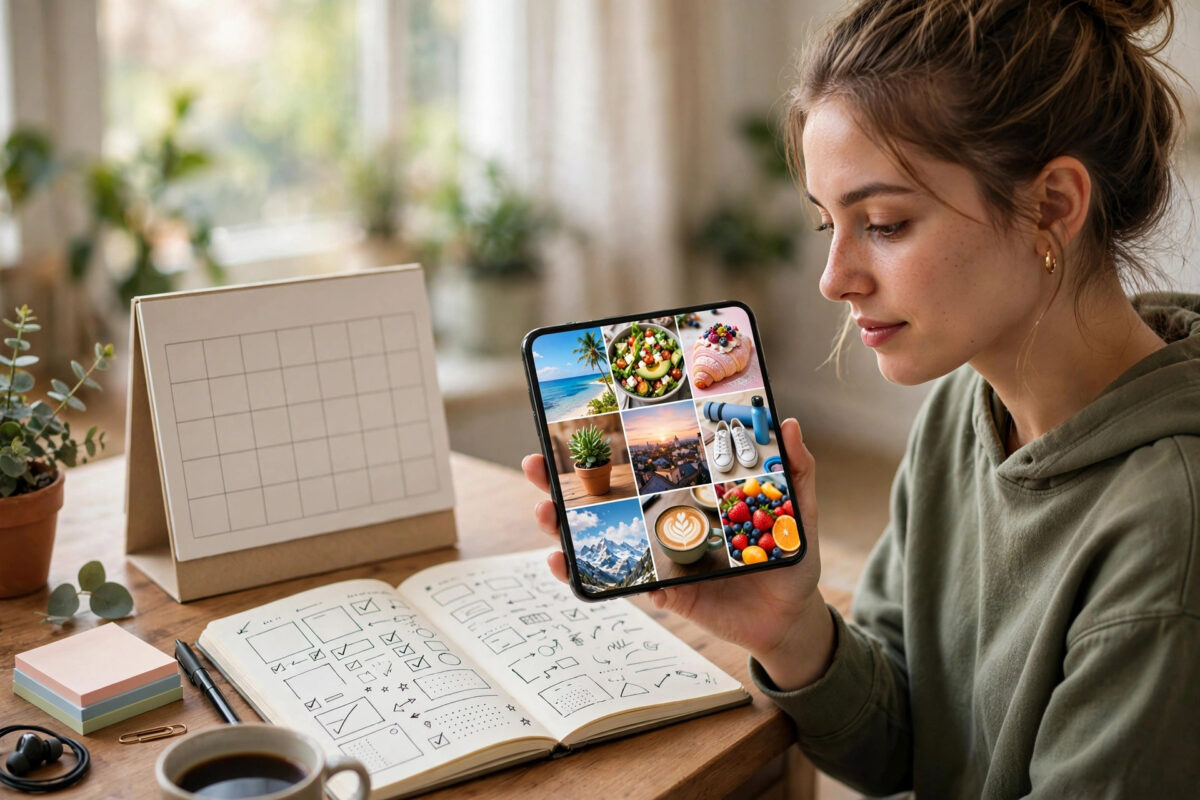
Posting on Instagram at the exact moment your audience is most active sounds simple until real life gets in the way. You are at work when your followers are scrolling, you are travelling when a product launch needs to go live, or you simply do not want to open the app five times a day to stay consistent. Scheduling solves that problem. You prepare your photos, Reels, and captions in advance, pick a date and time, and Instagram publishes them automatically while you focus on other things.
For creators, small businesses, and social media managers, scheduling is the difference between random posting and a real content plan. It helps you post during peak hours, maintain a clean grid, and take weekends off without disappearing from the feed. This guide explains exactly how scheduling works inside the Instagram app and how to avoid common mistakes.
Quick Answer
In the Instagram app, create a new post or Reel, add your media and caption, then tap Advanced settings > Schedule this post, turn on Schedule, pick a date and time, and tap Schedule. This feature requires a Professional account (Creator or Business) and works for posts and Reels up to 75 days in advance.
What You Need Before You Can Schedule
Many people cannot find the schedule button simply because their account is still set to Personal. Instagram only offers in-app scheduling to Professional accounts, but switching is free and takes less than a minute. You do not need a minimum number of followers.
- Open Instagram and go to your profile by tapping your profile picture at the bottom right.
- Tap the three lines (menu) at the top right, then tap Settings and privacy.
- Scroll to For professionals and tap Account type and tools, then tap Switch to professional account.
- Choose Creator if you are an individual, influencer, or freelancer, or Business if you run a shop, brand, or local service, then follow the prompts to pick a category and add contact details.
- Once the switch is complete, return to your profile. You should now see a Professional dashboard link under your bio, which confirms scheduling is available.
You can find more everyday app walkthroughs like this in the NetworkUstad software and apps how-to guides, especially if you manage several social accounts and want a consistent routine.
How to Schedule a Feed Post in the Instagram App
Scheduling a regular photo, carousel, or graphic post follows the normal posting flow, with one extra step at the very end. Do not tap Share until you have set the schedule, because once a post is published immediately it cannot be turned into a scheduled post.
- Tap the + icon at the bottom center (or top right, depending on your app version) and select Post.
- Choose one photo for a single post or tap the overlapping squares icon to select up to 20 photos and videos for a carousel, then tap Next.
- Apply filters or tap Edit to adjust brightness, contrast, and crop for each image, then tap Next again.
- Write your caption, add hashtags, tap Tag people if needed, and tap Add location if the location helps your audience find your business.
- On this final share screen, scroll down and tap Advanced settings at the very bottom.
- Under Schedule, tap Schedule this post, turn the Schedule toggle on, and select your preferred date and time using the date and time pickers.
- Tap Done, go back to the share screen using the back arrow, and tap Schedule at the top right to confirm. The button says Schedule instead of Share when scheduling is active.
How to Schedule a Reel in the Instagram App
Reels follow almost the same process, and scheduling them is useful because Reels often perform best in the evening or early morning when you may not want to be editing video.
- Tap the + icon and select Reel, then record a new video or tap the gallery thumbnail to upload an existing video from your phone.
- Tap Next, add audio, text, stickers, and effects, trim clips if needed, then tap Next again to reach the share screen.
- Add a caption, choose a cover image by tapping Add cover or Edit cover, tag people, and add a location if relevant.
- Scroll down, tap Advanced settings, tap Schedule this post, turn on Schedule, and pick a date and time.
- Tap Done, return to the share screen, and tap Schedule to save it for automatic publishing.
If the Schedule toggle is greyed out on a Reel, remove stickers like fundraising or product tags and try again. Instagram’s Instagram Help Centre for creators and businesses notes that scheduled content must follow the same community rules as regular posts.
How to View, Edit, Reschedule, or Delete a Scheduled Post
Instagram keeps all scheduled posts and Reels in one place. You can change the time or delete a post before it goes live. You cannot fully edit the caption or media in most versions; if you need to change them, delete the scheduled version and create it again.
- Go to your profile, tap the three lines at the top right to open the menu.
- Tap Scheduled content. You will see a list and calendar-style view of all upcoming scheduled posts and Reels for this account.
- Tap the post you want to manage, then tap the three dots on that post.
- Choose Reschedule to pick a new date and time, Delete to remove it permanently, or Share now to publish it immediately instead of waiting.
- If you chose Reschedule, confirm the new time and tap Schedule again. Check the list once more to ensure the updated time appears correctly.
Businesses that need more advanced planning, such as scheduling Stories, scheduling across Instagram and Facebook together, or approving posts with a team, usually use Meta Business Suite on desktop. Meta explains the cross-platform workflow in its Meta Business Help Centre guide to scheduling posts and stories, which complements the in-app method for larger teams.
Best Times, Planning Tips, and Content Ideas
There is no single best time that works for every account, but scheduling lets you test systematically instead of guessing. Start by checking your own data. Go to your profile, tap Professional dashboard > Total followers > Most active times to see the hours and days your followers are online. Schedule your most important posts 30 to 60 minutes before those peak periods so they are already picking up engagement when the largest number of people open the app.
Plan in batches. Many creators spend one afternoon shooting three to five Reels and designing two carousels, then schedule them across the week. Write captions at scheduling time with a clear hook, three to five relevant hashtags, and a specific call to action. Check back after each post publishes to reply to early comments within the first hour.
Common Mistakes and Tips
The most common mistake is scheduling in the wrong time zone while travelling or using a phone set to a different region. Your post goes live at 3 a.m. for your audience and misses its window entirely. Before a campaign, verify your phone’s date and time settings and confirm the scheduled time shown in Scheduled content matches your intention.
A second mistake is trying to schedule a Story, a collaborative post, or a post with restricted features and assuming it failed because of a bug. In-app scheduling in Instagram currently covers feed posts and Reels, not Stories. For Stories, use Meta Business Suite or a reminder system instead of expecting the same Advanced settings toggle to appear.
Other tips make scheduling more reliable. Do not schedule more than 75 days ahead. Keep your phone connected to the internet before the scheduled time so changes sync, and stagger identical content to multiple accounts by at least 30 minutes.
Conclusion
Scheduling posts in the Instagram app takes only a few extra taps once you have a Professional account, but it changes how you run your page. Instead of rushing to post in real time, you can create thoughtfully, publish when your audience is actually active, and keep a consistent presence even on busy days or holidays. Use Advanced settings to schedule feed posts and Reels, manage everything from Scheduled content, check your audience insights to pick better times, and review each post after it publishes so scheduling supports engagement rather than replacing it.
Frequently Asked Questions
Why can I not see the schedule option in Instagram?
You are most likely on a Personal account or using an outdated app version. Switch to a Creator or Business account in Settings and privacy > Account type and tools, update Instagram from your app store, then look for Advanced settings > Schedule this post on the final share screen.
Can I schedule Instagram Stories in the app?
No, the Instagram mobile app does not currently allow scheduling Stories directly. You can schedule Stories through Meta Business Suite on a computer when your Instagram account is connected to a Facebook Page, or you can save Stories as drafts and set a phone reminder to publish manually.
How far in advance can I schedule a post?
You can schedule posts and Reels up to 75 days in advance through the Instagram app. If you try to select a date beyond that limit, the app will not confirm the schedule, so pick a date within the allowed window and set a reminder to plan the next batch.
Will scheduling a post hurt its reach?
No, scheduled posts are treated the same as manually published posts. Reach depends on content quality, relevance, and early engagement, not on whether you tapped Share immediately or scheduled it. Replying promptly to comments after a scheduled post goes live helps its performance.
Can I edit a scheduled post after I create it?
You can reschedule it, delete it, or share it immediately from Scheduled content, but you generally cannot edit the caption, tags, or media inside the app. If you need to make those changes, delete the scheduled post and recreate it with the corrected content before the original time passes.



Leave a Reply