
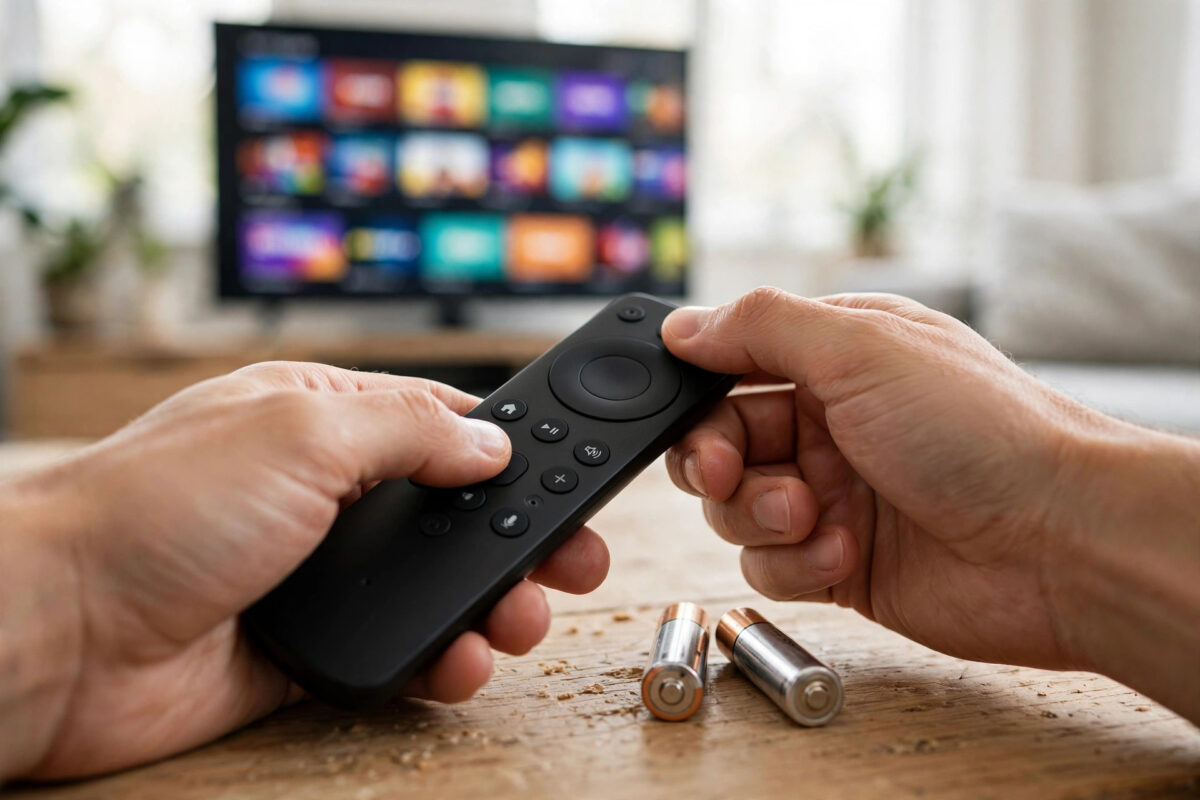
Whether your old remote is lost, broken, or you simply bought a spare for the bedroom, pairing a new remote with your Fire TV Stick is easier than it looks. You do not need to visit a shop or pay for help. With a few minutes and the right button sequence, the new remote will be controlling your TV.
This guide covers automatic pairing, manual pairing with the Home button, using the settings menu when you still have a working controller, and what to do when pairing refuses to work.
Quick Answer
Insert fresh batteries into the new remote, get within a few feet of the Fire TV Stick, and hold the Home button for ten seconds until the light flashes or a confirmation appears on screen. If nothing happens, restart the stick by unplugging it for 30 seconds, then hold the Home button again as it starts up.
Before You Start: Compatibility and Batteries
Most Fire TV remotes work with most Fire TV Sticks, but not every combination is guaranteed. Remotes made for Fire TV devices generally pair with other Fire TV models from a similar period. A very old remote may lack voice features on a newer stick, and a remote made for a Fire TV Edition television may behave differently with a stick.
Before pairing, check these basics:
- Use brand-new AAA batteries. Weak batteries are the most common hidden cause of pairing failure.
- Insert the batteries in the correct direction, matching the marks inside the cover.
- Make sure you removed any plastic battery tab on a brand-new remote.
- Stand in the same room as the stick, ideally within three to ten feet of the TV.
A Fire TV Stick can remember up to seven paired remotes and controllers at once. If you have paired many devices over the years, you may need to remove an old one from settings before a new one will join.
Method 1: Automatic Pairing on Startup
Brand-new Amazon remotes often pair by themselves the first time they wake up near the stick. Try this simple route first before pressing any special combinations.
- Restart the Firestick by unplugging its power for 30 seconds and plugging it back in.
- While the stick is starting, insert the batteries into the new remote.
- Stand close to the TV and wait on the home screen for up to a minute.
- Press the Home button once. If pairing succeeded, the screen will respond and a message may confirm the remote is connected.
If the remote controls the menus, your work is done. Test the volume buttons too if your remote has them, because volume control may need a short extra setup under Settings, then Equipment Control, which the stick usually offers automatically.
Method 2: Pair Manually With the Home Button
Manual pairing is the standard method and the one Amazon recommends for replacement remotes. It works even when no other remote is connected.
- Turn on the TV and make sure the Firestick home screen or logo screen is showing.
- Hold the new remote close to the TV, within about ten feet.
- Press and hold the Home button for a full ten seconds. Do not release it early.
- Watch for a flashing light on the remote or a message on screen saying the remote is paired.
- Release the button and test the navigation ring to confirm control.
Timing is everything here. Many people release the Home button after three or four seconds, which is too soon. Count slowly to ten. If the first attempt fails, wait half a minute and repeat the hold once or twice. If you are replacing a lost remote for everyday viewing, our roundup of the best Fire TV Stick accessories for everyday viewing includes spare remote and charging options worth considering.
Method 3: Add a Remote From the Settings Menu
If you still have any working way to control the stick, such as the old remote, the phone app, or a TV remote using HDMI-CEC, you can add the new remote through settings. This method gives you clear on-screen confirmation at each stage.
- Using your working controller, go to Settings on the Firestick home screen.
- Select Controllers and Bluetooth Devices.
- Select Amazon Fire TV Remotes, then select Add New Remote.
- The stick will start searching. Now hold the Home button on the new remote for ten seconds.
- When the new remote appears in the on-screen list, select its name with your working controller to finish pairing.
This is also the place to remove old remotes. In the same list, highlight a remote you no longer use and follow the on-screen option to unpair it. Keeping the list tidy avoids confusion and frees a slot if you have reached the seven-device limit.
Method 4: Use the Fire TV Phone App to Set Up Pairing
No working remote at all? Your phone can act as a temporary controller so you can reach the settings menu in Method 3.
Install the Amazon Fire TV app on your phone, connect the phone to the same Wi-Fi network as the stick, and select your stick in the app. Enter the code shown on the TV to connect. Then follow the settings steps above to add the new physical remote. Once the physical remote is paired, you can keep the app as a handy backup for typing passwords and searching.
Note one limit: the app needs the stick to already be connected to your Wi-Fi. If the stick is brand-new or was factory reset and has no network yet, you will need the Home button method instead, because there is no way to enter a Wi-Fi password without a paired controller.
What to Do When Pairing Does Not Work
If you have held the Home button correctly and the remote still will not pair, work through this checklist in order. One of these steps fixes the large majority of stubborn cases.
- Restart everything: Unplug the stick for a full minute, remove the remote batteries, then power up, refit the batteries, and try the ten-second hold again.
- Replace the batteries again: Even new-looking batteries from a drawer may be flat. Try a pair straight from a fresh pack.
- Reduce interference: Move closer, keep the path to the stick clear, and move other Bluetooth devices away from the TV area during pairing.
- Unpair old remotes: Use the phone app to open Controllers and Bluetooth Devices and remove remotes you no longer own.
- Reset the remote: Some remote models can be reset by unplugging the stick, waiting a minute, then holding the Left, Menu, and Back buttons together for twelve seconds, removing the batteries, and setting up again from scratch. Check the instructions for your exact model if you try this.
Amazon publishes model-specific pairing steps in Amazon’s official guide to pairing a Fire TV remote. If a brand-new remote fails on every step, Amazon’s device support hub can help you confirm compatibility or arrange a replacement.
Common Mistakes to Avoid
- Releasing the Home button too early: The hold needs a full ten seconds. Short presses only send you to the home screen.
- Pairing from another room: Bluetooth range is limited during pairing. Stand close to the TV.
- Using tired batteries: A remote can light up yet still lack the power to pair. Always start with fresh batteries.
- Forgetting the seven-device limit: If many controllers are saved, remove an old one before adding the new remote.
- Buying an incompatible remote: Check the listing carefully. Choose a remote made for Fire TV Stick models, not a generic TV remote.
Conclusion
Pairing a new remote with your Fire TV Stick usually takes one ten-second press of the Home button near the TV, with fresh batteries fitted. If automatic pairing misses, restart the stick and repeat the hold, or add the remote through the Controllers and Bluetooth Devices menu using the phone app as a temporary controller. Work through the checklist calmly and almost every replacement remote connects within a few tries.
Frequently Asked Questions
How many remotes can I pair with one Fire TV Stick?
You can pair up to seven remotes and Bluetooth controllers at the same time. If you reach the limit, remove an old device from Controllers and Bluetooth Devices in Settings.
Can I pair a remote from an older Firestick with a new one?
Often yes. Most Fire TV remotes work across similar models, although very old remotes may miss newer features such as TV volume controls. Try the Home button hold to test yours.
Do I need Wi-Fi to pair a new remote?
No. The remote pairs with the stick directly over Bluetooth, so pairing works without Wi-Fi. You only need Wi-Fi for streaming and for using the phone app method.
Why does my new remote control menus but not TV volume?
Volume and power use a separate TV control setup. Go to Settings, then Equipment Control, and follow the steps to teach the remote your TV brand and test the sound.
What if the Home button hold never pairs the remote?
Restart the stick, fit another set of fresh batteries, and try again up close. If it still fails, check compatibility for your model and consider that the remote itself may be faulty.



Leave a Reply