
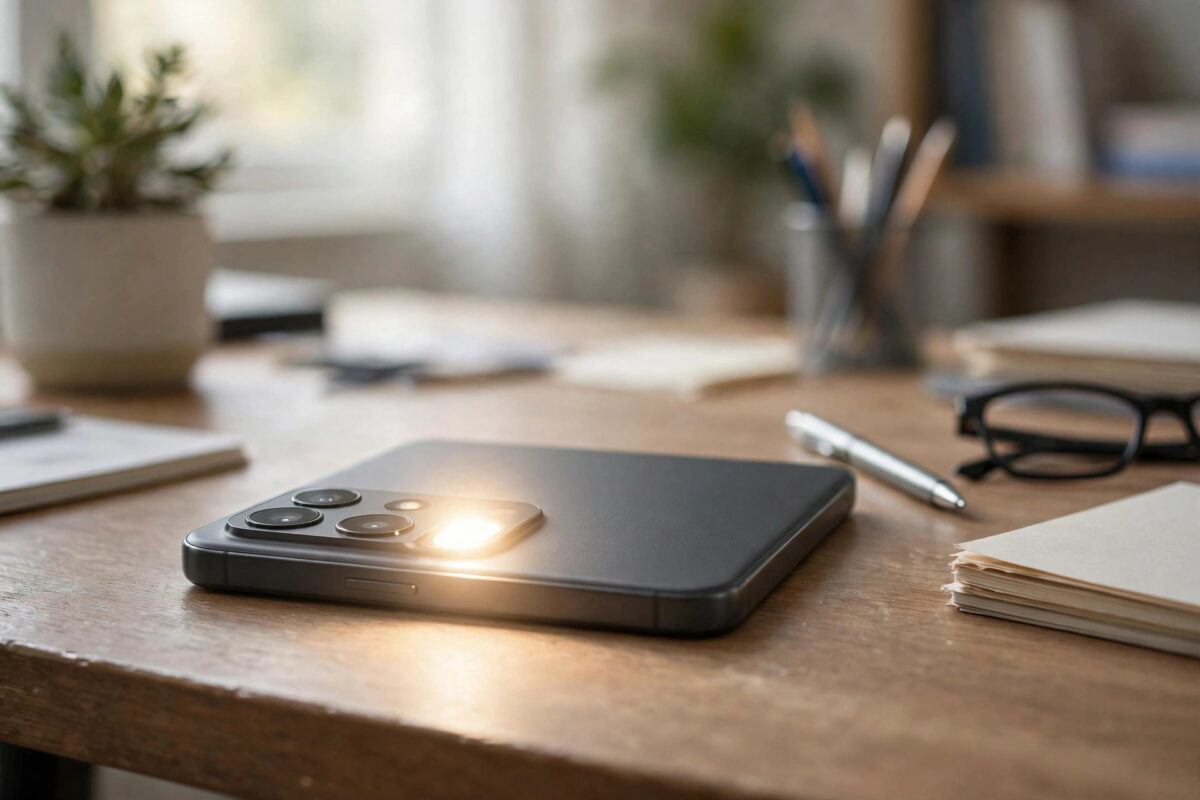
Not every alert should depend on sound. Your iPhone might be on silent in a meeting, face down on a desk, or across a noisy room where a ringtone is easy to miss. For people who are deaf or hard of hearing, a sound alert may not help at all. In all of these situations, a bright flash of light is a simple and effective alternative.
Your iPhone has a built-in feature that flashes the camera light on the back of the phone when a call, message, or other notification arrives. It takes less than a minute to turn on, it needs no extra app, and on iOS 27 you can also make the screen itself flash. This guide explains how to enable both options, how to control when they work, and how to fix the feature if it stops flashing.
Quick Answer
To make your iPhone flash for calls and messages, go to Settings, Accessibility, Audio & Visual, then LED Flash for Alerts, and turn it on. The rear camera flash will now blink when calls and notifications arrive. In the same menu you can allow the flash while the phone is unlocked, allow it in Silent mode, and on newer versions of iOS also enable a screen flash.
How the LED Flash Alert Works
The feature uses the same bright light that helps you take photos in the dark. When an alert arrives, the light blinks several times in a clear pattern, which is easy to notice even if the phone is a few metres away. Because the light is on the back of the phone, the effect is strongest when the iPhone is lying face down or standing with its back facing you.
There are a few things worth understanding before you switch it on. The flash works for phone calls, text messages, and app notifications that would normally appear on the Lock Screen. It does not replace your ringtone or vibration unless you want it to; it works alongside them. It also uses a small amount of extra battery, because the light is powerful, although for normal use the effect is minor.
Apple designed this as an accessibility feature, which is why it lives inside the Accessibility menu rather than Sounds. Full details appear in Apple’s guide to getting alerts with the LED flash on iPhone, which covers the basic controls from the maker’s own documentation.
How to Turn On LED Flash for Alerts
Follow these steps on any recent iPhone, including the iPhone 18 range running iOS 27. Older models use almost identical menus.
- Open the Settings app.
- Scroll down and tap Accessibility.
- Under the Hearing heading, tap Audio & Visual.
- Scroll to the bottom and tap LED Flash for Alerts.
- Turn on the main LED Flash for Alerts switch at the top.
- Ask a friend to call or message you, or set a quick reminder, to test that the light blinks.
Once the main switch is on, two extra switches appear underneath it, and they decide when the flash is allowed to work. Setting these correctly is the difference between a helpful feature and a frustrating one.
Choosing When the Flash Should Work
Flash While Unlocked
By default, you can choose whether the light flashes when you are already using the phone. If Flash While Unlocked is off, the light will not blink while the screen is on, because Apple assumes you can already see the notification banner. Turn it on if you still want a strong visual signal while browsing, reading, or watching something with the sound down.
Flash in Silent Mode
This is the setting many people actually want. When Flash in Silent Mode is on, the light blinks even when the silent switch or Action button has muted the phone. Without it, the flash respects silent mode in a way that confuses many users, who think the feature is broken. If your main reason for using the flash is silent situations, make sure this switch is on.
Screen Flash on Newer iPhones
Recent versions of iOS add a second visual alert: the whole screen can flash brightly when a notification arrives. This is helpful when the phone is lying face up, because the rear light is hidden against the table. In the LED Flash for Alerts menu, look for the screen flash option and turn it on if it is available on your model. You can use the screen flash alone, the camera light alone, or both together for the strongest effect.
Tips for Getting the Most From Flash Alerts
- Place the phone face down: The rear light is far more visible this way, and it also protects your privacy because message previews stay hidden.
- Use a case that does not cover the light: Some thick or dark cases soften the flash. Check that the camera area cut-out is clear.
- Combine flash with vibration: A custom vibration pattern plus a flash gives you two silent signals at once, which is ideal in meetings or cinemas.
- Turn it off at night if it disturbs you: The light is bright in a dark bedroom. A Focus mode for sleep, or simply placing the phone face up under Do Not Disturb, can calm it down.
- Remember it flashes for all alerts: Busy group chats and chatty apps will flash often. Review which apps may send notifications in Settings, Notifications, and quiet the noisy ones.
If you are setting up visual and sound alerts together, you may also find our guide on how to set a custom ringtone on iPhone without iTunes useful, because the two features complement each other well: a personal sound when the phone can ring, and a clear flash when it cannot.
Why Is My iPhone Not Flashing?
If you have followed the steps and nothing happens, work through this checklist before assuming something is broken.
- Check the main switch again: Updates sometimes reset accessibility options. Return to Settings, Accessibility, Audio & Visual, LED Flash for Alerts, and confirm it is on.
- Check the silent mode setting: If your phone is muted and Flash in Silent Mode is off, you will see no flash.
- Check the unlocked setting: If you tested while using the phone and Flash While Unlocked is off, the test will look like a failure.
- Test the light itself: Open the flashlight from Control Centre. If the light does not turn on at all, there may be a hardware problem or the camera may be in use by another app.
- Close camera apps: If an app is actively using the camera, the flash may be unavailable for alerts.
- Restart the iPhone: A simple restart clears many small software faults and takes under a minute.
- Update iOS: Install the latest version from Settings, General, Software Update, especially if the problem began after a previous update.
Common Mistakes to Avoid
- Looking for the setting in Sounds: Many people search Sounds & Haptics first. The flash controls are in Accessibility, not in the sound menus.
- Testing with the phone face up: The light is on the back. A face-up phone on a table hides almost all of it, so the test seems to fail.
- Expecting a flash for every app event: The feature follows your notification settings. An app that is not allowed to show Lock Screen alerts will not trigger the flash either.
- Leaving every extra switch off: Turning on only the main switch but leaving the silent and unlocked options off creates a feature that rarely appears in daily life.
- Using it in sensitive places without thinking: A bright flash in a dark theatre or during an exam can disturb others. Silence the phone fully, including visual alerts, where the situation demands it.
Does the Flash Use Much Battery?
Each flash is very short, so a normal day of calls and messages has only a small effect on battery life. The impact grows if you receive hundreds of notifications a day, because the light fires again and again. If battery health is a concern, reducing unnecessary notifications helps both your battery and your peace of mind. The screen flash option is gentler than the camera light, so it is a good middle choice for heavy notification users.
Conclusion
The LED flash alert is one of the most practical accessibility features on the iPhone, and it is useful for everyone, not only people with hearing difficulties. Turn it on in Settings, Accessibility, Audio & Visual, set the silent mode and unlocked options to match your routine, and place the phone face down so the light can do its job. From then on, you will notice calls and messages with your eyes as well as your ears.
Frequently Asked Questions
Will the flash work when my iPhone is on silent?
Yes, but only if Flash in Silent Mode is turned on inside the LED Flash for Alerts menu. With that switch enabled, the light blinks for calls and messages even when all sounds are muted.
Does the LED flash work for WhatsApp and other apps?
Yes. It flashes for notifications from messaging and social apps as long as those apps are allowed to show alerts on the Lock Screen. Check each app’s permissions in Settings, Notifications, if one app does not trigger it.
Can I change how many times the light flashes?
No. Apple does not offer a setting for the number or speed of flashes. The pattern is fixed, although you can choose between the camera light, the screen flash, or both on supported models.
Will using the flash damage the camera light?
No. The LED is designed for regular use as a flashlight and camera flash, and short alert flashes are well within its normal working life. It will not wear out from ordinary notification use.
How do I turn the flash alerts off again?
Return to Settings, Accessibility, Audio & Visual, LED Flash for Alerts, and turn the main switch off. The phone will immediately go back to sound and vibration alerts only.



Leave a Reply