
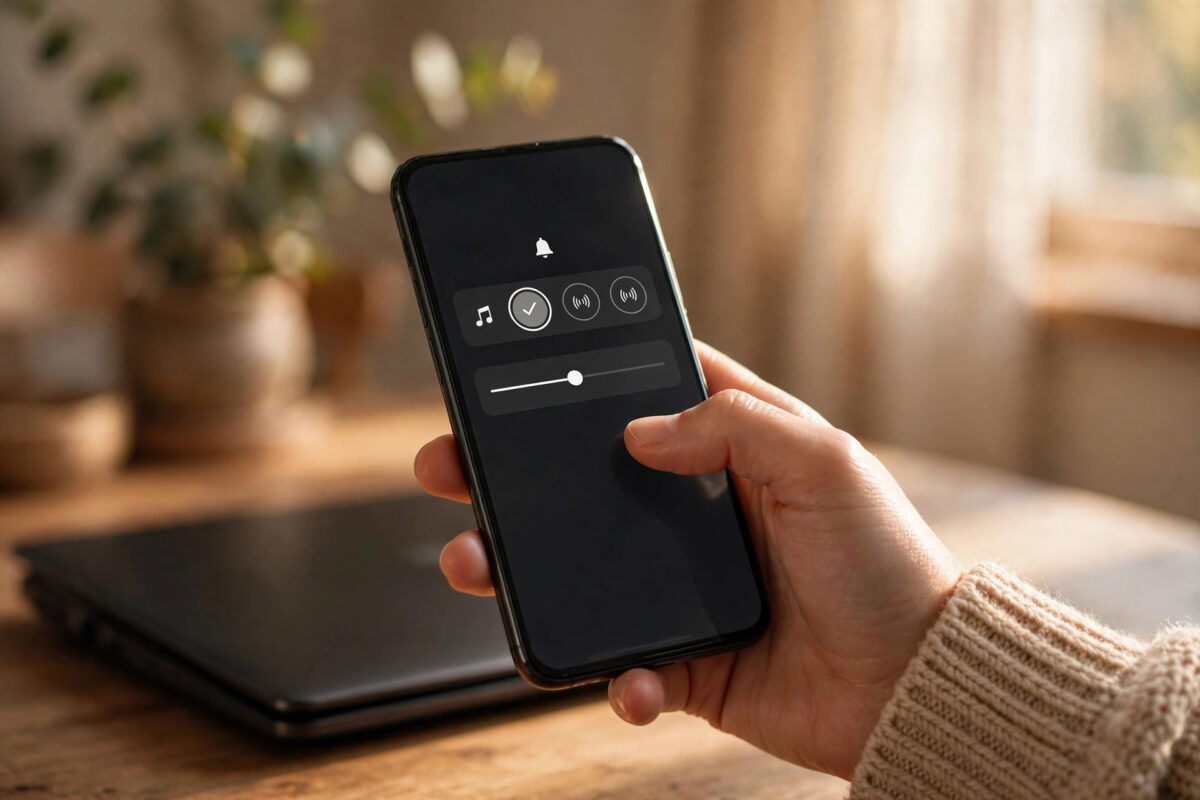
Your iPhone comes with a good set of built-in ringtones, but almost everyone else has them too. When a phone rings in a cafe, a train, or an office, several people reach into their pockets at the same time. Using your own sound solves that problem instantly. The good news is that you no longer need a computer, a cable, or iTunes to do it.
In the past, making a custom ringtone meant trimming a song on a desktop, converting it to a special format, and syncing it across with software that many people found confusing. On a modern iPhone running iOS 27, you can do the whole job on the phone itself. You can turn a voice recording, a downloaded sound, or a short piece of music into a ringtone in a few minutes, and this guide walks you through every method step by step.
Quick Answer
To set a custom ringtone on iPhone without iTunes, save your sound to the Files app, open it in the free GarageBand app, trim it to 30 seconds or less, and export it as a ringtone from the share menu. Then go to Settings, Sounds & Haptics, Ringtone, and select your new sound. The whole process takes place on the iPhone and needs no computer at all.
What You Need Before You Start
A little preparation makes the process much smoother. Before you open any app, check the following items so you do not get stuck halfway through.
- A sound file: This can be an MP3 or M4A file saved in Files or iCloud Drive, a song you created yourself, or a recording from the Voice Memos app.
- The GarageBand app: GarageBand is free from Apple and is often already installed. If you removed it, download it again from the App Store at no cost.
- A short clip: Ringtones can be up to 30 seconds long. Think about which part of the sound you want, such as a chorus, a favourite line, or a clear melody.
- Enough free storage: GarageBand needs some working space, so keep at least a few hundred megabytes free on the device.
One important note about music streaming services is worth knowing early. Songs from Apple Music, Spotify, and similar services are protected, so you cannot turn them directly into ringtones. You need a file you actually own or a sound you recorded yourself. Apple explains the official limits for sounds and alerts in its guide to changing sounds and vibrations on iPhone, which is worth reading if a tone does not behave as expected.
Method 1: Make a Ringtone With GarageBand
GarageBand is the most reliable free method because it is made by Apple and it has a built-in ringtone export option. It looks like a music studio at first, but you only need a few simple tools inside it.
Step 1: Save Your Sound to Files
- Find the sound you want to use, such as a download from Safari or a file sent to you.
- Tap the share button and choose Save to Files.
- Pick a folder you will remember, such as Downloads or On My iPhone.
- If your sound is a voice recording, open Voice Memos, tap the recording, tap the more options button, and share it to Files in the same way.
Step 2: Bring the Sound Into GarageBand
- Open GarageBand and swipe through the instruments until you see Audio Recorder, then tap it.
- Tap the Tracks view button near the top, which looks like a set of horizontal lines.
- Tap the Loop button in the top right corner.
- Open the Files tab and tap Browse items from the Files app.
- Find your saved sound and tap it. It will appear in the list.
- Press and hold the file, then drag it onto the empty track at the start of the timeline.
Step 3: Trim the Clip to 30 Seconds or Less
- Drag the edges of the audio region to cut away the parts you do not want.
- Tap the small plus button at the end of the ruler to open Song Sections, and set the section length manually if GarageBand warns that the project is too long.
- Play the clip back and adjust the start point so the sound begins exactly where you want the ring to start. A strong, clear opening works best because you may only hear the first few seconds.
- Make sure the total length is 30 seconds or shorter, otherwise the ringtone export will fail or trim the sound for you.
Step 4: Export the Clip as a Ringtone
- Tap the arrow in the top left and choose My Songs to save the project.
- Press and hold the saved project until a menu appears.
- Tap Share, then choose Ringtone.
- Give your ringtone a clear name, such as Guitar Intro or Mum Calling.
- Tap Export. When it finishes, tap Use sound as and choose Standard Ringtone, Text Tone, or Assign to Contact.
Method 2: Set the Ringtone in Settings
If you skipped the Use sound as option during export, you can still apply the ringtone at any time from Settings. This is also the place to check that the export worked.
- Open Settings and tap Sounds & Haptics.
- Tap Ringtone under the Sounds and Haptic Patterns heading.
- Look at the top of the list. Your custom tones appear above the built-in tones.
- Tap your new ringtone. A tick will appear next to it, and you will hear a preview.
- Call your iPhone from another phone, if you can, to confirm the sound plays at a good volume.
While you are in this menu, you can also set different sounds for text messages, new email, and alerts, so each type of notification has its own voice.
How to Set a Special Ringtone for One Person
A custom sound is even more useful when only one person has it. You will know who is calling without looking at the screen, which helps when your phone is in a pocket or another room.
- Open the Phone app or the Contacts app and find the person.
- Tap the contact, then tap Edit in the top corner.
- Scroll down and tap Ringtone.
- Choose your custom tone from the list and tap Done.
- Tap Done again to save the contact.
You can repeat this for family members, your workplace, or anyone whose calls you never want to miss. It also works in reverse: give a calm, quiet tone to numbers that are rarely urgent.
How to Delete a Custom Ringtone
Over time you may collect tones you no longer like. Deleting them keeps the list tidy.
- Open Settings, then Sounds & Haptics, then Ringtone.
- Find the custom tone in the list.
- Swipe left on its name and tap Delete.
The project also stays inside GarageBand unless you remove it there too. Deleting the tone from Settings does not delete your GarageBand project, so you can export it again later if you change your mind.
Common Mistakes to Avoid
- Making the clip too long: Anything over 30 seconds will not export properly as a ringtone. Trim first, export second.
- Using a protected song: Streaming tracks cannot be used. If a file will not import, protection is the most likely reason.
- Starting the clip too quietly: A slow fade-in sounds elegant in a song but poor as a ringtone. Start at a clear, loud moment.
- Forgetting the silent switch: If your iPhone is on silent or a Focus mode is active, even a perfect ringtone will not play out loud. Check the Action button or silent switch and your Focus settings.
- Saving the file somewhere you cannot find: GarageBand browses the Files app, so a sound buried inside another app may not appear. Save it to Files first.
Pro Tips for a Better Ringtone
Choose a sound with a simple melody and few competing instruments, because small speakers make busy music sound muddy. Keep the volume of the original file healthy but not distorted. Test the tone in a noisy place as well as a quiet room, since a tone that sounds fine at home may disappear on a busy street. Finally, if you enjoy making your own sounds, our guide on how to screen record on iPhone with sound shows another easy way to capture and create audio clips on the device itself.
Conclusion
You do not need iTunes, a computer, or any paid software to personalise your iPhone ringtone. Save a sound to Files, trim it in GarageBand, export it as a ringtone, and select it in Sounds & Haptics. Once you have done it once, the process takes only a couple of minutes, and you can build a small library of tones for different people and different alerts. Your phone will finally sound like yours.
Frequently Asked Questions
Why does GarageBand say my ringtone is too long?
Ringtones are limited to 30 seconds. Open the project, trim the audio region so it is shorter than that limit, and export again. Shortening the song section in the settings also helps if the timeline itself is set too long.
Can I use a song from Apple Music as my ringtone?
No. Apple Music tracks are protected downloads, not files you own, so GarageBand cannot import them. Use a purchased song file, your own recording, or a royalty-free sound that you have saved to Files.
Can I buy ringtones instead of making them?
Yes. The iTunes Store app still sells ready-made tones. Open it, search for ringtones, buy one, and it will appear in your Ringtone list in Settings. Making your own with GarageBand is simply the free option.
Why is my custom ringtone not playing when someone calls?
Check that the phone is not on silent, that a Focus mode is not blocking calls, and that the tone is actually selected in Settings. Also open the contact for that person, because a contact-specific tone overrides the general one.
Can I make a different tone for text messages?
Yes. During the GarageBand export, choose Text Tone instead of Standard Ringtone. You can also assign exported tones to text alerts later from the Sounds & Haptics menu, where each alert type has its own list.



[…] you are setting up visual and sound alerts together, you may also find our guide on how to set a custom ringtone on iPhone without iTunes useful, because the two features complement each other well: a personal sound when the phone can […]