
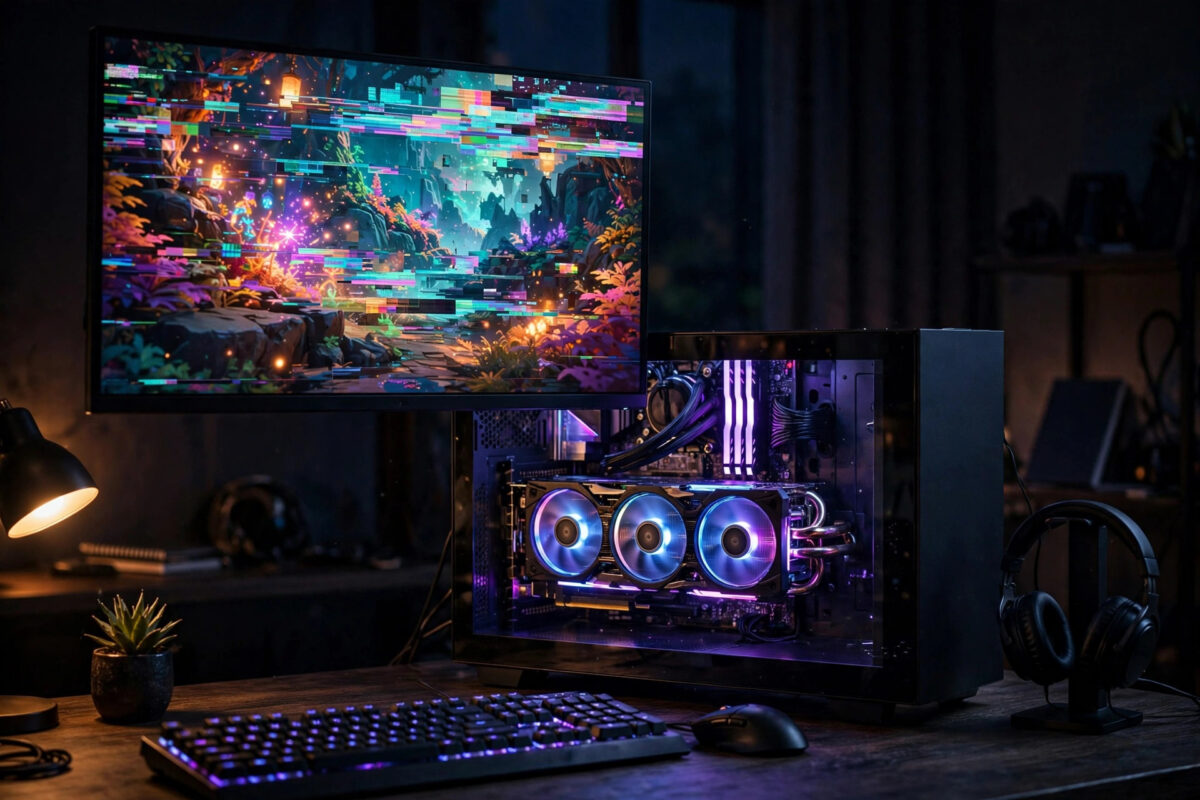
Screen flickering that starts right after a graphics driver update is frustrating, especially when your games worked fine the day before. The screen may flash black, blink on and off, show brief horizontal lines, or flicker only in full-screen mode. In most cases the game itself is not broken. Something in the new driver, a display setting it changed, or a leftover file from the old driver is upsetting the way your monitor and graphics card talk to each other.
The good news is that this problem is usually fixable without buying new hardware. Work through the checks below in order, from quick settings changes to a clean driver reinstall. Test one game after each step.
Quick Answer
To fix screen flickering in PC games after a graphics driver update, first restart your PC, then check that your refresh rate and resolution are set correctly in Windows. Turn off variable refresh rate and full-screen optimisations for the game to test them, and update or cleanly reinstall the graphics driver if the flicker continues. If nothing helps, rolling back to the previous driver is a safe and sensible last step.
Why a Driver Update Can Cause Flickering
A graphics driver is the software that lets Windows and your games use your graphics card properly. When it updates, it can reset display settings, enable new features, or install with a small error that only shows up under load. Flickering often comes from a mismatch somewhere in that chain.
Common triggers include a refresh rate that changed to a value your monitor handles poorly, a damaged driver file, a feature such as variable refresh rate behaving badly in one game, or an overlay program clashing with the new driver. Cables matter too. A loose or ageing DisplayPort or HDMI cable can cope at one refresh rate and flicker at another, so a settings change can expose a cable problem that was already there.
Signs the Driver Is the Likely Cause
- The flickering started on the same day as the driver update.
- Your desktop looks normal, but games flicker in full-screen mode.
- More than one game shows the same flashing or blinking.
- The flicker changes when you change the refresh rate or turn off sync features.
- Event Viewer or the game shows display driver errors or resets.
If only one game flickers and everything else is fine, look at that game’s own settings first. If every game flickers, focus on the driver, the cable, and your Windows display settings.
Step 1: Restart and Check the Basics
Do not skip the simple checks. A driver update sometimes leaves parts of the old driver loaded until you restart, and that mix can cause strange display behaviour.
- Restart your PC fully, not just sleep or hibernate, then test a game again.
- Check both ends of your monitor cable and push them in firmly.
- Try a different port on the graphics card and on the monitor if you have one.
- If you have a spare cable, swap it in, especially if you run a high refresh rate.
- Make sure the cable is plugged into the graphics card, not the motherboard video port.
- Close background overlays such as recording tools, chat overlays, and performance monitors, then test again.
Our guide on how to update graphics drivers correctly on Windows also explains how to avoid partial installs.
Step 2: Check Your Refresh Rate and Resolution
A driver update can quietly change your refresh rate. If Windows is sending a signal your monitor or cable cannot handle cleanly, flickering is a typical result.
- Right-click the desktop and open Display settings.
- Confirm the resolution matches the recommended value for your monitor.
- Open Advanced display settings and check the refresh rate shown for your monitor.
- Set it to the rate your monitor is sold as supporting, such as 60Hz, 144Hz, or 165Hz.
- If it flickers at the top rate, test one step lower to see whether the cable is struggling.
- Open the game and make sure its own resolution and refresh settings match Windows.
Step 3: Test Variable Refresh Rate and Sync Settings
Technologies such as G-Sync and FreeSync change your monitor’s refresh rate to match the game. When they work, motion looks smooth. When a new driver handles them poorly, the screen can pulse or flicker, especially in menus or when frame rates swing up and down.
- Open your graphics control panel and find the variable refresh rate setting.
- Turn it off completely for one test session and play the same game.
- If the flicker stops, turn it back on but set it to work in full-screen mode only.
- In the game, test vertical sync on and off, one change at a time.
- Disable any frame rate limiter for the test, then add it back later if needed.
Microsoft explains related display behaviour in its official Windows support guidance for display and graphics settings, which is worth reading if Windows keeps resetting your choices. Change only one setting at a time, otherwise you will not know which one fixed it.
Step 4: Turn Off Full-Screen Optimisations and HDR for Testing
Windows full-screen optimisations and HDR can both interact with a new driver in unexpected ways. You do not need to leave them off forever, but turning them off for a test helps you isolate the cause.
- Find the game’s main program file in its install folder.
- Right-click it, open Properties, then the Compatibility tab.
- Tick the box to disable full-screen optimisations and apply the change.
- In Windows Settings, turn HDR off temporarily if your monitor supports it.
- Launch the game and play the same scene where flickering happened before.
If the flicker disappears, you have found the trigger. You can leave that one setting off for that game, or try turning it back on after the next driver update, when the clash may be fixed.
Step 5: Cleanly Reinstall the Graphics Driver
If settings changes do not help, the driver install itself may be damaged. Installing the new driver again over the top sometimes repeats the same problem, so a clean install is better. NVIDIA describes this option in its official GeForce driver download and installation guidance, and AMD and Intel offer similar clean install choices in their own tools.
- Download the latest driver for your exact graphics card from the manufacturer.
- Disconnect from the internet briefly so Windows does not install its own driver mid-process.
- Run the installer and choose the custom or advanced option if one is offered.
- Select the clean installation option, which removes old settings and files.
- Restart when the installer finishes, even if it does not ask you to.
- Reconnect to the internet and test your games before changing any settings.
Step 6: Roll Back If the New Driver Is Faulty
Sometimes a new driver simply has a bug with your card, monitor, or a particular game. Rolling back is not a failure. It is the correct move when the previous version worked well and the new one does not.
Use Device Manager to roll back if the option is available, or uninstall the current driver and install the previous version from the manufacturer’s archive. Then pause driver updates for a week or two and watch for a newer release that mentions display fixes. Report the bug through the manufacturer’s feedback tool if you can, since reports with monitor and card details help fixes arrive faster.
Common Mistakes to Avoid
- Changing five settings at once: you fix the problem but never learn the cause, so it returns later.
- Downloading drivers from random websites: always use the card manufacturer’s own site to avoid bundled junk and malware.
- Ignoring the cable: many flicker cases blamed on drivers end with a simple cable swap.
- Running two overlays together: recording, chat, and hardware monitoring overlays can clash after an update.
- Assuming the monitor is dying: test another device or input before spending money on a replacement.
- Skipping the restart: driver changes often need a full restart to load correctly.
Conclusion
Flickering after a driver update usually comes from a changed refresh rate, a sync feature misbehaving, an overlay clash, a weak cable, or a damaged install. Start with a restart and cable check, confirm your display settings, test sync and HDR one at a time, and use a clean install if the problem stays. If the new driver itself is faulty, rolling back and waiting for the next release is a perfectly good solution that keeps you gaming instead of troubleshooting.
Frequently Asked Questions
Why does my screen flicker only in games and not on the desktop?
Games push the graphics card much harder and often use exclusive full-screen modes, higher refresh rates, and sync features that the desktop does not. A driver fault, cable limit, or sync problem may only appear under that load, which is why testing the same settings in a game matters.
Can a bad cable really look like a driver problem?
Yes. A cable that barely handles your refresh rate and resolution can flicker, drop signal, or show lines. Because a driver update may raise the refresh rate or change the signal, the cable problem appears at the same time and gets blamed on the driver.
Should I always install the newest driver straight away?
Not always. New drivers bring game support and fixes, but if your system is stable you can wait a few days and check feedback from other users with similar hardware. If an update causes trouble, rolling back and waiting for the next version is reasonable.
Will a clean driver install delete my game saves?
No. A clean graphics driver install removes driver settings and profiles, not your games or save files. Your saves live in the game folders or cloud services. Only your graphics control panel preferences, such as custom colour or per-game settings, need to be set up again.
What if flickering happens on the desktop too?
Desktop flickering points more towards the cable, monitor, refresh rate, or the graphics card itself. Test a different cable and port, try a lower refresh rate, and connect another device to the monitor. If every source flickers, the monitor may need repair or replacement.



Leave a Reply