
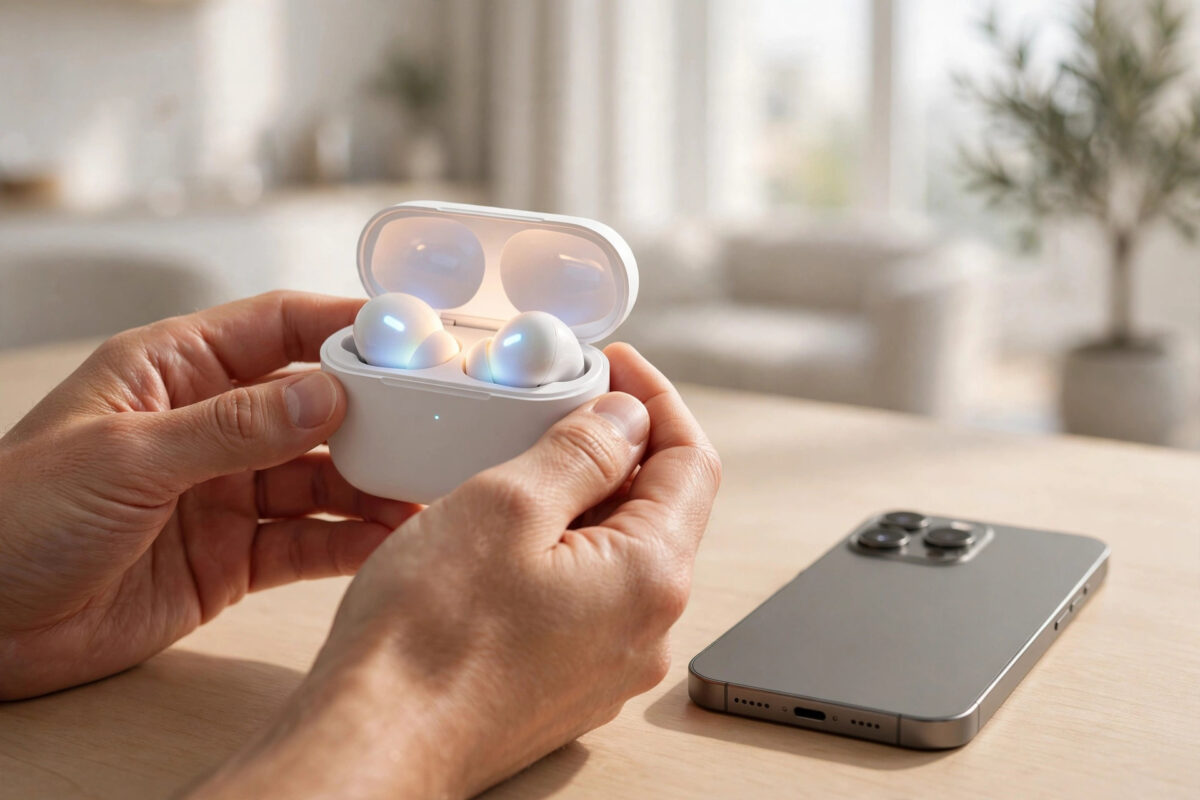
Getting a new iPhone is exciting, and reconnecting your AirPods should be one of the easiest parts of the switch. In most cases it takes less than a minute: open the case near your phone, tap Connect, and you are done. AirPods are designed to move between Apple devices smoothly, especially when both use the same Apple Account.
Sometimes, though, the pop-up does not appear, or your AirPods stay stubbornly paired to your old phone. This guide covers the fastest connection method first, then the manual route, then the reset steps that solve every stubborn case. It applies to AirPods, AirPods Pro, and AirPods Max with iPhone models running iOS 27.
Quick Answer
To connect AirPods to a new iPhone quickly, turn on Bluetooth, hold your open AirPods case next to the unlocked iPhone, and tap Connect when the setup animation appears. If your AirPods were paired with your Apple Account, they may connect automatically. If no animation appears, pair them manually in Settings under Bluetooth, or reset them by holding the case button until the light flashes white.
Before You Start: A 30-Second Checklist
A few small preparations prevent almost every connection problem.
- Charge your AirPods and their case to at least 20 percent. Very low battery can stop pairing.
- Make sure your new iPhone is unlocked, updated, and connected to Wi-Fi.
- Turn on Bluetooth. Swipe down for Control Centre and check the Bluetooth icon is blue, or check in Settings.
- Keep your old iPhone, iPad, or Mac nearby but be ready to disconnect the AirPods from them if they keep grabbing the connection.
- If you bought the AirPods second-hand, the previous owner may need to remove them from their account before you can pair them.
Apple summarises the standard process in its guide on how to connect your AirPods or AirPods Pro to iPhone, and the method below follows the same steps with extra troubleshooting detail.
The Fastest Method: Automatic Setup
If your new iPhone is signed in to the same Apple Account as your old devices, your AirPods are probably already linked to your account. In that case, connection is nearly instant.
- Unlock your new iPhone and go to the Home Screen.
- With your AirPods inside, open the charging case lid and hold the case within a few centimetres of the iPhone.
- Wait for the setup animation to appear on the iPhone screen.
- Tap Connect, then tap Done when it finishes.
- Put your AirPods in and play a song or video to confirm sound comes through them.
For AirPods Pro and AirPods Max, you may also see prompts about Spatial Audio or hearing features in iOS 27. You can accept the defaults and change them later in Settings, under your AirPods name, once connected. If the animation appears but the connection fails, close the lid, wait ten seconds, and try once more before moving to the manual method.
The Manual Method: Pairing Through Bluetooth Settings
If the automatic pop-up never appears, manual pairing takes about a minute and works just as well.
- Put both AirPods in the case and close the lid for 15 seconds.
- On your new iPhone, open Settings and tap Bluetooth. Make sure Bluetooth is switched on.
- Open the case lid. Press and hold the setup button on the back of the case, or the noise control button on AirPods Max, until the status light flashes white.
- Look under Other Devices on the iPhone and tap your AirPods name when it appears.
- Wait for the status to change to Connected, then test with audio.
For AirPods Max, there is no case button routine in the same way: hold the noise control button until the light flashes white while the headphones are awake and charged. Once paired manually, your AirPods are saved in your Bluetooth list and will reconnect automatically in future whenever you open the case nearby.
If you are still setting up the phone itself, our guide on how to add an eSIM to your iPhone step by step covers another quick job worth finishing at the same time, so your number and your AirPods are both ready together.
If Your AirPods Keep Connecting to Your Old iPhone
The most common complaint with a new phone is that the AirPods cling to the old one. Automatic switching is helpful when you own both devices, but during a switch-over it can feel like the earbuds have a mind of their own.
Disconnect them from the old phone
On your old iPhone, open Settings, tap Bluetooth, tap the information icon beside your AirPods, and tap Disconnect. If you have already sold or traded in the old phone, choose Forget This Device instead once it is yours to manage, so the AirPods stop looking for it.
Turn off automatic switching
On your new iPhone, with AirPods connected and in your ears, go to Settings, tap your AirPods name, tap “Connect to This iPhone”, and choose “When Last Connected to This iPhone” instead of Automatically. This stops the AirPods jumping between devices without asking, and you can change it back later if you keep both phones.
Remove them from the previous owner’s account
If the AirPods were someone else’s, they may be locked to that person’s Apple Account through Find My. The previous owner needs to remove them from their account before pairing will complete. A brand-new pair never has this problem, so if you bought used and pairing fails instantly every time, this is the likely reason.
How to Reset AirPods When Nothing Else Works
A factory reset clears the AirPods’ pairing memory and fixes almost every stubborn connection problem. It takes under a minute.
- Put both AirPods in the case, close the lid, and wait 30 seconds.
- On your iPhone, open Settings, tap Bluetooth, tap the information icon beside your AirPods if they are listed, and tap Forget This Device.
- Open the lid and hold the setup button on the case for about 15 seconds.
- Watch the status light: it should flash amber, then white. That sequence means the reset is complete.
- Hold the open case next to your iPhone and follow the Connect animation to pair fresh.
For AirPods Max, hold both the noise control button and the Digital Crown together until the light flashes amber, then white. After a reset, you will need to redo personal settings such as button actions and ear tip fit preferences. Apple documents the exact sequence in its instructions on how to reset your AirPods.
Useful Settings to Adjust After Connecting
- Name your AirPods: In Settings, under your AirPods, tap Name and give them a clear label like your name plus AirPods, helpful if several pairs exist in your household.
- Check automatic ear detection: This pauses audio when you remove an AirPod and resumes when you put it back. Most people love it, but you can switch it off in the same menu.
- Set the microphone: Choose whether the microphone uses the left, right, or automatic AirPod, useful if one earbud’s microphone is weaker.
- Find My: Confirm your AirPods appear in the Find My app, so you can locate them or play a sound if they go missing.
- Battery widget: Add the Batteries widget to your Home Screen to see AirPods and case charge levels at a glance.
Common Mistakes That Slow People Down
- Pairing with the lid closed: The case must be open, with the AirPods inside, for the setup animation on most models.
- Trying with a nearly dead case: Low charge is the silent cause of many failed pairings. Ten minutes on the charger fixes it.
- Standing near too many old devices: A Mac or iPad that already knows the AirPods may claim them first. Move away or disconnect them there.
- Skipping the forget step before a reset: Resetting the case without forgetting the old Bluetooth entry on the phone can recreate the same broken pairing.
- Assuming the AirPods are faulty: If they worked yesterday on your old phone, they are almost certainly fine. Reset and re-pair before considering a repair.
Conclusion
Connecting AirPods to a new iPhone is normally a ten-second job: Bluetooth on, case open beside the phone, tap Connect. When that fails, manual Bluetooth pairing or a full reset solves it in a couple of minutes, and disconnecting the old phone stops the AirPods wandering back. Once connected, take a moment to adjust naming, switching, and Find My settings, and your AirPods will behave exactly as they did on your old phone, only faster.
Frequently Asked Questions
Why does the setup animation not appear on my new iPhone?
Usually Bluetooth is off, the iPhone is locked, or the AirPods are still connected to another device. Unlock the phone, confirm Bluetooth is on, disconnect the AirPods from your old device, and open the case right beside the iPhone again.
Do I need to unpair AirPods from my old iPhone first?
Not if both phones use your Apple Account, because the AirPods are linked to the account rather than one phone. Disconnecting from the old phone still helps during setup, and forgetting them there is sensible if you are selling that phone.
How do I connect AirPods that belonged to someone else?
The previous owner must remove the AirPods from their Apple Account and Find My list first. After that, reset the AirPods by holding the case button until the light flashes amber then white, and pair them with your iPhone as normal.
Why do only one of my AirPods connect?
Place both AirPods back in the case, close the lid for 30 seconds, then try again. If one earbud still fails, check its charge in the Batteries widget, clean its contacts gently, and perform a full reset, which resolves most one-sided connection problems.
Will my AirPods connect automatically every time afterwards?
Yes. After the first pairing, your AirPods reconnect automatically whenever you open the case near your unlocked iPhone or put them in your ears. You can control device switching behaviour in the AirPods settings if you use several Apple devices.



Leave a Reply