
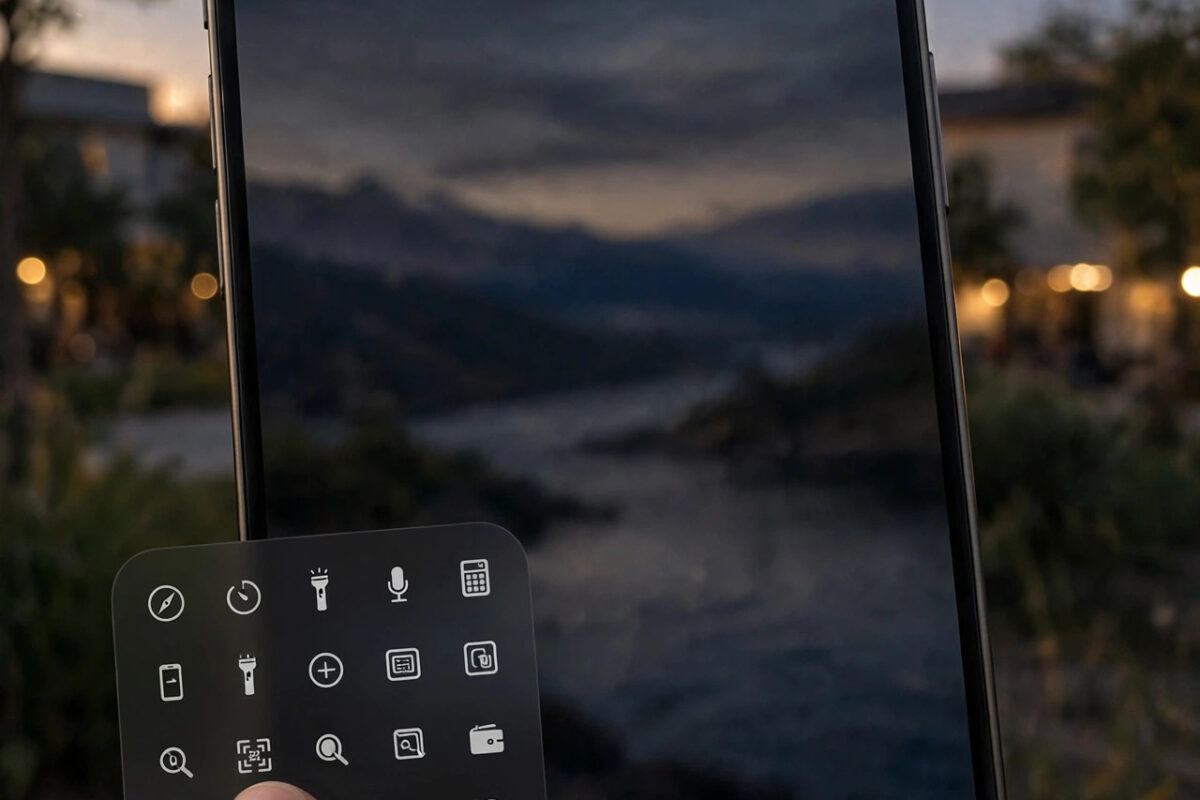
For years, the two buttons in the bottom corners of the iPhone lock screen were fixed: flashlight on the left, camera on the right. Handy, but not everyone uses them, and accidental flashlight activations in pockets became a running joke.
Recent iOS versions changed that. On supported iPhones you can now replace those two shortcuts with controls you actually want, from opening your notes or starting a voice memo to launching the remote for your TV or turning on Low Power Mode.
This guide shows how to swap the shortcuts, which controls you can choose, and what your options are if your iPhone or iOS version does not offer the feature yet.
Quick Answer
To change the lock screen shortcuts, unlock your iPhone, touch and hold the lock screen, tap Customise, then Lock Screen. Tap the minus badge on a corner button to remove it, tap the empty circle, and choose a new control from the gallery, such as Calculator, Translate or a favourite app shortcut. Tap Done to apply. This needs a recent iOS version; older versions keep the fixed flashlight and camera buttons.
Change the Shortcuts Step by Step
The editing happens inside the lock screen customiser, the same place you change wallpapers and widgets. Face ID needs to unlock the phone before the editor opens.
- Wake the iPhone and let it unlock with Face ID, staying on the lock screen.
- Touch and hold the lock screen until the customisation view appears.
- Tap Customise, then tap Lock Screen.
- Tap the minus badge on the bottom-left or bottom-right button to remove that shortcut.
- Tap the now-empty circle with the plus sign.
- Browse or search the Controls gallery and tap the control you want.
- Repeat for the other corner if you like, then tap Done.
The change applies to that lock screen design. If you keep several lock screens linked to Focus modes, each one can carry different shortcuts, for example a voice recorder at work and a flashlight at home.
Useful Controls to Put There Instead
The gallery includes system controls and, on newer versions, shortcuts to apps and actions. Think about what you reach for in the first seconds after picking up the phone.
- Calculator: faster than unlocking and finding the app, and a classic mis-tap replacement for the camera.
- Voice Memos or a new note: capture a thought before it evaporates.
- Translate: brilliant while travelling, straight from the lock screen.
- Remote: control an Apple TV without hunting for the physical remote.
- Low Power Mode, Dark Mode toggle, or an accessibility shortcut such as Magnifier.
- Open App or a Shortcuts automation: on the newest iOS versions you can launch a chosen app or run a custom shortcut directly.
You can also remove a button entirely and leave the corner empty, which some people prefer for a clean look and zero accidental activations.
If Your iPhone Does Not Offer This Feature
Custom lock screen controls arrived with a recent iOS generation and require a reasonably modern iPhone. If the minus badges never appear, one of these is likely:
- Your iOS is too old. Update in Settings, General, Software Update; the feature comes with the newer versions such as iOS 26 and iOS 27.
- Your model is too old to receive those updates, in which case the flashlight and camera buttons remain fixed.
- The phone is managed by an employer whose policy locks the lock screen layout.
Even without custom buttons, the defaults are not useless: a long press on the camera button opens the camera instantly, and swiping left on the lock screen does the same, while the flashlight can be added to Control Center for quick access with different gestures.
Stop Accidental Flashlight and Pocket Presses
Half the reason people want this feature is accidental activations: the flashlight turning on in a pocket, draining battery and warming a leg. A few settings help regardless of which shortcuts you choose.
- Replace the flashlight corner with a harmless control like Calculator, which does nothing embarrassing in a pocket.
- Turn off Tap to Wake in Settings, Accessibility, Touch if your screen wakes too easily against fabric.
- Use Raise to Wake thoughtfully; disabling it in Settings, Display and Brightness means the phone only wakes on a button press.
- A case with a raised lip over the screen reduces fabric contact and phantom touches.
If phantom presses are extreme (apps opening, random typing), the touchscreen itself may be faulty. That behaviour also causes disabled passcode lockouts, so get the screen checked rather than living with it.
Control Center: The Backup Route for Every Model
Whatever your lock screen buttons do, remember that Control Center offers the same tools and works on every iPhone. Swipe down from the top of the screen and you have flashlight, camera, calculator and more, and on recent iOS versions Control Center itself is customisable, with pages of controls you can add, remove and rearrange.
This matters for two groups: owners of older iPhones whose lock screen buttons are fixed, and anyone whose perfect shortcut does not exist in the lock screen gallery but does exist as a Control Center control. Between the lock screen corners and a well-organised Control Center, every frequent action can live within one gesture of picking the phone up.
To organise Control Center, open it, then long-press an empty area or use the edit control in the corner to enter edit mode, add the controls you use, and drag your top four into the first row. While you are customising, you may also like our guide to adding widgets to the iPhone lock screen, which covers the other half of lock screen personalisation.
Common Mistakes and Helpful Tips
- Changes are per lock screen. If your shortcuts seem to change back, you are probably switching lock screens through Focus modes; edit each design separately.
- You do not have to fill both corners. One button, or none, is perfectly fine.
- Shortcuts that open apps still respect app locks. If the app is locked with Face ID, you will be asked for your face after tapping.
- After a major iOS update, revisit the gallery. Apple adds new controls over time.
Apple’s guide to personalising the lock screen documents the controls feature. See the official Apple lock screen customisation page for the current steps and supported controls.
Conclusion
On a supported iPhone, swapping the lock screen shortcuts takes a minute: hold the lock screen, Customise, remove a corner button, and pick a better control from the gallery. Put the tools you actually use in those corners, or leave them empty to end pocket flashlight incidents forever. Older phones keep the classic flashlight and camera pair, but even there, Control Center access and wake settings give you most of the same convenience.
Frequently Asked Questions
Can I put any app as a lock screen shortcut?
On the newest iOS versions, yes, through the Open App control or a Shortcut that launches the app. Older supported versions limit you to the built-in controls list, which still covers the most common tools like Calculator, Translate and Voice Memos.
Why don’t I see the minus badges on my lock screen buttons?
Either your iOS version predates the feature, the phone has not been unlocked before editing, or you are editing the Home Screen wallpaper instead of the Lock Screen panel. Unlock with Face ID, hold the lock screen, tap Customise, and make sure you tap Lock Screen, not Home Screen.
Do the shortcuts work without unlocking the phone?
The controls themselves open without a full unlock for quick actions, which is their purpose. Anything sensitive behind them, such as a locked app or a payment action, still asks for Face ID or your passcode as normal.
Can I have different shortcuts at work and at home?
Yes. Shortcuts belong to the lock screen design, and lock screen designs can be linked to Focus modes. Build a work lock screen and a personal one with different corners, then link each to its Focus.
How do I get the flashlight and camera back?
Edit the lock screen again, remove the current corner controls, and choose Flashlight and Camera from the controls gallery. They are listed among the standard controls, so returning to the classic layout takes a few taps.



Leave a Reply