
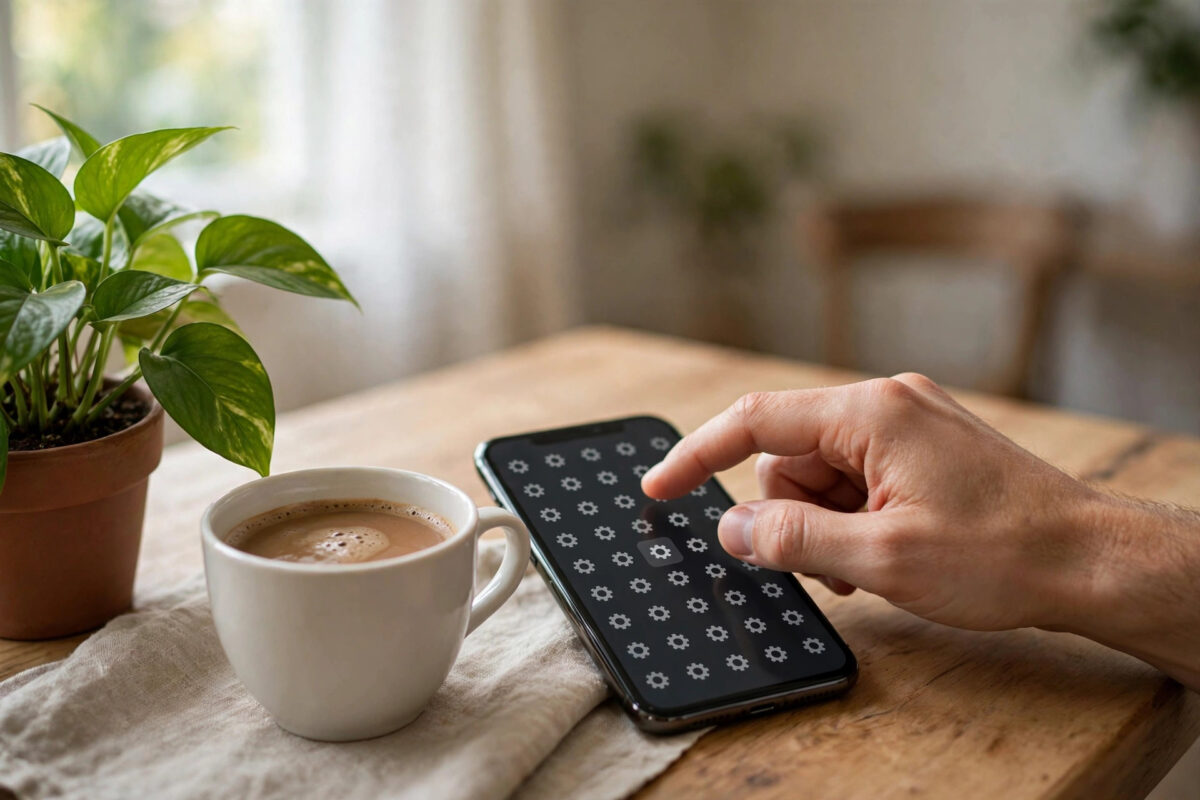
Wi-Fi calling lets your phone make and receive normal calls and texts over a Wi-Fi network instead of relying on mobile signal. It is a lifesaver in thick-walled buildings, rural homes, basements, and anywhere the signal bars drop to one. The feature is built into almost every modern smartphone — you just have to switch it on. This guide walks through activation on iPhone, Samsung, and other Android phones, plus what to do if the option refuses to appear.
Quick Answer
To activate Wi-Fi calling, on iPhone go to Settings, then Phone, then Wi-Fi Calling, and turn on “Wi-Fi Calling on This iPhone”. On Samsung, open the Phone app, tap the three-dot menu, then Settings, and switch on Wi-Fi Calling. On Google Pixel and most Android phones, go to Settings, then Network and Internet, then Calls and SMS, and enable Wi-Fi Calling. Your network must support the feature on your tariff for the option to work.
Before You Start: A Quick Checklist
- Compatible phone: iPhone 6s or later, and most Android phones from roughly 2018 onwards.
- Supporting network and tariff: most major networks include Wi-Fi calling free; some budget and prepaid brands still do not.
- Updated software: carrier settings that enable the feature arrive through system updates, so install any pending ones.
- A Wi-Fi network to test on — your home broadband is ideal.
- An emergency address: some networks ask you to register an address for emergency calls made over Wi-Fi, since Wi-Fi cannot pinpoint your location automatically.
How to Activate Wi-Fi Calling on iPhone
- Open Settings and tap Phone.
- Tap “Wi-Fi Calling”.
- Turn on “Wi-Fi Calling on This iPhone”.
- Tap Enable on the confirmation prompt; enter or confirm your emergency address if asked.
- Look for “Wi-Fi” next to your network name in the status bar or Control Centre — that confirms it is live.
Apple’s support page on making calls with Wi-Fi calling covers the same steps and explains the carrier requirements in detail.
How to Activate Wi-Fi Calling on Samsung Galaxy
- Open the Phone app.
- Tap the three-dot menu in the top corner, then Settings.
- Find “Wi-Fi Calling” and switch it on.
- Alternatively, swipe down the quick settings panel and tap the Wi-Fi Calling tile if it is present.
- Choose your calling preference: “Call over Wi-Fi” or “Call over mobile network” when both are available.
How to Activate Wi-Fi Calling on Google Pixel and Other Android Phones
- Open Settings, then Network and Internet.
- Tap “Calls and SMS” (on some phones, tap your SIM name instead).
- Tap “Wi-Fi Calling” and switch it on.
- Set the roaming and calling preference options if shown.
On dual-SIM phones, Wi-Fi calling is enabled per line — repeat the steps for your second SIM if you want both numbers to work over Wi-Fi. If you use two lines for different purposes, our guide on using two SIM cards with different data plans explains how the settings interact.
How to Test That It Works
Turn on Airplane Mode, then switch Wi-Fi back on while Airplane Mode stays active. This forces the phone to rely entirely on Wi-Fi. Now make a call — to voicemail is fine. If the call connects and sounds clear, Wi-Fi calling is fully working. Switch Airplane Mode off afterwards so your mobile signal returns. Also send a text message in the same test; on most networks SMS works over Wi-Fi calling too.
Troubleshooting: When the Option Is Missing or Fails
- No Wi-Fi Calling option anywhere: your network or tariff likely does not support it, or your phone model predates it. Confirm on your network’s help pages.
- Option appears but will not enable: restart the phone, update the software, and reset network settings as a last resort (this forgets saved Wi-Fi passwords).
- Works at home but not on public Wi-Fi: some public and office networks block the ports Wi-Fi calling needs; that is a network policy, not a phone fault.
- Calls keep dropping: your Wi-Fi signal is weak where you sit, or the router is overloaded. Move closer to the router, or prefer the 2.4 GHz band for range.
- Recently switched networks? The feature can take a few hours to provision on a new line — and if you ported your number, wait until the port completes.
Making Wi-Fi Calls Sound Their Best
Because your call now depends on your Wi-Fi, router habits matter. Stay within a room or two of the router for long calls, and if your home has both 5 GHz and 2.4 GHz networks, the 2.4 GHz band often gives steadier calls at distance thanks to its better range through walls, even though its top speeds are lower — a voice call needs very little bandwidth but hates dropouts. If calls at home are choppy while everything else streams fine, restart the router, check for firmware updates, and look for a setting called WMM or QoS that prioritises voice traffic.
Wi-Fi Calling and Emergency Services: What to Know
Emergency calls over Wi-Fi calling do connect, but location is the weak point: on mobile, the network positions you automatically; on Wi-Fi, services may only have the address you registered when enabling the feature. Keep that registered address current if you move house, and be aware that if the broadband or power fails, Wi-Fi calling fails with it — one reason to keep at least one mobile-signal option in the home for emergencies. None of this is a reason to avoid the feature, but it is worth the two minutes it takes to register your address properly during setup.
Quick Extra Tips After Activation
- Name your home network clearly in your saved Wi-Fi list, and set the phone to auto-join it — Wi-Fi calling only helps when you are actually connected.
- Disable “Ask to join networks” prompts if pop-ups interrupt you; the phone should sit quietly on your home Wi-Fi whenever you are in range.
- Keep your router’s firmware updated and restart it monthly; many “Wi-Fi calling is unreliable” stories end at a router that has been running untouched for two years.
- Tell your household it is on. Family members often assume calls fail in dead spots out of habit; once they know Wi-Fi calling is active, they stop walking to the garden to answer the phone.
- Re-test after changing broadband provider or router, since a new network setup can block the ports the feature uses — the Airplane Mode test takes thirty seconds.
Conclusion
Activating Wi-Fi calling takes less than two minutes: find the toggle in your phone or dialler settings, switch it on, register an emergency address if asked, and test it with Airplane Mode. From then on, your phone quietly uses Wi-Fi whenever mobile signal is weak — giving you clearer calls, fewer drops, and real savings compared with struggling on one bar of signal.
Frequently Asked Questions
Does Wi-Fi calling cost extra?
On most networks the feature is free, and calls are charged from your normal allowance at domestic rates. A small number of older tariffs exclude it, so check your plan details if unsure.
Can I use Wi-Fi calling abroad?
Yes, and on many networks calls back home over Wi-Fi are billed as domestic calls, which is a major saving. However, some networks block Wi-Fi calling outside your home country or bill it as roaming — verify before travelling.
Will Wi-Fi calling work for emergency calls?
Yes, but the emergency services may not receive your location automatically, which is why networks ask for a registered address. Wherever possible, keep mobile signal available for emergencies.
Why does my phone not switch to Wi-Fi calling automatically?
Phones generally prefer the mobile network while its signal is acceptable. If yours offers a “Calling preference” option, set it to prefer Wi-Fi. Otherwise it will only switch when the mobile signal falls below a threshold.
Does Wi-Fi calling drain the battery?
It typically uses less battery than a phone straining to hold a weak mobile signal, because Wi-Fi radios work efficiently at short range. In strong-signal areas the difference is negligible either way.

[…] of mobile signal. Enable it once in settings and the phone handles the rest. Our step-by-step on how to activate Wi-Fi calling on your smartphone covers iPhone, Samsung, and […]
[…] good, remember that Wi-Fi calling can rescue a network whose indoor signal is weak — our guide on activating Wi-Fi calling shows how little mobile signal you can get away with when your router carries the […]