
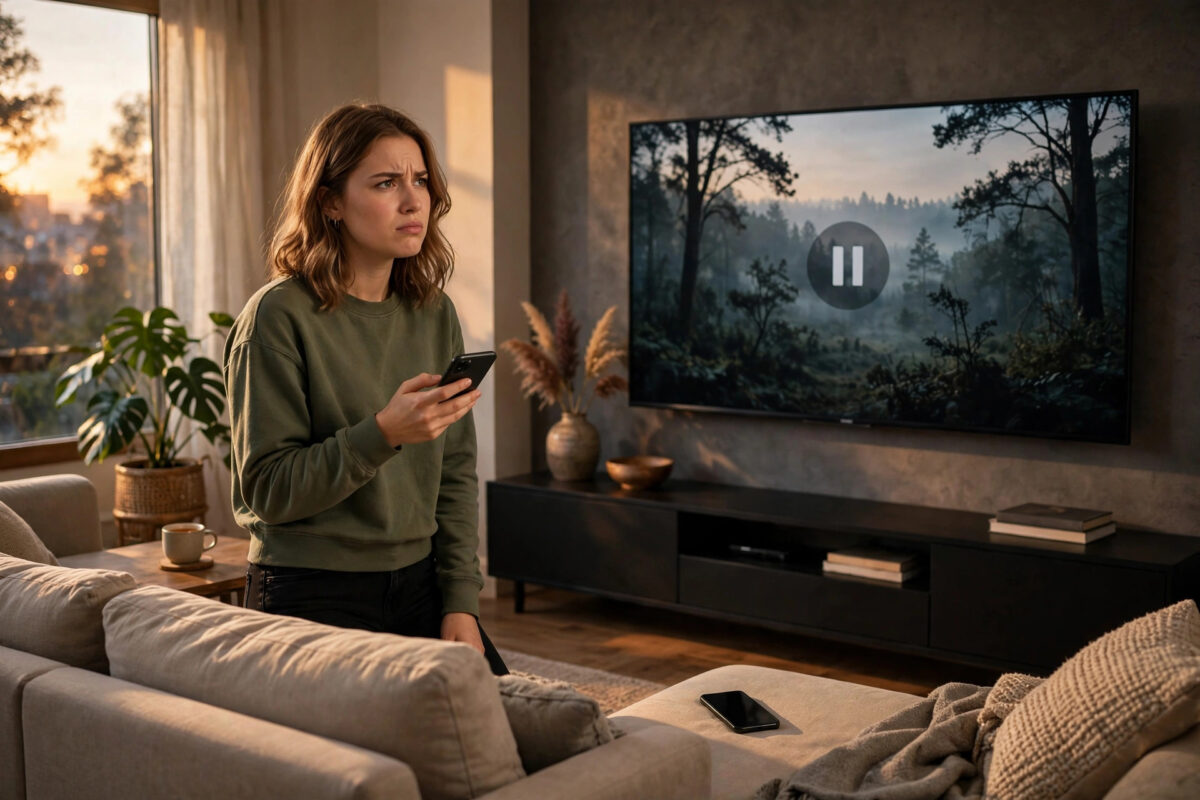
It can be annoying when someone else on your home network pauses your show, changes the volume, or casts a completely different video to your TV. A Chromecast is designed to be easy to control from any phone, tablet, or computer on the same Wi-Fi network, and that openness is both its best feature and its biggest weakness. The good news is that you can limit who controls it, remove unwanted control notifications, and make your whole network more private.
This guide explains why other people can control your Chromecast, which settings actually help, and which setting most people misunderstand. You will also learn stronger options, such as using a guest network or a separate network just for guests, so family movie night stays under your control.
Quick Answer
You cannot fully block other people on the same Wi-Fi network from casting to your Chromecast, because Chromecast is built to be shared by everyone on that network. To stop unwanted control, turn off media control notifications in the Google Home app, move guests onto a separate guest Wi-Fi network, and keep your main Wi-Fi password private. For complete privacy, put your Chromecast on a network that guests do not use.
Why Anyone on Your Wi-Fi Can Control Your Chromecast
When you set up a Chromecast, it joins your home Wi-Fi network like any other device. After that, Google’s casting system allows any compatible app on the same network to find it. There is no password for casting, no login on the TV screen, and no list of approved phones inside the standard settings.
This design makes sense in a living room. A partner can pause a film from their phone while your phone is charging. A child can cast a school video without asking you to sign in. The problem starts when the network is shared too widely, for example in a shared house, a student home, an office, or a home where guests have been given the main Wi-Fi password.
What Other People Can Actually Do
- Start a cast from YouTube, Netflix, Spotify, and other supported apps.
- Pause, play, skip, and change the volume of a cast that is already running.
- Stop your cast and replace it with their own content.
- See a notification on their phone about what is playing, unless you turn that notification off.
They cannot normally see your Google account password or your private files just by controlling the Chromecast. The risk is mainly about privacy, comfort, and control of the TV, not about hacking your account.
Step 1: Turn Off Media Control Notifications
The most common complaint is not casting itself. It is the notification that appears on every phone on the network saying what is playing and offering play, pause, and stop buttons. Turning this off stops people from controlling an active cast from their lock screen or notification panel.
- Open the Google Home app on your phone.
- Make sure you are signed in with the account that manages the home.
- Tap your Chromecast or your TV with Chromecast built in.
- Tap the Settings icon in the top corner.
- Open Recognition and sharing, or Device settings, depending on your app version.
- Turn off the option called Let others control your cast media.
- Go back and confirm the setting stays off.
After this change, other phones should no longer get the automatic media control notification. People can still open a casting app and connect on purpose, which is why the next steps matter. Google explains this setting in its official guide to Chromecast media control notifications.
Step 2: Move Guests to a Guest Wi-Fi Network
This is the strongest and cleanest solution for most homes. Most modern routers can create a guest network with its own name and password. Guests get internet access, but they cannot see or control devices on your main network.
- Open your router app or router settings page.
- Find Wi-Fi settings, Guest network, or Guest access.
- Turn the guest network on and give it a clear name, such as Home-Guest.
- Set a simple but strong password that is different from your main password.
- Make sure client isolation or AP isolation is on, if your router offers it.
- Connect visitor phones to the guest network only.
- Keep your Chromecast, your phone, and your family devices on the main network.
Once this is done, a guest can browse the web and use their own apps, but your Chromecast will not appear in their cast list. This follows the same principle as learning how to secure your home Wi-Fi network properly: separate trusted devices from visitor devices.
What If You Live in a Shared House?
In a shared house, a guest network may not be fair if everyone pays for the internet and everyone uses the TV. In that case, agree on a simple house rule, use separate Chromecast devices for separate rooms, or put a personal Chromecast in your bedroom on a small travel router with its own private network. A bedroom device should never need to be shared with the whole house.
Step 3: Remove People From Your Google Home
Being on the same Wi-Fi is one level of access. Being a member of your Google Home is another, higher level. Home members can change device settings, rename devices, and in some cases remove them. Check this list carefully.
- Open the Google Home app.
- Tap Settings, then open your home name.
- Open Household or Home members.
- Review every person on the list.
- Remove anyone who no longer lives with you or who does not need control.
- Confirm the removal.
Also check old phones and tablets signed in to your Google account. An old device left at a friend’s house should not keep control of your home devices.
Step 4: Change Your Wi-Fi Password If Too Many People Know It
If neighbours, old guests, or former housemates still know your main Wi-Fi password, no Chromecast setting will fully solve the problem. Changing the password is a bigger job because you must reconnect your own devices, but it gives you a clean start.
- Change the password in your router settings.
- Reconnect your phone, laptop, TV, and Chromecast first.
- Give the new password only to people who live in the home.
- Give all future visitors the guest network password instead.
Use a long password with a mix of words that is easy for you to type on a TV remote but hard for others to guess. Avoid names, birthdays, and your home address.
Step 5: Check Guest Mode and Nearby Device Settings
Some older Chromecast models offered Guest Mode, which let nearby people cast with a PIN without joining Wi-Fi. Google has removed or limited this feature on many newer devices, so you may not see it at all. If your device still shows Guest Mode in Google Home settings, turn it off unless you truly need it.
Also turn off Bluetooth and nearby sharing style options you do not use on the TV itself, especially on TVs with Chromecast built in. Menu names differ by brand, so look under Network, Casting, or Privacy settings on the TV.
Common Mistakes to Avoid
- Thinking the notification setting is a full block: Turning off Let others control your cast media stops notifications, but it does not stop manual casting from an app.
- Giving everyone the main Wi-Fi password: Once someone is on the main network, they are trusted by design. Use the guest network instead.
- Factory resetting for this problem alone: A reset puts the Chromecast back on the same shared network, so the same people can control it again.
- Leaving old home members in Google Home: Former housemates can keep more control than a normal Wi-Fi user.
- Buying a blocker app: Third-party apps cannot change how Chromecast discovery works on your network, and many ask for unsafe permissions.
Conclusion
A Chromecast is a shared device by design, so there is no single switch that makes it private while it stays on a shared network. Turn off media control notifications for quick relief, remove unwanted Google Home members, and move guests to a guest network for a real, lasting fix. Keep the main Wi-Fi password for people who live in the home, and your TV will stay under your control.
Frequently Asked Questions
Can I put a password or PIN on my Chromecast?
There is no built-in password for normal casting on the same network. Older models had a Guest Mode PIN for people off the network, but that is different from protecting the device from people already on your Wi-Fi.
Why does my neighbour see my Chromecast?
This usually means you share a network, your neighbour knows your Wi-Fi password, or you live in a building with a shared network, such as student housing. A private router or guest network setup usually fixes it.
Will turning off media controls stop casting completely?
No. It stops the automatic notification and its play and pause buttons on other phones. Someone on the same network can still open YouTube or another app and cast on purpose.
Can I allow only my phone to control the Chromecast?
Not with standard Chromecast settings alone. The closest real solution is a private network that only your phone and the Chromecast use, such as a main network that guests never join.
Does a VPN on my router hide my Chromecast?
A VPN changes how your traffic leaves your home. It does not normally stop local discovery between devices on the same Wi-Fi network, so it is not the right tool for this problem.



Leave a Reply