
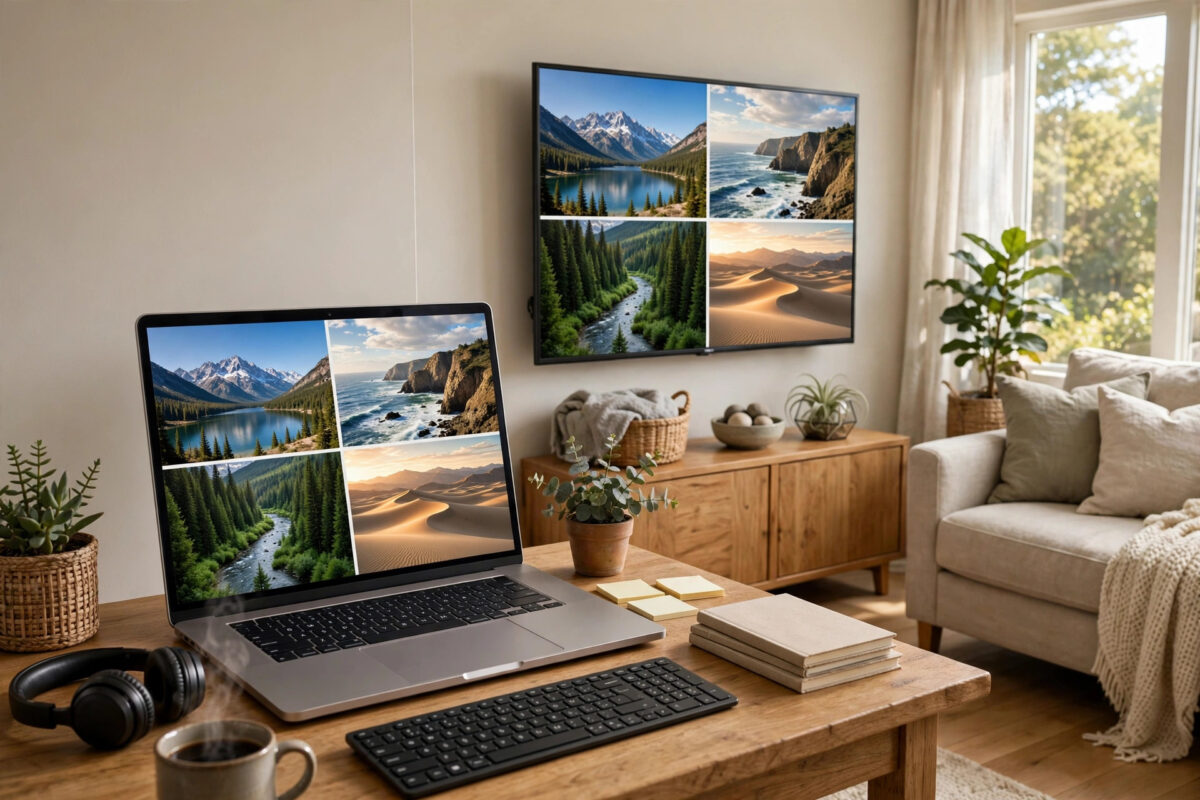
Sometimes the easiest way to show something on the big screen is not an app at all, but a tab in your Chrome browser: a website with no TV app, a document, a photo gallery, or a presentation. Casting a Chrome tab to your Chromecast takes seconds, and with the right settings the picture fills the whole TV instead of sitting in a small box with black bars.
Quick Answer
To cast a Chrome browser tab to your TV in full screen, connect your computer and Chromecast to the same Wi-Fi, open the tab in Chrome, click the three-dot menu and choose Cast, then select your Chromecast. Once it is casting, press the full screen button on the video or press F11 on Windows or Control plus Command plus F on a Mac to expand the browser, and in Chrome’s cast options choose to optimise for full screen video where offered. Keep the tab open and active while you watch.
What Tab Casting Can and Cannot Do
When you cast a tab, Chrome sends a live copy of that one tab to your TV. You can browse, scroll, and play videos, and the TV mirrors what happens in the tab. Your other tabs and your desktop stay private unless you choose to share them.
Quality depends on your computer and Wi-Fi. Text can look slightly soft, and fast video may not be as smooth as casting from an app like YouTube, where the Chromecast streams directly. For websites, documents, slides, and casual video, tab casting is ideal. Google explains the basics in its guide to casting a Chrome tab to your TV.
What You Need Before You Start
- A computer with the Google Chrome browser, updated to a recent version.
- A Chromecast plugged into your TV, powered on, and set up.
- Both the computer and the Chromecast on the same Wi-Fi network. A wired computer connection to the same router also works.
- No active VPN, because VPNs block local discovery.
- The TV switched to the HDMI input where the Chromecast is connected.
Do a quick test with a simple web page first if you have never cast before.
Step-by-Step: Cast a Chrome Tab
- Open Chrome and go to the page you want to show. Start the video or open the document now so it is ready.
- Click the three-dot menu in the top-right corner of Chrome.
- Choose Cast. In newer versions it may sit under Save and Share, then Cast.
- A list of available devices appears. Click your Chromecast name.
- The tab appears on your TV. A cast icon shows in the Chrome toolbar, and the tab itself gets a small indicator so you know which tab is being shared.
- To stop, click the cast icon and choose Stop casting, or close the tab.
You can use other tabs while casting, but do not close the casting tab or let the computer sleep. If your device is missing, work through our checks for why a Chromecast does not show up when you try to cast first.
How to Get a True Full Screen Picture
Casting the tab is only half the job. Out of the box, the TV often shows the page at the size of your browser window, with borders. These steps fill the screen properly.
Use the Video’s Own Full Screen Button
For video, this is the best method. Start casting first, then click the full screen icon in the video player on the web page. Chrome detects full screen video and can optimise the stream for the TV. A message may ask if you want to optimise full screen video for casting. Say yes. The TV then shows the video edge to edge while your computer screen can even be used for other things with minimal fuss.
Put Chrome Itself in Full Screen
For pages and slides, expand the browser instead. Press F11 on Windows or Control plus Command plus F on a Mac to hide toolbars. Press the same key again to exit.
Adjust Zoom to Fit the TV
Websites are designed for monitors at arm’s length, not TVs across a room. Use Ctrl plus the plus key on Windows, or Command plus the plus key on a Mac, to zoom in until text is comfortable to read. Zoom to 125 or 150 percent is common for living room viewing. The cast updates live, so you can judge the result on the TV as you adjust.
Match the Aspect Ratio
Black bars on the sides usually mean your browser window shape does not match your TV’s 16:9 shape. Making Chrome full screen on a 16:9 monitor fixes this. If you use an ultrawide or a square-ish external monitor, resize the Chrome window to a wide rectangle before casting, or move Chrome to a 16:9 display if you have one.
Casting a File, Your Screen, or Audio Instead
In the Cast menu, click Sources to change what you send:
- Cast tab: The default and best choice for web content.
- Cast screen: Shares your entire desktop. Useful for software demos, but everything is visible, including notifications, so tidy up first and consider Do Not Disturb mode.
- Cast file: Sends a local video or audio file from your computer without opening it in a tab. Handy for home videos stored on the hard drive.
Tab audio travels with the tab on Windows and ChromeOS. If sound still plays from your laptop speakers, check the system output device and make sure Chrome is not muted in the volume mixer.
Tips for Smooth, Good-Quality Casting
- Use a strong Wi-Fi signal: Tab casting streams from your computer through the router to the Chromecast, so both devices need good coverage. 5 GHz Wi-Fi is ideal when the devices are near the router.
- Close heavy tabs and apps: Your computer is doing live encoding work. Closing games, video editors, and dozens of tabs keeps the stream smooth.
- Plug in the laptop: Power-saving modes on battery can throttle performance and let the machine sleep mid-video. Connect the charger for longer sessions.
- Lower the source quality if it stutters: Dropping a video from 4K to 1080p in the player settings often fixes judder on tab casts, and on most TVs the difference is small.
- Prefer built-in casting for major services: For YouTube, Netflix, and similar services, casting from the service gives better quality than a tab cast, because the Chromecast streams directly. Use tab casting for everything else.
Troubleshooting Common Tab Casting Problems
The Picture Is Delayed Compared to the Sound
A small delay is normal because the computer encodes the picture live. It is fine for video, but an HDMI cable is better for gaming.
The Cast Stops When I Switch Tabs
Keep the casting tab in its own window and disable tab sleeping for it in Chrome settings if this repeats.
Full Screen Exits When I Click Something
Clicking a second monitor or pressing Escape exits full screen. Use the video player’s own full screen mode if you need to work meanwhile.
The TV Shows a Small Picture in the Corner
This is usually an aspect ratio or zoom issue rather than a fault. Make Chrome full screen, reset zoom to 100 percent, then zoom again while watching the TV. Also check the TV’s own picture size setting, which should be on 16:9 or Screen Fit rather than a zoomed mode.
Common Mistakes to Avoid
- Casting before going full screen: Set the video playing and ready, but use the player’s full screen button after casting starts so Chrome can optimise it.
- Closing the laptop lid: Most laptops sleep when closed, which ends the cast instantly.
- Leaving a VPN on: The Chromecast will not even appear in the device list until the VPN is off.
- Sharing the whole screen for a private demo: Notifications and messages will appear on the TV. Cast a single tab whenever possible.
- Expecting perfect 4K gaming: Tab casting has a delay and limited frame rate. Use it for viewing, not for fast interactive content.
- Ignoring Chrome updates: Casting features improve often. An old Chrome version is a common hidden cause of missing options.
Conclusion
Casting a Chrome tab to your TV is the fastest way to put any website, document, or video on the big screen. Connect both devices to the same Wi-Fi, choose Cast from Chrome’s menu, and select your Chromecast. For a true full screen result, use the video player’s full screen button so Chrome can optimise the stream, or put Chrome itself into full screen with F11 and adjust zoom until the page fits the TV comfortably. Keep the laptop awake and plugged in, and your tab will play smoothly for as long as you need it.
Frequently Asked Questions
Why is my casted tab not filling the whole TV screen?
The browser window shape or zoom does not match the TV. Put Chrome into full screen, reset zoom to 100 percent, then increase it gradually. For videos, use the player’s full screen button after casting so Chrome can optimise the picture for the TV.
Can I cast a Chrome tab from a phone?
Tab casting is a computer feature of the Chrome browser. On a phone, use the cast option inside apps, or cast your phone screen through the Google Home app, which achieves a similar result for web pages.
Does tab casting work without internet?
You still need your local Wi-Fi network running so the computer and Chromecast can talk to each other. Web content itself needs internet unless it is a local file, which you can send with the Cast file option.
Why is there a delay between my computer and the TV?
Your computer encodes the tab as a live video stream, which takes a fraction of a second. The delay is normal and fine for viewing, but it makes tab casting unsuitable for fast games or live drawing.
Can I cast one tab and work in another at the same time?
Yes. Only the tab you selected is sent to the TV. You can browse, write, or work in other tabs and apps freely. Just keep the casting tab open and prevent the computer from sleeping.



Leave a Reply