
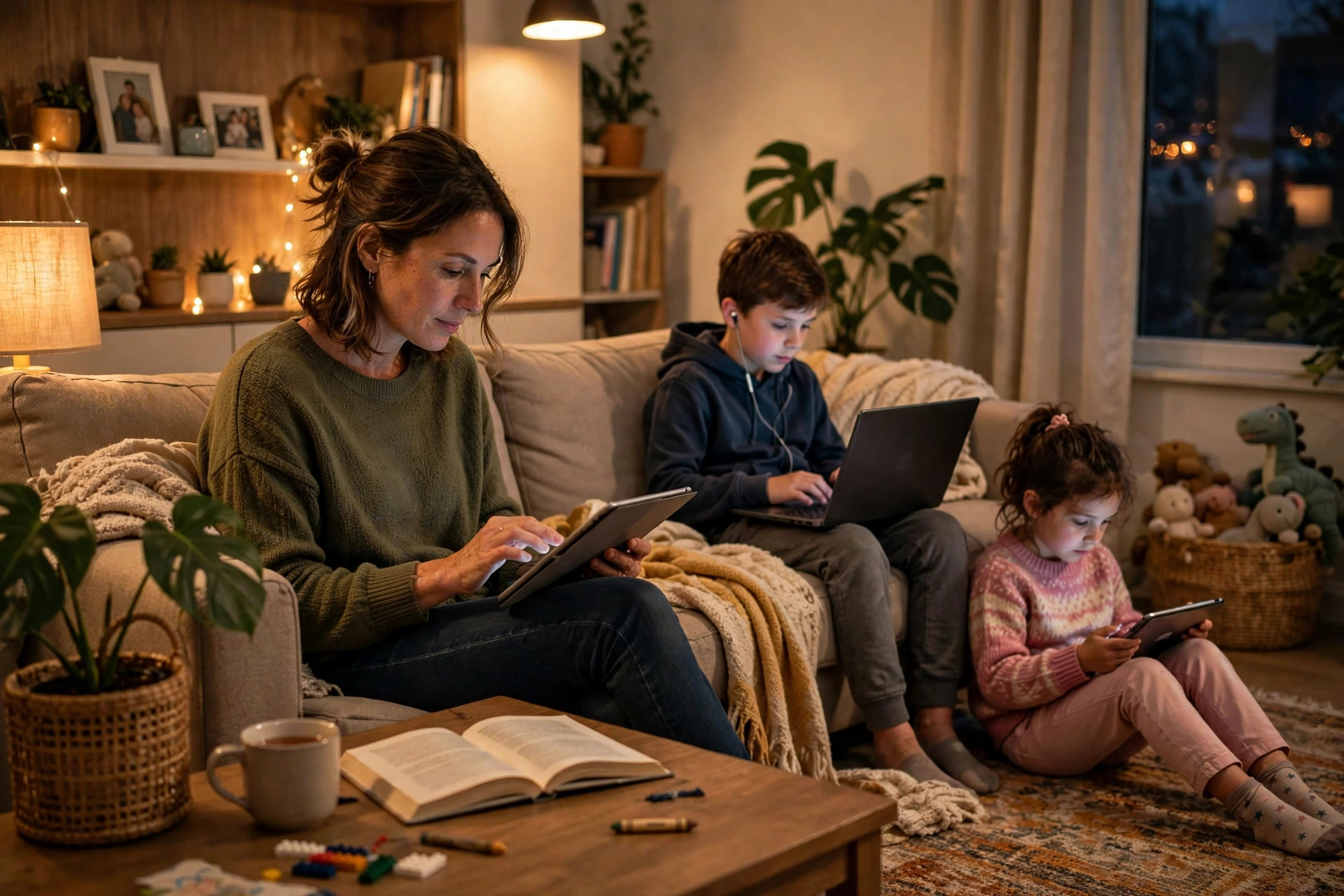
Every parent I speak to has the same worry in a slightly different form: the Wi-Fi reaches every corner of the house, the children know how to use it better than the adults do, and the controls — if they exist at all — are buried in a router menu nobody has opened since the engineer left. The good news is that modern home Wi-Fi gives you far more control than you might expect, and you do not need to be a network engineer or buy expensive software to use it well.
This guide walks you through setting up parental controls properly, layer by layer: on the router itself, through family-friendly DNS filtering, and on the devices your children actually use. I will cover schedules, content filtering, pausing the internet at bedtime, and the honest limits of what technology can and cannot do. The aim is a setup that protects younger children reliably, gives teenagers sensible boundaries, and does not make you the full-time IT department of your own home.
Start With a Plan, Not a Password
Before you touch a single setting, decide what you are actually trying to achieve, because the right tools depend on the goal. Most families want some combination of four things: blocking adult and dangerous content, enforcing bedtimes and screen-free hours, seeing roughly what devices are doing online, and pausing access instantly when needed — at homework time or the dinner table, for example.
Write down every device each child uses: phone, tablet, laptop, console, smart TV, and that old hand-me-down handset. Controls fail most often because one forgotten device was never covered. Controls also work far better when children understand the rules; secret surveillance of teenagers usually backfires.
Layer 1: Parental Controls Built Into Your Router
Router-level controls are the foundation because they cover every device on the network at once, including consoles and TVs that have weak controls of their own. The exact menus differ by brand, but the setup pattern is consistent.
- Log in to your router admin page — commonly 192.168.1.1 or 192.168.0.1 — using the admin password on the router sticker if you have never changed it. Change that password now if it is still the default; your children can find default passwords online in seconds.
- Find the parental controls section. On TP-Link it is Parental Controls or the HomeShield / Tether app profiles. ASUS places it under AiProtection > Parental Controls. Netgear uses Parental Controls or the Smart Parental Controls subscription in the Orbi and Nighthawk apps. Google Nest Wifi and many mesh systems manage everything through an app with named family profiles. ISP routers from BT, Sky, and Virgin Media include broadband-level controls in their apps or online accounts — BT Smart Hub controls and Sky Broadband Shield are good examples.
- Create a profile for each child and assign their devices to it. Identify devices by name where possible — most routers list connected clients — and rename anything cryptic so you can recognise it later.
- Set a schedule. A typical school-night pattern blocks internet access from 21:00 to 07:00 for younger children and 22:30 to 06:30 for teenagers. Add a separate, looser weekend schedule rather than editing the weekday one every Friday.
- Turn on content filtering by category if your router offers it: adult content, gambling, social media, gaming, and streaming are the usual groups. Start with the categories you genuinely care about rather than blocking half the internet on day one.
- Save the settings, then test from the child’s own device — not yours — to confirm the schedule and filtering behave as expected.
Mesh systems make this genuinely easy. Google Nest, Amazon eero, or TP-Link Deco apps offer one-tap pausing, per-person profiles, and bedtime schedules without a traditional admin page. If you struggle to identify devices, our practical guide to checking which devices are connected to your Wi-Fi will help you label everything correctly before you build profiles around them.
Layer 2: Family DNS Filtering for the Whole House
Even if your router has no parental controls at all, you can add house-wide content filtering in five minutes by changing the DNS servers the router uses. Family DNS services automatically refuse to resolve known adult, malware, and phishing domains, so the block happens before the page ever loads.
The simplest options are Cloudflare’s family addresses — primary 1.1.1.3 and secondary 1.0.0.3, which block malware and adult content — and OpenDNS Family Shield on 208.67.222.123 and 208.67.220.123, which is preconfigured to block adult domains with no account required. To use either, log in to your router, find the DNS fields under Internet, WAN, or DHCP settings, switch from automatic to manual, and enter the pair of addresses. The official Cloudflare router setup instructions for 1.1.1.1 for Families walk through the same steps brand by brand, and Microsoft’s Microsoft Family Safety support pages are a useful companion if your children mainly use Windows devices and Xbox.
Understand the limits: DNS filtering blocks whole domains well but cannot filter within a site — it cannot allow YouTube but block specific channels — and it does nothing on mobile data. Treat it as a safety net, not a complete solution.
Layer 3: Controls on the Devices Themselves
Device controls travel with the child — to a friend’s house, the school run, and mobile data — which router controls cannot do. This layer matters most for phones and tablets.
Android and Google Family Link
Google Family Link lets you approve or block apps, set daily limits and bedtime, filter Chrome and Google Search, and see location. Install Family Link on your phone, create or supervise your child’s Google account, and configure limits together.
iPhone, iPad, and Screen Time
Apple’s Screen Time, found under Settings, does the same job: downtimes, app limits, communication limits, and content restrictions, all protected by a separate Screen Time passcode. Set that passcode to something your child cannot guess and do not reuse your phone unlock code. Enable Content & Privacy Restrictions to limit adult websites in Safari and prevent app installation without approval.
Consoles, TVs, and laptops
PlayStation, Xbox, and Nintendo Switch all have family apps with play-time limits and age ratings — use them. On Windows, Microsoft Family Safety adds web filtering in Edge; on Chromebooks, Family Link is built in. For smart TVs, set the PIN and use kids profiles on streaming apps.
Bedtime Schedules and the Pause Button That Actually Work
The most valued feature in real families is not filtering — it is the pause. Practise using it before you need it. Combine pausing with a predictable schedule: internet that stops at the same time each night quickly becomes routine rather than a nightly negotiation.
Give school laptops and your own work devices an unrestricted profile, so a bedtime schedule never blocks homework or your evening work call. Warn the household before any big change takes effect.
Common Mistakes and Useful Tips
- Relying on one layer only. Router controls fail on mobile data; device controls can be reset if you skip the passcode. Layering router, DNS, and device settings is what makes the system robust.
- Leaving the router admin password on default. This is the master key to every control you set. Change it, store it in a password manager, and do not write it on the router itself.
- Forgetting the guest network. If your guest Wi-Fi has no schedule, it becomes the children’s private back door. Apply the same rules to it, or turn it off when visitors leave.
- Blocking without explaining. A short, calm explanation of the rules — and a review date when an older child can earn more freedom — prevents most circumvention attempts better than any filter.
- Never reviewing the setup. Revisit profiles every few months. Devices change, children grow, and a filter set for a nine-year-old is wrong for a thirteen-year-old.
Conclusion
Setting up parental controls on your home Wi-Fi is not one setting but a sensible stack: profiles and schedules on the router, family DNS filtering as a house-wide safety net, and proper supervision tools on each phone, tablet, and console. Start with the router this evening — change the admin password, build a profile per child, set a bedtime schedule — then add the DNS addresses and device controls over the weekend. Test everything from your child’s device, explain the rules clearly, and review them as your children grow. Done this way, the technology quietly does its job and family life, not filter settings, stays at the centre of the conversation.
Frequently Asked Questions
Can my child bypass Wi-Fi parental controls with mobile data?
Yes — router and DNS controls only apply on your home Wi-Fi. Using 4G or 5G sidesteps them entirely. That is why device tools such as Family Link and Screen Time, which apply on any connection, are an essential second layer.
What is the easiest parental control for a non-technical parent?
A mesh app such as Google Home, eero, or TP-Link Deco is the friendliest route: create a profile, add the child’s devices, and set a bedtime with sliders. Adding Cloudflare family DNS, 1.1.1.3 and 1.0.0.3, gives filtering with almost no effort.
Will parental controls slow down our internet?
No. Schedules and profile rules add no measurable overhead, and family DNS services are as fast as standard resolvers. If the internet feels slow after setup, the cause is almost certainly something else, such as a device updating.
How do I stop my teenager from factory-resetting the router?
Keep the router somewhere sensible, change the admin password from the default, and check whether your model logs resets or sends app notifications. More importantly, agree rules openly — technical arms races with teenagers are rarely won by hardware alone, and a reset that wipes everyone’s settings tends to be a one-time experiment when the consequences are clear.
Should I monitor everything my child does online?
For young children, active supervision and filtering are appropriate. As they grow, shift gradually from monitoring to mentoring: keep safety filters and bedtime rules, review summaries together occasionally, and build the judgement they will need when no filter is present.



[…] discover the value of schedules and limits — the same router area covered in our guide on setting up parental controls on your home Wi-Fi can help you manage the greediest […]
[…] also help you act on what you find. Using parental controls on your home Wi-Fi to set limits and schedules is especially useful for pausing streaming devices and consoles late at […]