
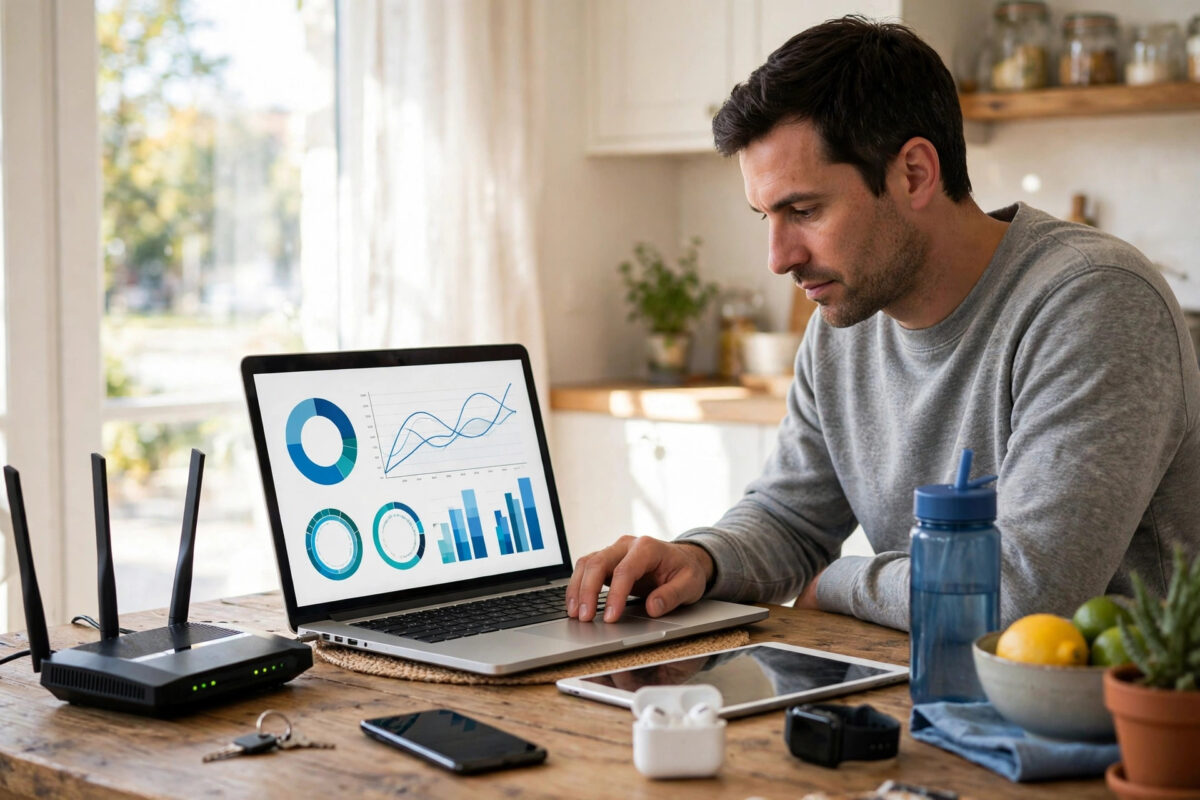
Most households have no idea how much data they use until something forces the question — a new plan with a cap, a warning from their provider, or a mobile broadband bill that makes no sense.
The truth usually surprises people in both directions. Streaming in 4K eats data at a startling rate, while everyday browsing uses almost nothing. This guide shows you where to find your real monthly total, and how to work out which devices are responsible.
Quick Answer
Check your provider’s app or online account first — most show your total monthly usage for the whole household. Then check your router’s traffic statistics page, and individual devices such as Windows PCs, phones and games consoles, to see what used it. A typical streaming household uses 300 to 600 GB per month; heavy 4K homes can pass 1 TB.
Start With Your Provider’s Own Figures
Your internet provider measures every byte that crosses your line, because that is how capped plans are billed. Their figure is the most complete one available, since it covers every device at once.
- Log in to your account: Open your provider’s app or website account page and look for Usage, Data or My Broadband sections.
- Find the monthly total: Most providers show the current month and several past months, in gigabytes (GB).
- Check the billing period: Note the exact start and end dates, because a billing month rarely matches the calendar month.
- Ask if you cannot find it: Support can give you the last three months of usage over chat or phone, and that history is exactly what you need before choosing a new plan.
If your plan is genuinely unlimited, the provider may not display usage prominently. In that case, your router and devices become the main source — and the methods below will still give you a reliable picture.
Check Usage in Your Router
Most modern routers count traffic per device. This is the best way to answer the follow-up question every household asks next: yes, but what on earth used all of that?
- Log in to the router: Type 192.168.0.1 or 192.168.1.1 into a browser and sign in with the admin details, usually printed on the router’s label if you have never changed them.
- Find traffic statistics: Look for menus named Traffic, Statistics, Bandwidth Monitor or Connected Devices. Names vary by brand, but the page is almost always there.
- Read per-device totals: Note the download and upload figures for each device. A television at 280 GB and a console at 190 GB tells a very clear story.
- Reset and monitor for a month: Many routers let you reset the counters. Do it on your billing start date, then check weekly, so you see your real pattern instead of a lifetime total.
- Set controls if needed: This is also where many families discover the value of schedules and limits — the same router area covered in our guide on setting up parental controls on your home Wi-Fi can help you manage the greediest devices.
One warning: router counters often reset when the router reboots or updates its firmware. If your totals suddenly look impossibly small, a quiet overnight restart is the likely explanation, not a data miracle.
Check Usage on Individual Devices
Device figures help you verify the router’s story and catch things the router groups together. They are also the only option if your router has no traffic page.
On a Windows PC
- Open Settings: Go to Network and Internet, then Advanced network settings, then Data usage.
- Read the 30-day total: Windows shows usage per network and per app for the last 30 days, so you can see whether it was a browser, a game launcher or cloud storage.
- Set a limit if needed: On a capped connection you can enter a data limit and Windows will warn you as you approach it. Microsoft’s own Microsoft Support pages on Windows data usage settings explain the current menus for your version.
On Phones and Tablets
On Android, open Settings, then Network and Internet, then Internet or Data Usage, to see totals by app for Wi-Fi and mobile separately. On an iPhone, mobile data per app is under Settings and Mobile Data, though Wi-Fi totals are not shown in the same way.
Phones matter more than people expect. A phone backing up 4K video over Wi-Fi every night, plus app updates and social video, can quietly account for 40 to 80 GB in a month.
On TVs, Consoles and Smart Devices
Smart TVs rarely show their own totals, so use the router figures for them. Games consoles do show download history in their storage and network settings, and their numbers are often shocking — a single modern game can be 100 to 150 GB, with a 20 GB update a month later.
Cameras and doorbells upload rather than download. One camera uploading motion clips all day can use 20 to 60 GB of upload a month, which matters greatly on plans with modest upload or a combined cap.
What Normal Usage Actually Looks Like
Context turns a scary total into a sensible plan. These are realistic figures based on typical service rates, not worst cases.
- 4K streaming: Roughly 7 to 16 GB per hour depending on the service. Two hours a night is about 420 to 900 GB a month.
- HD streaming: About 3 GB per hour, so two hours nightly is roughly 180 GB a month.
- Video calls: Around 1 to 2.5 GB per hour for HD group calls, counting both directions.
- Online gaming: Play itself is light, often under 0.3 GB per hour — the downloads and updates are the real cost.
- Browsing and email: Usually under 10 GB per person per month. Text is tiny; it is video inside social apps that adds up.
- Music streaming: About 0.1 to 0.2 GB per hour at high quality, so even daily listening stays modest.
Add a household together honestly. Two adults working from home, two televisions streaming in the evening, and one gaming teenager will commonly land between 600 GB and 1.2 TB a month — perfectly normal figures that would destroy a 100 GB capped plan in days.
How to Track Usage Going Forward
- Pick one main source: Use your provider total as the official figure and your router for the per-device breakdown.
- Check on the same date monthly: Align with your billing cycle, take a screenshot, and keep a simple running note. Three months gives you a trustworthy average.
- Set alerts where available: Many providers and routers can email or notify you at 75 and 90 percent of a cap.
- Act on the biggest item first: Lowering one television from 4K to HD saves far more than obsessing over browsing or email.
Tips That Actually Help
Reduce streaming quality on smaller screens. On a bedroom television or tablet, HD looks almost identical to 4K but uses about a quarter of the data. Set those devices to HD or Auto in each streaming app.
Download on Wi-Fi, in advance. Films for a journey, music and game updates should all be fetched at home on your main connection, not over a capped mobile or travel plan at the last minute.
Watch automatic game updates. Consoles downloading every update for every game is the most common cause of a mysterious 300 GB month. Delete games nobody plays and review update settings.
Check upload too. Cloud photo backups and cameras send data all month. If your cap counts both directions, upload is not free — schedule big backups sensibly and review camera recording settings.
Conclusion
Finding your household’s real usage takes about fifteen minutes: provider account for the total, router for the per-device breakdown, and a quick look at any device the router cannot explain. No guessing is required.
Once you know your true monthly figure, choosing a plan becomes simple arithmetic instead of a sales pitch. Buy for the household you actually are — with headroom — and data anxiety disappears.
Frequently Asked Questions
How much data does an average household use per month?
Most connected households use roughly 300 to 600 GB a month. Homes with several 4K televisions, home workers and gamers commonly use 800 GB to 1.5 TB, while a single person who mainly browses and streams in HD may use under 150 GB.
Does streaming count as download or upload?
Almost entirely download. Watching Netflix or YouTube pulls data into your home. Live streaming your own video, video calls and security cameras are the activities that use significant upload.
Can I check usage if my provider does not show it?
Yes. Use your router’s traffic statistics for the household and per-device view, then check Windows, Android and console settings for detail. Reset the router counters at the start of a month for the cleanest measurement.
Why did my usage suddenly double one month?
The usual causes are a new games console or large game download, a television switched to 4K, a cloud backup starting for the first time, or a visiting guest’s devices. Check the router’s per-device list first — the answer is normally obvious.
Is 500 GB a month enough for a family?
It can be, if most streaming is HD and game downloads are occasional. With daily 4K streaming on more than one screen plus home working, most families will exceed 500 GB, so an unlimited plan is usually better value and removes the worry entirely.



Leave a Reply