
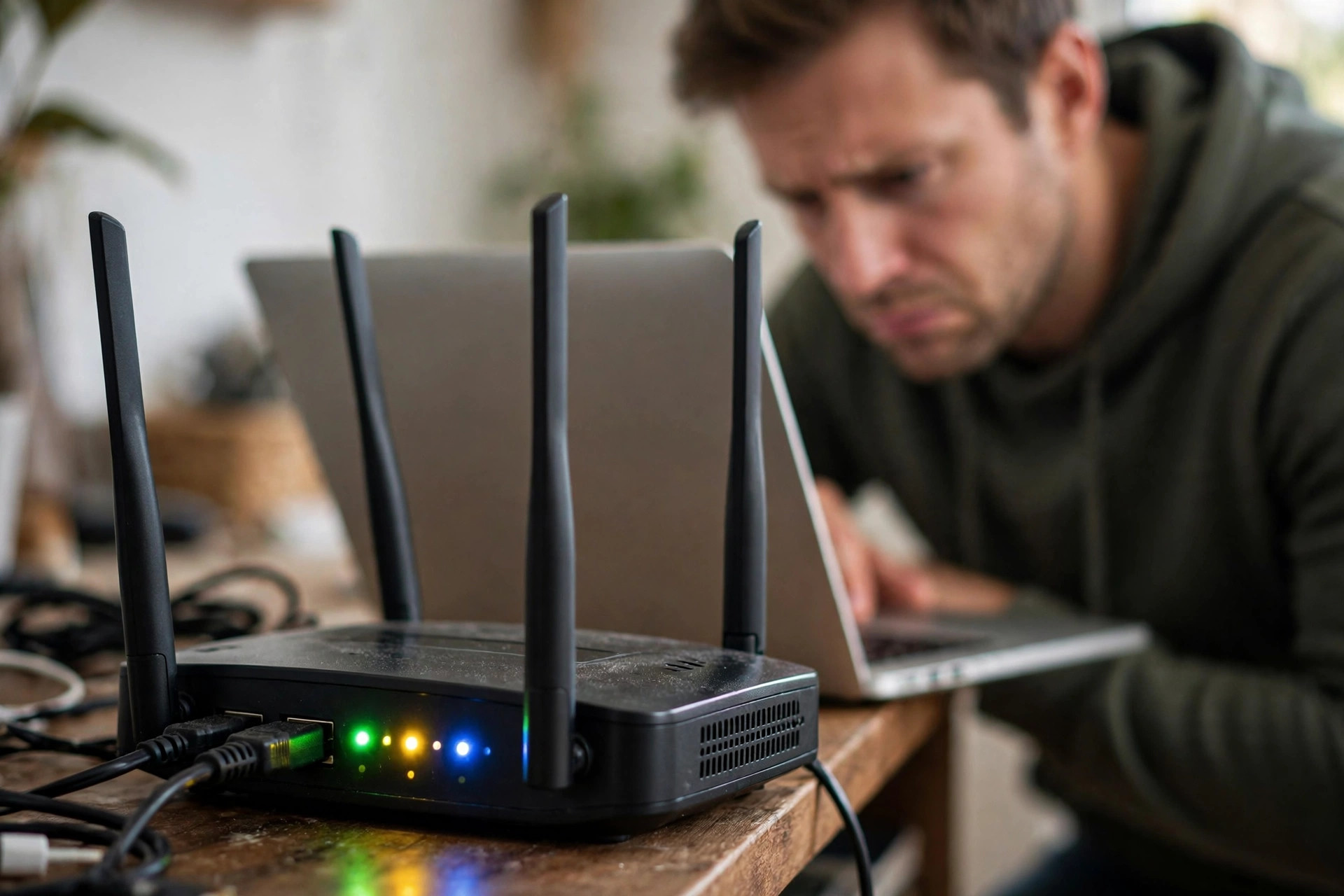
Few problems are as maddening as a router that reboots itself whenever it pleases. The video call freezes, the lights blink through startup, and two minutes later everything works — until the next time. Many people live with it for months, assuming it is normal. It is not. A healthy router should run for weeks without restarting.
In this guide I cover the nine most common causes, from the simple to the terminal, and how to diagnose each in order. Work through them one change at a time, and you will usually fix it within an hour or gather the evidence to get your provider to replace the box.
First, Confirm It Really Is Restarting
Make sure the router itself is rebooting, not just the connection dropping. Watch the lights: during a true restart, all lights go off or turn red, then cycle through power, broadband, internet, and Wi-Fi as at switch-on. If lights stay solid and only devices lose connectivity, you have a Wi-Fi or line problem instead.
Note the time of each restart for a day or two. Same-time daily restarts suggest a schedule or update window. Restarts under heavy load point to heat or power. Random, increasingly frequent restarts often mean ageing hardware. Check the system log under Advanced > System Tools > System Log — repeated boot entries confirm and timestamp it.
Cause 1: Overheating — The Most Common Culprit
Routers are small, fanless computers running twenty-four hours a day, and heat is their quiet enemy. When temperature climbs too high, the chipset shuts down or restarts to protect itself. Overheating explains a router that behaves in the morning and falls over on busy evenings.
Check where it lives. Behind a TV, stacked on a console, in a closed cabinet, or in direct sunlight are all recipes for thermal restarts. Keep vents — usually sides or underside — clear. Move it into open air, stand it correctly, raise it slightly if underside vents are blocked, and vacuum dust gently. Monitor for forty-eight hours. This single change often cures years of reboots, and it costs nothing.
Cause 2: A Failing or Wrong Power Adapter
Adapters age, their output sags under load, and the router — which draws more power when Wi-Fi is busy — browns out and restarts. Loose connectors and damaged cables cause the same symptom.
Inspect the adapter for heat, swelling, or fraying. Check the label: voltage and polarity must match the router exactly, and amps must be at least what it requires. After a house move, a similar-looking adapter from another gadget often ends up powering the router at the wrong rating. Swap in a matching spare as a test if you have one. Never use higher voltage — that can kill the router. Plug directly into a wall socket for testing, ruling out a tired extension strip.
Cause 3: Firmware Bugs and Failed Updates
Buggy firmware crashes. A router that began restarting after an automatic update — or one on very old firmware — is a prime suspect. Corrupted settings after an update can do the same.
Log in, note the firmware version, and check the manufacturer’s site for a newer release. Update on a wired connection, never interrupt power, and follow instructions exactly. Providers such as TP-Link’s official support and FAQ library publish model-specific update steps. If restarts began right after an update, a factory reset and fresh setup — rather than restoring an old backup — often clears corrupted configuration. Write down broadband details, Wi-Fi names, and passwords first, and reapply custom settings such as port forwarding afterwards.
Cause 4: Your ISP Is Restarting It Remotely
Provider routers are managed devices. Your ISP can push updates, configuration changes, and reboots, usually overnight but not always. Line faults can also make the router retrain repeatedly — from the sofa, identical to a full reboot.
Distinguish them by lights and log. A retrain cycles only the broadband or internet light while Wi-Fi stays up. A full reboot kills everything. If restarts cluster overnight, check for an automatic update setting and note times before calling your provider — dates and frequency help them check line errors far more effectively. Our safe firmware update guide for home routers also explains which update settings you control and which belong to your provider.
Cause 5: Electrical Problems in the Home
Routers are sensitive to poor power. A circuit shared with a fridge, boiler pump, or washing machine can dip when the appliance cycles, restarting a router other devices would shrug off. Failing extension leads and smart plugs with their own schedules are frequent offenders.
Test by moving the adapter to a different wall socket on a different circuit for two days, plugged in directly. If restarts follow the socket, you have your answer. A small UPS is worthwhile if your home suffers frequent flickers.
Cause 6: Too Much Load and Too Many Devices
An older router serving thirty-plus devices — phones, laptops, smart plugs, cameras, TVs, and consoles — can run out of memory and restart under peak load. Heavy logging, elaborate parental controls, or misconfigured QoS add to the strain.
Watch whether restarts coincide with busy moments. Try disabling non-essential extras and splitting smart devices onto 2.4GHz for a test evening. If stability returns, the router is out of its depth — upgrade to a modern router or mesh system, or ask your provider for a newer hub. Microsoft’s guidance in its Windows Wi-Fi troubleshooting documentation makes the same point from the device side: eliminate the simple bottlenecks first before assuming the worst.
Cause 7: Cables, Splitters, and Line Faults
On DSL, poor wiring is a classic trigger: a damaged microfilter, corroded socket, or chewed cable fills the line with errors until the router resyncs. On fibre and cable, a loose connector or kinked lead does similar damage.
For a clean DSL test, connect the router to the master socket’s test port with a known-good filter and the supplied short cable, disconnecting extensions for twenty-four hours. If stability improves, the fault is your internal wiring. Replace suspect cables one at a time — they are cheap, and intermittent cable faults waste huge diagnostic time.
Cause 8: Scheduled Reboots and Forgotten Automations
Sometimes the router is doing exactly what it was told. Many models include a scheduled reboot feature under System Tools or Administration. A smart plug set to power-cycle at midnight will restart the router with everything else. Check both. A restart at precisely the same minute daily is almost never hardware failure; it is a timetable, and timetables can be switched off.
Cause 9: The Router Is Simply Dying
Hardware wears out. Capacitors age, especially in warm rooms, and a router run continuously for five or six years may decline into increasingly frequent restarts. Warning signs: restarts even in cool air on a good adapter, excessive heat at idle, discoloured casing, or settings reverting after reboot.
If yours is provider-supplied, present your log and tests and request a replacement — providers do this routinely with clear evidence. If it is your own and out of warranty, replacement beats repair. Choose a current Wi-Fi 6 or 6E model for stability and better handling of many devices.
Common Mistakes and Useful Tips
- Changing five things at once. You will fix the problem and never know how — or make it worse and not know why. One change, then observe for at least a day.
- Ignoring the power adapter. Swapping in the correct, healthy adapter is a five-minute test that solves a surprising share of cases. Do it early, not last.
- Resetting before recording settings. Photograph your key admin pages before any factory reset so rebuilding your setup takes minutes, not an evening.
- Accepting restarts as normal. A daily reboot is a fault report waiting to be filed, not a personality trait. Keep the timestamped log; it transforms support calls.
- Cooling with a fan permanently. If a router only survives with a fan blowing on it, the router is failing. Use the fan as a diagnostic clue, not a life-support system.
Conclusion
A restarting router is telling you something specific — it is too hot, badly powered, running buggy firmware, disturbed from the line side, overloaded, or wearing out. Confirm it with lights and log, work through heat and power first, then firmware, cabling, and load. In most homes the fix is a moved router, a swapped adapter, or a clean firmware setup — and the reward is a connection that simply stays up.
Frequently Asked Questions
Is it normal for a router to restart itself every day?
No. Occasional update restarts are normal, but an unplanned daily restart indicates a fault — most often heat, power, or failing hardware. A healthy router should run for weeks without restarting.
Can too many devices cause my router to restart?
Yes, on older or entry-level routers. Dozens of connected devices plus heavy evening traffic can exhaust memory and processing capacity, triggering a protective restart. If restarts align with peak usage and stop when load is reduced, upgrading to a modern router or mesh system is the durable fix.
Will a factory reset stop my router restarting?
It can, if the cause is corrupted settings from an update. It will not help with overheating, a failing adapter, or dying hardware. Record settings first, reset, set up fresh rather than restoring a backup, and monitor for forty-eight hours.
How do I know if my power adapter is the problem?
Check that its voltage matches the router’s label exactly and its amp rating meets or exceeds the requirement, look for heat, damage, or a loose fit, and test with a correct spare if you have one. Restarts that vanish on a different adapter — or a different wall socket — confirm the diagnosis.
Should I just ask my ISP for a new router?
If the router is theirs, yes — after you have done the basic checks. Provide the dates and times of restarts and tell them what you have already tested: position and ventilation, adapter, cables, and firmware. Providers replace demonstrably faulty hubs every day, and clear evidence gets you to that outcome in one call instead of three.



Leave a Reply