
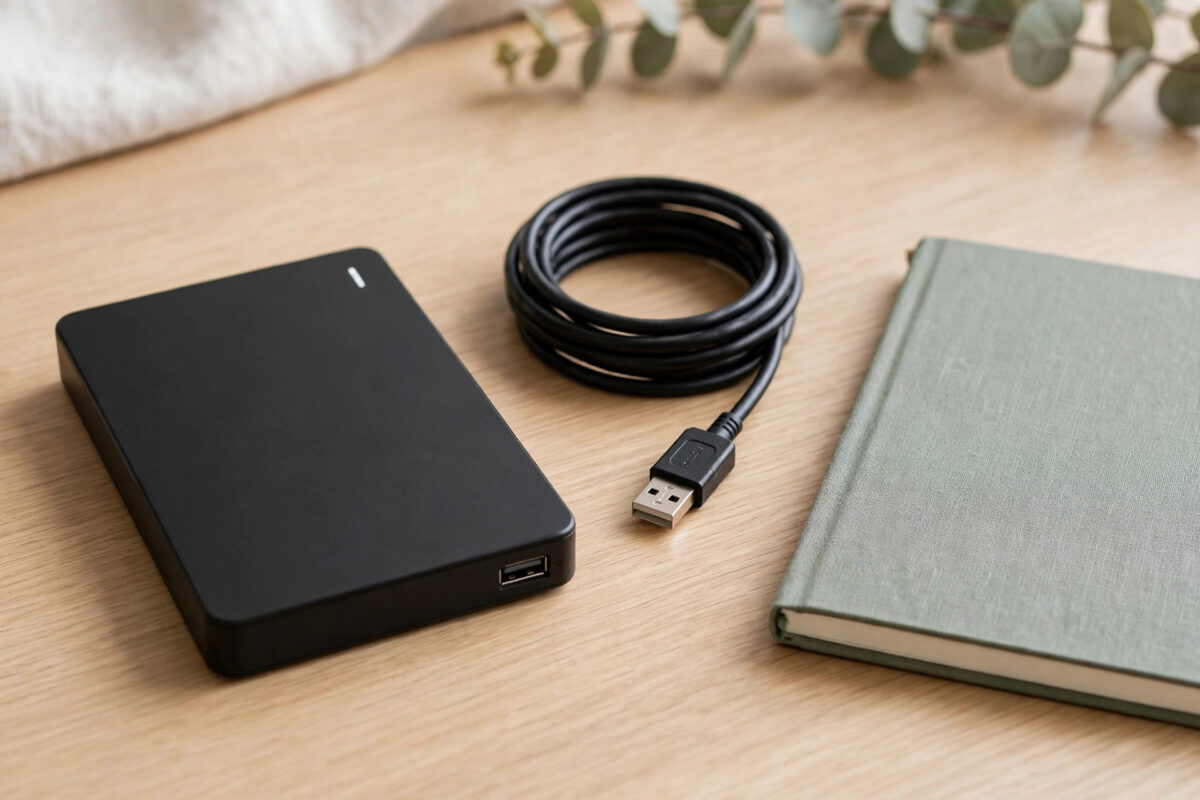
Your Seagate external drive clicks three times, goes quiet, and never appears on your computer. That short pattern is more specific than it sounds. The drive is trying to start, failing to find or read its own starting information, giving up, and parking or stalling. It is a mechanical distress signal, not a minor glitch.
Many people respond by unplugging and reconnecting the drive again and again, hoping one attempt will catch. With a clicking drive, that hope is risky. Each start-up moves damaged parts across the surfaces where your data is stored, so the safest fix begins with stopping, understanding the likely fault, and choosing the right route for your data.
Quick Answer
A Seagate external drive that clicks three times and then stops spinning almost always has damaged read and write heads, a head preamplifier fault, or unreadable service data on the platters. It cannot be fixed safely with software or home repairs. Unplug it, stop powering it on, and do not open it. If the data matters, use a professional recovery lab; if not, replace the drive under warranty.
What Three Clicks and Silence Usually Means
When a healthy drive starts, the platters spin up, the heads move over the surface, read calibration and service information, and then present the drive to your computer. That whole sequence happens in seconds and is normally quiet apart from a soft spin-up sound.
Clicking happens when the head assembly moves to its limit and resets because it did not find the information it expected. Repeating clicks mean repeated failed attempts. When the drive stops spinning after three clicks, its internal protection has likely shut the motor down after deciding the start-up cannot succeed. In plain terms, the drive tried to wake up, could not read itself, and gave up to avoid further uncontrolled movement.
Likely Causes Behind the Pattern
- Damaged heads: A drop, knock, or wear can damage the tiny heads so they can no longer read the platter surface.
- Surface damage: Scratched or degraded areas may hold the service data the drive must read before anything else can happen.
- Electronic faults: A failing board or head preamplifier can prevent correct reading even if parts of the mechanism still move.
- Motor or bearing trouble: Less commonly, the drive cannot maintain stable spinning, so start-up fails early.
Notice what is not on that list: a corrupt partition, a missing drive letter, or a bad file. Those logical problems only appear on drives that finish starting and are detected. Your drive is failing before that stage, which is why Windows or macOS shows nothing at all.
The Only Safe Checks to Try Once
Two simple checks can rule out an external power or connection problem. Do each one once. If the drive clicks three times and stops again, accept the result and leave the drive unplugged.
Step 1: Change the Power and Connection Setup
- Unplug the drive completely and leave it disconnected for a minute.
- For desktop models with a power adapter, use the original Seagate adapter, not a similar-looking substitute.
- For portable models, use a short, known-good cable and plug directly into the computer, not a hub.
- Connect once, listen carefully, and note the exact sounds and light behaviour.
Step 2: Try One Other Computer or Port
- Connect the drive once to a different USB port or a second computer.
- Wait a few seconds to see whether it is detected and spins normally.
- If you hear the same three clicks and silence, disconnect it immediately.
- Do not repeat the test to record the sound or show someone else.
The Seagate support guide for an external drive that will not be detected walks through cable, port, and power checks for detection problems. Those steps are useful for ruling out simple causes, but Seagate does not offer a software fix for a drive that physically clicks and stops, because the fault sits inside the sealed unit.
Dangerous Fixes You Must Avoid
Search results for clicking drives are full of confident advice that can ruin a recoverable drive. The techniques below are especially harmful in this situation.
- Repeated power cycles: Every start drags faulty heads over the platters again and can widen surface damage.
- Opening the top cover: The drive needs cleanroom conditions. Home opening adds dust, fingerprints, and misalignment, and it voids the warranty.
- Freezing the drive: Condensation forms as it warms, and corrosion and water damage replace whatever chance you had.
- Tapping or dropping it on purpose: Shocks sometimes get suggested as a way to free stuck parts, but they can break heads and scratch platters instantly.
- Running SeaTools or recovery scans: Diagnostic software cannot test a drive that never finishes starting, and forcing attempts keeps a dying drive under power.
- Swapping the board with one from the internet: Boards carry unique adaptive data. A mismatched board can prevent recovery or cause new faults.
How Professionals Recover This Type of Drive
A data recovery lab starts by assessing the drive without repeated power-ons. If the heads are faulty, technicians open the drive in a cleanroom and fit a carefully matched donor head assembly. They may also work on the drive electronics and firmware using specialist equipment that can read the service area, control the motor, and copy sectors slowly and safely.
Once the drive can read, the lab images it to a healthy drive, sector by sector, often working around damaged areas and returning to them gently later. Only after that image exists do they rebuild folders and files. This method protects the weak original drive from the heavy reading that normal file copying would demand.
Costs vary with the model, the parts needed, and the extent of surface damage. A trustworthy lab explains the assessment findings, gives a clear price before major work, and does not promise perfect results. If the platter surface holding your data is badly scratched, some files may be partly or fully lost even with expert help, which is another reason to stop early and preserve what remains.
For your other drives, following our guide to checking a hard drive for bad sectors safely without stressing failing hardware can help you spot trouble while a drive still works well enough to copy.
Choosing Your Next Step
When the Data Matters
Leave the drive unplugged and store it safely in a padded box or anti-static bag, with a note describing the symptom: clicks three times, then stops spinning, not detected. Contact a reputable recovery lab and share the model number and any drop history honestly. Do not allow a local shop to open the drive out of curiosity, because an unskilled opening can close the door on professional recovery.
When the Data Does Not Matter
If everything on the drive exists elsewhere, skip recovery costs and move to replacement. Check your warranty status through the Seagate warranty and replacements support page and follow the return process if the drive is covered. Remember that a warranty exchange replaces hardware only; the returned drive and its data are gone.
Common Mistakes and Better Choices
- Mistake: assuming three clicks is a good sign because the drive tries. Better choice: recognise any repeating click pattern as a stop signal.
- Mistake: leaving the drive connected while reading forums. Better choice: unplug first, then research with the drive safely off.
- Mistake: formatting advice for an undetected drive. Better choice: remember formatting is impossible and irrelevant when the computer cannot see the device.
- Mistake: buying the same model to swap parts at home. Better choice: leave donor part work to a lab with matching tools and clean air.
- Mistake: waiting while continuing to test weekly. Better choice: decide once, because every test adds risk without adding information.
Preventing the Same Loss on Your Next Drive
Portable drives fail most often after knocks, drops, and sudden unplugging while files are being written. Handle them as fragile instruments, keep them on stable surfaces, and let them finish spinning down before moving them. Maintain at least two copies of important data on separate devices, because any single drive, from any brand, can fail without useful warning.
Replace drives that begin disconnecting, slowing sharply, or making new sounds, after copying their data to safety. A drive that whispers a warning while still working gives you a cheap and easy exit. A drive that clicks and stops has already passed that stage.
Conclusion
Three clicks followed by silence is your Seagate drive reporting a serious internal failure during start-up, most often involving the heads or the service data they must read. One careful cable and power check is reasonable; everything beyond that should be a decision, not another experiment. Unplug the drive, protect it from further power and knocks, and choose professional recovery for data that matters or warranty replacement when it does not.
Frequently Asked Questions
Can I fix a clicking Seagate drive with software?
No. Software needs a detected, spinning drive to work with. Clicking and stopping during start-up is a mechanical or electronic fault inside the drive, so programs cannot reach or repair it.
Why exactly three clicks each time?
The drive retries its start-up sequence a set number of times, fails to read the information it needs, and then shuts down for protection. The consistent count reflects that programmed retry and shutdown behaviour.
Will opening the drive and cleaning it help?
No. The inside of a hard drive must stay extremely clean and precisely aligned. Opening it outside a cleanroom introduces dust and usually makes recovery harder or impossible.
Does the warranty cover data recovery?
Standard warranties cover the hardware, not the data on it. Seagate may offer separate recovery services in some cases, but a normal replacement simply exchanges the faulty drive for a working one.
How much damage can one more power-on do?
It varies, but faulty heads moving over the platters can scratch new areas in seconds. If the data matters, there is no benefit in testing again once the clicking pattern is confirmed.



Leave a Reply