
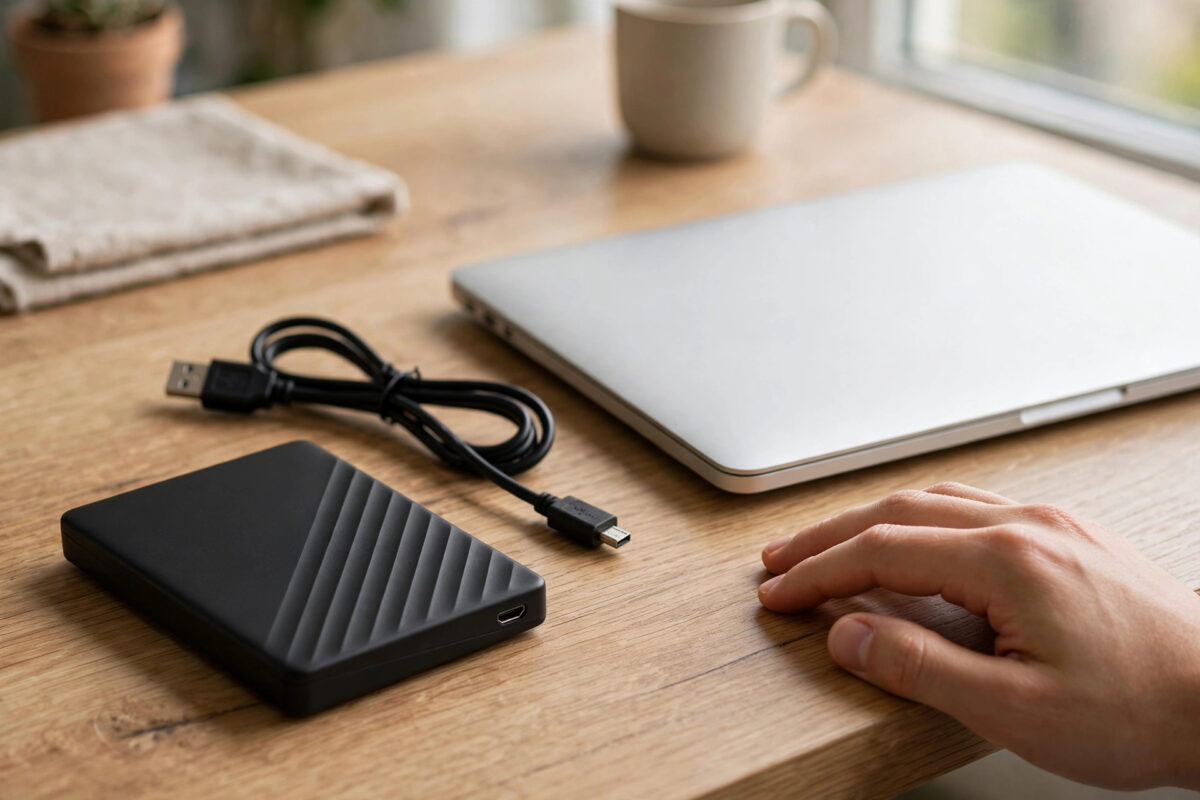
A WD My Passport that beeps and does not appear on your computer is sending a clear warning: something mechanical inside the drive is wrong. Beeping is not a software error and it is not a sound the drive makes during normal use. In almost every case, it means the read and write heads cannot move properly, or the motor cannot spin the platters as it should.
That sounds frightening, especially if the drive holds your only copies of photos, work, or backups. The most important thing you can do right now is also the simplest: stop trying fixes that keep the drive powered on. Every extra attempt can turn a recoverable hardware fault into permanent damage, so this guide puts safety first and honest expectations ahead of quick tricks.
Quick Answer
A beeping WD My Passport that is not detected usually has stuck heads, a stalled motor, or severe mechanical damage, and it cannot be fixed safely with software, cables, or home repairs. Unplug it, stop powering it on, and do not open it. If the data matters, a professional data recovery lab is the safe route; if the data does not matter, replace the drive under warranty instead.
What the Beeping Sound Actually Means
Inside a My Passport is a small spinning hard drive with platters and delicate heads that float just above the surface. The beep you hear is often not an electronic beeper at all. It is the sound of the motor trying and failing to spin, or the heads stuck to the platter surface, creating a repeated buzzing or beeping tone as the drive retries.
Common Causes of Beeping
- Stiction: The heads have landed and stuck on the platter, often after a drop or sudden power loss, and the motor cannot break them free.
- Motor failure: The spindle motor is seized or damaged, so the platters never reach working speed.
- Head damage: A fall while the drive was running can bend or break the heads, leaving them unable to move correctly.
- Power problems: Less often, a faulty cable or port provides too little power, and the motor stalls with a similar sound.
Because the drive is not detected, your computer never gets a chance to read its file system. That rules out most software repairs. Tools that fix corrupted partitions, drive letters, or file errors only work when the hardware can still spin and identify itself to the computer, which a beeping drive cannot do.
First Steps That Are Safe to Try Once
There are two harmless checks worth doing once, carefully, mainly to rule out a simple power issue. If the beeping continues after these checks, stop. Repeating them many times does not improve the outcome and increases wear on damaged parts.
Step 1: Unplug and Inspect
- Disconnect the drive from the computer as soon as you recognise the beeping.
- Look at the cable and connector for visible damage, bends, or looseness.
- Smell for burning and stop completely if anything seems hot or scorched.
- Note when the problem started and whether the drive was dropped or knocked.
Step 2: Try One Different Cable and Port
- Use a short, known-good cable that fits your My Passport model properly.
- Plug directly into a USB port on the computer, not through a hub.
- Listen for normal spinning and watch whether the drive appears.
- If it beeps again in the same way, unplug it right away and do not retry.
A laptop port that cannot supply enough power can stall a healthy drive, so this single test is fair. The official WD support guidance for a drive that is not recognised covers cable, port, and power checks for detection problems. Follow those checks once, and treat continued beeping as a hardware verdict rather than a challenge to keep trying harder.
What Not to Do With a Beeping Drive
Many popular online tips are dangerous for a drive in this condition. They were written for logical errors, not mechanical failure, and following them can destroy data that a lab could otherwise have saved.
- Do not keep plugging it in: Each power-on makes the motor strain against stuck or damaged parts.
- Do not open the drive: The internal parts need a dust-free cleanroom. Opening it at home contaminates the platters and voids the warranty.
- Do not shake, tap, or knock it: Impacts can scratch the platter surface where your data physically lives.
- Do not put it in a freezer: This old myth causes condensation and corrosion and does not repair modern drives.
- Do not run recovery software or disk checks: Software cannot reach a drive the computer cannot detect, and repeated scans on a failing drive add stress.
- Do not swap circuit boards casually: Modern boards store unique calibration data, so a random board rarely works and can cause further harm.
How a Professional Lab Recovers a Beeping Drive
A proper recovery lab opens the drive inside a cleanroom, where filtered air keeps dust away from the platters. Technicians free or replace the damaged head assembly using compatible donor parts, then use specialist hardware to copy the drive sector by sector at a controlled speed. That controlled copying, often called imaging, reads the fragile drive once and lets all further file work happen on the copy.
This process explains both the cost and the value of professional recovery. You are paying for the cleanroom, donor parts, specialist tools, and experience, not for a magic program. Reputable labs usually assess the drive first, explain the fault, and give a clear quote before full work begins. Many also follow a no-data, no-fee approach, but always confirm the terms in writing.
If your drive is part of a wider backup setup, our guide to testing external hard drive health before a drive fails completely can help you check your other drives and catch warning signs earlier next time.
Deciding Between Recovery, Warranty, and Replacement
If the Data Is Irreplaceable
Keep the drive unplugged, store it in an anti-static bag or its original box, and contact a reputable recovery lab for an assessment. Write down the model number from the label, the symptoms, and any drop history. Do not let a general repair shop open the drive as an experiment; once it has been opened badly, even a good lab may not be able to undo the damage.
If the Data Is Not Important
If the files exist elsewhere or do not matter, the sensible fix is replacement. Check whether the drive is still under warranty through the WD warranty check and support portal for My Passport drives. A warranty replacement gives you a working drive, but it will not return your old data, because the faulty unit is exchanged rather than repaired.
If You Are Unsure About the Data
Treat uncertain data as important until you have checked your other storage. Look through cloud accounts, other drives, phones, and email attachments for copies. If you cannot confirm that everything exists elsewhere, do not risk destructive experiments on the only drive that holds the originals.
Mistakes People Make in the First Hour
- Searching for a software fix for a hardware sound: Beeping means mechanics, and mechanics need physical repair.
- Trusting videos that open drives on a desk: Those drives are usually sacrificed for views, not recovered for real use.
- Letting the drive beep for minutes: Leaving it connected while you search for answers keeps the fault under power.
- Forgetting to check for other copies: A calm search for backups can turn an emergency into a simple replacement.
How to Protect Yourself From This Problem in Future
No hard drive lasts forever, and portable drives face extra risk because they travel, get knocked, and are unplugged often. Keep at least two copies of important files on separate devices, and consider a third copy in cloud storage for the most valuable data. Eject drives safely, carry them in padded cases, and replace a drive that starts making any new noise, disconnecting randomly, or slowing down sharply.
Also, listen to your drives during normal use. A healthy My Passport spins smoothly with a soft hum and a steady light. Clicking, grinding, scraping, or beeping are never normal background sounds. Acting on the first strange noise, by backing up and retiring the drive, is far cheaper than recovery after a complete mechanical failure.
Conclusion
A beeping WD My Passport that is not detected is almost always a mechanical failure, not a setting you can change. Do the safe checks once, with a different cable and a direct port, then stop powering the drive if the beeping continues. Never open, shake, freeze, or scan it. If the data matters, a professional lab gives you the only realistic chance; if it does not, claim the warranty or replace the drive and rebuild from your backups.
Frequently Asked Questions
Can software fix a beeping My Passport?
No. Software works only when the drive spins and is detected by the computer. Beeping points to stuck heads, a stalled motor, or similar mechanical damage that needs cleanroom repair, not a program.
Why is the drive not showing in Disk Management?
The computer can only list a drive after the drive starts, identifies itself, and responds over USB. A mechanically stuck drive fails before that stage, so it stays invisible in Windows tools.
Is it safe to try the drive on another computer?
One brief test with a good cable is reasonable to rule out a weak port. If it beeps the same way, unplug it and stop. Repeated tests on many computers will not fix a mechanical fault.
Will WD warranty recovery return my files?
No. Warranty service normally replaces the faulty drive with a working unit and does not include data recovery. If you need the files, use a recovery lab before sending the drive away.
How long can I wait before sending it to a lab?
An unpowered drive stored safely in a dry place does not usually get worse quickly. Still, contact a lab sooner rather than later, and avoid storing it where it may be dropped or crushed.



Leave a Reply