
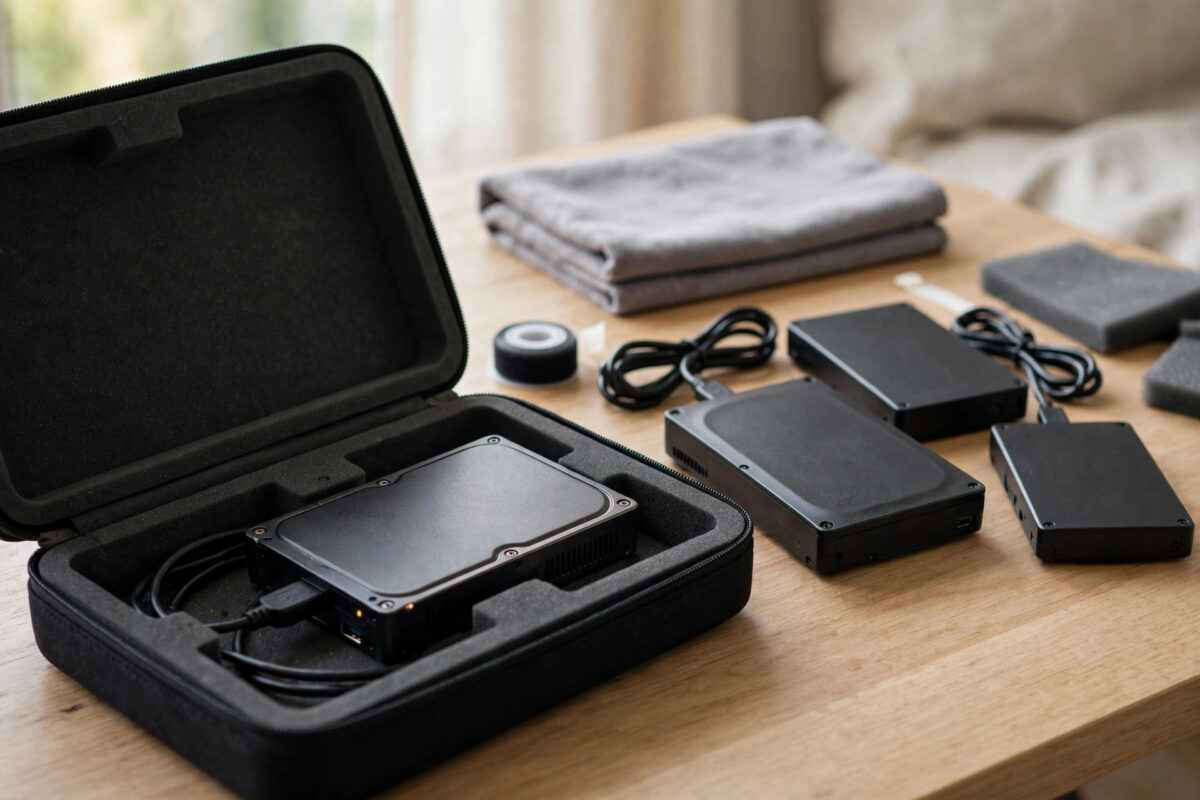
A clicking hard drive creates a painful dilemma. Your files are on a drive that sounds broken, and every instinct says to try something quickly before it gets worse. Yet with clicking drives, the wrong kind of help is exactly what makes things worse. The safest recovery plan starts with restraint, then follows a clear order based on how much the data matters.
This guide explains what you can do without opening the drive, what you must avoid, and when the only sensible step is a professional lab. It will not promise a home fix for a mechanical fault, because honesty protects your data better than false hope. Many drives that arrive at labs in recoverable condition become much harder cases after well-meaning home experiments.
Quick Answer
If a drive clicks, unplug it and stop powering it on, because clicking almost always means damaged heads or surfaces that get worse with every start. Without opening it, your safe options are limited to checking for other copies of the data, doing one careful cable and port test if it was not clearly clicking before, and sending the drive to a professional recovery lab. Do not run scans, freeze it, tap it, or open it.
Why Clicking Is Different From Other Drive Problems
A healthy hard drive makes a smooth spinning hum and a faint movement sound as the heads work. Clicking is the sound of the head arm moving sharply and resetting because it cannot read the data it needs. People call it the click of death because it so often signals the end of normal operation.
Slow performance, corrupt files, and a drive that sometimes disconnects can sometimes be handled with careful copying or software, because the drive still reads. A clicking drive is failing at a physical level. The heads may be damaged, the surface may be scratched, or the drive may be unable to read its own startup information. In that state, normal reading attempts force injured parts to keep moving over the platters.
Sounds That Mean Stop Immediately
- Repeating clicks, whether fast, slow, or in a fixed pattern.
- Clicking followed by the drive stopping or spinning down.
- Grinding, scraping, or buzzing alongside any clicking.
- Beeping from a portable drive, which often shares the same causes.
- Any clicking that began after a drop, knock, or power failure.
Step One: Power Down and Preserve the Situation
- Unplug the drive as soon as you recognise repeating clicking.
- Do not restart the computer with the drive still attached.
- Write down the sounds, when they started, and any recent drop or spill.
- Place the drive on a soft, stable surface where it will not be moved or stacked on.
- Resist testing it again just to confirm the sound for someone else.
These notes help a recovery lab more than another demonstration of the noise. A drive stored quietly and unpowered is not usually deteriorating, so you have time to decide carefully.
Step Two: Hunt for Other Copies Before Touching the Drive
The best recovery is the one you never need. Before considering any test, search calmly for the same files elsewhere. People are often surprised by how much is backed up automatically or copied in more than one place.
- Check cloud storage accounts, including photo and document sync services.
- Look on other external drives, USB sticks, memory cards, laptops, and phones.
- Search email sent items and messaging apps for important documents and photos.
- Check automatic backup programs and older backup drives you may have forgotten.
- Ask family members or colleagues who may hold shared copies.
If you find complete copies, the clicking drive stops being an emergency. If you find only some files, list what is still missing, because that list helps you judge whether professional recovery is worth its cost.
Step Three: The Single Careful Connection Test
There is one narrow situation where a brief test makes sense: if the drive has not clearly clicked before, and a loose cable or weak port could explain a detection problem. Even then, the rule is one test, with full attention, and an instant stop if clicking appears.
- Use a short, known-good cable and a direct port on the computer, not a hub.
- For desktop drives, use the original power adapter made for that model.
- Connect once and listen. If the drive spins smoothly and appears, copy the most important files first, starting with the smallest and most valuable.
- If clicking starts at any point, unplug immediately and do not reconnect.
- If it never appears, treat the earlier problem as connection-related and back it up fully while it works.
If the drive does appear and stays quiet, work in priority order rather than trying to clone everything at once. Copy irreplaceable documents and photos before large video libraries. Avoid installing recovery software onto the same failing drive, and never save recovered files back onto it. General guidance on drive health checks, such as the Microsoft support advice on checking a drive for errors, applies to working drives with file errors, not to clicking hardware, so do not run those checks here.
What Never to Do to a Clicking Drive
Do Not Open It
The top cover is not a user service panel. Inside, the platters need cleanroom air and the heads sit closer to the surface than a speck of dust is tall. Opening the drive on a desk allows contamination in, disturbs alignment, and usually ends any realistic warranty claim. Even watching a video where someone opens a drive successfully for a moment does not show the data being recovered safely afterwards.
Do Not Use Physical Tricks
Freezing, tapping, shaking, squeezing, and dropping the drive from a small height all circulate as rescue tricks. Each one risks bending heads, scratching platters, or adding moisture and corrosion. A trick that cannot be undone has no place on a drive holding the only copy of anything important.
Do Not Run Software Scans
Recovery programs, disk checks, and diagnostic scans all demand heavy reading from the drive. On a clicking drive they cannot fix the mechanical cause, and they keep faulty heads travelling over damaged surfaces for hours. The same applies to repeatedly mounting the drive to see if it behaves better today. Our guide to cloning a failing hard drive before it dies completely explains the careful imaging approach for drives that still read, and why clicking drives fall outside that safe home method.
How Professional Recovery Works Without Guesswork
A reputable lab protects your drive in ways home tools cannot. Assessment identifies whether the fault is heads, electronics, firmware, motor, or surface damage. Repairs happen in a cleanroom with matched donor parts. Specialist hardware then controls the drive gently, reads good areas first, and builds an image copy sector by sector.
After imaging, file recovery happens on the copy, so the fragile original is powered as little as possible. The lab is not using a better app; it is changing the physical conditions so reading becomes possible at all.
Choosing a Lab Carefully
- Choose a specialist data recovery company, not a general repair shop that will experiment.
- Ask whether assessment is free or fixed price, and get terms in writing.
- Confirm they have a cleanroom and experience with your drive type.
- Be wary of anyone who guarantees full recovery before seeing the drive.
- Ask how your recovered data will be returned and how your privacy is protected.
Cost Decisions: A Calm Way to Decide
Professional recovery can be expensive because cleanrooms, donor parts, and expert time cost money. Decide based on the value of the missing files, not on panic. Work files with no copies and family photos often justify an assessment at least.
Common Mistakes That Make Recovery Worse
- Leaving the drive clicking while researching: Research with the drive unplugged, always.
- Trying one more software tool each day: Each tool adds hours of harmful head movement.
- Letting a helpful friend open it: Good intentions do not replace clean air and correct parts.
- Shipping it loose in an envelope: If you send it anywhere, pad it well and use a sturdy box.
- Forgetting the missing-files list: Without it, you cannot judge a recovery quote sensibly.
Building a Safer Setup for the Future
Keep three copies of important data, on two different types of storage, with one copy away from home if possible. Test your backups by opening files from them, and replace any drive that makes new noises after copying its contents while it still behaves.
Conclusion
You cannot safely repair a clicking drive at home without opening it, and opening it yourself is one of the worst moves available. The safe path is simple: power it down, search thoroughly for other copies, allow at most one careful connection test in the right situation, and use a professional lab when the missing data truly matters. Restraint keeps your options alive, and with a failing drive, keeping options alive is the real recovery skill.
Frequently Asked Questions
Can a clicking drive sometimes start working again on its own?
A drive may occasionally appear after a rest, but that does not mean it healed. If it ever spins up quietly, copy the most important files first and retire it. If clicking returns, stop immediately.
Is it safe to clone a clicking drive at home?
Generally, no. Cloning requires long, heavy reading that can push damaged heads across the platters for hours. Safe imaging of a clicking drive needs lab repairs and specialist hardware first.
Why do labs need to open the drive if opening is bad?
Labs open drives inside cleanrooms with filtered air, correct tools, and donor parts ready. The danger comes from opening in normal room air without those controls, not from opening itself.
How should I store the drive while I decide?
Keep it unpowered, dry, and cushioned in an anti-static bag or padded box, away from stacking pressure and magnets in speakers. Label it clearly so nobody plugs it in by mistake.
What information should I give the recovery lab?
Give the brand, model, capacity, the exact sound pattern, whether it was dropped, what files matter most, and whether anyone has opened or scanned it. Honest history improves the assessment.



Leave a Reply