
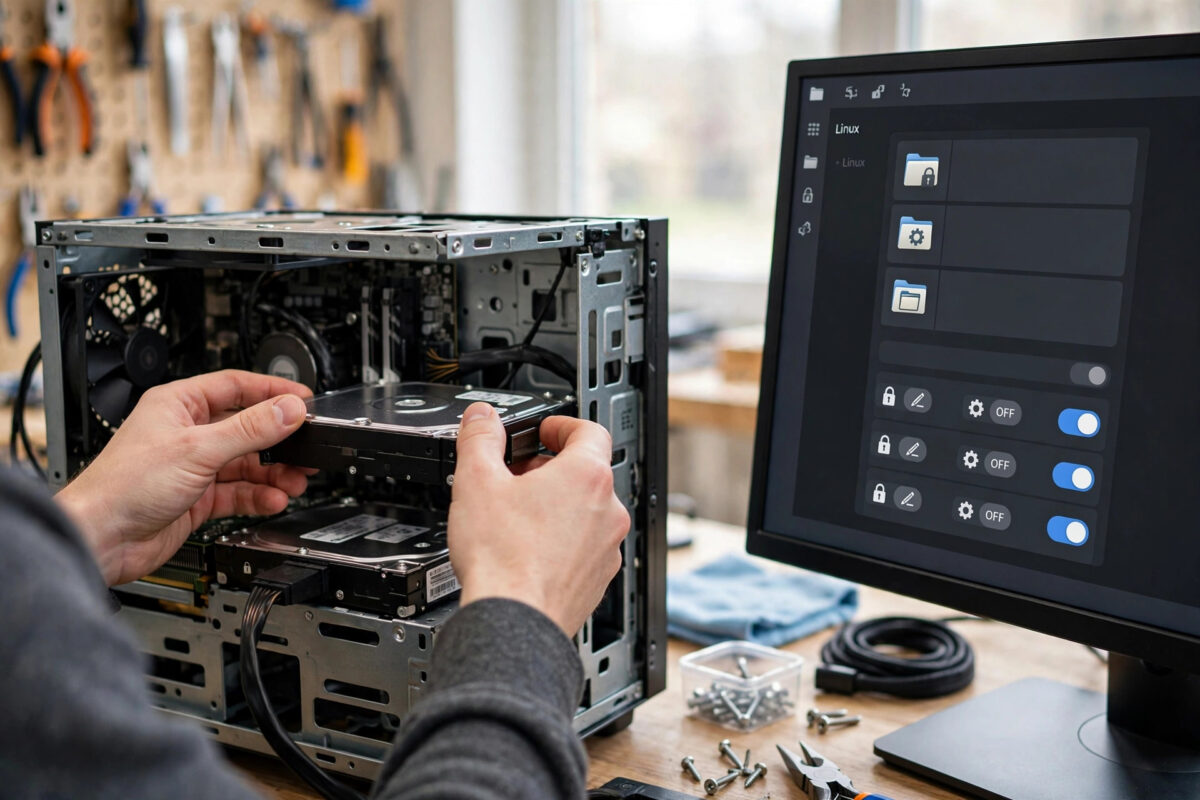
Adding a second drive is one of the best upgrades you can give a Linux computer. You get space for photos, videos, games, backups, and big projects without crowding your main system drive. Then you open your favourite Flatpak app, try to load something from that new drive, and the folder is simply not there. Flatseal solves this neatly, and once you have done it once, the same steps work for any app and any drive.
Quick Answer
Open Flatseal, select your app, scroll to Filesystem, and under Other files add the mount point of your second drive, such as /mnt/data or /media/yourname/Data. Close and reopen the app, and it will be able to browse, open, and save files on that drive. Grant read-only access if the app never needs to change files there.
Before You Start: Find Your Drive’s Real Path
Flatseal needs the exact folder path where your second drive is mounted. This is called the mount point. Guessing it is the number one reason this fix fails, so take a minute to find the real one.
- Open your normal file manager and click on the second drive so it mounts.
- Navigate into the drive, then look for an option like Properties, or press
Ctrl+Lin many file managers to reveal the full path of the current folder. - Note the path. Common examples are
/mnt/data,/media/amina/SecondDrive, or/run/media/amina/USB-HDD. - Alternatively, open a terminal and run
lsblk -formount | grep /mntto see where drives are attached. The Flatpak sandbox permissions documentation also lists the common location patterns Flatpak treats specially.
Write this path down exactly, including capital letters. Linux paths are case-sensitive, so Data and data are treated as two different places.
Make Sure the Drive Mounts Every Time
If your drive only appears after you click it, your app will only see it after that click too. For an internal second drive you use daily, it is worth setting it to mount automatically at startup. Most distributions offer this in a Disks tool: select the drive, open its mount options, and enable automatic mounting at the same mount point each time.
Keep the mount point stable. If the drive mounts at a different path each week, the permission you set in Flatseal will point at the old path and quietly stop working.
Step by Step: Grant Access With Flatseal
- Install Flatseal if needed. Search for Flatseal in your software store and install it. It is a free tool built specifically for managing Flatpak permissions.
- Open Flatseal and pick your app. Apps are listed on the left. Use the search field if your list is long.
- Scroll to Filesystem. You will pass sections for network, devices, and other permissions. Filesystem is the one you need.
- Find Other files. This list is where custom folders and drives go. There is a button with a folder and a plus sign.
- Add your drive. Click the add button and type or paste the mount point you found earlier, for example
/mnt/data. Press Enter to confirm it appears in the list. - Choose the access level. Leave the path as it is for read and write access. Append
:roto make it read-only, like/mnt/data:ro, for players and viewers. - Restart the app. Close the app completely and open it again. Now browse to the drive from inside the app and test both opening and saving a small test file.
Changes in Flatseal save automatically as you make them. There is no separate save button to hunt for, which surprises some people. If the entry is visible in the list, it is saved.
Choosing Between the Whole Drive and One Folder
You have two sensible choices. You can add the whole mount point, which gives the app access to everything on the drive. That suits a video editor working across many project folders, or a backup tool that genuinely needs the full drive.
Or you can add a single subfolder, such as /mnt/data/family-photos. This is the better habit for most apps. A music player needs your music folder, not your tax documents and backups sitting on the same drive.
Think about what the app actually does before you decide. Narrow access costs you nothing in daily use, and it keeps Flatpak’s sandbox meaningful. You can always widen access later if a real task requires it.
Test It Properly After Granting Access
Do not stop at seeing the folder appear. Test the full job you actually want to do.
- Open a real file from the second drive inside the app.
- Make a tiny change and save it back to the same place.
- Use Save As to create a brand-new file on the drive.
- If the app manages a library, let it scan a small subfolder first before scanning thousands of files.
If opening works but saving fails, you almost certainly granted read-only access, or the drive itself is mounted read-only. If nothing appears at all, the path is wrong or the drive was not mounted when the app started.
Our companion guide on fixing Flatpak apps that cannot access files outside the home folder covers the wider permission picture if several apps are giving you the same trouble.
What If the Drive Still Does Not Appear?
Check the App’s Own File Dialog
Some apps use their own file picker that starts in a fixed location. Look for a way to type a path directly, often with Ctrl+L, and type the mount point. Other apps have a setting for default folders or library locations that you need to point at the drive inside the app’s own preferences, in addition to the Flatseal grant.
Check for Snap or System Package Confusion
Make sure the app you are using really is the Flatpak version. Flatseal only controls Flatpak apps. If you also have the same program installed as a regular system package, you might be opening the wrong one. flatpak list in a terminal shows exactly which apps Flatseal can manage.
Remove and Re-Add the Entry
If everything looks right but access still fails, remove the entry in Flatseal, close Flatseal, reopen it, and add the path again slowly, checking each character. Then fully restart the app. This simple reset clears most stubborn cases caused by a typo or a path added before the drive was mounted at its permanent location.
Common Mistakes
- Adding the device name instead of the mount point. Entries like
/dev/sdb1describe hardware, not the folder where files live. Always add the mounted folder path. - Testing while the app is still running. The app must be closed and reopened. A minimised window still counts as running.
- Using a temporary USB mount path for a permanent drive. Paths under
/run/mediacan change. For a fixed internal drive, use a stable mount point under/mnt. - Granting every app the whole drive. It is quick, but it weakens the sandbox for no reason. Grant per app, per real need.
- Forgetting file ownership. If the drive is formatted for another system or owned by another user, even a correct Flatseal grant may not be enough. Check that your user can open the folder in the normal file manager first.
Conclusion
Granting a Flatpak app permission to a second drive with Flatseal takes about two minutes once you know your drive’s mount point. Find the exact path, add it under Other files in the Filesystem section, choose read-only if saving is never needed, and restart the app. Prefer adding a single folder over the whole drive when you can, and make sure internal drives mount at the same place every boot. After that, your second drive works with Flatpak apps just like any other folder, without giving up the safety the sandbox provides.
Frequently Asked Questions
Where do I find the mount point of my second drive?
Open the drive in your file manager and check the location bar or folder properties, or run lsblk in a terminal. Common mount points look like /mnt/data or /media/yourname/drivename.
Should I add the whole drive or just one folder?
Just one folder is safer for most apps. Add the whole drive only for tools that genuinely work across the entire drive, such as backup software or a video editor with projects in many places.
What does :ro mean at the end of a path in Flatseal?
It means read-only. The app can open and view files but cannot change, save, or delete them. It is a good choice for media players, image viewers, and ebook readers.
Why did my permission stop working after a reboot?
Usually because the drive mounted at a different path, or did not mount at all. Set the drive to mount automatically at a fixed mount point in your Disks tool, and make sure the Flatseal entry matches that exact path.
Can I use Flatseal for USB drives too?
Yes. Plug in and mount the USB drive, note its path, and add it the same way. Just remember the path may include the drive’s label, so a different USB stick may mount somewhere slightly different.



Leave a Reply