
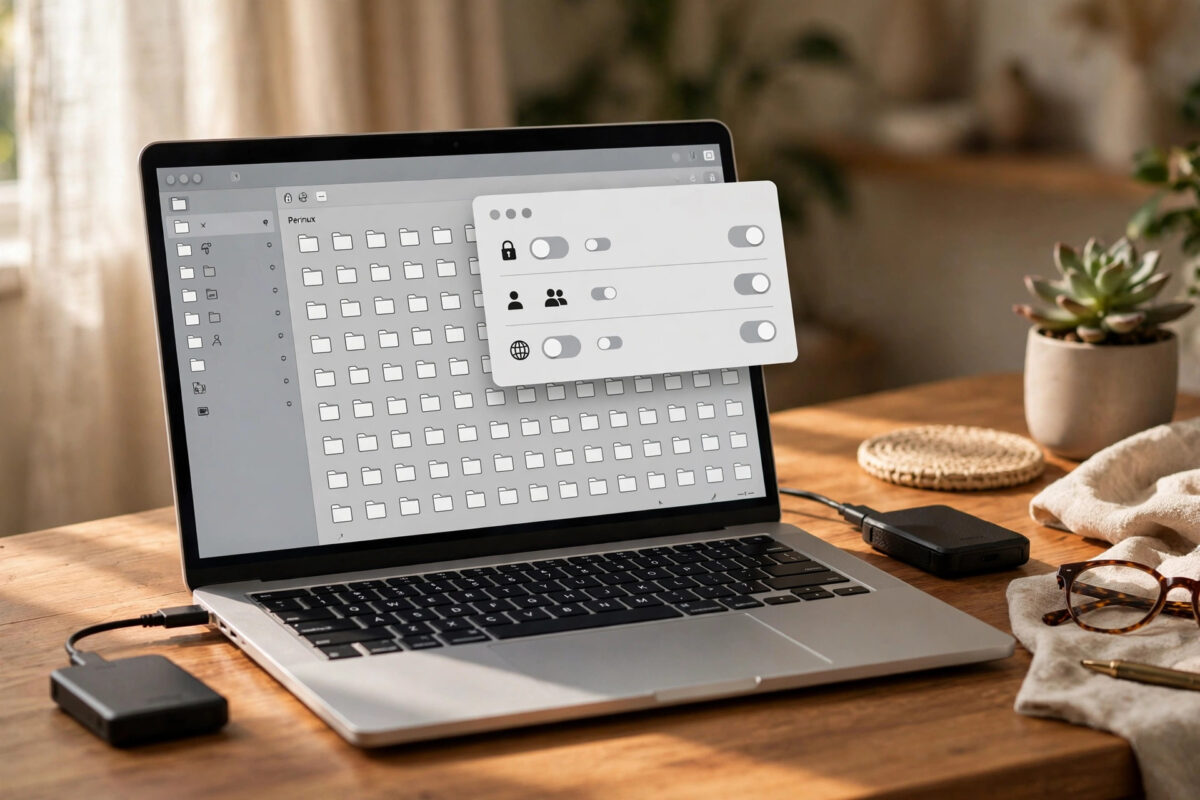
You open a file manager, a photo editor, or a media player that you installed as a Flatpak, click on a file stored on another drive or in a folder outside your home directory, and nothing happens. Or worse, the app shows an empty folder, a permission denied message, or it quietly saves somewhere you did not expect. This is one of the most common surprises for new Flatpak users, and the good news is that it is not a bug in your app. It is the sandbox working exactly as designed, and you can change it in a few minutes.
Quick Answer
Flatpak apps run in a sandbox and can usually only see your home folder by default. To fix this, install Flatseal, find your app, and add the folder or drive you need under Filesystem, or run flatpak override --user --filesystem=/path/to/folder com.example.App in a terminal. Restart the app afterwards and it will be able to open and save files in that location.
Why Flatpak Apps Cannot See Everything
Most programs you install from your distribution’s normal software store can read almost any file your user account can read. Flatpak works differently. Every Flatpak app runs inside a sandbox, a kind of safety box that limits what the app can touch on your computer.
This design protects you. If an app has a security flaw, the sandbox limits the damage. By default, many apps only get access to specific folders such as Documents, Pictures, Music, and Downloads, or to nothing at all until you pick a file yourself.
That is why the problem feels strange at first. The file is right there in your file manager. Your user account owns it. But the app inside its sandbox simply cannot see past its own walls until you open a door for it.
Places That Often Cause Trouble
- A second internal drive mounted at
/mnt/dataor/media - A USB drive or external hard disk
- Folders like
/opt,/srv, or a shared folder in/home/shared - Hidden folders in your home directory, such as
~/.localsubfolders - A network share or a folder owned by another user
If your files live in one of these places, you will almost certainly need to grant access manually the first time.
Check How You Opened the File First
Before you change any permissions, try one simple test. Open the app first, then use its own Open dialog to browse to the file, instead of double-clicking the file in your file manager.
Many Flatpak apps use what is called a portal. When you pick a file through the portal dialog, the system hands that single file safely to the app, even if the app has no general access to the folder. This often works for opening one document or one photo.
The portal trick has limits, though. It helps with opening a single file. It does not help much when an app needs to browse a whole library, save files back to the same folder, scan a music collection, or work with projects that contain many linked files. For that, you need proper filesystem access, which the next sections cover.
Fix It With Flatseal (The Easy Way)
Flatseal is a small graphical tool made for exactly this job. It shows you every permission for every Flatpak app in one clear window, so you do not need to memorise any commands.
- Open your software store and install Flatseal. It is itself a Flatpak, so it installs quickly.
- Open Flatseal and find your app in the list on the left. You can use the search box at the top.
- Scroll down to the Filesystem section. You will see switches for common options such as All user files, and a list called Other files.
- For a quick fix, turn on All user files only if you are comfortable giving the app access to your whole home folder.
- For a safer fix, go to Other files, click the folder icon with a plus sign, and add only the exact folder you need, for example
/mnt/data/photos. - Close the app completely if it was running, then open it again. Permissions only apply when the app starts.
That is all most people need. If you want to understand the choices you just made, the official Flatpak documentation on portals and permissions explains how sandbox access is designed to work.
Read, Write, or Read-Only?
In Flatseal you may see options that end in different ways. A plain path gives read and write access. Adding :ro at the end makes it read-only, which is a smart choice for a media player that only needs to play files, or a viewer that never needs to change them.
If an app can open a file but fails when saving, that usually means it has read access but not write access. Remove the read-only setting for that folder, or add the folder again without :ro, then restart the app.
Fix It With the Terminal
If you prefer the terminal, or if Flatseal is not available, the flatpak override command does the same job.
- Find the app’s ID with
flatpak list. The ID looks likeorg.gimp.GIMPorcom.spotify.Client. - Grant access to one folder with a command like
flatpak override --user --filesystem=/mnt/data/photos org.example.App, replacing the path and ID with your own. - For read-only access, use
--filesystem=/mnt/data/photos:ro. - To give access to your entire home folder, use
--filesystem=home. Use this carefully, because it opens a lot. - Restart the app and test opening and saving a file in that folder.
To undo a change later, run flatpak override --user --reset org.example.App. That removes all your custom overrides for that app and returns it to its default permissions.
You can also check what access an app currently has with flatpak info --show-permissions org.example.App. This is handy when you are not sure whether a change actually saved.
Special Cases Worth Knowing
Second Drives and /mnt or /media
Drives mounted under /mnt or /run/media are outside the home folder, so almost every Flatpak will need an explicit grant for them. Add the mount point itself, such as /mnt/data, rather than adding each subfolder one by one.
Make sure the drive is actually mounted before you test. If the drive only mounts when you click it in your file manager, click it first, then start the app.
Hidden Folders
Flatpak is extra careful with hidden folders that start with a dot. Even with home access, some hidden paths are blocked for safety. If an app needs one specific hidden folder, add that exact path in Flatseal instead of relying on the general home switch.
Apps Installed for All Users
Most people install Flatpaks for their own user only, and Flatseal edits those settings. If an app was installed system-wide and your changes seem to do nothing, check whether you need to use the command line with the correct scope, or ask the person who administers the computer to apply the override.
If you are new to this packaging format in general, our guide on how to install and manage Flatpak apps on Linux covers installation, updates, and removing apps step by step.
Common Mistakes
- Not restarting the app. Permission changes never apply to an app that is already running. Close it fully, including any tray icon, then reopen it.
- Granting access to the wrong app. Similar names are common, for example a browser and its helper apps. Double-check the app ID in Flatseal.
- Giving the whole filesystem. The option for all system files looks tempting, but it removes most of the sandbox protection. Grant one folder at a time instead.
- Adding a path that does not exist yet. If a USB drive is not plugged in or a folder name has a typo, the grant will not help. Check spelling and capital letters carefully.
- Forgetting the drive is not mounted. An app cannot open files on a drive your system has not mounted, no matter what permissions you set.
- Expecting a portal dialog to fix library scanning. Picking one file through a dialog is different from letting an app scan a whole folder tree.
Conclusion
When a Flatpak app cannot access files outside your home folder, nothing is broken. The sandbox is simply doing its job, and you are in control of its doors. Use Flatseal for a clear visual fix, or the flatpak override command if you prefer the terminal. Grant only the folders an app genuinely needs, prefer read-only access where saving is not required, and always restart the app after a change. With those habits, you keep most of Flatpak’s safety while still getting your real work done.
Frequently Asked Questions
Is it safe to give a Flatpak app access to my whole home folder?
It depends on how much you trust the app. Well-known apps from trusted sources are usually fine, but home access does remove a useful layer of protection. A safer habit is to grant only the specific folders the app needs, and use read-only access where possible.
Why can the app open a file but not save it back?
That usually means the folder was granted as read-only, or the app received the file through a portal for opening only. Add the folder in Flatseal without the :ro marker, restart the app, and try saving again.
Do I need to redo this after every update?
No. Overrides you set with Flatseal or the override command are yours, and they stay in place across app updates. An update only changes the app’s own default permissions, not the custom access you added.
How do I remove access I granted by mistake?
Open Flatseal, select the app, and remove the folder from the Filesystem list, or turn the switch off. From the terminal, flatpak override --user --reset followed by the app ID clears all your custom changes for that app.
Why does one Flatpak see my files while another cannot?
Each app is packaged with its own default permissions chosen by its developer. One developer may request home access, another may request almost nothing. Your overrides apply per app, so you may need to set access separately for each program.



Leave a Reply