
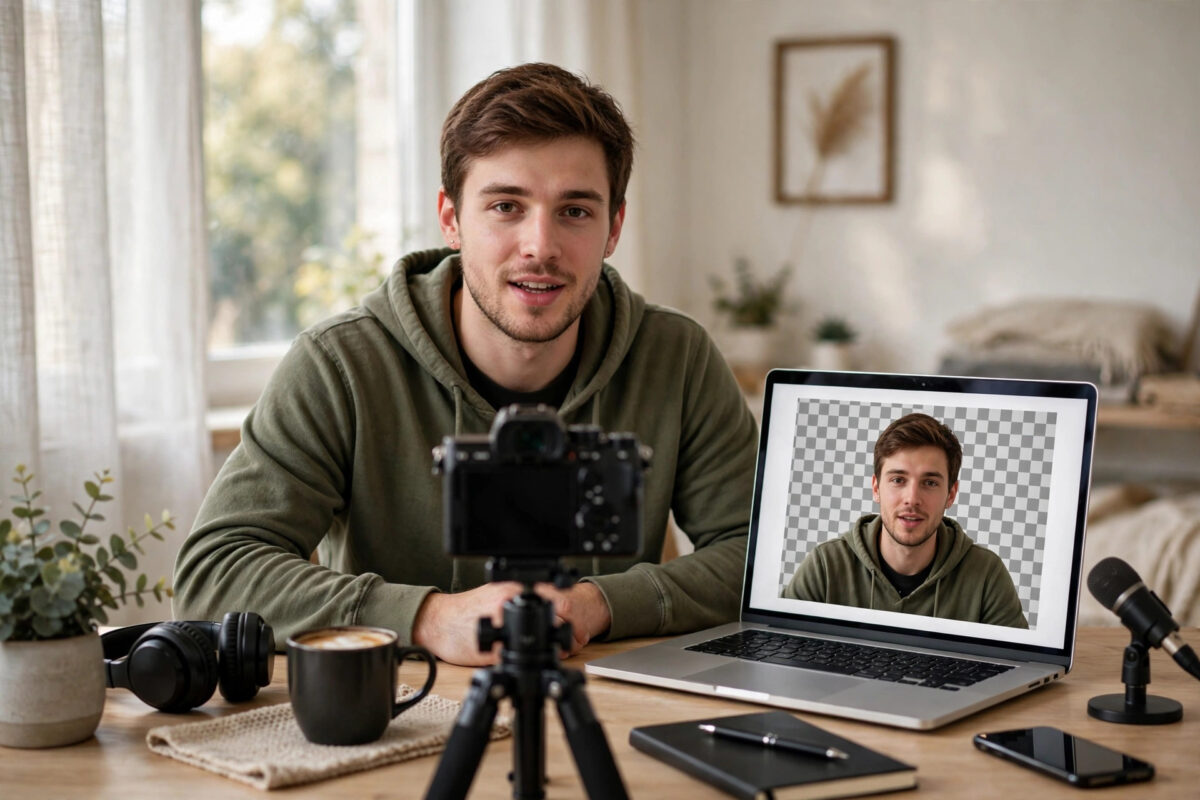
Clean, professional video once needed a green screen, studio lights, and expensive editing software.
Today, AI can separate you from your background automatically.
It works even if you filmed in a messy bedroom or a busy office.
That is why creators and teachers keep asking one question.
What is the best free online tool to remove a video background?
This guide compares the best free options honestly.
You will learn how removal works, which tool fits your work, and how to avoid jagged edges.
Quick Answer
For most people, Kapwing and VEED are the best free starting points for editing plus removal.
For quick transparent clips, try Unscreen. For the cleanest edges on short clips, try Runway.
All free tiers limit length, resolution, or add watermarks, so test with a short clip first.
How Online Video Background Removal Works
Modern removers use AI segmentation models.
The software analyses every frame of your video.
It identifies the main subject, usually a person or product.
It then builds a mask around that subject.
Everything outside the mask is removed or replaced.
Good tools also track movement frame by frame.
The mask follows you as you walk, turn, or gesture.
Older chroma key methods needed one solid colour behind you.
If your shirt matched the screen, part of you vanished.
AI tools need no solid colour at all.
They recognise faces, shapes, and depth cues instead.
The trade-off is processing power and sensitivity.
AI removal is slower than chroma key.
It also struggles with low light and motion blur.
What Affects the Quality of the Result?
Three things matter most: lighting, contrast, and movement.
Even, front-facing light helps the AI see your edges clearly.
Strong contrast helps too, like a dark shirt against a light wall.
Fast movement is the hardest case for any tool.
Loose hair, clear glasses, and matching colours often leave artefacts.
Even paid tools struggle with those details.
Best Free Online Tools to Remove a Video Background
The tools below work entirely in your browser.
None of them need installation.
Each one offers a genuinely usable free tier.
Free limits change often, so check before a big project.
Most free plans restrict resolution, duration, or monthly minutes.
Some also place a small watermark on free exports.
1. Unscreen — Best for Quick Transparent Exports
Unscreen does one job very well.
It removes the background and exports a transparent result.
You can download a transparent video, GIF, or animated file.
You can also replace the background with a colour or image.
It suits website sections, product demos, and stickers.
The free tier works best for short clips and previews.
Longer videos and higher resolutions usually need payment.
Choose Unscreen when speed and transparency matter most.
2. Kapwing — Best All-Round Free Editor
Kapwing is a full online video editor.
Its background removal sits inside that editor.
After removal, you can resize for YouTube or TikTok.
You can also add captions, text, and music in one place.
The free plan suits short social clips well.
Exports may carry a watermark and length limits.
Explore the features on the official Kapwing website and online video editor before you commit.
3. Runway — Best for Creative Work
Runway offers advanced AI video tools.
Its background removal handles tricky edges very well.
It gives you more manual control over the mask.
Filmmakers and content teams use it for important clips.
The free tier usually includes limited credits.
Those credits run out fast on longer videos.
Use Runway for short clips where quality matters most.
4. Canva — Best for Presentations
Canva suits people who already design in Canva.
You upload a video and apply the remover.
Then you place yourself over slides or graphics.
The feature is often linked to premium plans.
Trials and education accounts sometimes include access.
Check your account type before a deadline.
5. VEED — Best for Talking-Head Videos
VEED combines removal with subtitles and recording.
It also offers brand templates for marketing teams.
That makes it strong for courses and coaching videos.
The free tier lets you test the full workflow.
Free exports may be watermarked and length-limited.
Its background library gives you a studio look fast.
Step-by-Step: Remove a Video Background for Free
Button names differ, but the workflow is nearly identical everywhere.
Follow this numbered procedure for the cleanest result.
- Trim your video before uploading, so it processes faster and uses fewer free credits.
- Export or locate the highest-quality original file you have, ideally 1080p in MP4 or WebM format.
- Upload the clip to your chosen tool and wait for the preview to load fully.
- Select the remove background, Smart Cut, or effects option and start automatic processing.
- Scrub through the timeline and check hair, hand gestures, and fast movement closely.
- Refine the mask if needed, adjusting edge softness or restoring parts removed by mistake.
- Choose a new background: a solid colour, an image, a video, or transparency.
- Watch the full preview at full size and look for flicker around hair and shoulders.
- Export at the highest resolution your free plan allows and download the file immediately.
For transparency, export as WebM with alpha or MOV.
GIF only suits short, silent loops.
You can find more workflows in our complete collection of online tools guides and tutorials on NetworkUstad.
Free vs Paid: What Are You Really Giving Up?
Free tools are excellent for testing and short clips.
The compromises are predictable and consistent.
You usually get lower resolution and slower processing.
You may also get watermarks and monthly usage caps.
Paid plans mainly buy back quality and time.
One short video a week may never need payment.
Daily client work usually justifies upgrading.
Always test your real footage on the free tier first.
Edge quality depends more on your footage than the brand.
Common Mistakes and Tips for Cleaner Results
Most poor results come from the original recording.
They do not come from the tool itself.
Avoid these mistakes and free exports look professional.
- Filming in poor light: Dim or backlit footage confuses the AI, so face a soft light source.
- Wearing background colours: A white shirt against a white wall will always be difficult to cut out.
- Standing too close to the wall: Your shadow becomes part of the problem, so stand a metre away.
- Ignoring hair and edges: Tie back very loose hair for important recordings.
- Uploading a compressed copy: Always start from the original camera file, not a social media download.
- Forgetting audio: Removal does not improve sound, so record in a quiet room.
One pro tip saves a lot of frustration.
Record a five-second test clip in your real setup.
Run it through two different free tools.
The comparison takes ten minutes and tells you more than any review.
Conclusion
So, what is the best free online tool to remove a video background?
Unscreen wins for quick transparent clips.
Kapwing and VEED win for everyday editing and social content.
Runway wins for edge quality on short, important clips.
The real secret is your footage, not the tool.
Good light and strong contrast make any free remover look premium.
Start with a short test and upgrade only when limits slow you down.
Frequently Asked Questions
Can I remove a video background without a green screen?
Yes. AI tools identify the subject directly.
No green screen is required at all.
A plain background and good light still help.
Do free video background removers add a watermark?
Many do, or they limit export resolution.
Some allow a few watermark-free exports each month.
Always export a short test before a long project.
What is the best format for a transparent video?
WebM with alpha is best for websites.
MOV works well in many desktop editors.
GIF suits only short, silent loops.
Why does my hair look flickery after removal?
Hair is semi-transparent and moves between frames.
That is the hardest case for AI masks.
Better light and slight edge feathering usually help.
Is it safe to upload private videos to online tools?
Reputable tools use encrypted connections.
Deletion policies still differ between services.
Check the privacy policy before uploading sensitive footage.
For background reading, see the overview of video editing software and techniques on Wikipedia.

Leave a Reply