
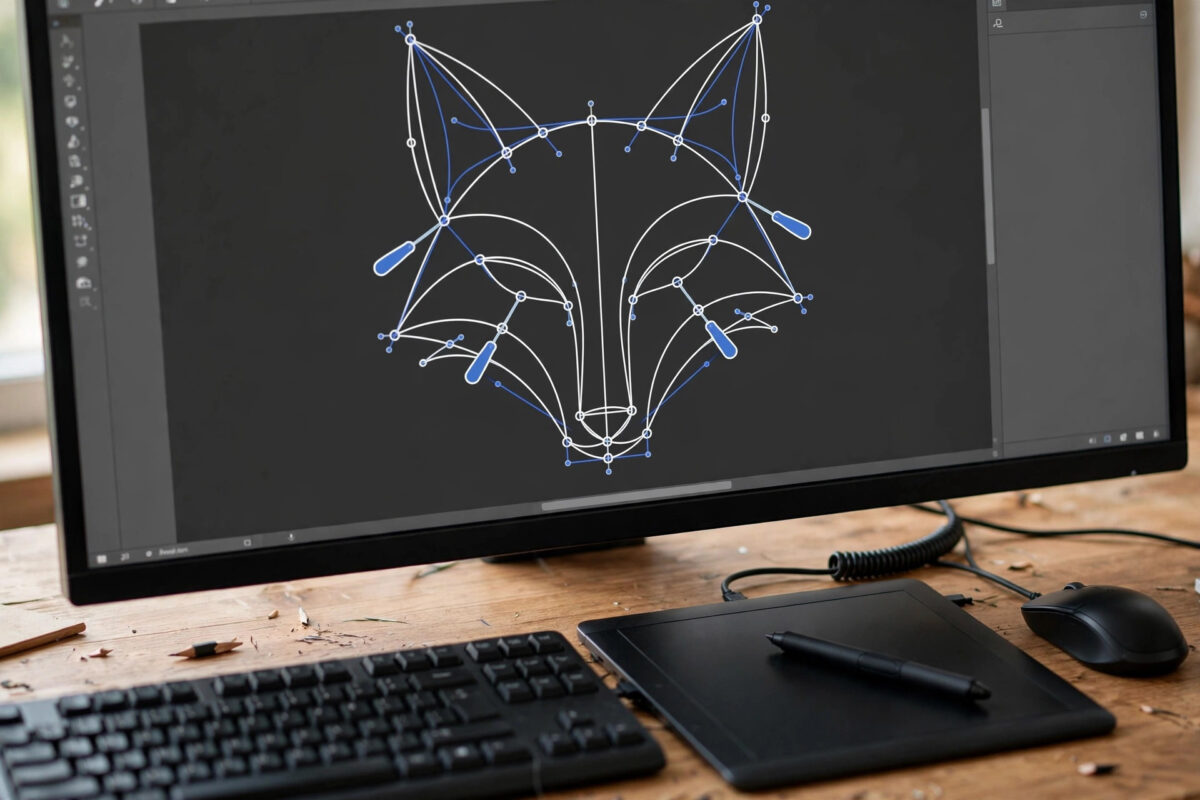
Logos and icons often arrive as PNG files. Enlarge a PNG, though, and it turns blurry and pixelated.
Vector graphics solve that problem completely. They stay sharp at any size, from a favicon to a shop sign.
So you have probably asked this question. How can I convert a PNG image into a vector SVG online for free?
This guide compares the best free converters honestly. It also shows you how to avoid messy, bloated SVG files.
Quick Answer
Upload a clean, transparent PNG to a free tool like Adobe Express or an AI vectoriser. Match the colour settings to your design, preview the curves, and download the SVG.
Simple logos convert beautifully in minutes. Photographs never convert well, so keep photos in raster formats.
PNG vs SVG: Why Convert at All?
A PNG is a raster image made of pixels. It has a fixed resolution and suits photographs well.
Scale it beyond that resolution and it blurs. The software must invent pixels that were never there.
An SVG works in a completely different way. It stores mathematical paths, points, and curves instead of dots.
That means it scales without any loss of quality. It also stays small and loads fast on websites.
Designers can recolour an SVG with one edit. Search engines can even read text stored inside it.
For deeper background, the detailed explanation of the SVG file format on Wikipedia covers support and technical details.
Which PNGs Convert Well — and Which Do Not?
Tracing works best on simple, flat artwork. Logos, icons, signatures, and line art are ideal candidates.
Graphics with clean edges and few colours trace cleanly. Cartoons and simple illustrations also work well.
Photographs are the opposite case. A traced photo becomes thousands of shapes or a posterised copy.
If your PNG is a photo, keep it as a photo. If it is a logo, tracing is the right move.
Best Free Online PNG to SVG Converters
All the tools below run in your browser. Each offers a genuinely free route to an SVG download.
Free tiers usually limit file size or daily conversions. Some also require a free account to download.
1. AI Vectorisers — Best Automatic Quality
AI vectorisers handle coloured logos impressively well. They detect shapes and curves more intelligently than older tracers.
Previews are usually free to generate. Full downloads may need credits, depending on the service.
Try them first for detailed, multi-colour logos. They usually give the closest match to the original.
2. Adobe Express Converter — Best Trusted Free Option
Adobe offers a free PNG to SVG converter online. You upload, it traces, and you download.
It is fast, simple, and reliable for clean logos. Beginners face fewer confusing settings here.
Very complex images lose some detail. For everyday logo work, the result is clean and usable.
3. Convertio — Best for Format Flexibility
Convertio converts between hundreds of file formats. PNG to SVG is just one of its options.
Its strength is pure convenience for quick jobs. Drag in a file, choose SVG, and download it.
Its tracing is basic compared with AI tools. It suits simple black-and-white graphics best.
4. Lightweight Converters — Best for One-Off Jobs
Several small converters handle single files in under a minute. They usually offer colour and smoothness controls.
Fewer colours almost always means a cleaner file. Experiment with the colour slider before downloading.
5. Inkscape — Best Free Manual Control
Inkscape is free desktop software, not an online tool. Its Trace Bitmap feature still deserves a mention.
It gives you full control over thresholds and colours. Online tools hide most of those settings.
Download it from the official Inkscape website for free vector editing when you need precision.
Step-by-Step: Convert a PNG into a Vector SVG Online for Free
Follow this numbered procedure for a clean result. Take your time on the preview step in particular.
- Find the largest, cleanest version of your PNG and keep it as your source file.
- Remove the background first if you only want the logo itself traced.
- Crop away empty margins so the tool focuses on the artwork, not blank space.
- Open your chosen converter in the browser and upload the prepared PNG.
- Choose single-colour mode for a black logo, or match the real colour count for a coloured logo.
- Set detail or smoothness to a medium level instead of accepting the maximum by default.
- Generate the preview and zoom into curves, small text, and sharp corners carefully.
- Adjust the colour count or detail level and re-trace if edges look wobbly or dirty.
- Download the finished SVG and open it in a browser to confirm it scales cleanly.
- Check the file size; a simple logo SVG should be small, not several megabytes.
Iteration at step eight is where quality is won. Two extra minutes there saves an hour of cleanup later.
For more image workflows, browse our practical online tools guides for images and design on NetworkUstad.
How to Clean Up a Traced SVG
Even a good automatic trace benefits from cleanup. Two minutes of editing makes a visible difference.
Delete stray specks and duplicate background paths first. Then merge shapes that share the same colour.
Simplify paths to remove excess anchor points. Most editors have a simplify command for this job.
Simplification can cut file size dramatically. It does so without any visible change to the artwork.
Convert text to paths only for cutting or printing. Keep real text editable for normal web use.
Common Mistakes and Tips
- Tracing photographs: This is the biggest beginner mistake and always creates huge, ugly files.
- Using a tiny source PNG: A small thumbnail gives the tracer too little information to work with.
- Accepting maximum colours: More colours mean more paths, bigger files, and dirtier edges.
- Forgetting the background: A white background in the PNG becomes a white shape in the SVG.
- Not checking at large size: Preview at 400 percent before using the file for print work.
- Ignoring licensing: Converting a file does not give you rights to someone else’s logo or artwork.
One filing tip saves hours over time. Store the original PNG beside the finished SVG.
Use clear names like logo-original.png and logo-vector.svg. Future edits and reprints become trivial.
Online Converter vs Desktop Software: Which Should You Choose?
Online converters win on speed and convenience. They need no installation and finish simple jobs in seconds.
They suit occasional users perfectly. One logo a month does not justify learning complex software.
Desktop software wins on control and privacy. Your files never leave your own computer.
It also handles difficult artwork far better. Manual node editing fixes what automatic tracing cannot.
Batch work is another desktop advantage. Converting fifty icons online, one by one, wastes serious time.
Many designers use both routes together. They trace online for a fast draft, then refine on desktop.
Choose based on frequency and sensitivity. Rare, simple, public files suit online tools very well.
Frequent, complex, or confidential work deserves desktop software. Your skills grow with every manual trace, too.
Conclusion
So, how can you convert a PNG image into a vector SVG online for free?
Start with a clean, transparent, high-resolution PNG. Use a free converter and match its colours to your design.
Preview the curves closely before downloading. Clean up stray paths and check the file size afterwards.
Simple logos convert beautifully in minutes. Master that distinction, and your SVGs will work everywhere.
Frequently Asked Questions
Is converting PNG to SVG online really free?
Yes, for simple files. Most tools limit file size, daily count, or download quality on free tiers.
Will my SVG look exactly like the PNG?
For flat logos, very close. For gradients and photos, no, because tracing approximates detail with flat shapes.
Can I convert a PNG logo with a white background?
You can, but the white becomes a shape. Remove the background first for a truly transparent result.
What is the best free tool for a black-and-white logo?
Almost any converter handles single-colour logos well. Adobe Express is reliable, and Inkscape offers the most control.
Why is my converted SVG file so large?
Too many colours or too much detail was traced. Re-convert with fewer colours and simplify the paths.
Leave a Reply