
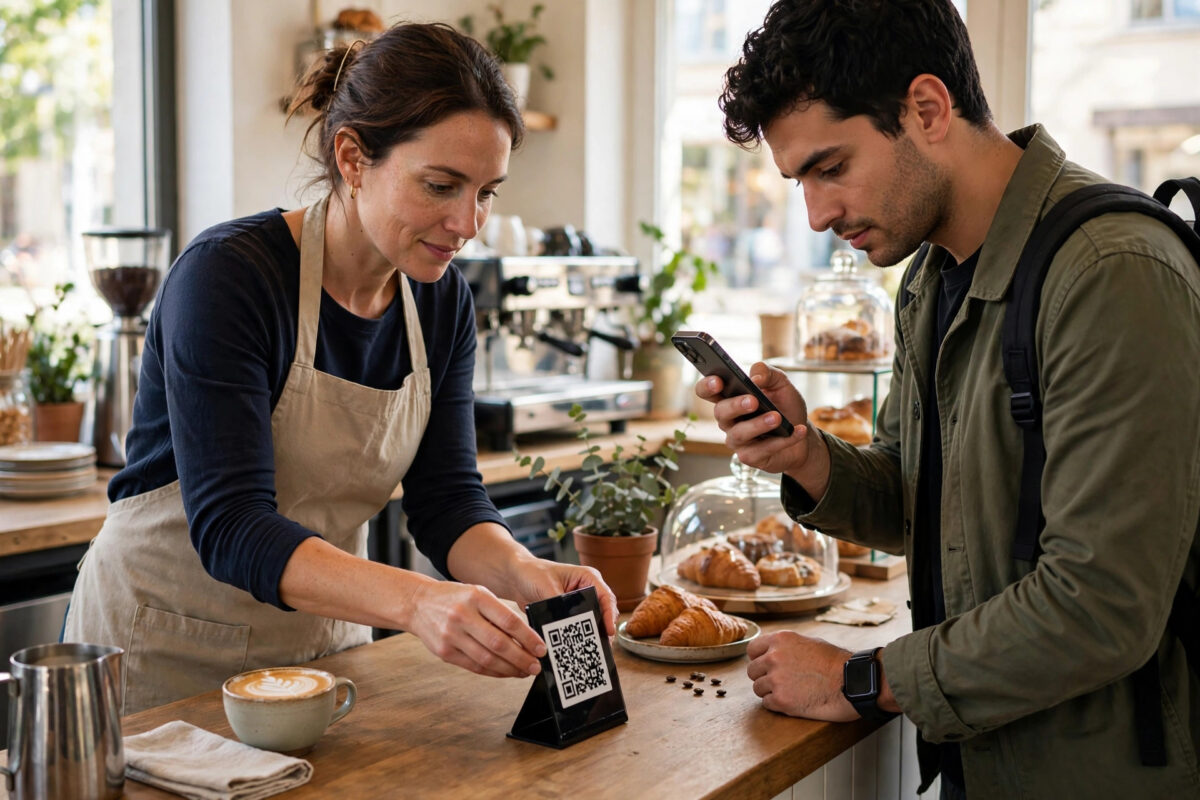
QR codes have quietly become the bridge between the physical world and the phone in your pocket. They sit on menus, posters, business cards, product packaging, event tickets, and shop windows.
One quick scan takes a customer to a website, a payment page, a Wi-Fi network, or a contact card. No typing a long address, and no spelling mistakes on the way.
The good news is that making one costs nothing and takes about a minute. This guide shows you how, explains the one decision that really matters, and covers the mistakes that leave people with codes that do not work.
Quick Answer
You can create a QR code for free by opening an online QR generator, entering your link or information, customising the design lightly, and downloading the code as a PNG or SVG file.
Choose a static QR code for anything printed or permanent, because it never expires. Test the finished code with more than one phone before you print or share it.
Static and Dynamic QR Codes: The Decision That Matters
Every free generator offers, or quietly pushes, two kinds of code. Understanding the difference before you start will save you from the commonest QR disappointment of all.
A static code contains your actual information inside the pattern itself. A website address, for example, is encoded directly into the black and white squares.
Because nothing sits between the code and its destination, a static code works forever. It cannot be edited later, tracked, or switched off by anyone.
How Dynamic Codes Differ
A dynamic code contains a short redirect address owned by the generator company. Scanning it sends the phone to that company’s server, which forwards it to your real destination.
That detour allows editing the destination later and counting scans. It also means the code depends entirely on that company’s service continuing to run.
Many free dynamic codes are really trials. When the trial ends, the code may stop working unless you pay. That is a nasty surprise if it is already printed on five hundred leaflets.
For most personal and small business uses, static is the safer choice. The technology itself is open and long-established, as described in the history and technical overview of the QR code on Wikipedia.
How to Create a QR Code for Free Step by Step
- Decide what the code should open. The commonest choice is a website link, but generators also offer Wi-Fi access, contact cards, plain text, email, phone numbers, and location links. Pick one clear destination.
- Choose a reputable free generator. Look for a site that creates static codes without an account. If a tool forces sign-up before letting you download, or mentions a trial period, it is selling dynamic codes.
- Enter your content carefully. Paste the full website address, including the https part. For Wi-Fi, enter the network name and password exactly, including capital letters. One wrong character makes a useless code.
- Generate the code and preview it. The pattern should appear instantly. A very long link produces a denser, more complex pattern, so consider a shorter address if the code looks extremely crowded.
- Customise lightly, if at all. You may add a small logo or change colours, but keep strong contrast between the dark squares and the light background. Low contrast is the leading cause of scanning failures.
- Download in the right format. Choose PNG for use on screens, websites, and documents. Choose SVG, if offered, for print, because it scales to any size without becoming blurry.
- Test before you use it. Scan the downloaded code with your phone camera, and ideally with a second phone too. Confirm it opens exactly what you intended, every time.
- Print or share at a sensible size. For something held in the hand, a code around two centimetres wide is a practical minimum. Posters meant to be scanned from a distance need to be much larger.
What Can a QR Code Contain?
A website link is only the beginning. A contact card code saves your name, number, and email straight into someone’s phone, which makes it ideal for business cards and email signatures.
A Wi-Fi code is a favourite for cafes, guest houses, and holiday rentals. Guests scan once and connect, without reading a password aloud or typing it character by character.
Other popular uses include linking to a menu, a review page, a social profile, a map location, an event invitation, or a payment page at a market stall.
Choosing the Right Type in the Generator
- Use the URL type for websites, documents, menus, booking pages, and review pages.
- Use the vCard type for contact details you want saved directly to a phone.
- Use the Wi-Fi type for network access, and keep the printed code somewhere only your guests will see it.
- Use the text type for short information that needs no internet connection to display.
More everyday tools explained in the same plain, test-it-yourself style are gathered in NetworkUstad’s practical tech guides and online tools resources.
Design Rules That Keep a Code Scannable
A QR code is a machine-readable pattern, not a decoration. Scanners need a clear quiet zone, the blank margin around the code, so never crop right up to the squares.
Dark squares on a light background scan most reliably. Reversed codes, pale colours, and busy image backgrounds all raise the failure rate, especially on older phones.
If you add a logo, keep it small and centred, and test again afterwards. Error correction lets a code survive some damage or covering, but there is a limit, and only testing tells you whether you have passed it.
A Note on Error Correction
Generators sometimes offer error correction levels. Higher levels make a code more resistant to damage, dirt, or a logo placed over it, at the cost of a denser pattern.
For a clean digital code, the default is fine. For outdoor posters, packaging, or any code with a logo, choosing a higher level is a sensible precaution.
Common Mistakes and Practical Tips
The costliest mistake is printing a dynamic code from a free trial that later expires. If your code must keep working on printed material, use a static code and test it while signed out of the generator’s site.
The second mistake is never testing at the real size and distance. A code that scans beautifully on your screen may fail on a shop window from two metres away.
Print one copy first, stick it where it will live, and scan it under real lighting. Only then print the full run.
A third mistake is linking to a page that is not mobile friendly. Almost every scan happens on a phone, so the destination must load quickly and read well on a small screen.
Also avoid linking to a homepage when a specific page is what the person wants. A menu code should open the menu, not a general welcome page with a menu buried three taps down.
Finally, think about trust. People are rightly cautious about scanning unknown codes, so add a short line of text beside yours saying where it leads, such as “Scan to see our menu.” A labelled code gets scanned far more often than a mysterious one.
Conclusion
Creating a QR code for free takes a minute: choose a static code, enter your link or details carefully, customise only as far as contrast allows, download a PNG or SVG, and test it on real phones.
The free static route never expires, needs no account, and suits nearly every personal and small business use. Respect the design basics, test before you print, and your code will still be working long after the poster fades.
Frequently Asked Questions
Do free QR codes expire?
Static QR codes never expire, because the information is contained in the pattern itself. Dynamic codes can stop working if the provider’s trial or plan ends, since they depend on that provider’s redirect service.
Can I change where my QR code points after printing it?
Not with a static code — its destination is fixed in the pattern. Only dynamic codes allow editing the destination later, which is their main advantage, but they carry the risk of expiring or requiring payment.
What is the best file format for printing a QR code?
SVG is best for print because it stays sharp at any size. A high-resolution PNG also prints well for small items such as business cards and labels.
How small can I print a QR code?
For handheld items, around two centimetres wide is a practical minimum. The further away the scanner will be, the larger the code needs to be, so always test at the intended distance.
Is it safe to scan QR codes from strangers?
Be cautious. A code can lead to a fraudulent website or payment page. Preview the address your phone shows before opening it, and never enter payment details after scanning a code in a public place without checking the destination carefully.

Leave a Reply