
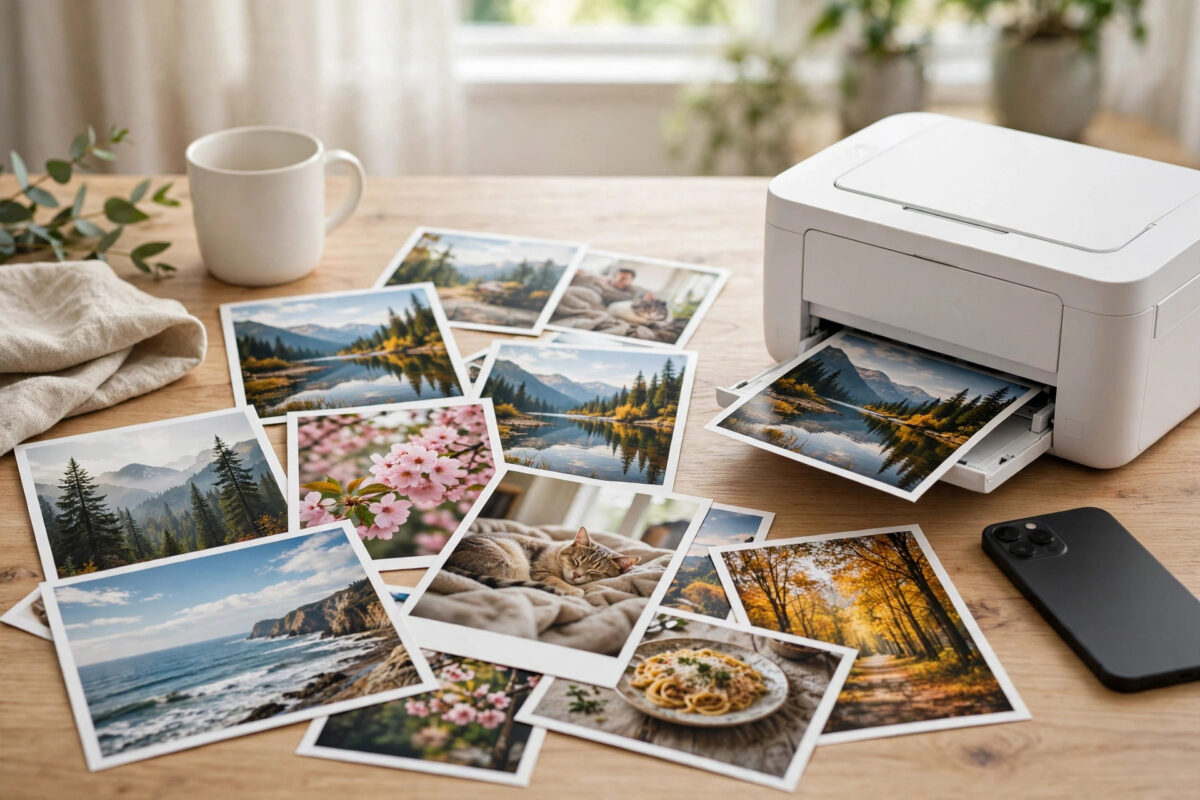
Our phones hold thousands of photos, yet most of them never leave the screen. Printing from a smartphone is easier than it has ever been: you can send pictures straight to a home printer over Wi-Fi, order professional prints from an app, or walk into a shop with a kiosk. This guide explains each method, plus the settings that separate a dull, cropped print from one worth framing.
Quick Answer
The fastest way is Wi-Fi printing: connect your phone and printer to the same network, open a photo, tap Share or Print, and choose AirPrint (iPhone) or the printer app / default print service (Android). For the best quality or larger sizes, use a photo printing app or service and order prints made on real photo paper. Always check the crop preview and choose the highest resolution before printing.
Method 1: Print at Home Over Wi-Fi
On iPhone with AirPrint
- Make sure the iPhone and printer are on the same Wi-Fi network. Most printers sold in the last decade support Apple’s AirPrint, which needs no extra software.
- Open the photo in Photos and tap the Share icon.
- Scroll down and tap Print.
- Select your printer, set copies and paper size, and tap Print.
On Android
- Connect the printer to the same Wi-Fi network as your phone.
- Install your printer brand’s app (HP Smart, Canon PRINT, Epson iPrint, Brother iPrint&Scan) — it also enables scanning and ink checks — or rely on Android’s built-in print service.
- Open the photo, tap the menu (three dots) and choose Print, then select the printer and paper settings.
No Wi-Fi Printer? Use a Cable or Direct Wi-Fi
Many printers offer Wi-Fi Direct: the printer broadcasts its own network, your phone joins it temporarily, and you print without a router. Some Android phones can also print via a USB OTG cable. Both are handy when setting up a printer at a relative’s house or an event. If your printer refuses to appear on the network at all, our troubleshooting guide on fixing a printer that won’t print from your phone covers the connection checks step by step.
Method 2: Order Prints From an App or Website
For albums, gifts, and anything larger than A4, online services usually beat home printing on quality and price per photo. Apps such as FreePrints, Snapfish, Cewe, and Boots Photo (UK) or Shutterfly (US) upload your selected photos, print them on proper photo paper, and post them to you. Same-day collection is available at many supermarkets and pharmacies with photo kiosks — upload from the app, pick up in an hour. The workflow is always similar:
- Choose the photos (favour the originals, not screenshots or messaging-app copies, which are compressed).
- Pick a size: 6×4in for albums, 7×5in or 8×6in for frames, A4 and above for walls.
- Review the crop for every single photo — this is where heads get cut off.
- Choose matte paper if the print will sit behind glass; gloss for maximum colour pop in albums.
- Check out and wait for delivery or collection.
Method 3: Instant Printers and Kiosks
Pocket photo printers (HP Sprocket, Canon Selphy, Fujifilm Link) connect over Bluetooth and produce small prints in a minute — great for parties, journals, and fridge doors. High-street kiosks accept photos from your phone via cable, QR code, or their app and print while you shop. Quality is good for standard sizes, and you can see the crop on a big screen before paying.
Getting Quality Right: Resolution, Crop, and Paper
Three things decide whether a print looks great:
- Resolution: Aim for about 300 pixels per inch of print. A 6×4in print wants roughly 1800×1200 pixels — any modern phone photo exceeds this. Prints larger than A3 need the full-resolution original, so avoid photos forwarded through WhatsApp or Facebook, which shrink files.
- Aspect ratio and cropping: Phone photos are usually 4:3, but classic prints are 3:2. Something must be cropped. Use the app’s preview and drag the crop yourself rather than letting the machine centre-crop faces out.
- Paper and settings at home: Load genuine photo paper the right way up (glossy side as the manual directs), and in the print dialog choose the exact paper type and “Best” quality. Plain-paper settings on photo paper produce washed-out results, the most common home-printing complaint of all.
Also remember screen brightness lies: phone screens are backlit and bright, so prints often look darker. Many apps offer a one-tap “brighten” edit — use it lightly for indoor photos.
Common Mistakes to Avoid
- Printing compressed copies: Photos saved from social media or chats can be a tenth of the original size and print pixelated.
- Skipping the crop preview: Automatic crops cut off heads, feet, and the edges of group shots.
- Wrong paper setting: Always match the paper type in the driver or app to the paper in the tray.
- Printing on a phone with a dirty camera roll: Screenshots and memes sneak into select-all uploads — review the basket before paying.
- Forgetting borders: Borderless printing clips a few millimetres on every edge; choose “with border” for documents-style precision shots.
Special Projects: Books, Canvases, and Gifts
Once standard prints are easy, the same photos can become far more interesting products, and nearly all of them are ordered from the phone in the same apps. Photo books are the standout: services like Cewe, Photobox, and FreePrints’ book apps lay out a holiday or a baby’s first year automatically, and the printed, bound result looks far more expensive than it is. Canvas wraps and framed prints suit one hero shot per wall — choose a photo with space around the subject, because canvases wrap the edges around the frame and crop the picture in the process. For gifts, phone photos print well onto calendars, mugs, cushions, and jigsaws; order these early in December, when print labs are at their busiest and delivery takes days longer. A useful habit for all projects: create a “To Print” album on your phone during the year, adding favourites as you take them. When a birthday or a sale arrives, the selection work is already done and you are not scrolling through ten thousand screenshots at midnight.
Conclusion
Printing photos from your smartphone takes minutes once you know the route: AirPrint or your printer’s app for home printing on photo paper, an online service for the best quality and bigger sizes, and pocket printers or kiosks when you want prints in your hand today. Check the crop, use originals, and match the paper settings, and your prints will look as good as they do on screen.
Frequently Asked Questions
Why do my printed photos look darker than on my phone?
Phone screens are bright and backlit, while prints rely on reflected light, so they always look a little darker. Brighten the photo slightly before printing, use quality photo paper, and select the correct paper type in the print settings.
Can I print photos without a printer?
Yes. Order through a photo printing app for delivery or same-day store collection, or use a high-street kiosk where you transfer photos from your phone and print on the spot. Libraries also often offer cheap printing.
What photo size is best for phone pictures?
6×4in is the classic album size and suits phone photos perfectly. For framed desk photos choose 7×5in or 8×6in. Wall prints of A4 and larger need a sharp, full-resolution original from a recent phone.
Why is my printer not showing up on my phone?
Usually the phone and printer are on different networks, the printer is asleep, or its Wi-Fi has dropped. Restart the printer, confirm both devices show the same network name, and try the manufacturer’s app. Our phone-printing troubleshooting guide linked above lists the deeper fixes.
Is home printing cheaper than ordering prints?
Rarely, for photos. Ink and photo paper make a 6×4 home print cost more than the few pence charged by online services in bulk. Home printing wins on speed and convenience; services win on price and quality per print.



Leave a Reply