
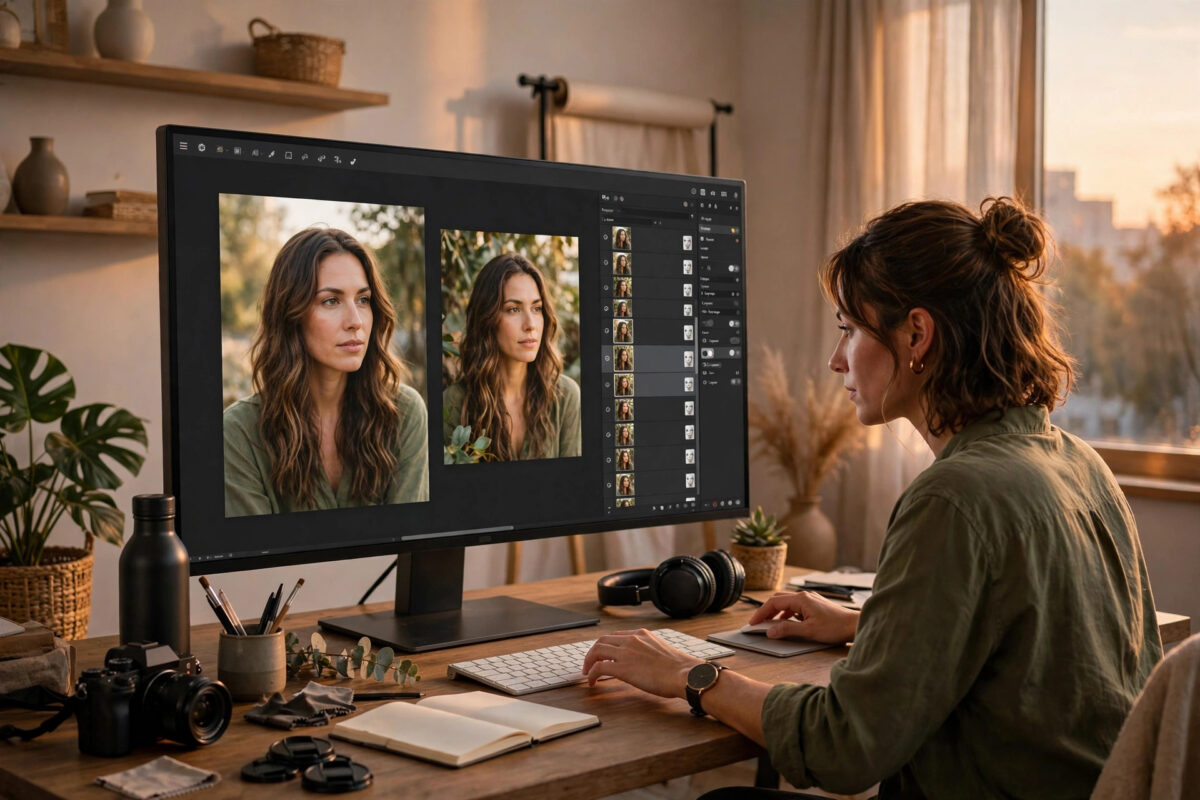
Photoshop is powerful, expensive, and often more than a quick job needs. Many people simply want layers, selections, and retouching tools.
They want those tools in a browser, for free, without installing anything. Several editors promise exactly that, with very different results.
This guide answers what is the best free online photo editor that works like Photoshop. It compares the serious contenders honestly.
Quick Answer
Photopea is the best free online photo editor that works like Photoshop. Its interface, layers, masks, and file support closely mirror Photoshop itself.
It opens PSD files properly and runs entirely in the browser. For beginners wanting something gentler, Pixlr is the easier starting point.
What Working Like Photoshop Really Means
Plenty of apps call themselves Photoshop alternatives loosely. Filters and brightness sliders alone do not earn that description.
A genuine alternative needs layers. Layers let you edit parts of an image separately without destroying the original work.
It also needs masks and selections. Those tools isolate one area, such as a sky or a face, for targeted changes.
File compatibility matters just as much. Opening and saving PSD files means you can collaborate with people using Photoshop itself.
Adjustment layers, blend modes, and smart organisation complete the picture. Without them, design and retouching work quickly hits a ceiling.
The Leading Free Online Editors Compared
Photopea: Closest to Photoshop Itself
Photopea deliberately mirrors the Photoshop workspace. Panels, tools, and shortcuts sit where a Photoshop user expects them.
It supports PSD, XCF, Sketch, and standard image formats. Complex files with many layers usually open accurately.
The editor is free with advertising, and a paid tier removes ads. Heavy professional files can test older computers, though.
Try it directly on the official Photopea online photo editor site. No installation or account is needed to begin editing.
Pixlr: Easiest for Beginners
Pixlr takes a friendlier, more guided approach. Its modern interface feels less intimidating than a full Photoshop-style workspace.
It offers quick fixes, templates, and AI-assisted tools. Casual edits, social posts, and simple collages are its home ground.
Its free tier has limits on some features and saves. Advanced layer work is possible, but less deep than Photopea.
Other Options Worth Knowing
Browser-based design tools excel at templates and social graphics. They are not really Photoshop-style editors, despite similar marketing.
That distinction matters for retouching work. Removing objects, masking hair, or rebuilding a composite needs proper layers and masks.
For a concise history of the benchmark itself, the background and feature history of Adobe Photoshop shows why its workflow became the standard.
Step-by-Step: Start Editing in Photopea
This workflow covers a typical retouching job. The same sequence suits Pixlr in broad outline, with simpler tools.
- Open Photopea in your browser. Choose New Project for a blank canvas, or Open From Computer for an existing file.
- Load a photograph or a PSD file. Wait for every layer to appear in the Layers panel before editing.
- Duplicate the background layer before making changes. This preserves the untouched original inside the same document.
- Select the area you want to change. Use the lasso, object selection, or quick selection tools as appropriate.
- Add a layer mask from your selection. Paint on the mask with black or white to hide or reveal edits.
- Apply adjustments on their own layer where possible. Brightness, curves, and colour changes then stay reversible.
- Use the clone stamp or healing tools for blemishes. Work on a separate blank layer to keep retouching non-destructive.
- Zoom in and out regularly while you work. Detail that looks fine close up can look unnatural at full view.
- Save the working file in PSD format first. That preserves every layer for future changes.
- Export a flattened copy for sharing. Choose JPG for photographs or PNG when you need transparency or crisp graphics.
Key Features to Judge Any Editor By
Start with layers and masks, because everything else builds on them. An editor weak here will frustrate you within weeks.
Check selection quality next. Clean selections around hair, fur, and transparent objects separate serious editors from toys.
Consider performance on your own machine. Browser editors use your computer’s power, so older laptops may struggle with huge files.
Look at export options carefully. You need control over format, quality, and dimensions, not a single fixed download.
Finally, check the free tier’s real limits. Watermarks, restricted saves, and locked tools change the value of free quickly.
Common Mistakes and Helpful Tips
The biggest beginner mistake is editing the original layer directly. One bad change then becomes difficult or impossible to undo cleanly.
Duplicate layers and use masks from the start. That single habit is the foundation of almost all professional editing.
Another mistake is over-editing skin and colours. Heavy smoothing and extreme saturation are obvious, even to untrained viewers.
Step away from an edit for a few minutes. Fresh eyes spot excess far better than eyes that watched every change happen.
People also forget to save a layered working file. A flattened JPG cannot be adjusted properly later, whatever the editor.
Keyboard shortcuts are worth learning gradually. Even five common ones will noticeably speed up routine work within a week.
Keep an eye on image size as you work. Editing a tiny, compressed copy limits quality no matter how skilled you become. Similar practical workflows appear in the online tools and photo editing guides on Network Ustad.
Who Should Choose Which Editor?
Choose Photopea if you already know Photoshop. The learning transfer is immediate, and your PSD files remain fully usable.
Choose Photopea for serious free retouching too. Its masks, blend modes, and adjustment layers handle demanding composites well.
Choose Pixlr if you are completely new. Its guided tools and templates produce good casual results with far less confusion.
Choose Pixlr for fast social content. Templates sized for posts and stories save repetitive setup work.
Choose neither for huge professional print campaigns. At that scale, desktop software and a colour-managed workflow remain the safer route.
Honest Limits of Free Browser Editors
Free tiers are funded somehow. Expect advertising, feature limits, or prompts encouraging an upgrade to a paid plan.
Those trade-offs are reasonable for occasional use. Daily professional use may justify paying, or switching to desktop software.
Browser editors also depend on your connection for loading. Once editing, most work happens locally, which keeps them responsive.
Very large files remain their weak point. Multi-hundred-megabyte documents can slow down or fail on modest hardware.
Learning Curve and Support
Photopea rewards users who invest a little learning time. Most Photoshop tutorials translate directly, because tools and menus share names.
That huge tutorial library is a hidden advantage. Almost any technique you search for will have instructions matching Photopea’s layout closely.
Pixlr needs less formal learning overall. Its guided design helps you discover features naturally while completing real projects.
Conclusion
Photopea earns the title of best free Photoshop-like editor online. Nothing else free matches its layers, masks, and PSD support combined.
Pixlr remains the kinder introduction for beginners. Both prove that capable editing no longer requires an expensive subscription to start.
Pick based on your experience, not marketing claims. Then learn layers and masks properly, because those skills transfer everywhere.
Frequently Asked Questions
What is the best free online photo editor that works like Photoshop?
Photopea is the closest match overall. It mirrors Photoshop’s interface and supports layers, masks, blend modes, and PSD files in the browser.
Can Photopea really open Photoshop PSD files?
Yes, and usually very accurately, including many layered files. Extremely specialised Photoshop features may occasionally render slightly differently, so check important files carefully.
Is Pixlr better than Photopea for beginners?
For complete beginners, often yes. Pixlr’s guided interface and templates are less intimidating, although its advanced layer tools are less powerful.
Do free online photo editors add watermarks?
Photopea’s free version does not watermark exports, though it shows advertising. Other editors vary, so check the free tier terms before starting important work.
Can I use these editors offline?
Generally no, because they load through your browser. Once a session is running, some work continues locally, but you should not rely on offline access.
Leave a Reply