
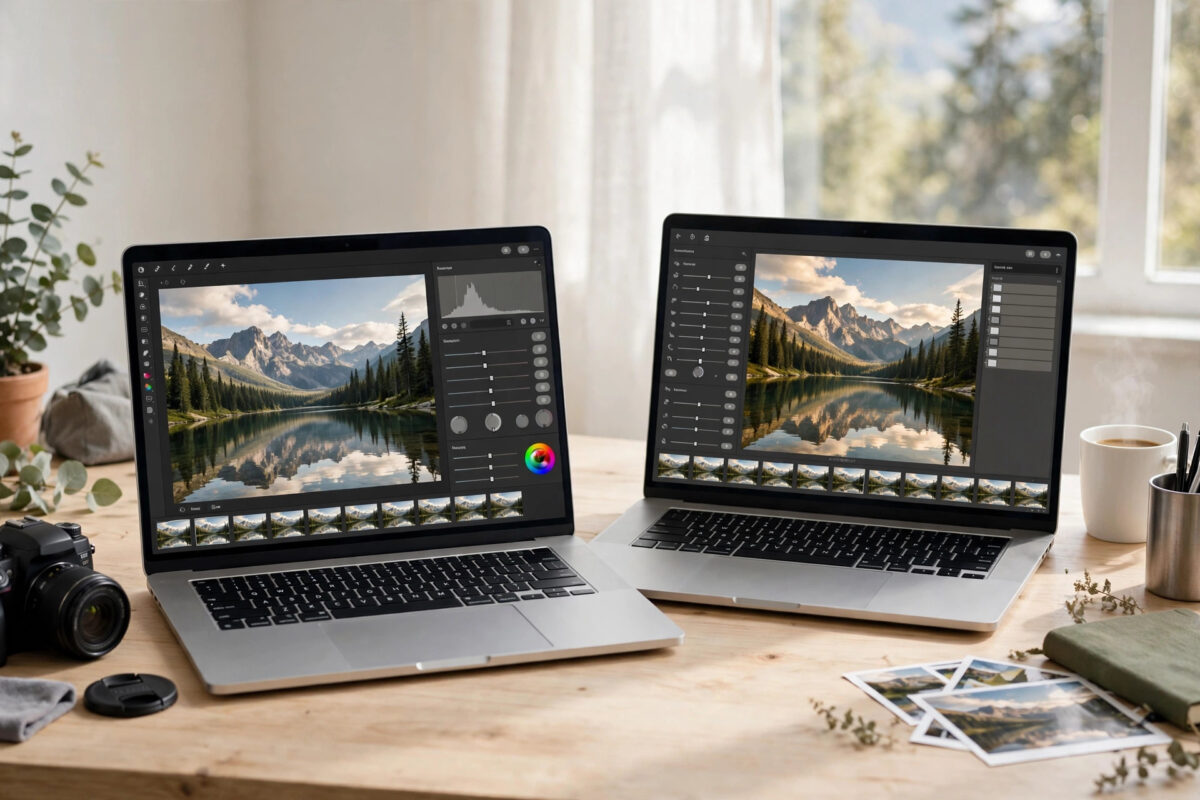
Photopea and Pixlr are the two free online photo editors almost everyone ends up choosing between, and they could hardly be more different in spirit. One recreates Photoshop in a browser tab with uncompromising depth. The other wraps editing in a friendlier, faster, more guided experience with templates and AI shortcuts. Neither approach is wrong — they serve different people.
This comparison puts Photopea and Pixlr side by side on interface, editing power, file support, templates and AI features, speed, and what their free versions really allow. By the end you will know which one deserves your next project, and the answer will depend on the kind of editing you actually do. You will find the NetworkUstad guide to Photoshop-style online editors as this library grows.
Two Editors, Two Philosophies
Photopea is a near-clone of Photoshop’s way of working: a dense toolbar, layers and masks at the centre of everything, support for PSD and other professional formats, and almost no hand-holding. It assumes you want control and are willing to learn where things are. In return it can handle genuinely professional tasks, from retouching to design work, entirely free with advertising.
Pixlr comes as a small suite. Pixlr E is its advanced editor, with layers and serious tools in a cleaner, calmer interface than Photopea’s. Pixlr X is the quick editor for fast jobs — crops, filters, text and social-media-ready designs — backed by a large template library and AI features such as background removal and generative tools in its wider offering. Pixlr’s philosophy is speed and approachability: get a good-looking result quickly, especially for web and social content.
Two references worth keeping open while you work are Photopea’s online editor and Pixlr’s editor suite. Checking the official tool page first also confirms the current free limits, which providers adjust from time to time.
How to Choose: A Practical Side-by-Side Test
Work through the steps in order the first time you do this job. Once the workflow is familiar, most of it becomes second nature and the whole task takes only a few minutes.
Step 1: Open the same photo in both editors
Pick a real photo you actually need to edit — a product shot, a portrait, a blog image — rather than a test file. Real tasks expose real differences, and you will feel within minutes which interface your brain prefers working in.
Step 2: Try a layered edit in each
Duplicate the layer, adjust brightness on one part of the image using a selection or mask, and add text. Photopea will feel instantly familiar to anyone who has used Photoshop, with masks and adjustment layers behaving as expected. Pixlr E handles the same job with a tidier, less intimidating panel layout.
Step 3: Test the quick-job workflow
Now do a fast social-media task: crop to a platform size, apply a look, add a title. Pixlr’s templates and presets make this dramatically quicker — you start from a designed layout instead of a blank canvas. Photopea can do it, but you build everything yourself, which is slower for routine posts.
Step 4: Check file support against your needs
If your world includes PSD files from clients or designers, Photopea is the clear choice: it opens and saves PSD with layers faithfully. Pixlr works with common image formats and its own PXZ project format, which is fine if your work starts and ends inside Pixlr itself.
Step 5: Compare the AI and one-click tools
Pixlr leans into AI assistance — background removal, object removal and smart enhancements are woven into its offering, though the most generous access sits in its paid tier. Photopea has been adding smart features too, but its heart remains manual, precise editing. Decide whether you want the software to do more, or yourself to control more.
Step 6: Judge performance on your own computer
Both run in the browser, but Photopea’s depth comes with weight: very large files can feel heavier, especially on modest hardware. Pixlr generally feels lighter and faster for everyday sizes. Your machine and your typical file sizes are a legitimate part of the verdict.
Step 7: Weigh the free experience honestly
Photopea is free with side advertising and an optional payment to remove it; its editing features are essentially all available free. Pixlr’s free tier is capable but reserves various premium assets, templates and AI allowances for subscribers. If your work depends on those extras daily, factor the subscription into the comparison fairly.
The Verdict: Which Should You Use?
Choose Photopea if you want Photoshop’s power and workflow without the subscription, open PSD files regularly, do detailed retouching or design work, or are learning editing skills you want to transfer to professional tools later. It is the deeper, more capable editor, and its learning curve is an investment that pays off across every future project.
Choose Pixlr if your editing is mostly quick, visual and content-driven: social posts, blog images, simple product photos and designs from templates, especially where AI background removal and one-click improvements save you real time. It is friendlier from the first minute and faster for routine work. Plenty of creators keep both — Pixlr for the daily quick jobs, Photopea for the projects that need real layers and precision — and since both are free to start, that mixed approach costs nothing to adopt.
Common Mistakes and Practical Tips
Most disappointing results with tools like these come from a handful of repeat mistakes rather than from the tools themselves. Watch for these:
- Judging both editors by their homepages instead of by editing a real photo in each. Fifteen minutes of actual work settles the question better than any review.
- Expecting Pixlr to be a Photoshop replacement for complex PSD work, or expecting Photopea to offer Pixlr’s template-driven speed. Each is weak exactly where the other is strong.
- Ignoring project-file habits. Save layered projects — PSD from Photopea, PXZ from Pixlr — or neither editor can rescue you when a client asks for a small change tomorrow.
- Assuming free means unlimited in Pixlr’s case. Check which templates, assets and AI features your routine needs and whether they sit in the free tier.
If you are a complete beginner, start one real project in Pixlr to build confidence with layers and adjustments in a gentler space, then graduate to Photopea when you feel its limits. If you already know Photoshop, skip the warm-up: Photopea will feel like home within one session.
Conclusion
Photopea vs Pixlr is not a contest with one winner; it is a choice between depth and speed. Photopea is the free Photoshop-grade editor — layers, masks, PSD fidelity and professional control. Pixlr is the faster, friendlier content editor — templates, AI shortcuts and quick, attractive results. Pick Photopea for serious editing and transferable skills, Pixlr for everyday content at pace, and do not hesitate to use both, each where it is strongest. Either way, your editing costs nothing but the time to learn it properly.
Frequently Asked Questions
Which is closer to Photoshop, Photopea or Pixlr?
Photopea, by a wide margin. Its interface, layers, masks, adjustment layers and PSD support deliberately mirror Photoshop. Pixlr E has layers and serious tools but in its own simpler style.
Which is better for beginners?
Pixlr. Its cleaner interface, templates and guided quick editor make early success easy. Photopea rewards beginners who are willing to learn, and teaches skills that transfer directly to Photoshop.
Which handles PSD files better?
Photopea. Opening, editing and saving layered PSD files is one of its core strengths. Pixlr focuses on standard image formats and its own project format instead.
Are both really free?
Both have genuinely usable free versions. Photopea is ad-supported with full editing features. Pixlr’s free tier is capable, with premium templates, assets and some AI allowances reserved for subscribers.
Can I use both editors for the same project?
Yes. A common workflow is quick preparation or template work in Pixlr and detailed layered finishing in Photopea, exporting standard formats between them as needed.

Leave a Reply