
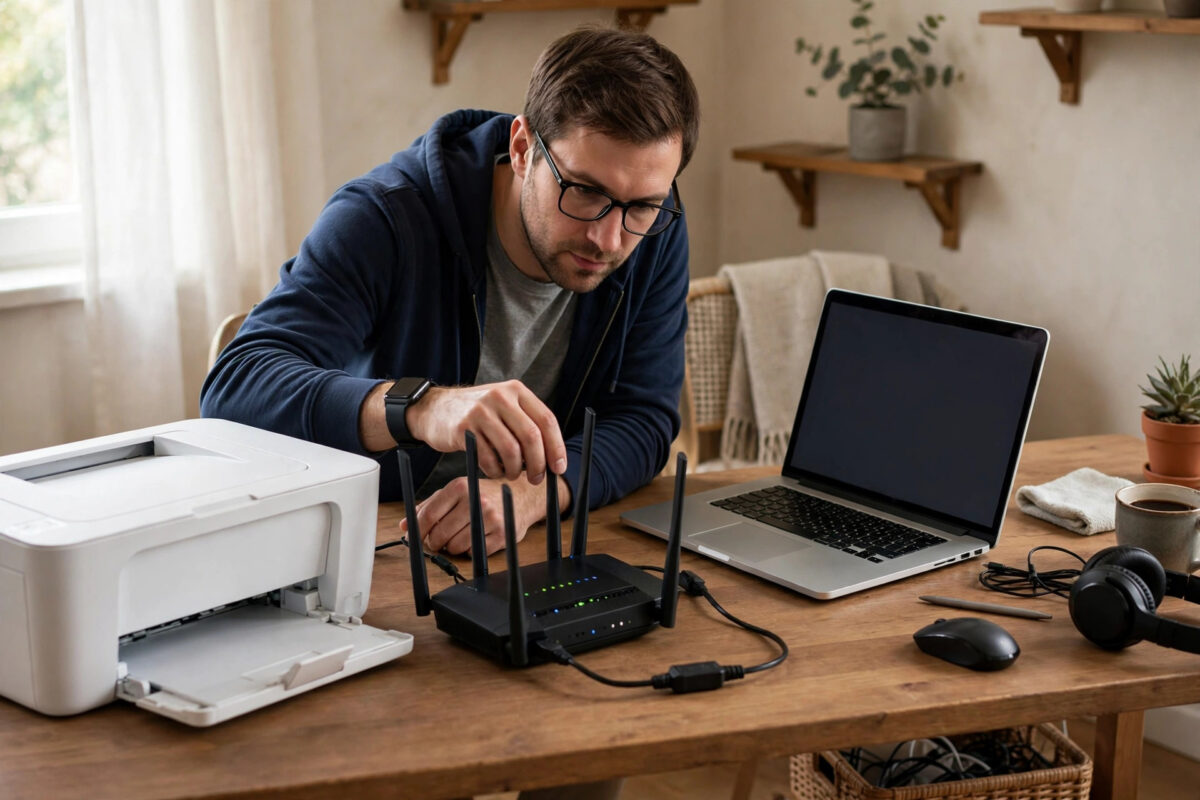
You replaced your router — new name, new password, faster speeds — and everything reconnected except the printer, which now stubbornly refuses to join the network at all. This is one of the most common post-upgrade headaches, because printers lag years behind phones and laptops in the wireless standards they support. The good news is that the list of possible blockers is short and known. Work through this guide and you will find yours.
Quick Answer
Printers usually fail on new routers because the router uses WPA3-only security, merges the 2.4GHz and 5GHz bands in a way the printer cannot handle, or the printer is still trying its saved old network details. Re-run the printer’s wireless setup wizard with the new password, and if that fails, set your router’s Wi-Fi security to “WPA2/WPA3 mixed” and temporarily split the bands so the printer can join the 2.4GHz network by name.
The Usual Suspects
1. The Printer Still Has the Old Network Saved
Printers do not “discover” that you changed routers; they keep trying the old network name with the old password forever. You must actively reconnect them:
- On the printer’s screen: Settings > Network (or Wireless) > Wireless Setup Wizard.
- Choose your new network name from the list and enter the new password, watching for case sensitivity and easily confused characters (0 vs O, 1 vs l).
- On screenless printers, use the WPS button method (below) or connect the printer to a computer by USB and run the brand’s setup software, which passes the new Wi-Fi details over the cable.
2. WPA3-Only Security
Wi-Fi 6 and 6E routers often default to WPA3 or “WPA3 transition” security. Many printers — even ones just a few years old — only understand WPA2, and some fail even in transition mode. Log in to your router’s admin page (address on the router’s sticker, often 192.168.0.1 or 192.168.1.1), open the wireless security settings, and set the mode explicitly to “WPA2/WPA3 mixed” or plain “WPA2-AES”. Reboot the router and run the printer’s setup wizard again. This single change fixes a large share of cases.
3. Band Steering and Combined Network Names
Printers are almost all 2.4GHz-only devices. Routers that merge both bands under one name with “smart connect” or “band steering” sometimes push the printer toward 5GHz, where it cannot follow, and the handshake dies. Fixes:
- Temporarily disable band steering / smart connect in the router settings, or give the 2.4GHz band its own network name (for example, “HomeWiFi” and “HomeWiFi-5G”), connect the printer to the 2.4GHz name, and leave it like that — your other devices can use either.
- Some routers (notably mesh systems) offer an “IoT network” or a temporary “pause 5GHz” option in their app specifically for setting up devices like printers. Use it.
- Stand near the router during setup; a weak 2.4GHz signal at distance gives the same failure message as a security mismatch.
4. Wi-Fi 6 (802.11ax) Compatibility Modes
A few older printers stumble on Wi-Fi 6 features such as OFDMA or the ax mode itself. Router settings usually include a compatibility option: set the 2.4GHz band’s mode to “802.11 b/g/n mixed” (disabling ax on that band only) and try again. You lose nothing meaningful for other devices on the 2.4GHz band.
5. The Router’s Client Limits and MAC Filtering
If you enabled MAC address filtering on the new router, add the printer’s MAC address (printed on its network configuration page or a label on the back). Also check the router is not at a DHCP client limit — rare in homes, but some mesh setups cap at 64 or 128 devices, which smart homes can genuinely reach.
6. Old Printer, New Wi-Fi Channel Settings
Two more router settings occasionally block older printers. Some routers enable “Airtime Fairness” or smart QoS features that deprioritise slow 2.4GHz clients so aggressively that the printer’s handshake times out — turning airtime fairness off for a test costs nothing. Routers can also pick crowded or unusual 2.4GHz channels automatically; printers cope best on channels 1, 6, or 11. If your router’s channel is set to “Auto” and has wandered to channel 13 (not permitted everywhere and unsupported by some US-model printers), lock it to 1, 6, or 11 and retry the wizard.
The WPS Shortcut
If typing passwords on the printer is failing, WPS (Wi-Fi Protected Setup) avoids passwords entirely:
- On the printer: Settings > Network > Wi-Fi Protected Setup > Push Button (or hold the printer’s WPS/Wi-Fi button until it blinks).
- Within two minutes, press the WPS button on the router.
- Wait for the printer’s Wi-Fi light to go solid — usually under a minute.
Note some newer routers ship with WPS disabled for security; you can enable it temporarily in the admin page, connect the printer, and disable it again. If WPS connects the printer but it later shows offline on your computer, that is a different fault — our printer keeps showing offline guide covers address and driver problems.
After It Connects: Re-Add the Printer Everywhere
A new router means new IP addresses, so even after the printer joins the network, your computers and phones may still point at old settings:
- Windows: Settings > Bluetooth & devices > Printers & scanners — remove the old entry and Add device again.
- Mac: System Settings > Printers & Scanners — remove and re-add.
- Phones: They discover the printer fresh each time, so no action is usually needed; if the printer will not appear, our guide on fixing phone printing problems walks the discovery checks.
- Reserve the printer’s IP in the new router’s DHCP settings now, so this is the last time you ever chase it around the network.
For brand-specific walkthroughs of the network reset menu, the Brother support site (and the equivalent Canon, Epson, and HP support sites) publish per-model network guides that match your printer’s exact screen layout.
Common Mistakes to Avoid
- Assuming the printer is broken: If it worked before the router swap, the printer is fine — the network changed, not the printer.
- Entering the password on the wrong network: Printers show every neighbour’s network too. Confirm you picked your new router’s exact name, not the old router still plugged in somewhere.
- Leaving the old router switched on: Two routers broadcasting confuses setup and can leave devices split across networks. Retire the old one or rename its network.
- Skipping the computer re-add step: The printer can be perfectly connected while the PC still sends jobs to a ghost. Both halves of the link need attention.
Conclusion
A printer refusing a new router is almost always a security-mode or band problem, not a fault. Re-run the wireless setup with the new password, drop the router’s security to WPA2/WPA3 mixed, and give the printer a clean 2.4GHz path onto the network. Then re-add it on your computers and reserve its IP address. Total time once you know the culprit: about ten minutes, and it should never need doing again.
Frequently Asked Questions
Why does my printer not even see the new network name?
The network it cannot see is probably the 5GHz band, which most printers’ radios cannot detect at all. If your router uses one combined name, the printer may show nothing until you split the bands or disable band steering temporarily.
Is it safe to change my router from WPA3 to WPA2/WPA3 mixed?
Yes for a home network. WPA2 with a strong password remains secure in practice, and mixed mode lets modern devices use WPA3 while older ones like printers use WPA2. Use a long, unique Wi-Fi password.
My printer connected but prints only sometimes. Why?
Intermittent printing after a router change usually means a weak signal at the printer’s location or the printer falling back to sleep and dropping off. Check the signal reading in the printer’s network menu and reserve a fixed IP address in the router.
The printer has no screen. How do I enter a new password?
Use WPS push-button pairing, or connect the printer to a computer with USB and run the manufacturer’s setup tool, which transfers Wi-Fi settings over the cable. Both are standard options on screenless models.
Do I need to reinstall the printer driver after changing routers?
Not the driver software itself, but you should remove and re-add the printer in your computer’s settings so it learns the new network address. If jobs still fail, reinstalling the full driver package from the manufacturer refreshes the network port settings too.



Leave a Reply