
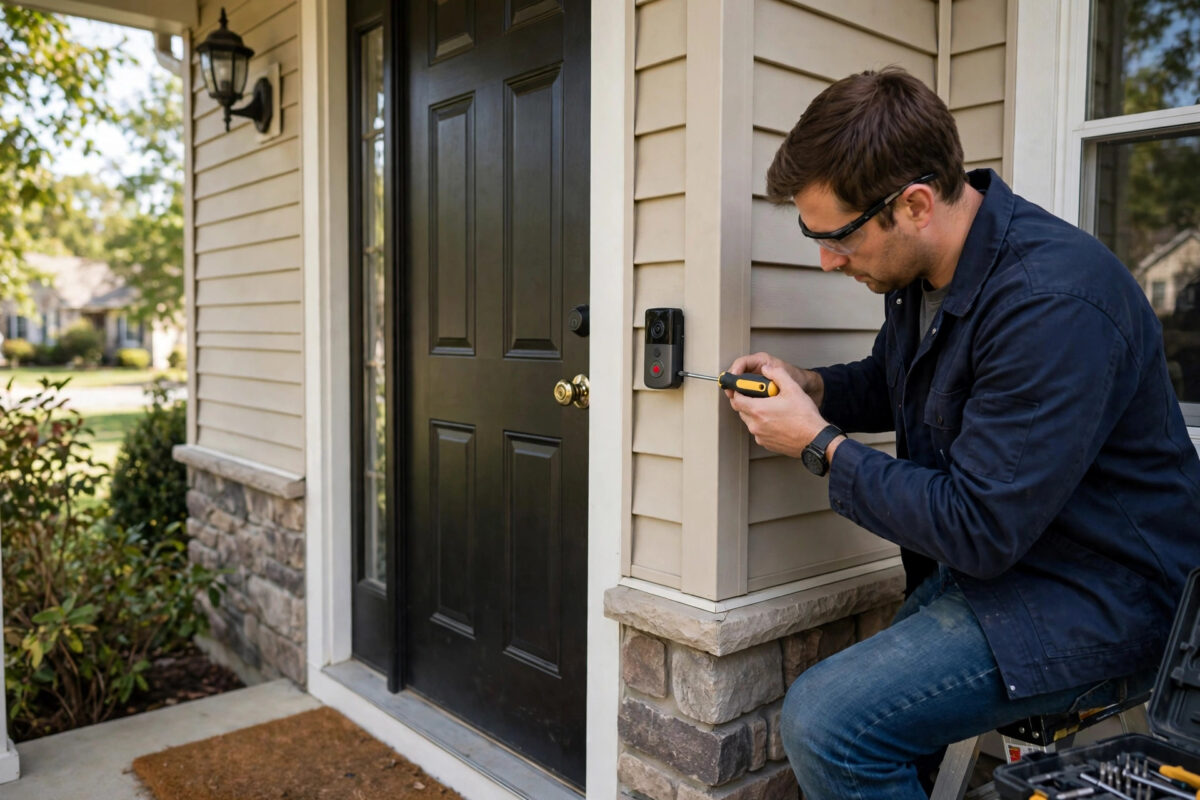
A video doorbell lets you see and speak to whoever is at your door from anywhere — deterring parcel thieves, screening cold callers, and never missing a visitor again. Installation frightens people more than it should: battery models go up with two screws and no wiring at all, and wired models only involve two low-voltage wires you probably already have. This step-by-step guide covers choosing the spot, both installation types, app setup, and the motion settings that stop your phone buzzing for every passing car.
Quick Answer
Charge the doorbell fully, create an account in the brand’s app, and connect the doorbell to your 2.4GHz Wi-Fi while standing indoors near the router. Then mount it beside the door at about 1.2–1.4 metres high using the included bracket — for battery models, that is the whole job. For wired models, turn off power at the consumer unit, swap the two doorbell wires from the old bell push onto the new unit, and restore power. Finish by setting motion zones and checking the live view.
Before You Begin: Choose Your Power Type
- Battery doorbells (most Ring, Blink, Eufy, and Tapo models) need no wiring and install in 15 minutes. The trade-off: you recharge the battery every few months (more often on a busy street), or add a small solar panel.
- Wired doorbells run from your existing doorbell transformer (typically 16–24V AC) and never need charging, and many keep your existing indoor chime working. Check your transformer rating in the fuse box or beside the chime — an undersized transformer is the top cause of wired doorbells misbehaving.
- Hybrid models wire in for power but also contain a battery as backup — the best of both if your wiring exists.
You will also need a strong Wi-Fi signal at the front door. Check with your phone standing outside the closed door: two bars or better. Brick walls and metal doors weaken the signal a lot; if it is poor, a mesh node or extender near the hall makes the difference between instant alerts and a doorbell that is always “waking up”.
Step-by-Step Installation
Part A: App Setup (Do This First, Indoors)
- Charge the battery fully if your model has one — first charge can take five to eight hours, so start the night before.
- Install the brand’s app (Ring, Blink Home Monitor, Eufy Security, Tapo) and create your account with two-factor authentication on.
- Tap Add Device, scan the QR code on the doorbell or its box, and connect it to your 2.4GHz Wi-Fi while you are still inside near the router.
- Let it complete any firmware update now, while the connection is strong.
- Test the live view and press the button to confirm the app rings your phone.
Part B: Battery Model Mounting
- Hold the mounting bracket against the wall or door frame at about 1.2–1.4m from the ground — chest height gives the best view of faces and parcels. Use the included wedge mount, angled toward the path, if your door sits in an alcove or at a corner.
- Mark the screw holes with a pencil, checking with a spirit level (most brackets include a tiny level for this).
- Drill into brick or masonry with the bit size in the manual, insert the wall plugs, and screw the bracket firm.
- Clip or screw the doorbell onto the bracket and tighten the small security screw underneath.
- Step back, check the live view in the app, and adjust the angle before you finish: you want the frame to cover the step, the path, and faces — not mostly sky or wall.
Part C: Wired Model Installation
- Turn off power to the doorbell circuit at your consumer unit/fuse box and verify with the old bell — press it and confirm silence.
- Remove the old bell push and note the two wires. They are low-voltage and not polarity-sensitive on most systems.
- Mount the new bracket as in Part B, feeding the wires through.
- Loosen the two terminal screws on the doorbell’s back, wrap one wire under each, and tighten.
- If your indoor chime is mechanical and the kit included a small jumper cable or power kit for the chime box, fit it exactly as the manual shows — this stops buzzing and phantom rings.
- Clip the doorbell on, restore power, and wait for its startup chime and light.
- Complete the app setup (Part A) and confirm the indoor chime rings when the button is pressed; set the chime type (mechanical or digital) in the app’s device settings if it sounds wrong.
The installation videos on the manufacturer’s site — Ring’s support centre covers its own range in detail — are worth watching once for your exact model, because terminal layouts differ slightly between generations.
Motion Settings That Keep Alerts Useful
Out of the box, most doorbells alert on everything. Five minutes of tuning makes them genuinely useful:
- Motion zones: Draw the zone over your path, step, and driveway only — exclude the pavement and road.
- Person detection: Turn on smart/person alerts and, if offered, set the doorbell to record all motion but only notify for people (and packages, on models that detect them).
- Sensitivity: Start at medium. A front door on a busy street usually needs low-to-medium; a quiet cul-de-sac can take high.
- Privacy zones: Black out neighbours’ windows or garden from recording if they fall in frame — a courtesy in most places and a legal expectation in some.
The same tuning principles apply to full-size cameras; our guide on connecting a security camera to your phone goes deeper on zones and notification delays.
Common Mistakes to Avoid
- Mounting too high: Above 1.5m the camera sees the tops of heads and misses parcels on the step. Chest height is the sweet spot the manuals recommend.
- Skipping the indoor setup: Connecting to Wi-Fi for the first time while standing on a ladder in weak signal wastes half an hour. Set up at the router first.
- Ignoring the transformer rating on wired models: A 8V bell transformer will leave a 16–24V doorbell underpowered — symptoms include night-vision failure and random shutdowns.
- Leaving the microphone wind cover or protective film on: The peel-off film over the lens and mic causes muffled audio and hazy video that people mistake for faults.
- No wedge on a side-facing door: If the door faces a wall, an angled wedge mount is the difference between a picture of the wall and a picture of your visitors.
Conclusion
Set the doorbell up indoors first, mount it at chest height with the right angle, and spend five minutes on motion zones — that is the whole craft. Battery models make it a 15-minute job with no wiring; wired models take slightly longer but never need charging. Once it is live, you will wonder how you ever managed with a bell that only rang inside the house.
Frequently Asked Questions
Do I need a subscription for a video doorbell?
No for live view and real-time alerts — those are free on all major brands. Subscriptions pay for stored video history (reviewing footage later) and advanced detection like package alerts. Eufy and some Tapo models store video locally and need no subscription at all.
How long does a battery doorbell last between charges?
Manufacturers quote three to six months, but a busy front door with lots of motion can cut that to four to eight weeks. Lowering sensitivity, using person-only recording, and tightening motion zones extend it significantly.
Will a video doorbell work with my existing chime?
Wired models usually do — set the chime type in the app and fit the included chime kit if supplied. Battery models need a plug-in chime accessory or rely on phone and smart-speaker announcements instead.
Can I install a wired doorbell myself?
If you are comfortable turning off the circuit at the consumer unit and swapping two low-voltage wires, yes — it is a common DIY job. If there is no existing doorbell wiring, or you are unsure about the transformer, an electrician can install the whole thing quickly.
Why is my doorbell video laggy or delayed?
Almost always Wi-Fi strength at the door. Check the signal reading in the app (look for RSSI better than −65), and consider a mesh node in the hallway. Our night-time dropouts guide for cameras covers the related issue of cameras losing connection after dark, which affects doorbells too.



Leave a Reply