
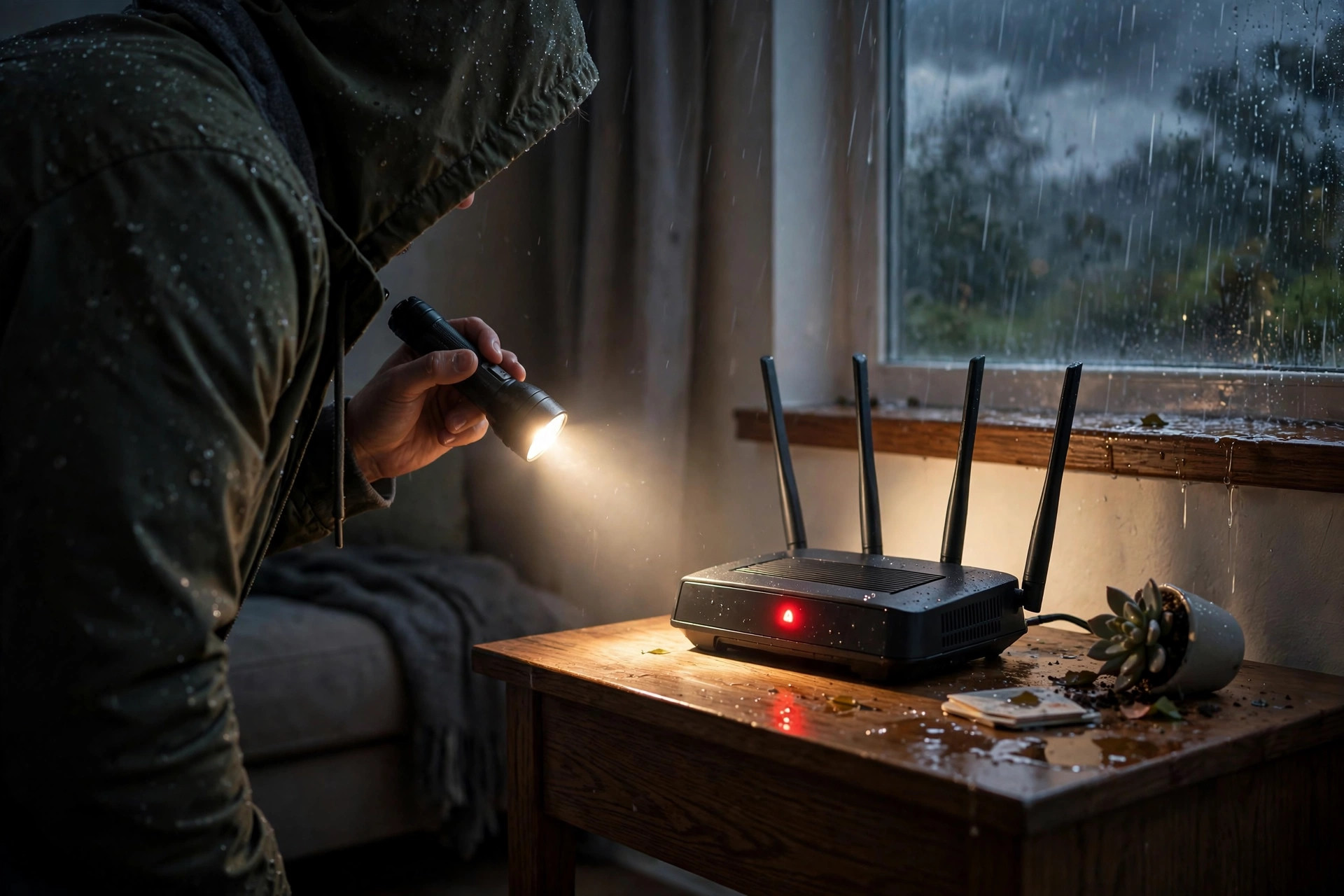
The lights come back on, the fridge hums back to life, everyone breathes a sigh of relief — but the Wi-Fi does not. After a power outage, it is extremely common for the internet to stay down long after the electricity returns, leaving you staring at a router with a red or endlessly blinking light. The good news is that in most cases nothing is broken; your equipment simply restarted in the wrong order or got stuck mid-boot.
In this guide we will explain why Wi-Fi often fails after a power cut, walk you through the correct restart sequence step by step, and cover the less common situations — corrupted settings, ISP outages, and damaged hardware — so you can get back online quickly and know when it is time to call your provider.
Why Wi-Fi Fails After a Power Outage
Your home internet depends on a chain of devices powering up in harmony: the modem (or fibre ONT) must connect to your provider’s network, then the router must obtain an IP address from the modem, and only then can your devices get online. A power outage breaks that choreography. When electricity returns, everything switches on at the same instant, and the router often boots faster than the modem. It asks for an address before the modem is ready, gets nothing, and gives up — leaving you with Wi-Fi signal but no internet, or a router stuck in an error state.
Power cuts also arrive with voltage spikes and flickers. A router that loses power halfway through writing to its memory can end up with glitched settings, and occasionally a surge genuinely damages the power adapter or the unit itself. Finally, the outage may not be only yours: if your street or the ISP’s street cabinet lost power, their equipment may still be rebooting or running on batteries.
The Fix: A Proper Power-Cycle, in the Right Order
Step 1: Switch Everything Off and Unplug
Turn off the modem/ONT and the router. If they are separate units, unplug both from the wall — not just the power button — and also unplug any mesh satellites or extenders. Leave everything unplugged for a full 60 seconds. This drains residual power and clears stuck states.
Step 2: Power the Modem First
Plug the modem or ONT back in and wait patiently. Watch its lights: power should go solid, then the internet/WAN light should stabilise. This can take two to five minutes, especially on DSL and fibre connections that must re-authenticate with the provider. Do not rush this step.
Step 3: Power the Router Second
Only once the modem shows a stable connection, plug in the router. Give it two to three minutes to boot, obtain its address from the modem, and start broadcasting Wi-Fi. Then reconnect extenders or mesh nodes.
Step 4: Reconnect and Test
On your phone, toggle Wi-Fi off and on, then test a few websites. If your devices show the network name but say “no internet,” forget the network and rejoin it once — occasionally a device clings to a stale session from before the outage.
If It Still Does Not Work
Check for an ISP Outage
Use your phone’s mobile data to check your provider’s service status page or social media. After widespread outages, providers restore areas in stages, and your home may simply not be back yet. The Downdetector outage map for major internet providers is a quick way to see whether neighbours are reporting the same problem.
Inspect Lights, Cables, and Adapters
A router with no lights at all after an outage points to a failed power adapter — a very common surge casualty. Try a matching spare adapter with the same voltage if you have one. Also reseat the Ethernet cable between modem and router; a surprising number of “dead internet” cases are a cable knocked loose or plugged into a LAN port instead of the WAN/Internet port during the confusion.
Log In and Check the Router’s Status Page
Connect a laptop by cable, open the router admin page (usually 192.168.0.1 or 192.168.1.1), and look at the Internet/WAN status. If it shows no IP address, use the page’s Connect or Renew option. If your connection type is PPPoE, confirm the username and password are still saved — a hard power loss occasionally wipes them on older routers. For help with admin pages and settings in general, see the router tutorials collected at Network Ustad’s router and Wi-Fi guides.
As a Last Resort, Factory Reset
If the router boots but behaves strangely — settings missing, Wi-Fi name reverted to default, admin password rejected — its configuration may be corrupted. A factory reset (holding the recessed Reset button for 10 seconds while powered on) restores defaults, after which you set up the network again from scratch. Note your ISP login details before doing this if your connection needs them.
How to Prevent Outage Problems Next Time
A small uninterruptible power supply (UPS) is the best protection: even a budget unit keeps a modem and router running through short cuts and, more importantly, shields them from the surge when power returns. At minimum, plug networking gear into a surge-protected strip rather than a bare wall socket. It also helps to photograph your router’s key settings pages once everything works, so a reset is a ten-minute job instead of an afternoon of detective work.
Why the Modem-Router Combo Takes Longer After an Outage
If your provider supplied a single combined modem-router box, expect the recovery wait to be longer than for separate units, and do not mistake its slowness for failure. The combo must re-establish the line connection, re-authenticate your account, restore its routing, and restart its Wi-Fi — sequentially, inside one modest processor. Five to eight minutes from power returning to usable internet is entirely normal for these devices, and repeatedly restarting it during that window only restarts the whole sequence from zero. Fibre ONT boxes behave similarly. The practical rule stands whatever your hardware: after power returns, hands off for a full five minutes, then — and only then — begin the ordered restart if the internet light has not settled.
Common Mistakes and Tips
The biggest mistake is rebooting everything at once by flipping the power strip back on — that recreates the exact boot-order race that caused the problem. Second, judging too quickly: modems can take five full minutes to renegotiate, and impatient repeated restarts make it worse. Third, assuming the router is dead when only its cheap power adapter has failed. And a useful tip: if outages are frequent in your area, many routers have a setting to automatically reboot on a schedule, but nothing replaces a UPS for protection.
Conclusion
Wi-Fi failing after a power outage is almost always a boot-order problem, not a catastrophe. Unplug everything, wait a minute, power the modem first and let it fully connect, then start the router. Work through the status checks if that fails, confirm whether your provider is having an outage, and keep a factory reset as the last resort. With a surge protector or small UPS in place, the next power cut should be a non-event for your network.
Frequently Asked Questions
How long should I wait after power returns before restarting my router?
Wait until the power is stable — no flickering — for a couple of minutes, then do the ordered restart: modem first, let it fully connect (up to five minutes), then the router.
Why does my Wi-Fi network name show but say “no internet”?
Your devices can reach the router, but the router itself has no connection to the provider — usually because it booted before the modem was ready and never obtained an IP address. The ordered power-cycle fixes it.
Can a power outage permanently damage a router?
Yes, occasionally — the returning surge can kill the power adapter or the router itself. If the router shows no lights with a known-good adapter, replacement is likely needed.
My router’s Wi-Fi name reset to default after the outage. What happened?
Its configuration memory was likely corrupted by the sudden power loss. Set the router up again with your network name and password, and consider surge protection to prevent a repeat.
Should I call my ISP first or restart my equipment first?
Restart your equipment in the correct order first — it resolves most cases in ten minutes. If the modem still shows no line signal afterwards, or your neighbours are also down, then call the provider.



Leave a Reply