
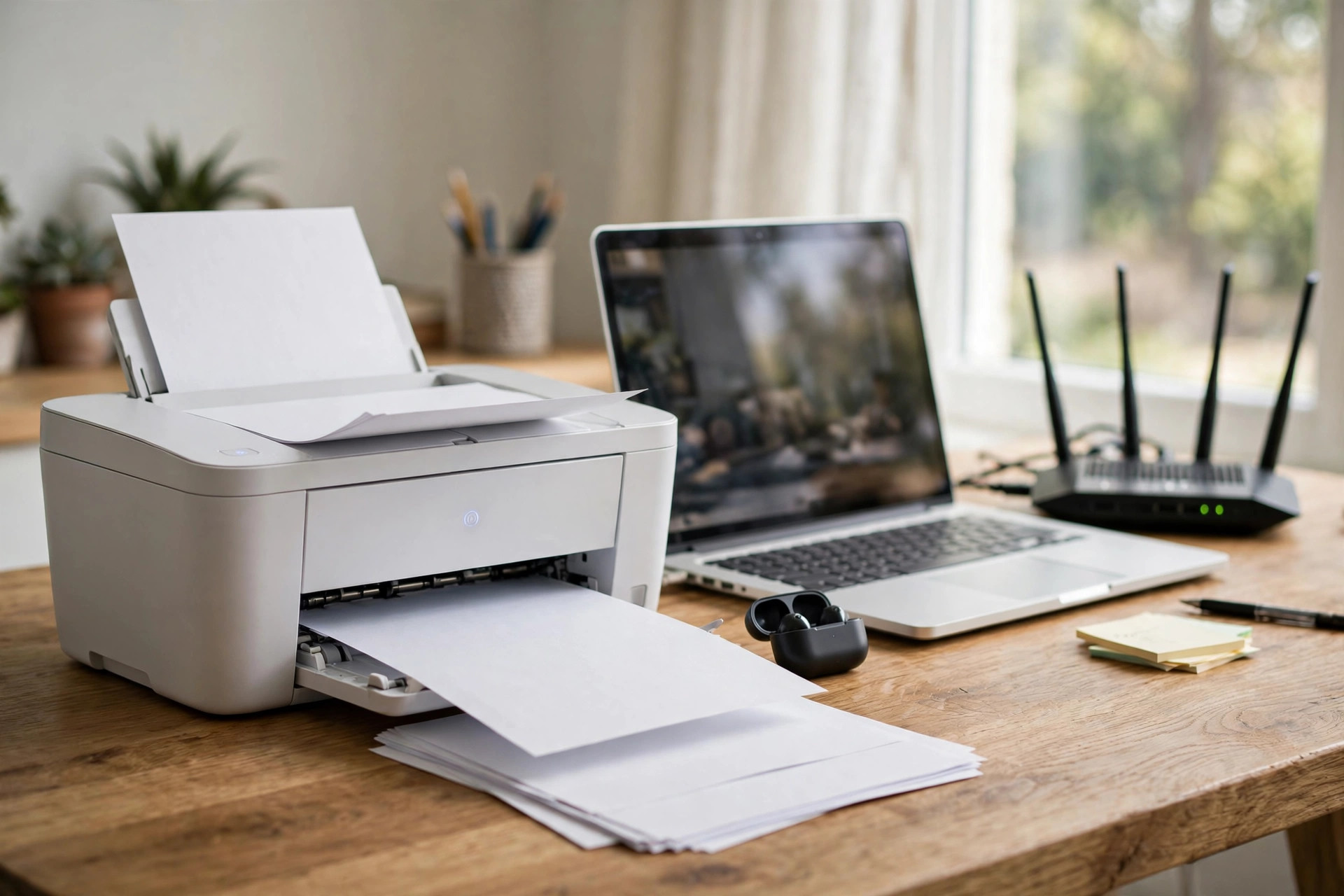
A wireless printer is one of the best upgrades to a home office — until you have to connect it for the first time. Every brand buries the Wi-Fi setup in a slightly different menu, and the process fails for a handful of predictable reasons. Whether your printer is an HP, Canon, Epson, or Brother, the underlying steps are the same, and once it is on your network, every phone, laptop, and tablet in the house can print to it.
This guide walks you through three connection methods — the printer’s own screen, the WPS button, and the manufacturer’s app — plus how to print from Windows, Mac, Android, and iPhone afterwards, and how to fix the connection when the printer refuses to appear.
Before You Start: Get These Ready
You will need your Wi-Fi network name (SSID) and password exactly as written, including capitals. Place the printer within reasonable range of the router for setup — you can move it later, but a strong signal avoids failures mid-process. Turn the printer on and let it finish its startup routine. One important detail: most printers only support the 2.4GHz band. If your router combines both bands under one name, setup usually still works; if it fails repeatedly, temporarily connect using the method below and check the troubleshooting section. For a refresher on bands and router basics, the explainers at Network Ustad’s Wi-Fi fundamentals guides are a helpful companion.
Method 1: Connect Using the Printer’s Screen
Step 1: Open the Wireless Setup Menu
On the printer’s touchscreen or control panel, open Settings or Setup, then find Network, Wireless, or WLAN settings. Look for an option named “Wireless Setup Wizard” (HP), “Wi-Fi Setup” (Canon/Epson), or “WLAN Setup” (Brother).
Step 2: Select Your Network
The printer scans for nearby networks. Choose your home Wi-Fi name from the list. If it does not appear, wait a moment and rescan; if it still does not appear, your router may be hiding the SSID or the printer is out of range.
Step 3: Enter the Password Carefully
Type your Wi-Fi password using the on-screen keyboard. This is where most failures happen — one wrong character and the connection silently fails. Use the “show password” option if available to double-check. Confirm, and wait for the printer to report “Connected” and show a solid Wi-Fi light. Many printers then print a network report page with their IP address — keep it; you will need it if anything goes wrong later.
Method 2: Connect with the WPS Button
Step 1: Start WPS on the Printer
In the printer’s wireless menu, choose “WPS” or “Push Button” setup. The printer begins listening for the router, usually for about two minutes.
Step 2: Press the Router’s WPS Button
Within that window, press the WPS button on your router (often marked with two circling arrows). The two devices negotiate automatically and the printer joins the network without you typing the password. If your router’s WPS is disabled in settings, enable it temporarily — and see the security note in the mistakes section below.
Method 3: Connect Using the Manufacturer’s App
Printers without a screen (many budget models) are set up from your phone. Install the official app — HP Smart, Canon PRINT, Epson Smart Panel, or Brother Mobile Connect — then follow its “add printer” flow. The app finds the printer’s temporary setup signal, asks for your Wi-Fi password, and hands the printer over to your network. HP’s own walkthrough, the HP guide to connecting a printer to a Wi-Fi network, shows the app process in detail for HP models, and the other brands’ apps follow the same pattern.
Printing from Your Devices Afterwards
Windows
Go to Settings, Bluetooth & devices, Printers & scanners, then “Add device.” Windows usually discovers the network printer within seconds. Select it and print a test page.
Mac
Open System Settings, Printers & Scanners, click the add button, and choose the printer from the list — macOS uses AirPrint for most modern models, no drivers needed.
Android and iPhone
On iPhone, any app’s Share or Print option finds AirPrint printers automatically. On Android, install the brand’s print service plugin from the Play Store once, and the printer appears in the Print menu of most apps.
Troubleshooting When the Printer Won’t Connect
Restart everything once — printer, router, and the device you print from — in that order. If setup fails on a combined-band network, log in to the router and temporarily give the 2.4GHz band its own name, connect the printer to it, then restore your settings. Assigning the printer a reserved (static) IP address in the router prevents the classic problem of the printer “disappearing” weeks later when its address changes. Also make sure the printer’s firmware is up to date via the brand app, and that your router’s firmware does not block new devices with MAC filtering.
Printing Wirelessly Without Wi-Fi Disruptions: Placement Tips
Where the printer lives matters more than most people expect. Printers are often exiled to spare rooms, cupboards, or the far end of the house — precisely where Wi-Fi is weakest — and then blamed for flaky connections. Keep the printer within a room or two of the router if you can, elevated rather than on the floor, and away from thick masonry and large metal objects like filing cabinets and radiators. If the printer must live far away, the same coverage fixes that help any device apply here: a mesh node or access point in that part of the house transforms printer reliability. Also remember that printers sleep aggressively to save power; the first print of the day may take 20–30 seconds while the printer wakes and rejoins the network, which is normal behaviour, not a fault. If yours offers a “Wi-Fi reconnect” or reduced sleep setting and you print often, enabling it keeps the printer responsive at a negligible energy cost.
Common Mistakes and Tips
The top mistake is mistyping the Wi-Fi password on a fiddly printer keyboard — re-enter it slowly with the show-password option. Second, trying to connect a 2.4GHz-only printer to a 5GHz-only network name. Third, leaving WPS enabled permanently: convenient as it is for setup, WPS has known security weaknesses, so switch it off in the router afterwards. A useful tip is to tape the printer’s IP address and admin details inside a drawer near it; future-you will be grateful.
Conclusion
Connecting a printer to Wi-Fi is a ten-minute job once you know the three routes: the printer’s setup wizard, the WPS button, or the manufacturer’s app. Get the password exactly right, respect the 2.4GHz limitation, reserve an IP address for stability, and every device in the house will be printing happily.
Frequently Asked Questions
Why does my printer say it is connected but computers cannot find it?
Usually the printer and computer are on different bands or the printer’s IP address changed. Reserve a fixed IP for the printer in your router settings, then re-add the printer on the computer.
Can I connect a printer to Wi-Fi without a router?
Many printers offer Wi-Fi Direct, which creates a direct connection between your phone or laptop and the printer without a home network. It is handy for occasional printing but only connects one device at a time.
Does my printer need the 2.4GHz or 5GHz band?
Almost all printers use 2.4GHz because it has longer range and the data demands are tiny. If your router separates the bands, connect the printer to the 2.4GHz network.
How do I find my printer’s IP address?
Print a network configuration page from the printer’s settings menu, or check your router’s connected-devices list, or look in the brand’s app under printer settings.
Is it safe to leave my printer on Wi-Fi all the time?
Yes, provided your Wi-Fi has a strong password and the printer’s firmware is updated. Turn off WPS after setup and disable any remote/cloud printing features you do not use.



Leave a Reply