
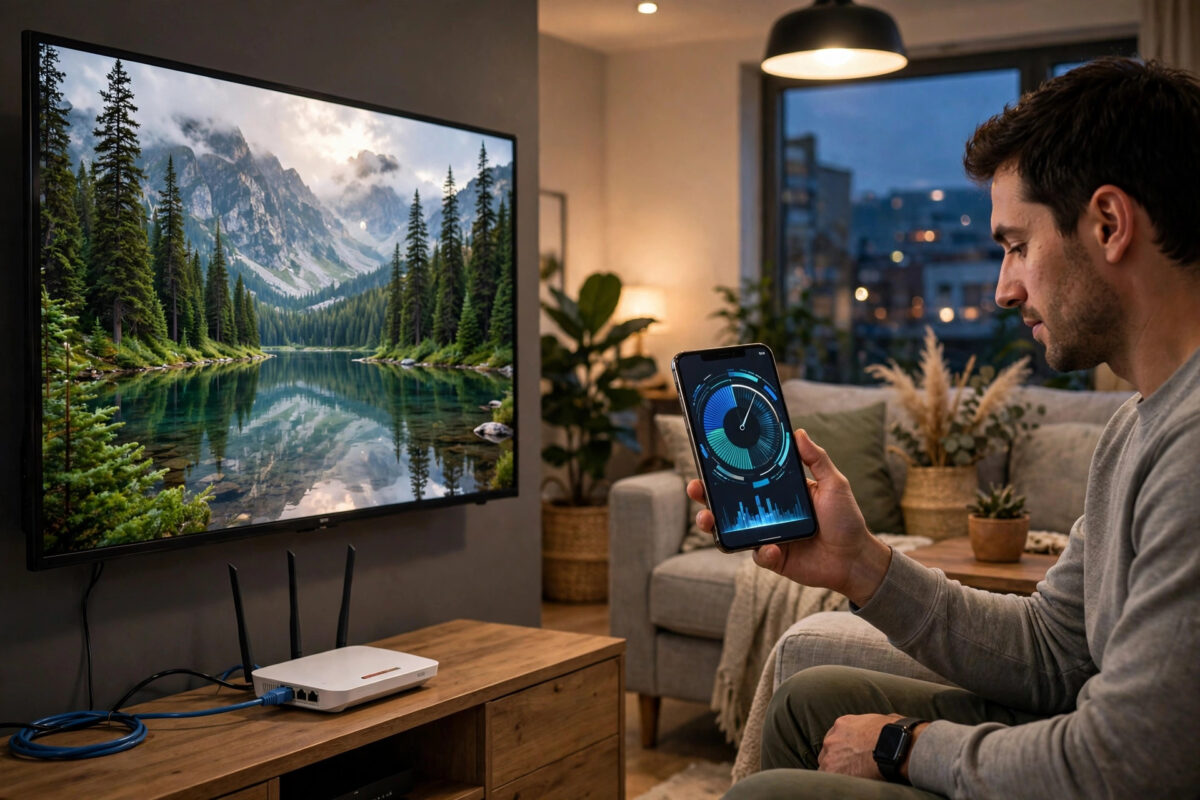
One minute your movie looks stunning in 4K, the next minute faces turn soft, text goes fuzzy, and the picture looks like an old video from fifteen years ago. This sudden drop from 4K to blurry is one of the most frustrating streaming problems, but it is rarely a broken TV. It is usually your connection, your Wi-Fi, or a setting quietly changing the quality to keep the video playing. Here is why it happens and how to fix it for good.
Quick Answer
Your stream drops from 4K to blurry because streaming apps lower quality automatically when your internet speed dips, your Wi-Fi weakens, or the service is busy. To fix it, test your speed at the TV, move to a wired connection or stronger Wi-Fi, close other heavy downloads, and set the app quality to a fixed high level instead of Auto if your connection is fast enough. A stable 25 Mbps or more at the TV is needed for reliable 4K.
How Adaptive Streaming Causes the Drop
Netflix, YouTube, Prime Video, Disney+, and almost every other service use adaptive streaming. The video is stored in many quality levels, from very low to 4K. Every few seconds, the app checks your current speed and picks the highest level it thinks will play without stopping.
This system is helpful because it prevents long buffering. The downside is that even a short speed dip, lasting only ten seconds, can push you down to 480p or 720p. Climbing back to 4K can take a minute or more, and if your speed keeps rising and falling, the picture keeps changing. That is why the image may look fine, then blurry, then fine again during the same show.
Reason 1: Your Internet Speed Is Not Stable at the TV
Your provider may advertise 100 Mbps, but that is not what matters. What matters is the speed actually reaching your TV at 8 p.m., when the whole street is online.
- 4K needs about 15 to 25 Mbps, steady, for one stream.
- If someone starts a game download or a second 4K stream, your share can fall below that level.
- Older or cheaper plans may slow down heavily in the evening.
How to Test Properly
- Stand near the TV and run a speed test on your phone on the same Wi-Fi network.
- Better still, open the speed test app or website on the TV or streaming stick itself.
- Test three times: morning, afternoon, and during your normal viewing time in the evening.
- If evening results fall below 25 Mbps, or jump up and down a lot, you have found the likely cause.
Reason 2: Weak or Crowded Wi-Fi
Wi-Fi is the most common cause of blurry streams. Walls, floors, distance, and neighbours’ networks all weaken the signal. A TV in a far bedroom or behind a thick wall may get only a fraction of your router’s speed.
- Move your router higher and more central, away from thick walls and metal objects.
- Connect the TV to the 5 GHz band for speed if it is close to the router, or 2.4 GHz for better reach if it is far away.
- Restart the router and TV. This simple step clears many temporary faults.
- If the TV is far, add a mesh Wi-Fi node or a powerline adapter near the TV.
- Best of all, use a wired Ethernet cable. A cable removes Wi-Fi problems completely and gives the most stable 4K.
If other rooms stream perfectly and only one TV struggles, Wi-Fi reach is almost certainly the issue. Our walkthrough on improving Wi-Fi signal for streaming TV in every room covers placement and mesh choices in detail.
Reason 3: The App or Device Is Limiting Quality
Sometimes your connection is fine, but a setting is holding quality down.
- Data saver or low playback setting: Check the app profile settings. A profile set to Medium or Low will never reach 4K.
- Wrong HDMI port or cable: On some TVs, only certain HDMI ports support full 4K HDR for external devices. An old cable can also limit the picture.
- Device output set too low: A streaming stick set to 720p or 1080p cannot send 4K, no matter how fast your internet is.
- Plan limits: Some services reserve 4K for their higher priced plans. A standard plan may top out at 1080p.
- Outdated app or firmware: Old software can mishandle new video formats. Update the TV, stick, and app.
The Netflix help guide on streaming in Ultra HD lists the plan, device, and speed requirements for 4K, which is a useful checklist for other services too, as their requirements are very similar.
Reason 4: The Service Itself Is Busy or the Show Is Not in 4K
Not every title is available in 4K. Older shows, some live events, and certain films top out at HD. Also, during huge live events or on a new release night, a service may temporarily lower quality for many viewers to cope with demand. If every other app looks sharp and only one title looks soft at all hours, the title itself is probably not in 4K. Check its details page for a 4K, Dolby Vision, or HDR badge before troubleshooting your whole network.
A Step-by-Step Fix You Can Follow Tonight
- Restart the router, TV, and streaming device, in that order, waiting a full minute between each.
- Run a speed test on the TV itself during the evening and note the result.
- Pause all downloads, cloud backups, and other streams in the house.
- Connect the TV by Ethernet cable, even temporarily across the floor, and replay the same scene. If it stays in 4K, your Wi-Fi was the problem.
- Check the app playback setting and your plan to confirm 4K is allowed and selected.
- Update the TV firmware and the streaming app, then test again.
- If Wi-Fi is the cause, move the router, switch bands, or add a mesh node permanently.
- If speed at the TV is always below 25 Mbps in the evening, contact your provider or consider a faster plan.
When to Lock Quality Instead of Using Auto
If your wired speed is comfortably above 40 Mbps, setting a fixed high quality in apps that allow it can stop annoying switching. But if your speed is borderline, locking to 4K will cause buffering instead of blurriness. In that case, a steady 1080p picture is honestly better than 4K that keeps collapsing. Choose stable and sharp over unstable and spectacular.
Common Mistakes to Avoid
- Testing speed only on a phone near the router: That tells you nothing about the TV’s real connection.
- Buying a new TV first: The TV is rarely the cause. Test the network before spending money.
- Ignoring other people in the house: One game update can ruin everyone’s 4K for an hour.
- Leaving the stick hidden behind the TV in a hot, weak signal spot: A short HDMI extender can improve both cooling and Wi-Fi.
- Expecting 4K on a plan or title that does not include it: Always check the badge and your subscription level.
Conclusion
A stream that drops from 4K to blurry is your app protecting playback when conditions change. Unstable speed, weak Wi-Fi, competing downloads, and quiet quality limits are the usual triggers. Test the speed at the TV in the evening, try a wired connection to prove the cause, fix your Wi-Fi or settings, and only then consider a faster plan. With a steady connection, adaptive streaming has no reason to drop, and your 4K picture will stay sharp from start to finish.
Frequently Asked Questions
How fast does my internet need to be for stable 4K streaming?
Plan for at least 25 Mbps reaching the TV for one 4K stream, and add more for each extra stream or user in the house. A 50 to 100 Mbps plan suits most families.
Why is my stream blurry at night but fine in the morning?
Evening is peak time. Your provider’s local network and your home Wi-Fi are busier, so speed drops and the app lowers quality. Testing at both times usually confirms this pattern.
Does an Ethernet cable really make a difference?
Yes. A cable gives a steady, full-speed connection with no interference. It is the single most reliable fix for streams that keep dropping in quality over Wi-Fi.
Why do some shows never reach 4K on my TV?
The show may only be offered in HD, your plan may not include 4K, or your device or HDMI setup may not support it. Check the title badge, plan, and device settings.
My speed test says 200 Mbps, so why is it still blurry?
The test may have been run near the router or at a quiet time. Weak Wi-Fi at the TV, a data saver setting, or a busy service can still force lower quality. Test on the TV itself during viewing hours.



Leave a Reply