
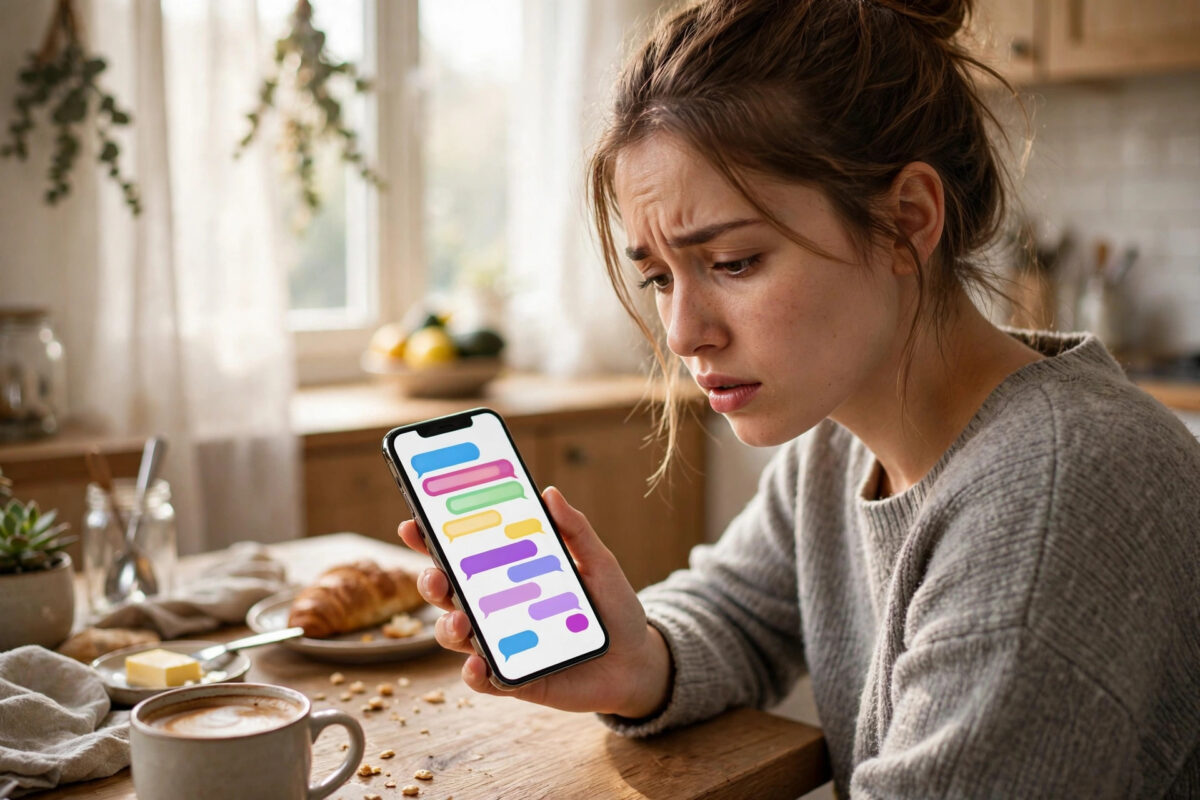
You type a message to a friend, press send, and instead of the familiar blue bubble you see green. It feels like something has broken, but green bubbles are actually your iPhone telling you something useful. A green bubble simply means the message was sent as a regular SMS or MMS text through your mobile carrier, not as an iMessage through Apple. Understanding why that happens helps you fix it in minutes when you want blue back.
This guide walks through every common reason iMessages turn green, from a simple setting that got switched off to the other person changing phones, and gives you clear checks to run in order. It is written for iOS 27 and the iPhone 18 range, but the same logic applies to any recent iPhone.
Quick Answer
Your iMessages are green instead of blue because the message was sent as SMS or MMS rather than iMessage. This usually happens because iMessage is turned off or not activated, you or the other person has no internet connection, or the person you are texting does not have an Apple device with iMessage enabled. Check Settings, Apps, Messages to confirm iMessage is on, make sure you are online, and restart the conversation.
Blue vs Green: What the Colours Actually Mean
The bubble colour is a delivery report in disguise. Blue means iMessage. Your message travelled over the internet through Apple’s servers, encrypted end to end, with extras like read receipts, typing dots, high-quality photos and videos, and reactions. Blue only works between Apple devices where both people have iMessage switched on.
Green means SMS or MMS. Your message travelled through your mobile carrier’s text network, the same system phones have used for decades. Green messages work with any phone, including Android phones, basic phones, and iPhones with iMessage off. They have no read receipts, photos are compressed, and depending on your plan they may cost money.
The colour is decided per conversation, and sometimes per message. A normally blue chat can send one green message if your internet drops briefly and your iPhone falls back to SMS. That is normal, designed so your message still gets through.
The Most Common Reasons Your Messages Turn Green
The Other Person Does Not Have iMessage
This is the number one cause. If the person you are texting uses an Android phone, or an iPhone with iMessage turned off, every message to them will be green. There is nothing wrong with your phone. If a long-time iPhone friend suddenly turns green, they may have switched to Android and not deregistered properly, or their iPhone may be off, broken, or out of battery, in which case their number temporarily cannot receive iMessage.
iMessage Is Turned Off or Not Activated on Your iPhone
If all your conversations turn green at once, the problem is on your side. iMessage may have been switched off during an update, a restore, or a settings change. It may also be stuck waiting for activation, especially after changing your SIM, eSIM, phone number, or Apple Account password. Activation links your number to Apple’s servers, and until it completes, your phone can only send SMS.
You Have No Internet Connection
iMessage needs the internet. In airplane mode, in an area with voice signal but no data, or on a Wi-Fi network that is not actually working, your iPhone may send the message as SMS instead if “Send as SMS” is on. Green bubbles that appear only in certain places, such as a basement or a train, almost always point to a data problem rather than a settings problem.
Apple’s iMessage Servers Are Having Problems
Rarely, the issue is neither you nor your friend. Apple’s iMessage service occasionally has outages. When that happens, many people see green bubbles or failed messages at the same time. You can confirm this on Apple’s official Apple System Status page for iMessage and other services, where a green dot means the service is running normally and any other colour means Apple is working on a problem. There is nothing to fix on your phone in this case; you just wait.
How to Fix Green iMessages Step by Step
Work through these checks in order. Most people solve the problem within the first three steps.
- Confirm iMessage is on. Go to Settings, tap Apps, tap Messages, and check that the iMessage switch is green. If it is off, turn it on and wait for activation.
- Check your connection. Turn airplane mode off. Try loading a web page on Wi-Fi and then on mobile data to confirm at least one connection truly works.
- Check the “Send as SMS” setting and your number. In the same Messages settings, make sure Send as SMS is on if you want fallback texting, and go to Send & Receive to confirm your phone number is ticked as the address you can be reached at.
- Restart the conversation. Delete the green thread and start a new message to the same contact. This forces your iPhone to check whether the person can receive iMessage again.
- Restart your iPhone. A full restart clears temporary network and activation glitches surprisingly often.
- Toggle iMessage off and on. Turn iMessage off, restart the phone, then turn it back on. This forces a fresh activation with Apple.
- Check Date & Time settings. Go to Settings, General, Date & Time, and turn on Set Automatically. Wrong time settings can block activation and secure connections.
- Sign out and back in. In Messages Send & Receive settings, tap your Apple Account, sign out, restart, and sign in again. This rebuilds your iMessage registration.
After each step, send a test message to someone you know has an iPhone with iMessage working. If your test turns blue for that person but stays green for one particular contact, the issue is almost certainly on that contact’s side, not yours. If you are still stuck specifically with activation errors, our detailed guide on how to fix iMessage not activating on your iPhone goes deeper into number and account problems.
Special Cases Worth Knowing
Green Messages After Travelling Abroad
International travel changes your number’s routing, your data connection, and sometimes your SIM or eSIM. If messages turned green on a trip, check that data roaming settings and your travel eSIM are correct, then toggle iMessage off and on once you are back home so it re-registers with your normal number.
One Contact Green, Everyone Else Blue
This pattern means your iMessage is fine. The other person has switched phones, turned iMessage off, blocked data, or their Apple Account has a problem. Send them a normal green text asking them to check their iMessage setting. Nothing you change on your phone can fix their side.
RCS Messages on iPhone
With recent iOS versions, chats with many Android phones use RCS instead of old SMS where carriers support it. RCS brings typing indicators and better photo quality to cross-platform chats. Bubble colours can vary by region and version, so do not judge the connection type by colour alone; open the conversation and check the text field, which says iMessage, Text Message, or RCS depending on what is being used.
Common Mistakes When Trying to Fix This
- Assuming green means blocked. Green does not mean someone blocked you. Blocked iMessages usually still appear blue on your side; they simply never get a Delivered note.
- Deleting the whole Messages history. Deleting one thread is enough to refresh a conversation. There is no need to erase everything.
- Resetting all network settings too early. This erases saved Wi-Fi passwords. Try it only after the simpler steps above have failed.
- Ignoring carrier problems. If green messages also fail to send, your SMS service itself may be down or your plan may have an issue. Test a text to an Android user to separate SMS problems from iMessage problems.
- Forgetting iPads and Macs. If messages are blue on your Mac but green on your iPhone, compare the Send & Receive settings on both devices; your phone number may only be registered on one of them.
Conclusion
Green bubbles are not an error message; they are your iPhone quietly using the carrier text network instead of iMessage. In most cases the cause is simple: the other person does not have iMessage, your iMessage switch or activation needs attention, or your internet connection dropped. Confirm iMessage is on, check your connection and your number in Send & Receive, restart the thread, and toggle iMessage once to force a fresh registration. Work through those steps calmly, and blue bubbles return in the vast majority of cases without any need for repairs or support calls.
Frequently Asked Questions
Does green mean the person blocked me?
No. Green only means the message was sent as SMS or MMS. It usually means the other person does not have iMessage available at that moment, or your phone could not use iMessage. Blocking does not change your bubble colour by itself.
Why did only one message turn green in a blue conversation?
Your internet connection probably dropped briefly, or the other person’s phone was briefly unreachable, so that single message fell back to SMS. As long as later messages return to blue, everything is working normally and nothing needs fixing.
Are green SMS messages less private than blue iMessages?
Yes. iMessages are end-to-end encrypted between Apple devices, while standard SMS messages are not encrypted in the same way and pass through carrier systems. For sensitive information, prefer iMessage or another encrypted messaging app where possible.
Do green messages cost money?
They can. SMS and MMS are billed by your mobile carrier under your plan. Many plans include unlimited texts, but MMS picture messages and international texts may cost extra. iMessages, by contrast, only use your internet data or Wi-Fi.
How do I know if the problem is Apple’s servers?
Check Apple’s System Status page. If iMessage shows anything other than a green available indicator, the outage is on Apple’s side. In that case, your messages will usually return to blue automatically once Apple resolves the issue.



[…] later turn into a different problem, where messages send but appear green, our companion guide on why iMessages turn green instead of blue and how to fix it explains how to tell an activation problem apart from a simple per-conversation […]