
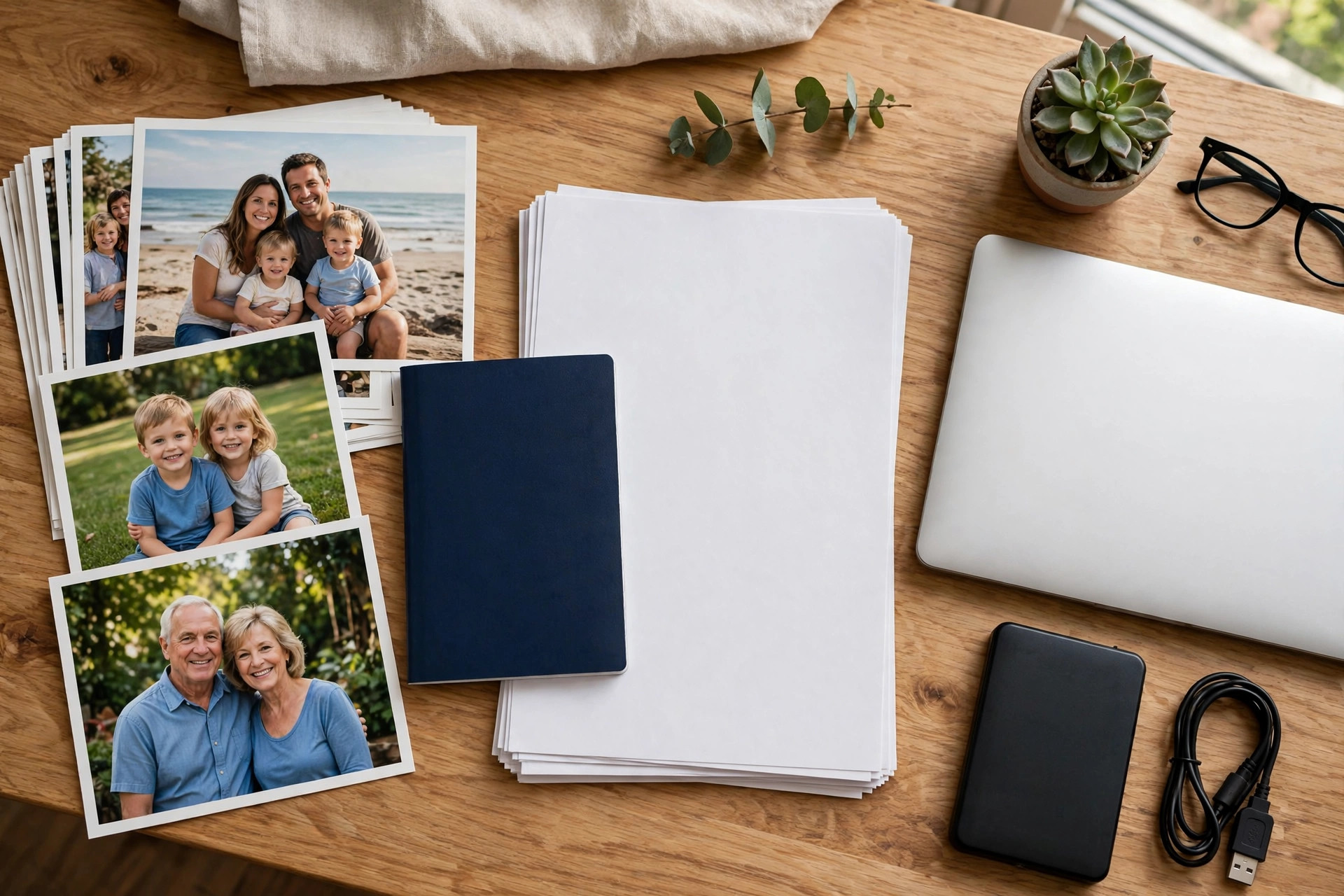
Your photos hold memories no money can replace, and your online documents hold the keys to your life — passports, contracts, tax records, and medical letters. Losing them to a failed phone, a fire, or a hacker is a disaster people rarely think about until it happens.
Cloud storage makes backing up easy, but easy is not automatically safe. Accounts get hacked, providers lock people out, and a single password often stands between a stranger and your entire archive.
The safest approach is not one perfect service. It is a simple system: encrypted cloud storage, a properly secured account, and more than one copy, so no single failure — yours or a company’s — can wipe everything out.
Quick Answer
Store photos and documents in a reputable cloud service with encryption, protected by a unique password and two-factor authentication. Keep at least one extra copy elsewhere.
For sensitive files, encrypt them before uploading or choose a zero-knowledge provider. Follow the 3-2-1 rule: three copies, two different types of storage, one off-site.
What Safe Storage Actually Means
Safe storage protects against four separate threats. The first is loss — a stolen phone, a dead hard drive, or an accidentally deleted folder. The second is unauthorised access by criminals or snoops.
The third is lockout: forgetting a password, losing your two-factor method, or a provider closing an account by mistake. The fourth is corruption and ransomware, where files are damaged or encrypted by attackers who demand payment.
A good system defends against all four. People usually plan for only the first, which is why simply uploading everything to one account with a reused password falls short of genuinely safe.
Understanding Encryption Without the Jargon
Encryption scrambles your files so they cannot be read without the key. Mainstream services such as Google Drive, iCloud, and OneDrive encrypt files in transit and while stored on their servers — solid protection against outsiders intercepting or stealing data.
However, those providers hold the keys, meaning they can technically access your files, and so could anyone who compromises your account or compels the company legally. Zero-knowledge, or end-to-end encrypted, services are designed so even the provider cannot read your content.
For family photos, reputable mainstream storage with a well-secured account is enough for most households. For legal, financial, medical, or business documents, zero-knowledge storage — or encrypting files yourself before upload — is the safer tier, a distinction explained clearly in the cloud storage overview on Wikipedia.
The Safest Setup, Step by Step
- Choose one main cloud provider you trust and can afford to keep long term; free tiers fill up and tempt people into messy second accounts.
- Create a unique, long password for that account that you use nowhere else, stored in a reputable password manager.
- Turn on two-factor authentication, preferably with an authenticator app or security key rather than text messages alone.
- Add and keep current a recovery email and phone number, and store backup codes somewhere safe offline.
- Turn on automatic photo backup on your phone, and confirm originals — not only compressed copies — are being uploaded.
- Organise documents into clearly named folders and scan paper originals while you still have them.
- Encrypt especially sensitive files before uploading, or place them with a zero-knowledge provider instead.
- Make your second copy: an external drive updated monthly, or a second cloud service for the most important folders.
- Test the system by restoring a few files to a different device. A backup you have never tested is a hope, not a backup.
If you want a wider foundation first, our NetworkUstad data protection guides cover password managers and account security in the same practical style.
Choosing Between the Main Providers
Google Photos and Drive suit Android users and mixed households, with generous sharing and search. iCloud fits Apple households seamlessly and offers Advanced Data Protection, which end-to-end encrypts most categories including photos when enabled — a major step up worth switching on.
Microsoft OneDrive integrates naturally with Windows and Office and includes a Personal Vault that adds extra verification for sensitive documents. Privacy-focused providers compete mainly on zero-knowledge encryption and are a good home for confidential files even if you keep everyday photos elsewhere.
There is no single winner. The safest provider is a reputable one whose account you have locked down properly, whose app you keep updated, and whose storage you actually maintain rather than abandon.
Sharing Photos and Documents Safely
Most leaks are not hacks — they are oversharing. A link set to anyone with the link can be forwarded endlessly, and shared albums quietly accumulate viewers over the years.
- Share with specific people by email address rather than open links wherever the service allows it.
- Set expiry dates on links for documents such as ID or contracts, and remove access once the task is done.
- Give view-only access unless the other person genuinely needs to edit.
- Never send scans of passports, bank statements, or certificates by ordinary email or messaging screenshots if a secure share will do.
- Review shared folders and albums every few months and remove people who no longer need access.
Before sharing photos publicly, remember they can carry location metadata. Most major platforms strip it, but sending original files directly can pass that information on, so check your camera and sharing settings.
The 3-2-1 Rule: Your Insurance Policy
Professionals who protect data for a living follow a simple pattern. Keep three copies of important files, on two different types of storage, with one copy stored off-site away from your home.
In practice that might mean photos living on your phone, backed up to the cloud, with your best albums also on an external drive stored at a relative’s house. Documents might sit in cloud storage, in an encrypted folder locally, and on that same off-site drive.
This feels like overkill right up until a burglary, flood, ransomware attack, or account lockout — at which point it is the difference between a bad week and losing twenty years of family history. The CISA guidance on backup strategies recommends the same principle for exactly this reason.
Tips for Keeping Your Archive Safe Long Term
Review your cloud account’s signed-in devices and sharing settings twice a year, removing anything unfamiliar. Accounts accumulate forgotten logins on old phones and laptops, each one a doorway in.
Keep paying for enough storage. When an account fills up, backups silently stop, and people discover the gap only after losing a phone. Treat a modest subscription as insurance, not a luxury.
Watch for provider emails about inactive accounts. Some services delete data after long inactivity, so sign in occasionally and keep recovery details current, especially for archives belonging to older relatives.
Finally, tell a trusted person how your archive is organised and how recovery works. The safest system fails if nobody, including future you, can get back into it.
Common Mistakes to Avoid
The most damaging mistake is having exactly one copy and calling it a backup. If your only photos live on your phone, that is not a backup — it is a single point of failure in your pocket.
Reusing your email password on your storage account is nearly as bad. When any unrelated site leaks that password, criminals try it everywhere, and your entire photo and document archive is the prize.
People also trust a provider’s encryption marketing without securing the account itself. Encryption cannot help when an attacker simply logs in as you with a guessed or stolen password and no second factor standing in the way.
And do not encrypt files yourself with a password you then forget or store only inside the same account. Self-encryption is powerful, but its key needs its own safe home, ideally in your password manager and on paper in a secure place.
Conclusion
The safest way to store photos and documents online is a system, not a single app: a reputable encrypted cloud service, a unique password with two-factor authentication, careful sharing, and at least one extra copy following the 3-2-1 rule.
Reserve zero-knowledge storage or your own encryption for your most sensitive documents, and test restoring files so you know the system works before you desperately need it.
Set this up once, spend twenty minutes maintaining it twice a year, and your memories and records will survive lost phones, failed drives, and most of what the internet throws at them.
Frequently Asked Questions
Is cloud storage safer than an external hard drive?
Each protects against different risks. Cloud storage survives fire, theft, and drive failure at home but depends on account security. A hard drive is fully in your control but can fail or be stolen, which is why the safest answer is both.
What does zero-knowledge storage mean?
It means files are encrypted on your device with a key only you hold, so the provider stores scrambled data it cannot read. The trade-off is that if you lose that key or password, the provider cannot recover your files for you.
Are my photos private on mainstream services?
They are protected from the public and encrypted on the provider’s servers, but mainstream providers generally hold the keys and can access content for service operations. Enabling end-to-end options such as iCloud Advanced Data Protection, or using a zero-knowledge service, closes that gap.
How much cloud storage do I actually need?
Add up your current photos, videos, and documents, then double it to allow for growth. Videos dominate most archives, so households filming in high resolution should expect to need several hundred gigabytes within a few years.
Should I store copies of passports and bank documents online?
Yes, if done properly — an encrypted or zero-knowledge folder inside a two-factor protected account is far safer than paper alone when you need copies while travelling. Never share them over open links or ordinary email.



Leave a Reply