
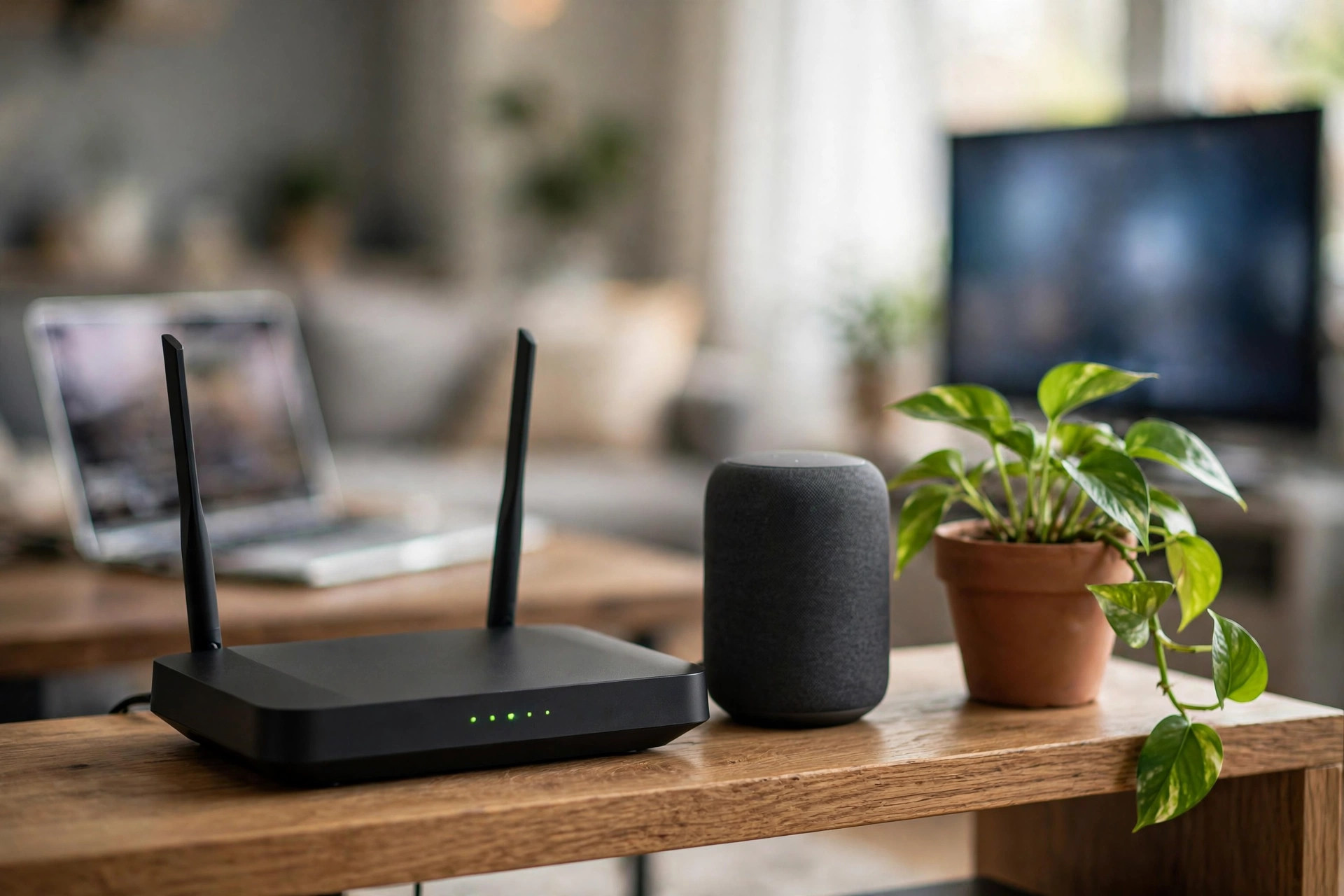
Your home Wi-Fi is the front door to everything connected in your house — laptops, phones, smart TVs, cameras, doorbells, and the router itself. Yet most home networks still run on the settings they came with, including passwords printed on a sticker anyone could photograph.
Attackers know this. Weak home Wi-Fi is exploited to steal data, hijack devices into botnets, spy on unencrypted traffic, and use your connection for activity that traces back to you.
The reassuring truth is that securing a home network takes about half an hour of methodical changes, most of which you only do once. This guide walks through every one, in the order that gives you the most protection fastest.
Quick Answer
Change the router’s admin password, set a long unique Wi-Fi password with WPA3 or WPA2 encryption, and update the router’s firmware.
Then turn off WPS and remote management, set up a guest network for visitors and smart gadgets, and rename the network so it does not reveal your router model.
Start With the Router Admin Account
Every router has an admin panel that controls the whole network, and most ship with famous default credentials such as admin and password. Anyone connected to your Wi-Fi — a guest, a neighbour who once had the password, or malware on a device — can try those defaults and take over.
- Find your router’s admin address, usually printed on its label or listed as the Default Gateway in your device’s network settings.
- Sign in with the current details and go straight to the administration or system settings.
- Set a new, long admin password that is different from your Wi-Fi password, and store it in a password manager.
- Change the admin username too if your router allows it.
- Note the router model and check the manufacturer’s website for the latest firmware version.
This single change closes the most dangerous hole in most homes. An attacker who owns your router owns your entire network, so never leave factory credentials in place.
Set Strong Wi-Fi Encryption and a Proper Password
Encryption scrambles the traffic between your devices and the router. Older standards, especially WEP and the original WPA, can be cracked quickly and should never be used on a modern network.
- In the wireless settings, choose WPA3-Personal if all your devices support it, or WPA2/WPA3 mixed mode as a practical compromise.
- If the only options include WEP or WPA, the router is too old to be safe — plan to replace it.
- Create a Wi-Fi password of at least 16 characters. A line of four or five random words is strong and far easier to type into a TV than symbols soup.
- Use a password you have never used anywhere else, and certainly not one that appears in any data breach.
- Reconnect your devices with the new password, starting with phones and laptops you use for banking and work.
The FTC guide to securing your home Wi-Fi network recommends the same core steps — encryption, strong passwords, and updates — as the foundation every household should have in place.
Update the Firmware — Then Make It Automatic
Router firmware is software, and like all software it develops security holes that manufacturers patch in updates. Home routers are targeted precisely because so many run years-old firmware full of known flaws. For a dedicated step-by-step of the update itself, see how to update your router firmware for better security.
- In the admin panel, look for a firmware update or check for updates option and run it.
- Turn on automatic updates if the router offers them; many newer models and mesh systems do.
- If your router is no longer receiving updates from its manufacturer, treat replacement as a security priority rather than an upgrade.
- Reboot the router after updating, and every month or so otherwise — a restart clears some malware that lives only in memory.
While you are in the settings, explore the rest of this guide’s changes in one sitting. Our wider NetworkUstad home network guides cover mesh systems and parental controls if you want to go further afterwards.
Turn Off the Convenience Features That Help Attackers
Several features exist to make setup easy, and each trades security for that convenience. On a network that is already set up, you can switch them off and lose nothing.
- Disable WPS entirely. Its PIN mode can be cracked by a patient attacker, and pressing a button is barely easier than typing a good password.
- Turn off remote management or web access from the internet, so the admin panel is reachable only from inside your home.
- Disable UPnP unless a specific device genuinely needs it; malware abuses UPnP to open holes in your defences without asking.
- Switch off services you do not use, such as Telnet, FTP, or vendor cloud management you never signed up for.
- Change the network name (SSID) to something neutral that does not include your name, address, or router brand and model, which attackers use to look up known flaws.
Separate Guests and Smart Devices Onto Their Own Network
Smart bulbs, plugs, cameras, and cheap gadgets often receive few updates and weak security support, yet most households give them the same network — and therefore a path to the laptops holding banking and work files.
Most routers offer a guest network. Enable it, give it its own strong password, and connect visitors’ phones and your smart home gadgets to it. Devices on the guest network can reach the internet but not your computers, printers, or storage.
- Enable the guest network in wireless settings and name it clearly.
- Set a separate password — never reuse your main Wi-Fi password.
- Move smart TVs, bulbs, plugs, cameras, and voice assistants onto it one by one.
- Keep phones, laptops, and network storage on the main network only.
- Give guests the guest password as a matter of habit, however trusted they are.
This segmentation is the single biggest upgrade after passwords and updates. Even if a cheap camera is compromised, the damage stays fenced off from your real data.
Review Who and What Is on Your Network
Every few months, open the router’s connected devices list and account for everything on it. Routers usually show device names and MAC addresses; your own phones, laptops, and consoles should be easy to recognise.
An unknown device deserves investigation rather than a shrug. Change the Wi-Fi password if you cannot identify it — that forces every device to reconnect, and only the ones given the new password get back in.
This review also catches forgotten gadgets still running ancient software. Retire or update anything that no longer receives security fixes, especially cameras and routers pressed into service as extenders.
Extra Steps for a Stronger Setup
Consider changing the DNS settings on your router to a reputable provider that filters known malicious domains, adding a quiet layer that blocks some phishing and malware sites for every device at once.
If your router includes a built-in firewall, confirm it is enabled, and enable any automatic intrusion or protection features from the manufacturer. Position the router centrally in your home, which improves your signal indoors while reducing how far a usable signal spills into the street.
For households handling sensitive work, a modern mesh system or router with WPA3, automatic updates, and guest segmentation built in is worth the money — ageing hardware is the root cause behind many of the weaknesses in this guide, a point also covered in CISA’s advice on securing home routers.
Common Mistakes to Avoid
The classic mistake is using the password printed on the router’s sticker as your permanent Wi-Fi password. It has often been photographed, shared with installers, and in some cases follows patterns attackers can generate.
Sharing your main password with every visitor, tradesperson, and child’s friend is another. Once a password spreads, changing it means reconnecting everything — which is precisely why the guest network exists.
People also hide their network name and believe that secures it. Hidden networks are still discoverable, and the setting makes your own devices broadcast the name wherever you go, which is worse for privacy.
Finally, never ignore a router that has stopped receiving updates. No setting can patch a hole the manufacturer has abandoned, and old routers are actively scanned for by automated attacks.
Conclusion
A secure home Wi-Fi network rests on a handful of decisive changes: a unique router admin password, WPA3 or WPA2 encryption with a long Wi-Fi password, current firmware, and risky convenience features switched off.
Add a guest network for visitors and smart gadgets, glance at the connected devices list every few months, and replace hardware that no longer gets updates.
Thirty minutes of this work protects every device in the house at once — the best return on time of any security task you can do at home.
Frequently Asked Questions
Is WPA2 still safe enough, or must I use WPA3?
WPA2 with a long, unique password remains reasonably safe for home use today. WPA3 is stronger and should be your choice when your devices support it, but an old device on WPA2 is a smaller risk than a weak password on any standard.
How often should I change my Wi-Fi password?
There is no need for routine changes with a strong, unique password. Change it when someone who should no longer have access knows it, when you spot an unknown device, or when staff or housemates move on.
Can my neighbours steal my Wi-Fi, and does it matter?
With default or weak passwords, yes, it happens. Beyond slowing you down, anything done on your connection is initially traced to your address, and a connected intruder is inside the perimeter your other devices trust — so it genuinely matters.
Should I hide my network name for security?
No. Hiding the SSID does not stop attackers finding the network, and it forces your devices to shout the name out in public places, revealing it anyway. Strong encryption and a strong password do the real work.
When should I replace my router?
Replace it when the manufacturer stops releasing firmware updates, when it cannot offer at least WPA2, or roughly every five years. Router security support ends long before the Wi-Fi itself stops working.

Leave a Reply