
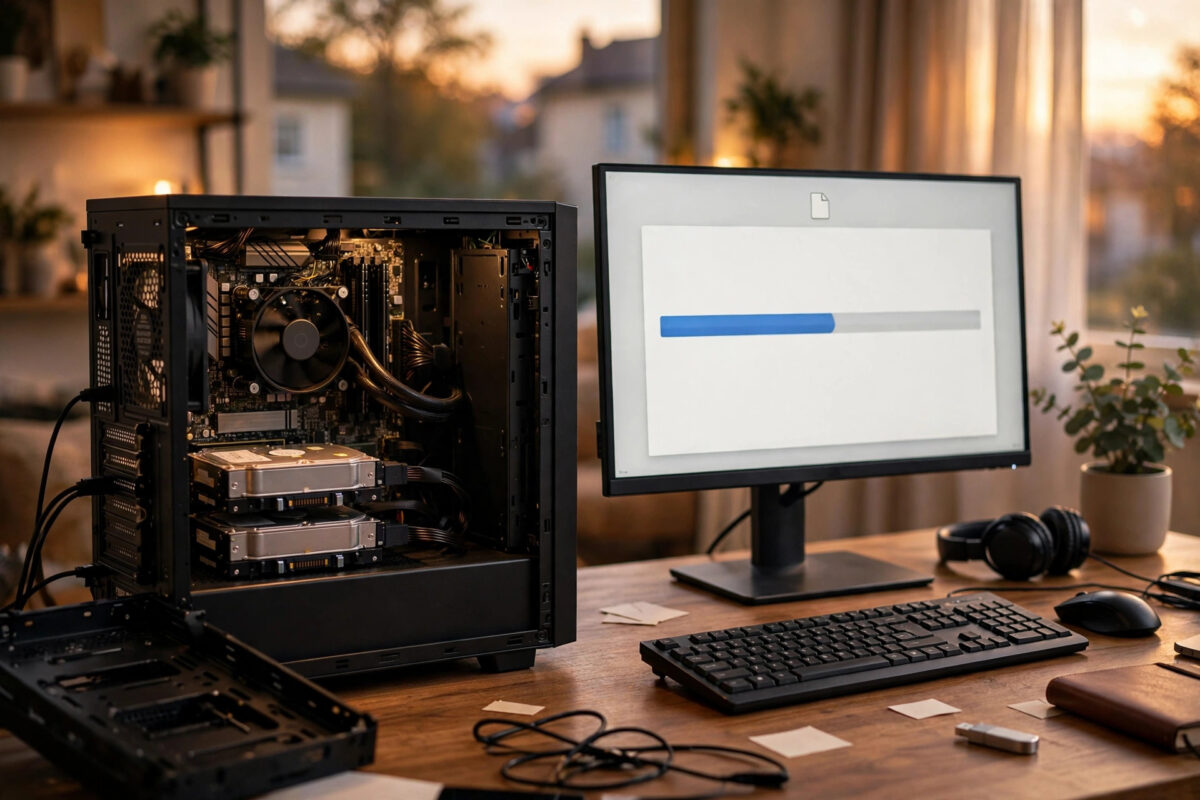
A second internal drive is one of the simplest places to keep a backup. It is fast, it is always connected, and it does not need an internet connection. The problem is that manual copying gets forgotten after a week or two.
Robocopy, the file copy tool built into Windows, solves that problem when you pair it with Task Scheduler. Once set up, your important folders copy themselves every week without you touching anything.
This guide walks through the exact command, the safest options, and how to test the backup.
Quick Answer
Create a small batch file with a Robocopy command such as robocopy C:\Users\YourName\Documents D:\Backup\Documents /MIR /R:2 /W:5 /LOG:D:\Backup\backup-log.txt, then use Task Scheduler to run that file every week at a time when the PC is on. The /MIR option mirrors the source folder, so new and changed files are copied and deleted files are removed from the backup. Always test the job once by hand and restore one file before you trust it.
What You Need Before You Start
You do not need to buy or install any software. Everything in this guide is already part of Windows 10 and Windows 11.
- A second internal drive with enough free space for your folders, ideally at least as large as the data you plan to copy.
- A list of the folders that matter most, such as Documents, Pictures, Desktop, and any work folders stored elsewhere.
- About twenty minutes for the first setup, plus time for the first full copy, which is always the slowest.
- Administrator access on the PC, because Task Scheduler needs it to create a reliable weekly task.
Check your second drive’s letter in File Explorer first. In this guide it is D:, but yours might be E: or F:. Use your real letter everywhere.
Step 1: Prepare the Backup Folder
Keeping the backup tidy from day one makes restoring much easier later.
- Open File Explorer and open your second internal drive.
- Create a new folder called Backup at the top level of the drive.
- Inside it, create one subfolder for each folder you will copy, such as Documents, Pictures, and Desktop.
- Leave these folders empty. Robocopy will fill them on the first run.
Avoid storing other random files inside the Backup folder. If a folder is managed by Robocopy with the mirror option, anything extra inside it can be deleted to match the source.
Step 2: Write the Robocopy Command
Robocopy has many options, but you only need a handful for a safe weekly backup. Each option below has a clear job.
The Core Command Explained
A typical command looks like this: robocopy “C:\Users\YourName\Documents” “D:\Backup\Documents” /MIR /R:2 /W:5 /XO /LOG:”D:\Backup\backup-log.txt”
- /MIR mirrors the source folder tree, including subfolders, and removes files from the backup that you deleted from the source.
- /R:2 retries a failed file only two times, instead of the default one million retries that can stall a job all night.
- /W:5 waits five seconds between retries, which helps if a file was briefly locked by another program.
- /LOG: writes a report file so you can check later what was copied, skipped, or failed.
The official Microsoft Learn Robocopy reference lists every switch in detail if you want to explore more options later.
Be Careful With the Mirror Option
The /MIR option is powerful and dangerous in equal measure. If you point the source and destination the wrong way round, Robocopy will happily mirror an empty folder over your real files. Always read the command twice before running it: source first, destination second. For your very first run, consider using /E instead of /MIR. The /E option copies everything including subfolders but never deletes anything, which is safer while you are learning.
Step 3: Save the Command as a Batch File
A batch file is just a text file that Windows can run. It lets Task Scheduler repeat the exact same command every week.
- Open Notepad.
- Type one Robocopy line for each folder you want to back up, each on its own line.
- Add the word pause on a final line during testing, so the window stays open and you can read the result.
- Click File, then Save As, and save it as WeeklyBackup.bat in a safe place such as C:\BackupScripts.
- In the Save As box, change the file type to All Files, otherwise Notepad adds .txt to the end and Windows will not run it.
Double-click the batch file to run your first backup now. Watch the summary at the end of the log: it shows how many files were copied, skipped, and failed. A small number of skipped files is normal on later runs, because unchanged files do not need copying again. If a copy stops partway through, learning how to resume a failed copy with Robocopy will save you starting the whole job again.
Step 4: Schedule the Backup With Task Scheduler
Now make the backup automatic so it no longer depends on your memory.
- Press the Windows key, type Task Scheduler, and open it.
- Click Create Basic Task and name it Weekly Folder Backup.
- Choose Weekly as the trigger, pick a day and time when the PC is normally on, such as Sunday at 7 pm.
- Choose Start a Program as the action, then browse to your WeeklyBackup.bat file.
- Tick the box to open the Properties dialog when you finish, so you can adjust a few extra settings.
In Properties, tick “Run whether user is logged on or not” if you want the job to run at the lock screen, and tick “Start the task only if the computer is on AC power” for laptops. The Microsoft Learn Task Scheduler documentation explains each of these settings in plain detail.
What If the PC Was Off at Backup Time?
In the Settings tab of the task, tick “Run task as soon as possible after a scheduled start is missed.” This simple box means a PC that was switched off on Sunday evening will run the backup the next time it starts, instead of waiting another full week.
Step 5: Test the Backup Properly
A backup you have never tested is only a hope, not a backup. Testing takes five minutes and proves the whole chain works.
- Open the backup folder on the second drive and confirm your files are there.
- Copy one file, such as a photo or document, to a different place, for example a USB stick.
- Open that restored file and check it works normally.
- Read the log file and look for the word FAILED in the summary.
- Right-click your task in Task Scheduler, choose Run, and confirm it completes without errors.
Repeat this test every few months. Files can look fine in a listing and still be damaged, so opening one is the only real proof.
Common Mistakes to Avoid
- Reversing source and destination with /MIR. This is the most serious Robocopy mistake and it can delete real files. Check the order every time you edit the script.
- Using the default retry settings. Without /R and /W limits, one locked file can hold the job up for hours.
- Backing up to a folder that syncs elsewhere without checking. Know exactly where the second drive’s folders go before you start.
- Never reading the log. A weekly job can fail for months without you noticing if you never open the report.
- Thinking a second internal drive is a complete backup. It protects against a failed main drive, but not against theft, fire, flood, or ransomware, because the backup sits inside the same PC. Follow the 3-2-1 rule: three copies, on two different types of storage, with one copy kept away from home.
- Scheduling the job when the PC is always off. Pick a realistic time and enable the missed-start setting.
Conclusion
A weekly Robocopy backup to a second internal drive costs nothing, uses tools already in Windows, and removes human forgetfulness from the process. Write the command carefully, save it as a batch file, schedule it with Task Scheduler, and test it by restoring a real file. Then add one more copy away from the PC, such as a cloud backup or a drive stored elsewhere, so a single accident at home cannot take both copies at once. Set it up once, check the log now and then, and your folders will look after themselves.
Frequently Asked Questions
Does Robocopy copy open files, such as a document I am editing?
Robocopy cannot copy a file that another program has locked completely, and it will report that file as failed in the log. Running the backup in the evening when most programs are closed reduces this problem. Files that fail one week are normally copied fine the next week.
Will the weekly backup slow down my PC?
The first full copy can take a while and may make the PC feel slower, but weekly runs only copy new and changed files, so they are usually finished in a few minutes. Scheduling the job for an evening or a lunch break keeps it out of your way.
What is the difference between /MIR and /E in Robocopy?
The /E option copies all subfolders including empty ones, but never deletes anything from the destination. The /MIR option does the same copying and also deletes destination files that no longer exist in the source, keeping an exact mirror. Use /E while learning, and /MIR once you are confident the command is correct.
Can I back up to an external USB drive instead of a second internal drive?
Yes, the same script works if you change the destination path to the USB drive’s letter. The risk is that Windows may give the USB drive a different letter later, which breaks the path. Give the drive a fixed letter in Disk Management, and make sure it is plugged in before the scheduled time.
How do I know if last week’s backup actually ran?
Open the log file named in your command and check the date and the summary lines at the bottom. You can also open Task Scheduler, find your task, and read the Last Run Time and Last Run Result columns, which show whether the job finished successfully.



Leave a Reply