
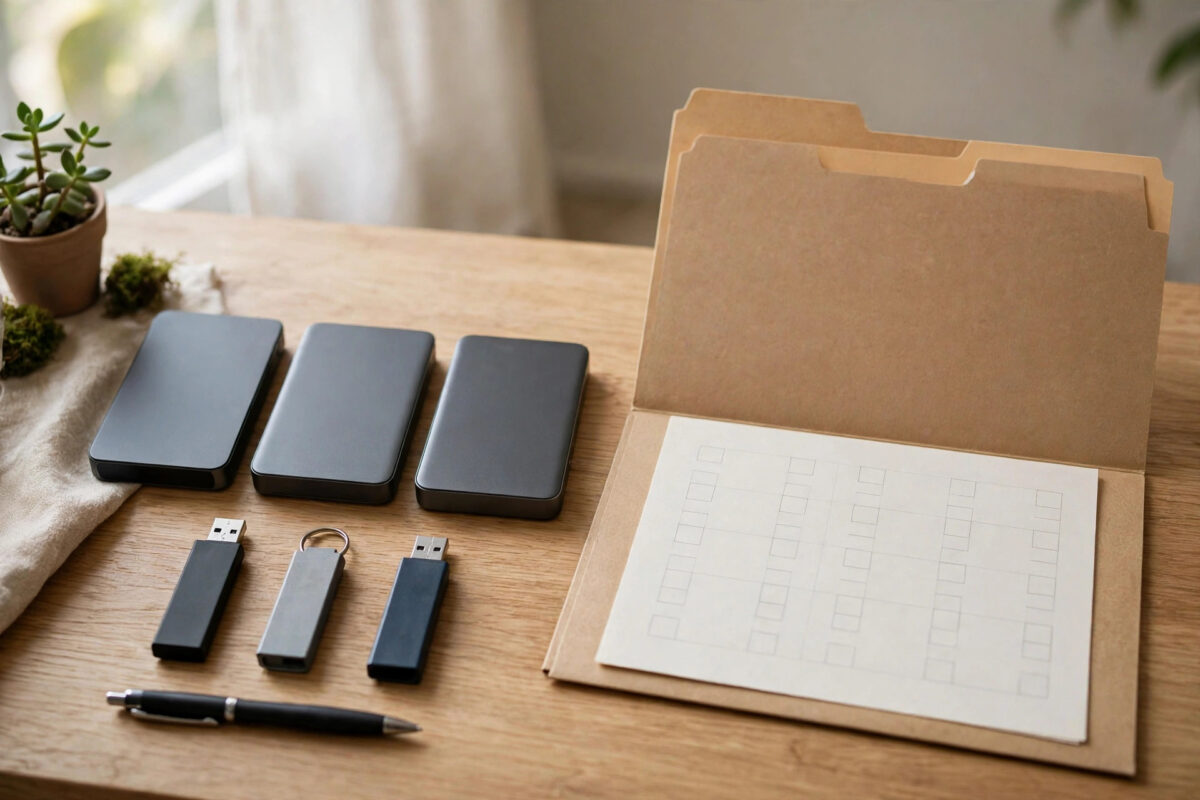
Most people have more backups than they realise. There might be photos in cloud storage, documents on an external drive in a drawer, a laptop backup from last year, and important files on a USB stick at work. The trouble starts when something goes wrong and nobody can remember what is stored where.
A one-page printed backup inventory fixes that. It is a simple sheet that lists every important backup, where it lives, and when it was last checked.
It takes about half an hour to make, it costs almost nothing, and on a stressful day when a drive has just failed, it can save hours of panic and guesswork.
Quick Answer
Make a single-page table with one row for each backup: what it contains, the device or service name, where it is physically stored, the date it was last updated, and the date you last tested it. Keep the list short enough to fit one printed page, store the paper copy somewhere safe and easy to find, and update it every time you add a drive, change a service, or run a test restore. Never write full passwords on this sheet.
Why One Page, and Why Printed?
One page forces you to keep only the details that matter. A ten-page list will never be updated, while a single clear sheet can be read in thirty seconds. Anyone in the family can understand it without training.
Print matters because the worst backup problems happen when the computer itself will not start. A list stored only on the failed PC is useless at exactly the moment you need it. Paper works during a power cut, after a theft, or when a screen is broken. It also helps family members who may need to find your files if you are ill or away.
What to Write on the Inventory
Each backup gets one row. Use these columns, in this order, to keep the page neat and complete.
- What is backed up: for example, family photos, business documents, email archive, or phone photos.
- Backup type: external drive, second internal drive, cloud service, NAS box, or USB stick.
- Device or account name: the label on the drive, such as “Blue 2TB drive”, or the service name, without the password.
- Where it lives: the real physical place, such as “study drawer”, “safe”, or “at sister’s house”.
- Last updated: the date the backup last ran or was last refreshed by hand.
- Last tested: the date you last restored a file from it and confirmed the file opened.
- Notes: short warnings such as “drive is encrypted, key in password manager” or “replace in 2027”.
If a row needs a long explanation, the backup itself is probably too complicated. Simplify the backup first, then write the short version on the sheet.
Step-by-Step: Build Your Inventory in 30 Minutes
Step 1: Hunt Down Every Backup You Own
Walk around your home and office and physically find every drive and stick. Check drawers, bags, the back of the PC, and the top of the NAS box. Then list the invisible ones: cloud storage accounts, automatic phone backups, email archives, and any backup a program runs for you in the background. Write everything on scrap paper first, including the forgotten drives. The forgotten ones are exactly why this exercise matters.
Step 2: Label Every Drive
Give each physical drive a short, unique name and write that same name on a sticker on the drive itself. “Photos backup 2024” on both the sticker and the inventory means nobody has to guess which black drive is which. While you are there, note the size of the drive, such as 1TB or 2TB, because two drives of the same brand often look identical.
Step 3: Build the Table
Open a word processor or spreadsheet and create the table using the columns above. Keep the wording short. Use large, clear text, because this sheet may be read in a hurry, in poor light, by someone who is upset. Landscape layout usually fits the columns best. If your list grows past one page, group small items together, for example “USB sticks with tax records” as one row, rather than letting the sheet sprawl.
Step 4: Add the Emergency Details
At the bottom of the page, add three short lines that are not about drives at all.
- The name of your password manager, but never the master password itself.
- Where encryption recovery keys are stored, described in a way only your family would understand.
- A phone number for a trusted person or a local repair shop who could help if you are not available.
These lines turn a simple list into a real recovery plan. A backup nobody can unlock is no better than no backup at all.
Step 5: Print, Store, and Share the Locations
Print two copies. Keep one near the computer or in the household documents folder, and keep the second copy away from the PC, for example in a fire-resistant box or with a trusted family member. This follows the same logic as the 3-2-1 backup rule: a backup stored in the same place as the original is not protection against theft or fire, and the same is true for the inventory itself.
Tell at least one other person where the sheet is. A perfect inventory that nobody else can find helps only you, and only when you are there. The Microsoft backup and restore guidance also explains the built-in Windows backup options worth listing on the sheet.
Keeping the Inventory True
An out-of-date inventory can be worse than none, because it sends you confidently to the wrong drawer. Build updating into habits you already have.
- Update the sheet the same day you buy, retire, or move any drive.
- Write the test date on the sheet every time you restore a test file, even if nothing else changes.
- Review the whole page twice a year, for example when the clocks change, and cross out dead services.
- When you print a new version, destroy the old one so two different lists never circulate.
Testing deserves special stress: for each backup, restore one real file, open it, and only then write the date in the tested column. If you want extra confidence that copied files are perfect, learning how to verify file copies with SHA-256 checksums on Windows gives you a way to prove a restored file matches the original exactly.
Common Mistakes to Avoid
- Writing passwords on the sheet. Never do this. The inventory should point to where secrets are kept, such as a password manager, not contain the secrets themselves. A printed page can be photographed or lost.
- Storing the only copy on the computer. The list must exist on paper, away from the machine it describes.
- Using vague locations. “In the office” is not a location. “Bottom drawer of the grey filing cabinet” is a location.
- Listing backups you never test. An untested backup may be empty, corrupt, or years out of date. The tested column exists to expose this.
- Making it too detailed to maintain. If updating the sheet feels like a chore, it will quietly stop happening. Short and current beats long and stale every time.
- Forgetting cloud accounts. Cloud backups are easy to overlook because there is nothing to hold. List them, including which email address the account uses.
Conclusion
A one-page printed backup inventory is the cheapest piece of backup insurance you will ever make. Find every backup, label every drive, write down where each one lives and when it was last tested, and keep the printed sheet somewhere safe that your family knows about. Update it whenever anything changes and test your backups by restoring a file on a regular schedule. When a drive fails one day, you will not be searching drawers and guessing. You will be reading one calm page and getting your files back.
Frequently Asked Questions
How often should I update my backup inventory?
Update it whenever anything changes: a new drive, a retired service, a moved storage place, or a completed restore test. As a minimum, review the full page twice a year and print a fresh copy if any detail has changed.
Should I include work or employer backups on my home inventory?
Only list them in a general way, such as “work laptop backed up by employer IT”, without account details or company secrets. Your employer’s data rules come first, and your home sheet should never contain information your workplace would not want on paper.
What if I have so many drives that one page is not enough?
That is usually a sign the backup system has grown messy rather than strong. Retire very old drives, merge small collections onto one larger drive, and group minor items into single rows. Most homes can describe a good, simple system on one page.
Is it safe to keep a digital copy of the inventory as well?
Yes, a digital copy in cloud storage is a useful extra, as long as it does not contain passwords or full recovery keys. Treat the printed copy as the main version, because it works when the computer does not, and keep the digital one in step with it.
What should I do with drives I find that are not on any list?
Connect the drive, look at what is on it, and decide whether it holds the only copy of anything important. If it does, copy that data into your proper backup system, label the drive, and add it to the inventory. If it holds nothing unique, you can retire it safely.



Leave a Reply