
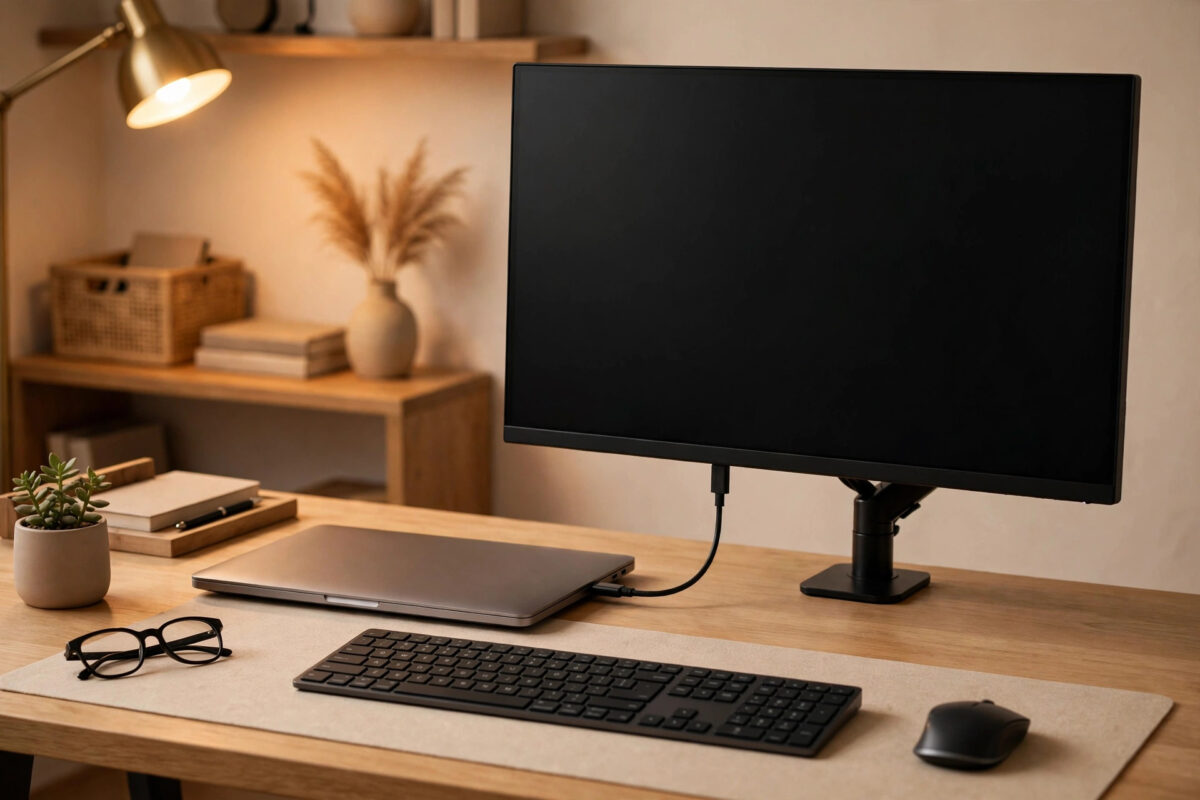
Plugging a laptop into a big monitor, closing the lid, and working like a desktop is one of the nicest setups there is. On Linux, though, closing that lid often puts the whole machine to sleep, your monitor goes black, and your work vanishes until you open the lid again. The laptop is not faulty. It is following the default lid rule, and you need to tell it that a closed lid with a monitor attached means keep working.
This guide covers the main ways to do that on Ubuntu, Linux Mint, Fedora, and most other distributions. You will change the logind setting that controls lid behaviour, learn the difference between ignoring the lid completely and only staying awake with a monitor or dock, and check the desktop settings that can override your change.
Quick Answer
Edit /etc/systemd/logind.conf and set HandleLidSwitchExternalPower=ignore and, for docked or monitor use, HandleLidSwitchDocked=ignore, then restart logind or reboot. On GNOME you can also run gsettings set org.gnome.settings-daemon.plugins.power lid-close-ac-action 'nothing'. This tells Linux to keep running when you close the lid while an external monitor is connected, instead of suspending.
How Linux Decides What a Closed Lid Means
When you close the lid, a small switch reports the event to systemd-logind, the service that manages power actions like suspend, power off, and lid behaviour. Logind looks at its rules and also listens to your desktop environment, which can take over the decision.
There are three separate lid situations, and separating them is the key to a good setup:
- Plain lid close: No monitor, no dock. Most people want suspend here, so the laptop sleeps in a bag safely.
- Lid close on external power: The charger is connected. Many people want the machine to stay on in this case.
- Lid close while docked: An external monitor or dock is attached. This is exactly the desktop-style setup, and it has its own setting.
If you only change the plain setting, you lose the safety of suspend when you throw the laptop in a bag unplugged. The smarter goal is to stay awake when docked or plugged in, and still sleep on battery with nothing attached. The official logind.conf manual page lists every lid option and exactly what each value does.
Step 1: Change the logind Settings
This method works at the system level, below your desktop, so it is the most reliable place to set the rule.
- Open a terminal and edit the configuration file with administrator rights:
sudo nano /etc/systemd/logind.conf. - Find the lines beginning with
#HandleLidSwitch=,#HandleLidSwitchExternalPower=, and#HandleLidSwitchDocked=. The hash mark means they are comments showing the defaults. - Remove the hash and set the docked behaviour first:
HandleLidSwitchDocked=ignore. - Set the external power behaviour too:
HandleLidSwitchExternalPower=ignore. - Leave
HandleLidSwitch=suspendas it is if you still want normal sleep when the laptop is undocked on battery. Set it toignoreonly if you never want lid-close sleep at all. - Save the file with Ctrl+O, press Enter, and exit with Ctrl+X.
- Apply the change by rebooting, or by restarting the service with
sudo systemctl restart systemd-logind. Note that restarting logind can end your graphical session on some systems, so saving your work and rebooting is the safer choice.
You can also use a drop-in file in /etc/systemd/logind.conf.d/ with a [Login] heading and your lines, which is easier to remove later.
Step 2: Stop GNOME From Overriding You
On GNOME, which Ubuntu and Fedora use, the desktop has its own lid settings and can take control away from logind. If you changed logind but the laptop still sleeps, this is usually why.
- Check the current GNOME lid action while plugged in:
gsettings get org.gnome.settings-daemon.plugins.power lid-close-ac-action. - Set it to do nothing on charger power:
gsettings set org.gnome.settings-daemon.plugins.power lid-close-ac-action 'nothing'. - Decide about battery power separately:
gsettings set org.gnome.settings-daemon.plugins.power lid-close-battery-action 'nothing'only if you truly want the lid ignored on battery too. Leaving battery on'suspend'is safer for most people. - On Ubuntu, also open Settings, then Power, and make sure no automatic suspend option will sleep the machine a few minutes after you close the lid anyway.
Think of logind and the desktop as two locks on the same door. Both need to agree before the laptop stays on with the lid shut.
Step 3: Linux Mint and Other Desktops
Linux Mint’s Cinnamon desktop keeps this friendly and graphical. Open System Settings, choose Power Management, and find the option for what happens when the lid is closed. Set it to Do nothing for when plugged in. Xfce has a similar choice in its Power Manager under the laptop lid heading, and KDE Plasma offers lid actions in its Power Management settings.
If your desktop’s graphical option exists, use it first. It writes the right settings for that desktop and is easier to change back. Fall back to the logind method when the graphical option is missing, or when the laptop still sleeps despite the desktop setting saying otherwise.
For background on how these pieces fit together, our guide to fixing a Linux laptop that will not sleep or wakes at the wrong time covers the other half of lid and suspend behaviour.
Step 4: Make the External Monitor the Main Display
Staying awake is only half the experience. You also want the external screen to behave like the real display once the lid is shut.
- Open your display settings and set the external monitor as the primary display, so new windows and full-screen apps open there.
- Set the correct resolution and refresh rate for the monitor rather than accepting a low mirrored default.
- If the picture mirrors the laptop screen instead of extending, switch the display mode from mirror to join or external only.
- Test sound output too, especially if your monitor or dock carries speakers or a headset.
Step 5: Test Carefully, Including Heat
- Save all work before your first test.
- Connect the monitor and charger, wait until the external picture is stable, then close the lid slowly.
- Wait a full minute. Move the external mouse and confirm the session is exactly where you left it.
- Open the lid again and confirm the laptop screen wakes and the layout adjusts sensibly.
- Repeat the test on battery with no monitor attached, and confirm the laptop still suspends like it should in that situation.
Heat deserves a word. Some laptops vent warm air near the hinge, and a closed lid can trap heat during heavy work. If your machine runs hot with the lid shut, raise it slightly on a stand, improve airflow, or leave the lid partly open during long heavy jobs. Staying awake is only a win if the machine stays healthy.
Common Mistakes and Useful Tips
- Editing the file but leaving the hash mark: A line starting with
#is a comment and does nothing. The setting must start directly withHandle. - Forgetting to restart: Logind reads its file at start. Without a reboot or service restart, your edit has no effect and it looks like the method failed.
- Ignoring the lid everywhere: Setting every lid option to ignore means the laptop also stays awake in your bag on battery. Keep suspend for the undocked battery case.
- Missing the desktop override: If GNOME or another desktop manages the lid itself, logind changes alone may not be enough. Check both places.
- Confusing screen-off with sleep: The external monitor going dark after idle is a display setting, not suspend. Check screen blank timers separately.
- Dock detection quirks: Some docks only count as docked when a monitor is truly connected and recognised, not just when the cable is plugged in. Test with the monitor switched on.
The Arch Wiki power management guide is a helpful extra reference for lid, suspend, and power settings across distributions, even if you do not use Arch.
Conclusion
Your laptop sleeps when you close the lid because logind and your desktop are following their default rule, not because anything is broken. Set HandleLidSwitchDocked=ignore and HandleLidSwitchExternalPower=ignore, make sure GNOME or your desktop agrees, and keep normal suspend for undocked battery use. Test both situations, watch the heat, and you get the best of both worlds: a tidy desktop setup with the lid shut, and a laptop that still sleeps safely in your bag.
Frequently Asked Questions
Will my laptop overheat if I use it with the lid closed?
It can run warmer, because some models vent heat near the hinge and a closed lid restricts airflow. For normal office work it is usually fine. For gaming, video rendering, or other heavy loads, use a stand, keep vents clear, and consider leaving the lid partly open.
Why does my laptop still sleep after editing logind.conf?
The two common reasons are a leftover hash mark making the line a comment, and no restart of logind or the system afterwards. A third is your desktop environment applying its own lid action. Check all three before changing anything else.
Can I stay awake only when a monitor is connected, but sleep otherwise?
Yes, that is exactly what HandleLidSwitchDocked=ignore is for. Leave HandleLidSwitch=suspend in place, and the laptop stays on when docked with a monitor, yet still suspends when you close the lid with nothing attached.
Does this work the same on Linux Mint?
The idea is the same, but Mint’s Cinnamon desktop offers a graphical option in Power Management settings, which you should try first. The logind method still works underneath on Mint because Mint also uses systemd, so it is a good fallback.
What is the difference between ignore and lock for the lid switch?
ignore means the lid does nothing at all, so the session stays unlocked and running. lock means the screen locks but the machine does not suspend. For a docked desk setup you normally want ignore, while lock suits a quick lid close at your desk without a monitor.



Leave a Reply