
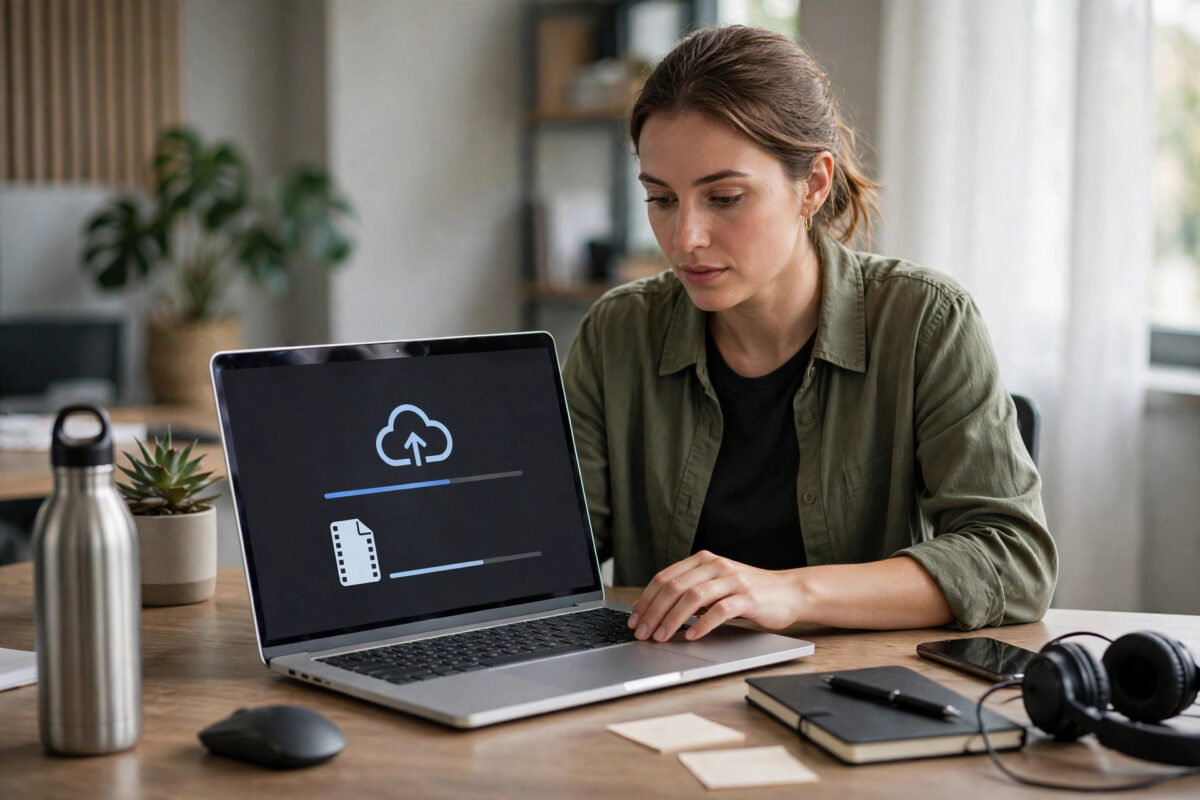
Almost everyone has hit the same wall: you attach a video, a folder of photos, or a design file to an email, press send, and get an error saying the message is too large. Gmail caps attachments at 25 MB, Outlook.com at 20 MB, and many work mail servers are stricter still. Meanwhile the files we actually need to share, from phone videos to project archives, are routinely hundreds of megabytes or several gigabytes in size.
The good news is that you do not need to fight the attachment limit at all. Modern email workflows are built around links rather than attachments: you upload the file to cloud storage or a transfer service, then email a link that the recipient clicks to download. This guide explains the reliable methods, the exact steps for each one, how to handle genuinely sensitive files, and how to avoid the mistakes that leave recipients staring at an “access denied” screen.
Quick Answer
Upload the file to Google Drive, OneDrive, or Dropbox and email the sharing link instead of attaching the file itself. In Gmail, inserting a Drive file automatically converts large attachments into links. For one-off transfers without an account, use a service such as WeTransfer, which handles up to 2 GB free.
Why Email Attachments Have Limits
Attachment limits are not arbitrary. When you attach a file, it is encoded into the email itself, which inflates its size by roughly a third, and then it passes through several mail servers that each impose their own cap. A file that is fine for your provider may be rejected by the recipient’s server, and the bounce message often does not explain why. Large attachments also clog inboxes, since every recipient stores a full copy of the file forever.
Link-based sharing avoids all of this. The file lives in one place, the email stays tiny, the recipient downloads the current version, and you can usually change permissions or revoke access later, something that is impossible once a traditional attachment has been sent. Understanding that shift, from sending files to sending access, is the key to sharing without limits.
Method 1: Share Through Google Drive From Gmail
If you and your recipient use Google services, this is the smoothest route, and Gmail will actually prompt you towards it. When you try to attach a file larger than 25 MB, Gmail automatically offers to upload it to Drive and insert a link instead.
- Open Gmail and click Compose.
- Write your message as normal, then click the Insert files using Drive icon at the bottom of the compose window, it looks like a triangular Drive logo.
- Click Upload, then Select files from your device, choose your large file, and wait for the upload to finish. Speed depends on your connection, so leave the tab open for big files.
- Click Insert. The file appears in your email as a Drive link card rather than an attachment.
- Click Send. If the recipient does not already have access, Gmail shows a sharing prompt. Choose whether they can view, comment, or edit, then confirm sending.
Free Google accounts include 15 GB of Drive storage shared across Gmail, Drive, and Photos, while Google Workspace and Google One plans offer considerably more. You can review the current attachment and storage rules in Google’s official Gmail help page on sending attachments.
Method 2: Share Through OneDrive From Outlook
Microsoft’s equivalent workflow centres on OneDrive, and it works just as cleanly for Outlook.com and Microsoft 365 users.
- Upload the file first by opening OneDrive in your browser, clicking Upload > Files, and selecting the file.
- Once uploaded, right-click the file and choose Share.
- Set the permission level: Anyone with the link for convenience, or Specific people for control. Click the settings gear to add an expiry date or, on paid plans, a password.
- Click Copy link.
- Paste the link into your email, with a sentence explaining what the file is and how large the download will be.
Alternatively, inside Outlook on the web you can click Attach file > Browse cloud locations and pick the OneDrive file directly, and Outlook inserts it as a link automatically. The desktop Outlook app offers a similar prompt when an attachment exceeds the limit, offering to upload it to OneDrive instead.
Method 3: Use a File Transfer Service
Sometimes you do not want to share from your personal cloud storage, for example when sending a portfolio to a stranger or a one-off file to a client. Dedicated transfer services exist for exactly this case.
- WeTransfer: Free transfers up to 2 GB without an account. Add the file, enter both email addresses, and the recipient receives a download link that expires after a set number of days.
- Dropbox Transfer: Lets you send files up to 100 GB on paid plans, with download tracking and expiry dates, even if the recipient has no Dropbox account.
- Firefox Send alternatives and SwissTransfer: Regional and privacy-focused services offer generous free limits, though availability varies.
- Open the transfer service’s website.
- Click Add files and select your file or folder.
- Enter the recipient’s email address and your own, or choose the Get a link option if you prefer to paste the link into your own email.
- Add a short message naming the file and noting the expiry date.
- Click Transfer and wait for the upload to complete before closing the tab.
Method 4: Compress or Split the File
Occasionally a link genuinely is not an option, for example a recipient whose organisation blocks cloud storage domains. In that case, shrinking the file itself may get you under the limit.
- Compress media: A two-minute phone video can often be reduced dramatically by re-exporting it at 1080p instead of 4K, or by trimming it. Photos can be resized rather than sent at full camera resolution when the recipient only needs them for screen viewing.
- Create a ZIP archive: Right-click a folder in Windows and choose Compress to ZIP file, or on macOS choose Compress. Text and documents compress well; already-compressed formats like JPEG and MP4 barely shrink.
- Split the archive: Tools such as 7-Zip can split a large archive into numbered parts of, say, 20 MB each, which you send across several emails. The recipient must reassemble them with the same tool, so only use this with someone technically comfortable.
Treat compression as a fallback, not the default. It adds work at both ends and still fails the moment the file is even moderately large.
Sharing Sensitive Files Safely
Contracts, ID scans, and financial documents need more care than a holiday video. Before sending, restrict the link to specific people rather than “anyone with the link,” set an expiry date so access ends automatically, and consider a password on the file or link, shared through a different channel such as a phone call or messaging app. For very sensitive material, encrypt the file itself into a password-protected archive before uploading, so the cloud provider never holds a readable copy. More practical security walkthroughs are available in the NetworkUstad collection of software and security guides.
Common Mistakes to Avoid
- Forgetting to change sharing permissions. The single most common failure: the recipient clicks your link and sees “Request access” because the file is still private. Test the link in a private browser window before sending.
- Sending the link before the upload finishes. Closing the laptop mid-upload leaves a partial or missing file. Wait for the explicit completion message.
- Ignoring expiry dates. Transfer links expire, often within a week. Tell the recipient the deadline in your email so the file is not gone when they finally click.
- Deleting the cloud file too soon. If you remove the file from Drive or OneDrive, the link dies instantly. Keep it in place until the recipient confirms they have downloaded it.
- Attaching anyway and hoping. Repeated oversized sends can land your messages in spam folders and bounce without a clear explanation at the recipient’s end.
Conclusion
Email attachment limits are not really an obstacle once you stop attaching files at all. Upload to Google Drive or OneDrive and share a link for everyday work, use a transfer service like WeTransfer for one-off sends to people outside your usual tools, and reserve compression for the rare cases where links are blocked. Check your sharing permissions before you send, mention the expiry date, and you will never see the “message too large” error again.
Frequently Asked Questions
What is the maximum attachment size in Gmail and Outlook?
Gmail allows attachments up to 25 MB per email, while Outlook.com allows 20 MB. You can receive slightly larger files in Gmail, up to 50 MB, but sending beyond the limit requires a Drive or OneDrive link instead.
How can I send a file larger than 2 GB for free?
Upload it to Google Drive, OneDrive, or Dropbox from your existing account and share the link, since free tiers are limited by your storage quota rather than by transfer size. A free Google account’s 15 GB quota comfortably holds a multi-gigabyte file if space is available.
Does the recipient need an account to download from my link?
Usually not. If you set a Drive or OneDrive link to “anyone with the link can view,” the recipient can download without signing in. Restricted links shared with specific people do require them to sign in with the invited account.
How long do file transfer links last?
It depends on the service. Free WeTransfer links typically expire after a few days, while Drive and OneDrive links last until you change permissions or delete the file, unless you deliberately set an expiry date in the sharing settings.
Can I send a whole folder over email?
Not as a traditional attachment, since email cannot carry folders. Upload the folder to cloud storage and share the folder link, or compress the folder into a single ZIP file first if it is small enough to attach or transfer.



Leave a Reply