
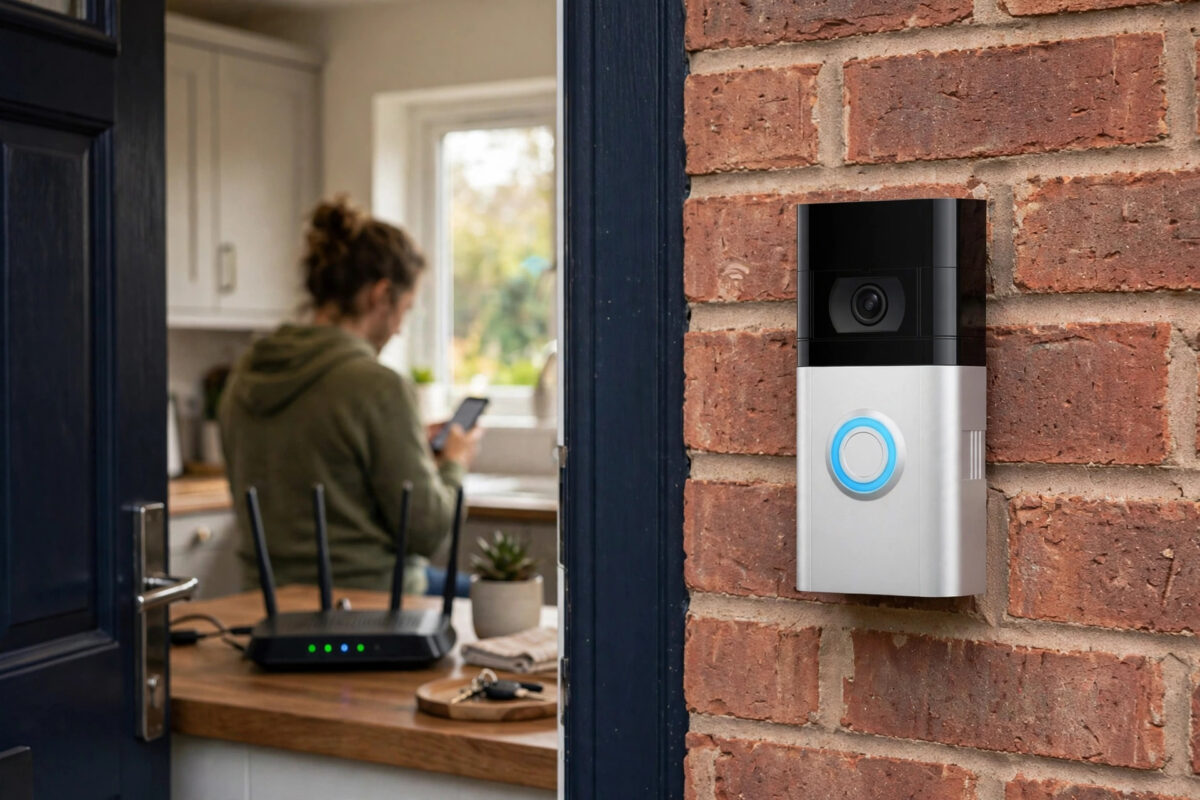
Few things are more annoying than a doorbell alert that arrives after the visitor has already walked away. With the Ring Video Doorbell 4, that delay is very often linked to one number buried in the app: the RSSI reading. If that number is poor, your doorbell is struggling to talk to your Wi-Fi, and everything from live view to motion alerts suffers.
The encouraging part is that a weak RSSI is one of the most fixable smart home problems. You do not usually need a new doorbell. You need to understand what the number means, find what is weakening the signal between your router and your front door, and close that gap step by step.
Quick Answer
Poor RSSI on a Ring Video Doorbell 4 means the Wi-Fi signal at the door is weak, which directly causes delayed alerts and slow live view. Aim for an RSSI better than -60, ideally closer to -40. Move the router nearer, remove obstructions, connect on 2.4 GHz, or add a dedicated Wi-Fi extender or Ring Chime Pro near the door to fix it.
What RSSI Actually Means
RSSI stands for Received Signal Strength Indicator. It is shown as a negative number in the Ring app under Device Health. The closer the number is to zero, the stronger the signal. A reading of -40 is excellent, -55 is good, -65 is borderline, and anything around -75 or worse will give you delays, frozen video, and missed motion events.
Think of it like a conversation through walls. At -40 the doorbell and router hear each other clearly. At -75 they are shouting through several rooms, and parts of every message get lost and have to be repeated. Those repeats are exactly the delay you feel when an alert finally reaches your phone ten or twenty seconds late.
How to Check Your RSSI
- Open the Ring app and tap the menu for your Video Doorbell 4.
- Go to Device Settings and then Device Health.
- Look at the signal strength line and note the RSSI number.
- Check it again at a busy time of day, because neighbouring networks and household usage can change the picture.
Write the number down before you change anything. That baseline lets you prove whether each fix below actually helps, instead of guessing.
Why Front Doors Are a Hard Place for Wi-Fi
Your router usually sits in a living room or office, while the doorbell sits outside the building line. Between them may be brick or stone walls, a metal front door, foil-backed insulation, mirrors, and large appliances. Each one weakens the signal, and exterior walls are especially tough because they are built to keep weather out.
Distance matters too, but walls matter more. A doorbell ten metres from the router through open air will often outperform a doorbell five metres away through two brick walls. That is why simply buying a faster internet package never fixes this problem. Your internet speed and the Wi-Fi strength at the door are two different things.
If you are reviewing your whole home network, the practical advice in how to improve Wi-Fi signal strength throughout your home will help you plan router placement for every device, not just the doorbell.
Step 1: Bring the Router and Doorbell Closer Together
The fastest test costs nothing. If you can, move the router to a more central spot, higher up, and closer to the front of the house, even temporarily, and watch the RSSI change. Raising a router off the floor and out of a cupboard can improve the reading by several points on its own.
- Place the router on a shelf rather than on the floor.
- Keep it away from thick walls, fish tanks, and large metal objects.
- Point it in open space rather than into a corner behind a television.
- Avoid placing it right next to a microwave, cordless phone base, or baby monitor.
If moving the router is not practical because of where your internet line enters the home, the extender options further down solve the same problem from the other direction.
Step 2: Use the 2.4 GHz Band for the Doorbell
The Video Doorbell 4 can use both 2.4 GHz and 5 GHz Wi-Fi. The 5 GHz band is faster over short distances but travels poorly through walls. The 2.4 GHz band is slower on paper yet far better at reaching an outdoor device through brickwork, and a doorbell does not need huge speed. It needs a stable link.
If your router combines both bands under one network name, the doorbell may cling to a weak 5 GHz signal. Try connecting the doorbell to the dedicated 2.4 GHz network if your router offers separate names, or temporarily split the bands in the router settings, reconnect the doorbell, and compare the RSSI and alert speed over a day or two.
Step 3: Add a Chime Pro or a Well-Placed Extender
When the router cannot move and the walls cannot change, put a helper halfway between them. A Ring Chime Pro is designed for exactly this job: it extends Wi-Fi toward your Ring devices and also works as an indoor doorbell chime. A good quality Wi-Fi extender or a mesh satellite placed near the front hallway does the same job for your whole network.
- Choose a plug socket roughly halfway between the router and the front door, ideally in the hallway.
- Avoid placing the extender right beside the doorbell itself. If it receives a weak signal, it can only pass on a weak signal.
- Connect the extender and give it a few minutes to settle.
- Reconnect the doorbell to the extended network if needed, then recheck RSSI in Device Health.
- Walk outside and trigger a motion event to test real alert timing, not just the number.
A mesh system is often the cleanest long-term answer for houses with thick walls, because each satellite hands the signal along without the speed penalty and network-name confusion that cheap extenders sometimes create.
Step 5: Check the Doorbell Itself
Not every delay is the network. A doorbell that is low on battery reduces its performance to save power, and an overheated or very cold unit can behave sluggishly. In Device Health, check the battery level and the firmware status alongside the RSSI.
Clean the area around the device, make sure the mounting is firm, and confirm the doorbell is not installed inside a deep metal porch frame or behind a metal screen door, both of which can shield the signal badly. If you have a spare position a few inches to the side on a wooden frame, even a small move can change the reading noticeably.
For model-specific health checks and the latest guidance, the official Ring support site with doorbell troubleshooting and setup help is the place to confirm anything you are unsure about before you change settings.
Tips to Keep Alerts Fast After the Fix
- Recheck RSSI monthly: New furniture, a new router position, or a neighbour’s new network can quietly degrade the link again.
- Trim motion settings sensibly: Very high sensitivity in a busy street creates constant uploads that compete with the alerts you actually care about.
- Keep the app updated: Alert delivery improves over time, and old app versions can add their own delays.
- Test after every change: Have someone ring the bell while you time the alert on your phone with mobile data on, the way you would receive it away from home.
Common Mistakes to Avoid
- Buying faster broadband to fix RSSI: The reading measures local Wi-Fi strength, not your internet package speed.
- Placing the extender at the door: An extender needs a decent signal to repeat. Halfway is the sweet spot.
- Judging by one reading: RSSI moves up and down during the day. Average a few checks before deciding a fix failed.
- Forgetting 5 GHz problems: A strong-looking connection on the wrong band can still perform badly through exterior walls.
- Ignoring the battery: Low power saving behaviour can look exactly like a network fault.
Conclusion
Delayed alerts on a Ring Video Doorbell 4 almost always trace back to that small RSSI number in Device Health. Bring the signal at the door up toward -40 to -55 by improving router placement, favouring 2.4 GHz, adding a halfway extender or mesh point, and clearing interference, and the delays shrink with it. Measure before and after each change, test with real rings, and your doorbell will start behaving like the instant notifier you bought it to be.
Frequently Asked Questions
What RSSI is good enough for a Ring doorbell?
Aim for better than -60. Between -40 and -55 is a healthy range where live view opens quickly and alerts arrive within a couple of seconds. Once the reading drops into the high -60s and -70s, expect noticeable delays and patchy recordings.
Why are my alerts delayed even though live view works?
Live view is you pulling video from the doorbell, while an alert requires the doorbell to detect motion, upload a clip, and push a notification through the cloud to your phone. A weak signal slows every one of those steps, so alerts usually suffer first and worst.
Will a Chime Pro definitely improve my RSSI?
It helps when it is placed where it can receive a solid router signal and pass it toward the door, typically in a hallway. Placed too far from the router it cannot create signal from nothing, so position matters more than the device itself.
Does 2.4 GHz really make a difference for a doorbell?
Yes, especially through exterior walls. The lower band travels further and passes obstacles better. A doorbell needs only modest bandwidth, so the stability of 2.4 GHz almost always beats the raw speed of a weak 5 GHz link.
How often should the RSSI change?
Small swings of a few points through the day are normal as networks get busier. A sudden large drop after it was stable suggests something changed, such as the router being moved, new furniture or appliances, or a new competing network nearby.



Leave a Reply