
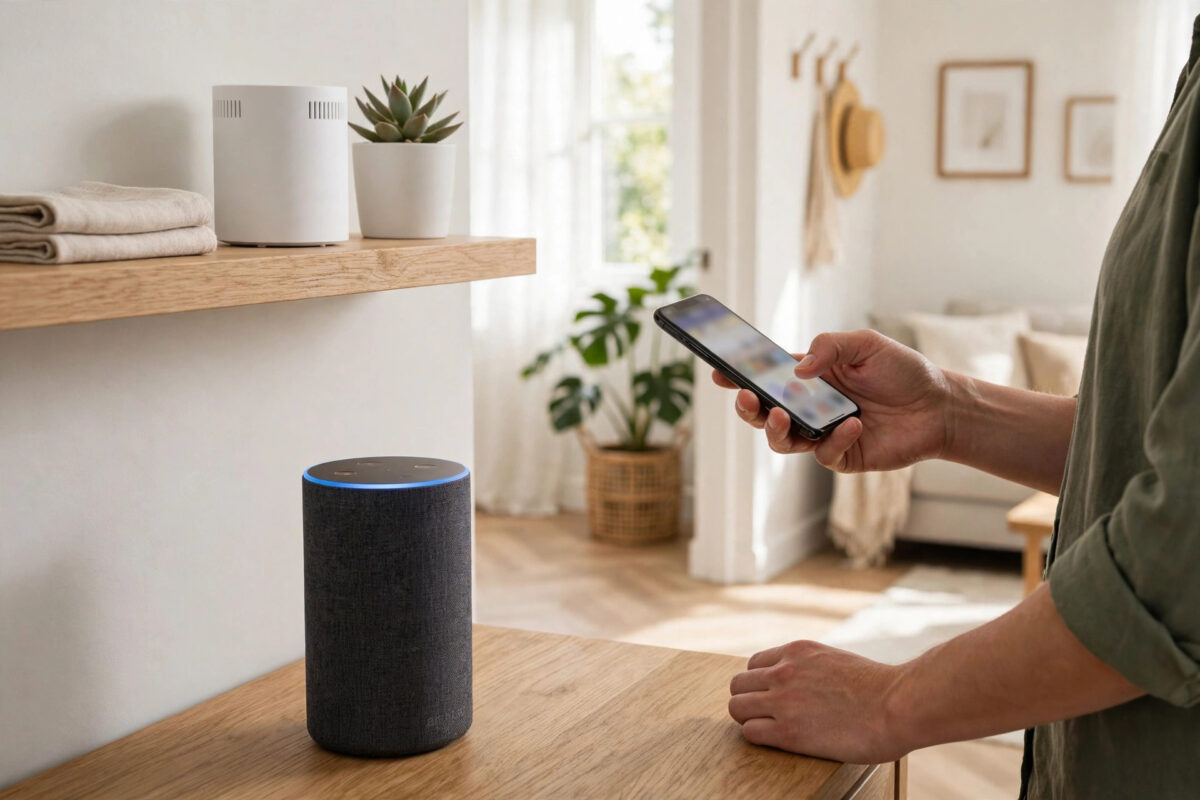
Upgrading to a TP-Link Deco mesh system is one of the best things you can do for home Wi-Fi. Your dead spots disappear, speeds even out, and streaming gets smoother everywhere. Then you ask Alexa for the weather and get silence, or a message that she cannot connect to the internet. Your Echo speaker is still trying to use your old router, which may now be switched off in a cupboard.
Do not worry. Your Echo is not broken, and you do not need to start your whole smart home from scratch. You just need to move the speaker onto the new Deco network. This guide shows you the cleanest ways to do it, including one shortcut that can reconnect every smart device at once.
Quick Answer
To reconnect an Echo after changing to a TP-Link Deco mesh, open the Alexa app, go to your Echo settings, choose Wi-Fi Network and Change, then join the Deco network name and enter its password. Even easier: set your Deco network name and password exactly the same as your old router, and your Echo will reconnect on its own.
Why Your Echo Stops Working After a Router Change
Your Echo remembers one Wi-Fi network name and password from its setup. It has no way of knowing that you replaced the router on purpose. When the old network disappears, the speaker keeps searching for it, fails, and may show an orange spinning ring or report that it is offline in the app.
A Deco mesh also uses one network name for both bands, and features like band steering decide which unit each device uses. Echo speakers handle this well once connected, but the first connection needs care.
The Easiest Fix: Reuse Your Old Network Name and Password
If you have not finished setting up your Deco yet, or you have many smart devices, this trick saves the most time. Routers do not care what a network is called. If the new network has the identical name and password as the old one, every device treats it as the same network.
- Open the Deco app and go to More, then Wi-Fi Settings.
- Set the main network name to exactly your old router network name, including capital letters and spaces.
- Set the password to exactly your old Wi-Fi password, character for character.
- Save the settings and wait for the Deco units to restart and show a solid green or white light.
- Unplug your Echo for 10 seconds and plug it back in, or simply wait a few minutes.
In most cases the Echo reconnects by itself, along with your plugs, bulbs, and other smart home kit. Test Alexa with a simple question. If she answers, you are done, and you have saved yourself reconnecting every device one by one.
Only skip this trick if your old password was weak or shared too widely. In that case, use a fresh strong password on the Deco and reconnect the Echo manually using the next method.
Manual Fix: Change the Wi-Fi Network in the Alexa App
If your Deco has a new network name or password, update the Echo directly. You do not need to delete the speaker or lose your routines.
- Connect your phone to the new Deco Wi-Fi network and open the Alexa app.
- Turn on Bluetooth and allow location permission for the app, as setup uses both.
- Tap Devices, then Echo and Alexa, and select the speaker that is offline.
- Tap the settings gear in the corner.
- Next to Wi-Fi Network, tap Change.
- Follow the prompts. When asked, press and hold the Action button on the Echo until the light ring turns orange.
- Choose your Deco network from the list, enter the password carefully, and confirm.
- Wait while the speaker connects, then test it with a voice command and re-select its room if the app asks.
Repeat the same steps for each Echo speaker in the house. There is no bulk option in the app, but each speaker only takes a couple of minutes once you know the flow.
If your Echo will not enter setup mode, or the app cannot find it, unplug it for 30 seconds, plug it back in, wait for the orange ring, and try again with your phone close to the speaker.
Deco Settings That Help Echo Speakers Stay Connected
Most Deco systems work with Echo speakers on default settings. If yours keeps dropping after reconnecting, check these options in the Deco app.
Settings Worth Checking
- Separate IoT network: Newer Deco models offer a dedicated IoT network on 2.4 GHz. It is a great home for smart speakers, as long as your phone can still reach them for setup and casting. If you use it, connect the Echo to that network name instead.
- Fast Roaming: This helps devices move between Deco units, but a few older smart devices dislike it. If one Echo keeps disconnecting, try turning Fast Roaming off for testing.
- Beamforming: This is generally safe to leave on and usually improves range.
- Band preference: On some Deco models you can set a preferred band or connection point for a device. Pinning a distant Echo to its nearest Deco unit on 2.4 GHz can stop it clinging to a weak 5 GHz signal.
Mesh placement matters too. Our guide to fixing Wi-Fi dead zones in your home explains where to place mesh units so every room gets a strong signal.
If the Echo Connects but Keeps Dropping Later
A speaker that works for a day and then goes offline again is telling you something different from one that never connects. Look at these causes.
- Weak spot: The Echo may be connecting to a far Deco unit with a poor signal. Move a Deco unit closer, or move the speaker.
- Interference: Microwaves, baby monitors, and thick masonry can knock a marginal connection offline. Small position changes help.
- Deco firmware: Check the Deco app for firmware updates for all units and install them.
- Double router problem: If your old provider router is still active and broadcasting, or the Deco is in the wrong mode behind it, devices can get confused. Ideally your old router should be in modem or bridge mode, or switched off if the Deco replaces it fully.
- Power cuts: After an outage, routers and speakers boot at different speeds. Give the whole system five minutes before assuming something is broken.
Full Reset as the Last Resort
If one Echo refuses to join the Deco network while others succeed, reset that single speaker. Hold the Action button for about 15 seconds until Alexa announces the reset, then add it in the app using Add Device. Your account routines stay safe. If even a reset fails, consult the Amazon Echo help and support pages for model-specific reset steps, since button combinations differ slightly between Echo generations.
Reconnecting the Rest of Your Smart Home
Once the Echo works, check plugs, bulbs, and switches next. Hub-based devices usually reconnect through their hub. Test each room group in the app, as groups and routines normally return as soon as devices reconnect.
Common Mistakes to Avoid
- Deleting the Echo from your account: Changing Wi-Fi does not require deregistering. Use the Wi-Fi Change option and keep your setup intact.
- Typing the password from memory: One wrong character fails silently. Read the password from the Deco app while you type it into the Alexa app.
- Leaving the old router broadcasting: Two networks with similar names invite confusion. Switch the old router off once Deco is live.
- Setting up from far away: Stand near the Echo and a Deco unit during setup, with your phone on the Deco network.
- Changing the network name afterwards: If you rename the Deco network next month, every smart device needs reconnecting again. Pick a name you can live with.
Conclusion
Changing to a TP-Link Deco mesh does not break your Echo. It simply leaves the speaker looking for a network that no longer exists. Reuse your old network name and password on the Deco for an instant reconnection, or update the Wi-Fi in the Alexa app in a couple of minutes per speaker. Check Deco placement and a handful of settings if drops continue, and your voice control will be as reliable as your new mesh Wi-Fi.
Frequently Asked Questions
Do I need to reset my Echo after changing my router?
Usually not. Use the Wi-Fi Network Change option in the Alexa app settings for that speaker, and it will join the new Deco network while keeping its name, room, and routines. A full reset is only needed if the speaker refuses to enter setup mode or repeatedly fails to connect.
Will all my Alexa routines and groups still work after reconnecting?
Yes. Routines, groups, skills, and preferences live in your Amazon account, not inside the speaker. Once the Echo is back online with the same account, they work again. If you reset and re-added the speaker, check that it is selected in its room group.
Should I connect my Echo to the Deco 2.4 GHz or 5 GHz band?
Deco normally shows one combined network name and steers devices automatically, and Echo speakers work well with that. If a speaker is far from the nearest Deco unit and keeps dropping, a 2.4 GHz connection is more stable at range. Some Deco models let you set a band preference per device in the app.
Why does the Alexa app say my Echo is offline even though it answers me?
The app status sometimes lags behind reality, especially just after a network change. Force-close and reopen the app, pull down to refresh the Devices screen, and wait a few minutes. If Alexa answers questions and controls devices, the speaker is online regardless of a stale status label.
Can I reconnect several Echo speakers at the same time?
There is no single bulk button. However, if you set your Deco network name and password to match your old router exactly, all of your Echo speakers should reconnect automatically without touching the app at all. That is by far the fastest option for a house with several speakers.



Leave a Reply