
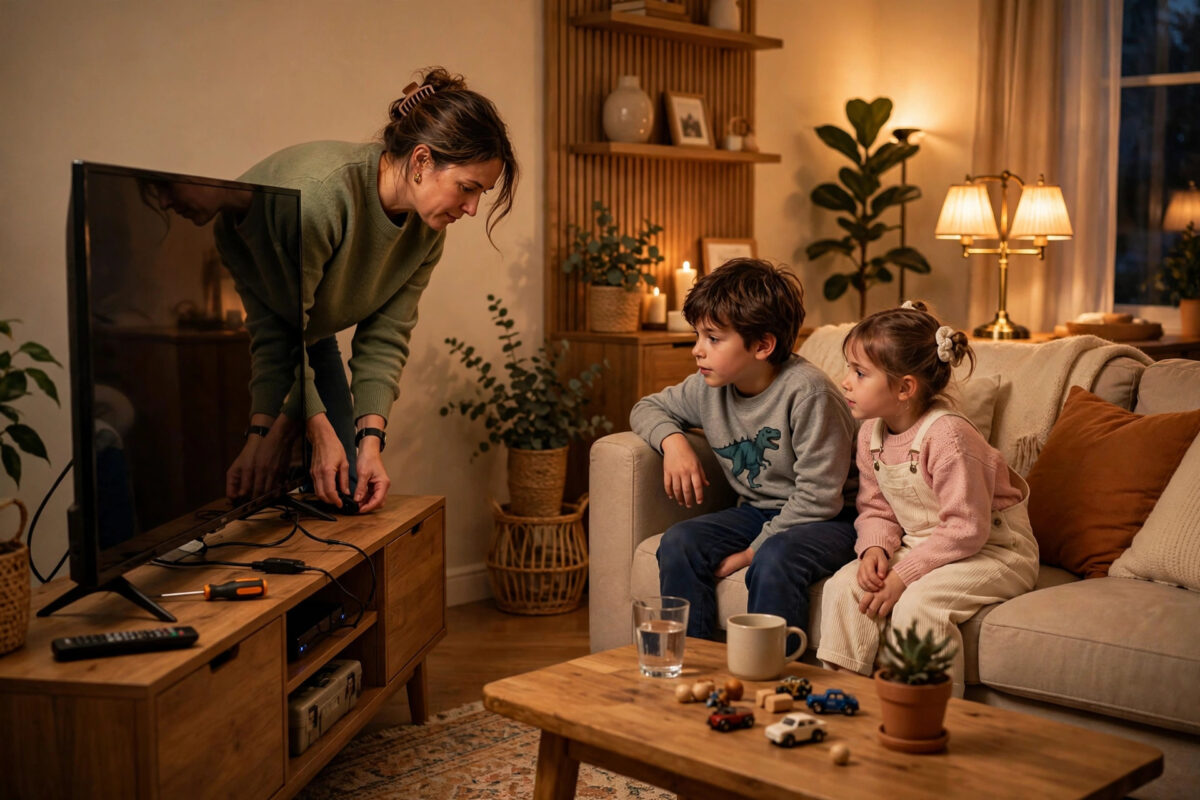
A smart TV in a family home is a shared screen, and sooner or later a child finds something you would rather they had not — a horror trailer, an unsuitable YouTube video, or your credit card saved on a streaming app. Parental controls exist on every major TV platform, but they hide in different menus and work in slightly different ways. This guide sets them up on Samsung, LG, Google TV, Fire TV, and Roku, and then covers the app-level controls that complete the job.
Quick Answer
On the TV, set a parental PIN and content rating limits: Samsung — Settings > General > Parental Settings; LG — Settings > Safety; Google TV — create a Kids profile from the profile switcher; Fire TV — Settings > Preferences > Parental Controls; Roku — set a PIN at my.roku.com and rating limits under Settings > Parental controls. Then lock purchases and set up the kids’ sections inside Netflix, YouTube, and other apps individually, because TV-level controls do not reach inside most apps.
What TV Parental Controls Actually Do
- Rating locks: Block programmes and films above an age rating you choose (using the TV guide ratings for broadcast, and app-provided ratings where supported).
- Channel locks: Hide specific broadcast channels entirely.
- App locks: Require the PIN to open chosen apps — the feature that stops a child opening your profile on a streaming service.
- Purchase protection: A PIN for buying or renting content and for in-app purchases on the TV platform.
- Not covered: What happens inside most third-party apps. Netflix, YouTube, and Disney+ run their own profiles and PINs, set separately (Section 3 below). Browsers on TVs also need their own attention — many parents simply app-lock or remove them.
Choose a PIN the children cannot guess (not a birth year, not 1234, not the house number) and store it in your password manager — a forgotten PIN on some brands means a factory reset. If you are doing this on a brand-new set, pair it with the other essentials in our first-time smart TV setup guide.
Setup by Platform
Samsung (Tizen)
- Press Home > Settings > General > Parental Settings (some models: Broadcasting > Parental Settings).
- Create or enter the PIN (default is 0000 on new TVs — change it under the same menu).
- Set “Programme Rating Lock” to your chosen age, and turn on “Apply to all” sources if offered.
- Use “Channel Lock” to hide specific channels, and “Mark Adult Channels” where available.
- For apps: press and hold on an app on the home screen, or use Settings > Apps, to lock individual apps with the PIN.
LG (webOS)
- Press Settings > All Settings > General > Safety.
- Turn Safety on and set a PIN (default 0000 — change it immediately).
- Set “TV Programme Locks” by rating, “Channel Locks” per channel, and “Application Locks” to choose which apps need the PIN.
- Use “Input Locks” if a games console or other HDMI source should also sit behind the PIN.
Google TV (Sony, TCL, Hisense, Philips, and others)
- From the profile icon (top right), choose Add a kid / Switch profile > Kids profile, and create a profile for the child linked to a family Google account.
- During setup, choose the age, which apps the profile may use, and set a bedtime and daily screen-time limit if wanted.
- Protect your own profile: Settings > Accounts & sign-in > your profile > enable profile lock, so switching out of the kids’ profile needs your PIN/password.
- On plain Android TV (older sets), use Settings > Parental controls (or the Restricted Profile option) to set a PIN and rating limits instead.
Amazon Fire TV
- Go to Settings > Preferences > Parental Controls and turn them on, creating a 5-digit PIN.
- Enable PIN Protect Purchases, and set Viewing Restrictions by rating category.
- For younger children, create an Amazon Kids profile instead (Settings > Profiles / from the profile switcher) — it has its own catalogue, time limits, and no access to your payment methods at all.
Roku TV
- Create a Roku account PIN at my.roku.com > PIN preference (this controls purchases and adding channels).
- On the TV: Settings > Parental controls — set the PIN, then rating limits for live TV and the “Movie Store” content.
- Note Roku’s platform controls are thinner than the others; rely on in-app kids’ profiles (below) for streaming.
Controls Inside the Big Apps
Netflix
Create a Kids profile (it restricts to children’s ratings automatically) and, crucially, lock your adult profiles: netflix.com > Account > Profile & Parental Controls > Profile Lock (4-digit PIN). Set each profile’s maturity rating individually while you are there.
YouTube
For under-13s, use the YouTube Kids app or a supervised account rather than the main app — the main YouTube app on a TV will show whatever the signed-in account shows. At minimum, turn on Restricted Mode in the TV app’s settings and sign out of your personal account on the shared TV.
Disney+, Prime Video, and others
Disney+ has Kids profiles plus PIN protection for adult profiles (set in Edit Profiles). Prime Video has a viewing-restrictions PIN in its settings that applies per device. Work through whichever services your household actually uses; the Internet Matters website maintains current, step-by-step parental control guides for nearly every app and device, and is the best bookmark for keeping up as menus change.
Beyond the TV: The Network Layer
For whole-home backup, most routers offer per-device schedules and content filtering (look for “Parental Controls” in the router’s app), and free DNS filtering services can block adult categories for every device on the network at once. These are blunt instruments compared with the TV and app controls, but they catch the gaps — such as a TV browser you forgot existed. A practical pattern many families use: platform PIN on the TV, kids’ profiles in apps, and a router schedule that cuts the TV’s internet at bedtime.
Common Mistakes to Avoid
- Leaving the default PIN at 0000 or 1234: Children try these first — genuinely, they do. Change it, and do not use family birth years either.
- Setting the TV controls and stopping there: The inside of Netflix and YouTube is where most viewing happens; app profiles are not optional extras.
- Sharing your profile “just for this film”: One exception teaches the route around the system. Put the film on in a way that keeps the boundary (you type the PIN, they do not learn it by watching your fingers — shield it, and consider changing it if it has been observed).
- No purchase PIN: Rating locks do not stop a child renting a film or buying game currency through the TV. Protect purchases separately on every platform.
- Locking so hard the system gets abandoned: Controls set to a draconian level that adults bypass by disabling them entirely are worse than sensible controls that stay on. Aim for age-appropriate, then review each birthday.
Conclusion
Effective parental control on a smart TV is three layers: the TV’s own PIN and rating locks, kids’ profiles inside each streaming app, and — if you want it — a router-level schedule as the backstop. None of them takes more than a few minutes to set, and together they turn a shared family screen into one you do not have to hover over. Review the ratings once a year as the children grow, and the system grows with them.
Frequently Asked Questions
I have forgotten the parental PIN. How do I reset it?
Each brand has a procedure: Samsung and LG publish a remote-button sequence or a master reset through support (you will need proof of purchase for some methods); Google TV controls are managed through your Google account; Fire TV PINs reset via your Amazon account online. A factory reset is the universal fallback, but try the account route first.
Do parental controls block YouTube on the TV?
The TV’s app lock can stop the YouTube app opening without a PIN, but it cannot filter what plays inside a signed-in account. For children, use YouTube Kids or a supervised account and sign your own account out of the shared TV.
Can my child get around the controls with a games console or stick?
Yes, potentially — an HDMI source is a separate world. Use the TV’s input locks (LG and Samsung offer them) to PIN-protect HDMI ports, and set parental controls on the console itself, which has its own mature system.
What age rating should I set?
Match it to your youngest regular viewer for shared screens, and use separate profiles (Google TV kids’ profiles, Netflix profiles) where different children need different levels. You can loosen per profile without weakening the whole TV.
Do these controls also stop in-app purchases?
Only if you enable the purchase PIN specifically — it is a separate toggle on Fire TV, Roku, and the app stores. Check it on every platform and inside game consoles too; it is the control parents most often forget and most regret forgetting.



Leave a Reply