
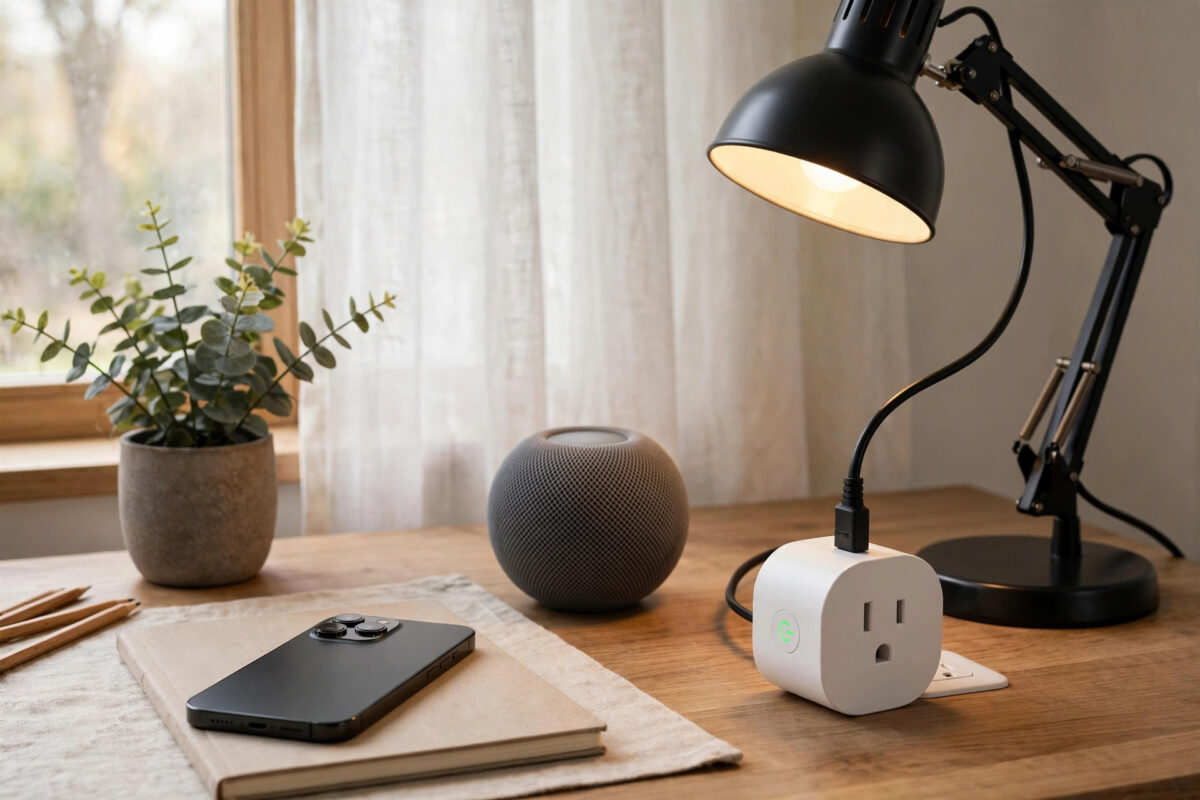
It is a strange problem. Your Meross smart plug turns on and off perfectly in the Meross app, but in Apple Home it is unavailable, shows No Response, or never appeared at all. The plug is clearly working, so why does HomeKit refuse to cooperate? This split behaviour is very common. The Meross app can reach the plug through the Meross cloud, while HomeKit uses a stricter local path. If one detail in that second path is wrong, the plug works in one app and fails in the other. This guide helps you find that detail.
Quick Answer
Confirm you bought the HomeKit version of the plug, put your iPhone and the plug on the same 2.4 GHz home Wi-Fi, and add the plug to Apple Home first using its HomeKit code before linking it in the Meross app. Restart your HomeKit hub and router, disable any router setting that blocks local devices from talking to each other, and update the firmware. Most cases are fixed by correcting the Wi-Fi band, the setup order, or a blocked local network setting.
Why One App Works and the Other Does Not
The Meross app often controls the plug over the internet through the Meross cloud. That path can succeed even when local discovery in your home is broken, so the plug looks healthy. HomeKit is designed for secure local control. Your iPhone, your HomePod or Apple TV hub, and the plug must discover each other on the same network using mDNS, also called Bonjour. If your router separates devices or the plug sits on a different network, HomeKit cannot reach it even though the cloud still can.
Most Common Reasons
- Wrong version: Not all Meross plugs support HomeKit. The device must carry a HomeKit code and logo.
- Wrong Wi-Fi band: Most Meross plugs use only 2.4 GHz. Setup while your phone is on 5 GHz often fails.
- Wrong setup order: Many models pair more reliably into Apple Home first, not the Meross app first.
- Guest network or isolation: Guest Wi-Fi and AP isolation block local HomeKit discovery by design.
- Hub offline: A hub that is off, updating, or on another network breaks HomeKit control.
- Stuck pairing record: A previous failed pairing can block a new attempt until the plug is reset.
Because the plug works in the Meross app, its power supply and Wi-Fi radio are alive. Your job is to fix discovery, pairing, and hub communication.
Check the Plug and Code First
- Look at the plug and its box for the Apple HomeKit logo and an eight-digit setup code on the device label.
- Compare the model number with what you ordered. An Alexa-only or Google-only model will never appear in Apple Home.
- Make sure the plug has not already been added to a different Apple Home. A HomeKit device belongs to one home until it is reset.
- Take a clear photo of the HomeKit code as a backup.
If there is no HomeKit code at all, stop here. You have the non-HomeKit version. Use it where Meross app control is enough and buy a clearly labelled HomeKit or Matter version for Apple Home.
Step-by-Step Fix
Step 1: Use the Same 2.4 GHz Network
Connect your iPhone to your home 2.4 GHz Wi-Fi for setup. If your router combines bands under one name this usually works, but if setup keeps failing, split the bands temporarily. Place the plug in the same room as the router for setup, even if you will move it later. Turn off mobile-data assistance and any VPN on the iPhone, because a VPN can hide local devices. Confirm your HomePod or Apple TV hub is on the same network and shows as connected in Apple Home.
Step 2: Restart Hub, Router, and Plug
- Unplug the Meross plug for 20 seconds, plug it back in, and wait for its light to settle.
- Restart the hub. Unplug a HomePod for 20 seconds, or restart an Apple TV from Settings.
- If several HomeKit devices are affected, restart the router too and wait until Wi-Fi fully returns.
- Open Apple Home and wait two minutes. A plug showing No Response often recovers once the hub reconnects.
Step 3: Remove and Re-Add in the Correct Order
- Remove the plug in the Meross app, and remove any broken copy of it in Apple Home.
- Factory reset the plug. On most models hold the power button for about five seconds until the light shows the reset pattern.
- Open Apple Home first, tap Add Accessory, and scan the HomeKit code.
- Finish setup, assign a room and a simple name, and test the plug in Apple Home.
- Only then open the Meross app to discover the plug for firmware updates and extra features.
Both Apple Support guidance for adding accessories to the Home app and Meross official support resources for HomeKit setup stress the same points: use the code, stay on the home network, and keep the accessory powered during pairing.
Step 4: Fix Router Settings That Block HomeKit
- Turn off AP isolation or client isolation on the network used by the plug and hub.
- Do not use the guest network for plugs or hubs.
- If you use VLANs, enable mDNS or Bonjour forwarding between them.
- Disable band steering temporarily if the plug keeps being pushed to 5 GHz.
- Relax any firewall profile that blocks local device-to-device traffic.
Change one setting at a time, then restart router, hub, and plug once and test again, so you know what fixed it.
Step 5: Update Firmware and Clear Stuck States
Install any firmware update offered in the Meross app. Several Meross updates have improved HomeKit stability after router restarts. Restart your iPhone before another pairing attempt to clear temporary discovery caches, and confirm you are signed into iCloud with Home syncing on, because HomeKit pairing depends on your Apple ID. If other brands show the same No Response pattern, work through our HomeKit No Response accessories troubleshooting guide, which points to a hub or network fault rather than a single faulty plug.
If the Plug Keeps Dropping Out
If pairing works but the plug drops out a day later, suspect weak signal or interrupted power rather than pairing. Test the plug nearer the router for two days, away from metal appliances and closed cupboards. Check that its socket is not controlled by a timer or wall switch that cuts power at night. Repeated power cuts force repeated reconnections that look like software failures.
Common Mistakes and Useful Tips
Buying the look-alike model: The HomeKit and non-HomeKit plugs look almost identical. Verify the logo and code before changing network settings.
Setting up on 5 GHz or with a VPN on: Both block local discovery during the short pairing window. Keep setup simple and local.
Always adding to Meross first: If that order has failed twice, add to Apple Home first. For many models this is the turning point.
Testing remotely too early: First prove the plug works in Apple Home at home on Wi-Fi. Remote control through a hub is a second step.
Useful tip: Use a short name such as Desk Plug during setup and avoid special characters. You can rename it once everything works.
Conclusion
A Meross plug that works in its own app but not in HomeKit is almost never dead. The cloud path works while the local HomeKit path is blocked by the wrong model, the wrong band, the wrong setup order, a hub problem, or router isolation. Confirm the HomeKit version, use the same 2.4 GHz network, restart the hub, re-add the plug to Apple Home first, and remove any setting that stops local devices finding each other. With those pieces correct, the plug is usually stable in both apps.
Frequently Asked Questions
Why does my Meross plug say No Response in HomeKit but works in the Meross app?
The Meross app is using the cloud, while HomeKit is trying to reach the plug locally. An offline hub, AP isolation, or the plug and iPhone being on different networks causes exactly this split result.
Do all Meross smart plugs work with HomeKit?
No. Only models sold as HomeKit compatible and carrying a HomeKit setup code work in Apple Home. Other models may work with the Meross app, Alexa, or Google Home but will never pair with HomeKit.
Should I add the plug to Apple Home or the Meross app first?
If normal setup has failed, add it to Apple Home first with the HomeKit code, test it there, then use the Meross app for firmware updates. This avoids a common cloud-first conflict.
Why does pairing fail even with the correct HomeKit code?
Usually the phone is not on the same 2.4 GHz network, a VPN is active, the plug was not fully reset, or the hub is offline. Reset the plug, restart phone and hub, disable the VPN, and retry near the router.
Will a factory reset remove the plug from the Meross app too?
Yes. A full reset breaks both pairings, so you must add the plug again. That is intentional here, because it clears stuck records in both systems for a clean setup.



Leave a Reply