
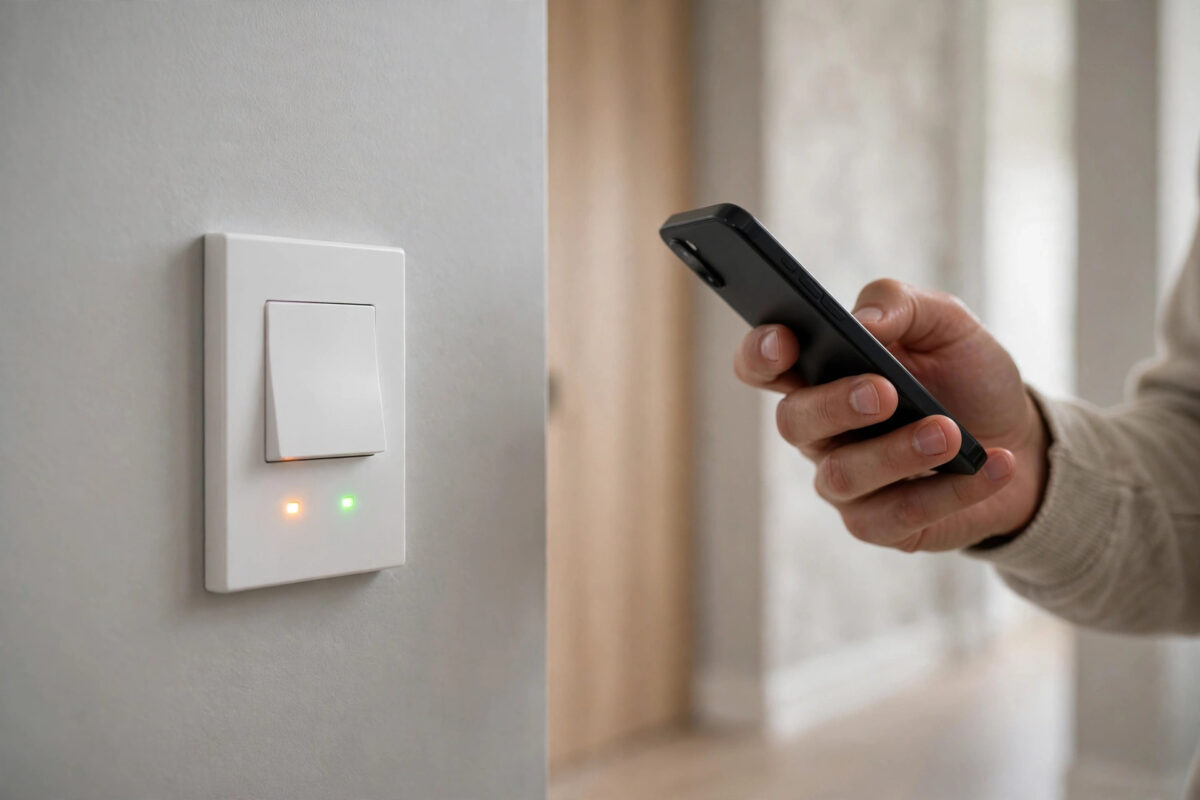
Few home problems are as frustrating as a smart switch that almost works. You wire in your new Kasa switch, open the app, follow the steps, and then it just sits there blinking amber and green. The setup never finishes. The light it controls may work from the paddle, but the switch never joins your Wi-Fi, so there is no app control, no voice control, and no schedules.
The good news is that this blinking pattern is not random. It is the switch telling you exactly what stage it is stuck at. Once you understand what the colours mean, the fix is usually one of a handful of simple things.
Quick Answer
Amber and green blinking on a Kasa smart switch means it is in setup mode but has not connected to your Wi-Fi network. Fix it by connecting your phone to the switch’s temporary setup network first, using only a 2.4GHz Wi-Fi network with the correct password, and keeping the switch within good range of the router. If setup still fails, restart the switch, restart your phone’s Wi-Fi, and run the setup again from the beginning.
What the Blinking Colours Actually Mean
Kasa switches use their small status light as a language. Learning it saves a lot of guessing.
- Blinking amber and green: the switch is in configuration mode, ready for setup, but not yet connected to your home Wi-Fi.
- Blinking green only: the switch is trying to connect to Wi-Fi right now.
- Solid green: the switch is connected and working normally.
- Blinking amber only: the switch is rebooting or resetting.
- Red: there is no Wi-Fi connection, or the connection has been lost.
So amber and green together is not an error code for broken hardware. It means “I am waiting to be set up properly.” Your job is to find out why the setup conversation between the app, your phone, and the switch keeps breaking down.
Safety First Before You Touch Any Wiring
Warning: turn off the power at the breaker before you remove the wall plate, loosen any wire, or check any connection on the switch. Smart switches are wired directly to your home’s mains electricity, which can kill. Turn the breaker off, test that the light no longer turns on, and use a voltage tester to confirm the wires are dead before touching them. If you are not confident working with mains wiring, hire a licensed electrician.
Most fixes in this guide are app and Wi-Fi fixes that need no wiring work at all. Only go back to the wiring if every network fix has failed.
The Most Common Causes
Your Phone Never Joined the Setup Network
During setup, the Kasa switch creates its own temporary Wi-Fi network. Your phone must connect to that network first so the app can hand over your home Wi-Fi details. If your phone jumps back to your home network too early — which many phones do automatically because the setup network has no internet — the transfer fails silently.
You Are Using 5GHz Wi-Fi
Kasa smart switches connect to 2.4GHz networks only. If your router merges both bands under one name, your phone may hand the switch a 5GHz connection it cannot use. This is the single most common cause of endless setup loops.
Wrong Password or Special Characters
One wrong character in the Wi-Fi password will fail every time, and the app does not always say so clearly. Very long passwords or unusual special characters can also trip up older firmware.
Weak Signal at the Switch Location
The switch is inside a metal electrical box in a wall. That weakens its signal badly compared with a phone in the same room. A switch at the far end of the house may see a network that your phone connects to easily.
Step-by-Step Fix: Run Setup the Right Way
- Stand next to the switch with your phone. Stay within a few feet for the whole setup.
- Confirm the switch is blinking amber and green. If it is not, press and hold the reset button under the paddle — usually for about ten seconds — until it starts blinking amber and green.
- Turn off mobile data on your phone temporarily. This stops the phone from abandoning the setup network to chase the internet.
- Open the Kasa Smart app, tap the plus icon, choose the switch model you own, and follow the prompts until the app tells you to join the switch’s network.
- Go to your phone’s Wi-Fi settings and connect to the network named after your Kasa device. Wait until your phone confirms the connection, even if it warns there is no internet.
- Return to the Kasa app and let it find the switch. Do not switch apps or lock the phone during this stage.
- Select your home 2.4GHz network and type the password slowly, character by character. Use the show-password option to check it.
- Wait a full two minutes. The light will blink green while connecting, then turn solid green. Do not cancel early — this stage is slower than it looks.
- Name the switch and its room in the app, then test it from the app, the paddle, and your voice assistant.
The official TP-Link Kasa support pages with setup guides and firmware match this process model by model, so check your exact model number there if your app screens look slightly different.
If Setup Still Fails: Work Through These Fixes
Split Your Wi-Fi Bands
Log in to your router and give the 2.4GHz and 5GHz networks different names, at least temporarily. Connect your phone to the 2.4GHz name, run setup again, and select that same name for the switch. You can merge the names again afterwards if your router supports it, though many people leave them split for smart home reliability.
Restart Everything in Order
- Reboot the router and wait until your normal Wi-Fi is fully back.
- Restart the switch by pressing its restart button, or turn its breaker off for thirty seconds and back on.
- Close the Kasa app fully, reopen it, and start setup as a brand-new device. Remove any half-added copy of the switch from the app first.
Check Router Blockers
- Turn off MAC address filtering, or add the switch’s address to the allow list.
- Make sure the network is not a guest network with device isolation turned on.
- Disable any “pause internet for new devices” family controls during setup.
- Check that your router has not hit its connected-device limit.
Try a Different Phone
Occasionally a phone’s aggressive network-switching is the problem. Running setup once from a second phone or tablet often succeeds immediately.
If Wi-Fi problems affect several devices in that room, not just this switch, work through our guide on fixing weak Wi-Fi signal room by room before blaming the switch.
When to Check the Wiring
Only check wiring after every step above has failed, and only with the breaker off, as described in the safety warning. The usual wiring culprits are a missing or poorly connected neutral wire — Kasa switches need a neutral — a loose line or load wire, or the line and load wires swapped. If there is no neutral wire in the box, this model of switch will never work reliably there, and you need a no-neutral model or an electrician’s advice instead of more app retries.
Mistakes and Tips That Save Time
- Do not rush the green blinking stage. Cancelling at ninety seconds and restarting is the top reason setups fail three times in a row.
- Do not set up from another room. Your phone, the switch, and a clear path to the router should all be close together.
- Write the Wi-Fi password down and read it back. One swapped character looks identical at a glance.
- Update the switch firmware right after setup succeeds, in the app settings, so known connection bugs are fixed before you judge its reliability.
- Take a photo of the wiring before you change anything, with the breaker off, so you can always restore the original arrangement.
- Set up one switch at a time. Doing three at once makes it almost impossible to tell which setup network belongs to which switch.
Conclusion
Amber and green blinking simply means your Kasa switch is still waiting to join Wi-Fi. In almost every case the cause is the phone leaving the setup network, a 5GHz band, a password slip, or weak signal at the wall. Run the setup slowly, standing next to the switch, on a clear 2.4GHz network, and give the connection stage its full two minutes. Work through the router checks next, and only suspect the wiring — with the breaker firmly off — if nothing else works.
Frequently Asked Questions
How long should Kasa setup normally take?
A clean setup takes about three to five minutes, including naming the device. The Wi-Fi joining stage alone can take up to two minutes. If you are past ten minutes on one attempt, stop, reset the switch, and start again cleanly rather than waiting longer.
Why does my phone keep leaving the Kasa setup network?
Because that network has no internet, and your phone is designed to prefer a working connection. Turning off mobile data and any auto-switch or Wi-Fi assist feature during setup usually stops the jumping.
Will a factory reset delete my other Kasa devices?
No. Resetting one switch only affects that switch. Your other devices, scenes, and schedules stay in your account untouched. You will only need to set up the reset switch again and re-add it to any groups it belonged to.
Does the Kasa switch work during an internet outage?
The physical paddle keeps working, and the switch keeps its Wi-Fi connection to your router. App control from outside the home and voice assistants need the internet, so those pause until the connection returns.
When should I suspect a faulty switch?
Suspect hardware if the switch never enters amber-and-green mode even after a long reset hold, if it loses power randomly with solid wiring, or if it fails setup on a different phone, a split 2.4GHz network, and close range all together. At that point, contact TP-Link support about a warranty replacement.



Leave a Reply