
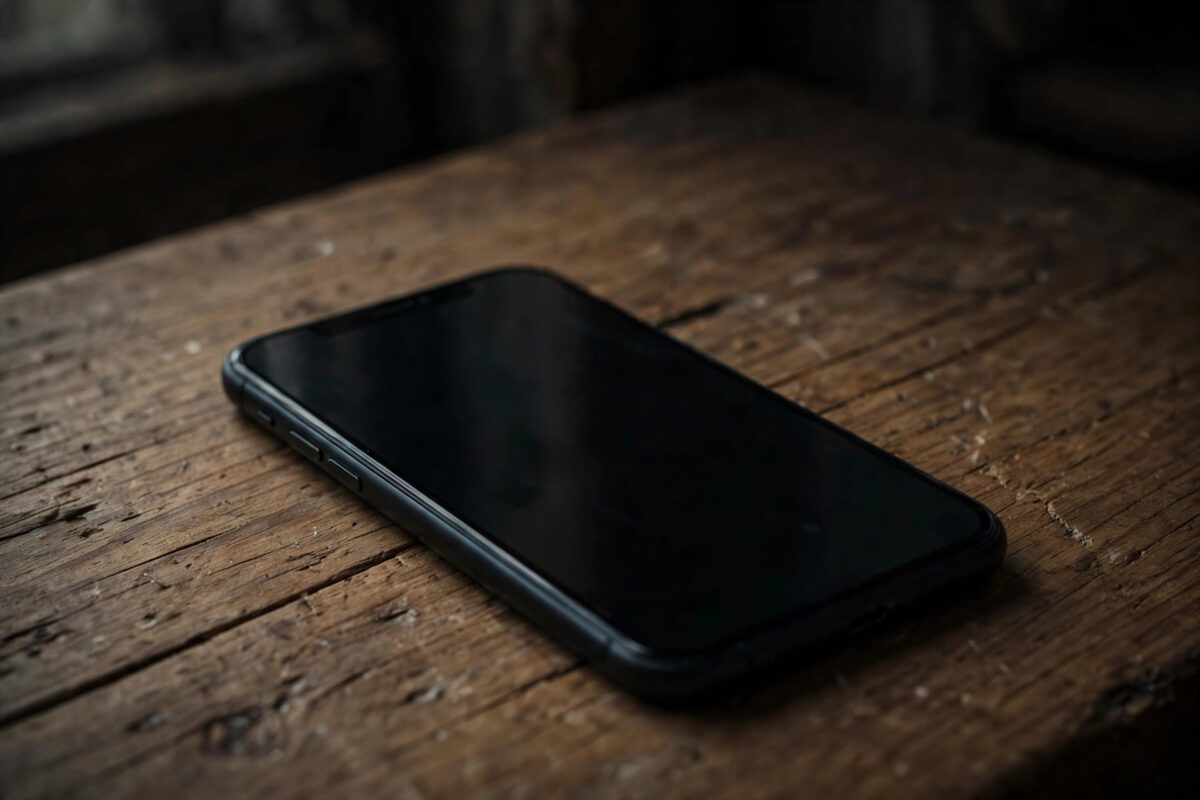
You hear your iPhone ringing across the room. You pick it up, and the screen is completely black. You can feel vibrations, hear notification sounds, maybe even answer by guessing where the slider is, but the display shows nothing at all.
This strange problem is actually good news in disguise. A phone that rings, vibrates and plays sounds has a working logic board, battery and speaker. The fault is almost always in the display, the display connection, or software that has crashed the screen while the rest of the phone runs on.
This guide explains the likely causes and takes you through the fixes in order, starting with the force restart that solves the majority of cases in under a minute.
Quick Answer
An iPhone with a black screen that still rings usually has a crashed display driver or a loose or damaged screen connection. Force restart it first: quick Volume Up, quick Volume Down, then hold the Side button until the Apple logo appears. If the screen stays black after that, check for a screen protector or proximity sensor issue, try a computer connection, and suspect physical screen damage if the phone was recently dropped.
First Fix: Force Restart the iPhone
Because the phone is alive underneath, a force restart is the perfect first test. It reboots the whole system, including the display driver, and it works without needing the screen at all.
- For iPhone 8 and later: quick-press Volume Up, then Volume Down, then hold the Side button for about 10 seconds.
- For iPhone 7: hold Volume Down and the Side button together for 10 seconds.
- For iPhone 6s and earlier: hold the Home and Sleep/Wake buttons together for 10 seconds.
- You cannot see the Apple logo if the screen is faulty, so count the seconds, release, and wait two minutes.
- Ask someone to call the phone. If the screen now lights up, the crash is fixed.
If the phone vibrates or makes the restart sound but the display stays dark, move on to the checks below.
Check Brightness, Protectors and the Proximity Sensor
Sometimes the screen is on but so dim, or so confused by a sensor, that it looks dead. These checks take two minutes and need no tools.
- Ask Siri to ‘turn brightness all the way up’ if Siri responds to your voice.
- Remove the screen protector and case. A badly fitted protector can fool the proximity sensor into thinking the phone is against your ear.
- Clean the top of the screen where the sensors sit, next to the front camera.
- Shine a bright torch at the screen from a low angle. If you can faintly see icons, the backlight has failed, which is a hardware repair.
If you recently replaced the screen or protector, this section is especially important. Many ‘black screen’ cases after a repair are just the sensor area being covered by protector adhesive or film.
Connect the iPhone to a Computer
A computer connection separates software problems from hardware problems. Plug the iPhone into a Mac or PC and open Finder, the Apple Devices app, or iTunes.
- If the computer sees the phone and offers an update, the main board is healthy and the fault is the display or its connection.
- If the phone is recognised, back it up immediately while you still can.
- If iTunes or Finder reports the phone is in recovery mode or needs a restore, follow the update path first to protect your data.
- If nothing is recognised, charge the phone for 30 minutes and force restart while it is connected.
Our step-by-step guide on putting an iPhone into recovery mode explains the button sequences and the Update option in full if the computer asks for a repair of iOS.
When It Is a Hardware Problem
If force restarts and a computer connection change nothing, and especially if the phone was dropped or repaired recently, the likely causes are physical:
- A screen connector shaken loose by a drop. Sometimes a firm press where the connectors sit (top area of the phone) temporarily revives it, a strong hint for the repair shop.
- A cracked or failed OLED or LCD panel with no visible surface damage.
- Water damage affecting the display circuit, even in water-resistant models with aging seals.
- A failing backlight, where a torch shows a faint image on the ‘black’ screen.
Do not open the phone yourself unless you are trained. iPhone screens are paired with the device, and a poor repair can break Face ID and True Tone. An Apple Store or authorised repairer can test a known-good screen in minutes.
A Special Case: Black Screen Only During Calls
There is one variation of this problem that is not a fault at all. If your screen goes black the moment a call connects, and returns when the call ends, the proximity sensor is doing its job imperfectly. That sensor, at the top of the screen, is meant to blank the display when the phone is against your ear. A misaligned screen protector, a thick case lip, or dirt over the sensor makes it trigger when the phone is simply in your hand.
Test it by making a call on speaker or with headphones: if the screen stays on, the sensor is the culprit, not the display. Remove the protector, clean the top edge of the screen thoroughly, and test again. After a third-party screen repair, the sensor may sit slightly crooked, which the repairer can reseat in minutes.
Distinguishing this case matters because every other fix in this guide (restarts, restores, screen replacement) would be wasted effort. A phone that is black only during calls has a healthy screen and a confused sensor. A phone that is black at all times, while ringing and vibrating, has the display or driver problem the rest of this guide is about, and a brief sensor test is the fastest way to tell the two apart.
Common Mistakes and Helpful Tips
- Do not assume the phone is dead and buy a replacement. A ringing phone is alive; the screen is the problem.
- You can still answer calls in the meantime: press the Side button twice on many setups, or use headphones or a car Bluetooth connection.
- Use Siri to make calls, set alarms and send messages while the screen is out of action.
- Back up the moment the screen flickers back, even briefly. Screens that fail once often fail again.
Apple’s support site has a page for this exact picture fault. The official Apple advice if your iPhone screen is black or frozen confirms the restart steps and the point at which Apple recommends service.
Conclusion
A black screen on a ringing iPhone is alarming, but the ringing itself tells you the phone still works. Force restart it first, because a crashed display driver is the most common cause. Then rule out protectors and sensors, connect it to a computer to protect your data, and treat a recent drop or repair as a strong clue that the screen or its connector needs professional attention. Back up as soon as you get any life from the display.
Frequently Asked Questions
Can I still use my iPhone while the screen is black?
Partly. You can answer calls with the Side button or connected headphones, use Siri for calls and messages, and hear alarms and notifications. You cannot see anything, so treat this as a temporary workaround while you fix or repair the screen.
Why did my screen go black after a drop but the phone still works?
A drop often loosens the display connector or damages the panel internally without cracking the glass. The logic board keeps working, so sounds and vibrations continue. This needs a screen inspection or replacement by a technician.
Will a force restart fix a black screen permanently?
If the cause was a software crash, yes, the restart usually clears it for good. If the screen goes black repeatedly, or after every drop onto a soft surface, the cause is hardware and will keep returning until repaired.
How can I back up an iPhone with a black screen?
Connect it to a computer you have used before; Finder or iTunes may back it up without needing the screen, though you may need to tap Trust, which you cannot see. If iCloud Backup was on, the phone backs up automatically when locked, charging and on Wi-Fi.
How much does an iPhone screen replacement cost?
It depends heavily on the model. Older LCD models are the cheapest, while the large OLED screens on recent Pro models cost the most. Apple publishes current prices on its repair pages, and using Apple or authorised parts protects Face ID and display features.



Leave a Reply