
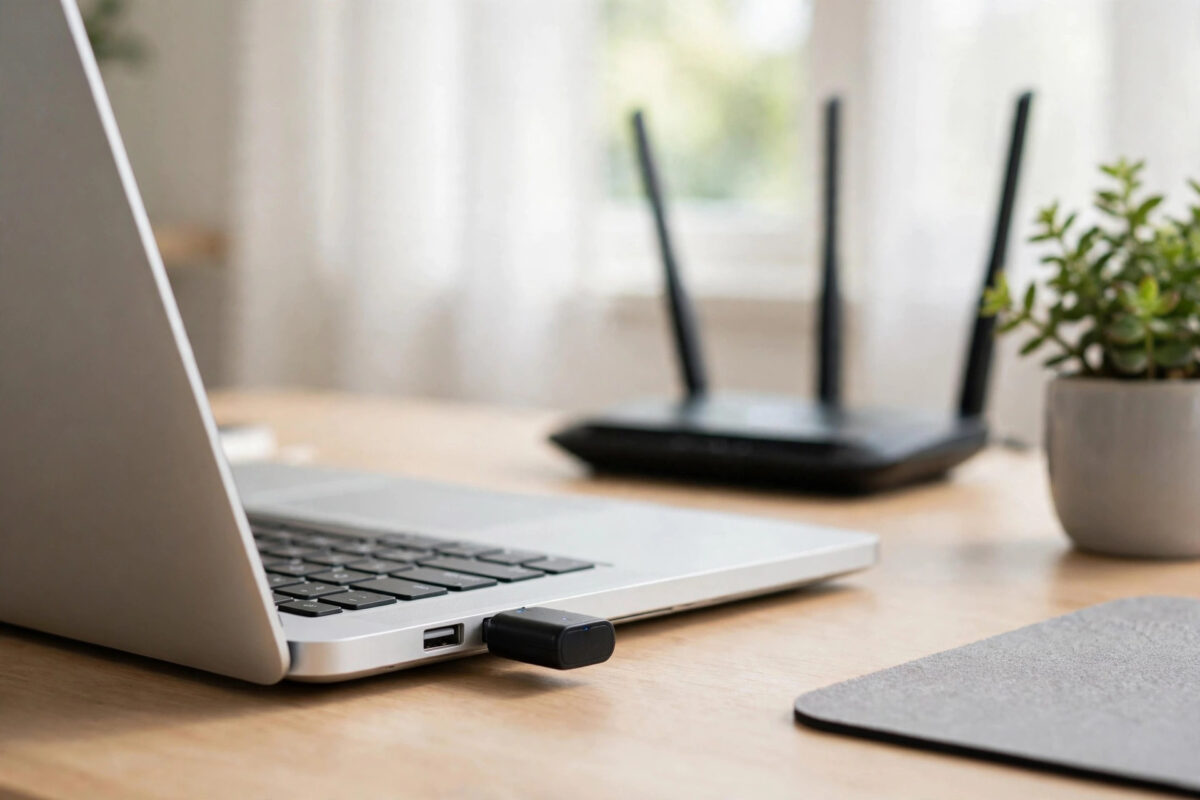
TP-Link USB Wi-Fi adapters are cheap and popular, but many of them do not work the moment you plug them into Ubuntu 22.04. The adapter light may blink, or Ubuntu may ignore it completely. That is because most TP-Link adapters use Realtek chips, and Ubuntu often needs a driver that is not built into the default kernel.
The good news is that almost every common TP-Link model — Archer T2U, T3U, T4U, TL-WN725N, TL-WN823N, and others — can be made to work. You just need to identify the exact chip inside your adapter, then install the matching driver. This guide shows you exactly how.
Quick Answer
Plug in the adapter, run lsusb to find its Realtek chip ID, then install the driver that matches that chip — for example the rtl8812au driver for Archer T4U or the rtl8188eu driver for TL-WN725N v2/v3. Connect Ubuntu to the internet by Ethernet or phone tethering, install build tools, clone the correct driver from GitHub, and install it with DKMS using sudo ./install-driver.sh or make and sudo make install.
Step 1: Identify Your Adapter’s Chipset
TP-Link sells many hardware versions under the same product name. An Archer T3U v1 and a later revision can contain different chips. The model name alone is not enough — the USB device ID tells the truth.
- Plug the adapter into a USB port. Use a USB 2.0 port for first setup if you have one; it avoids early USB 3.0 quirks.
- Open a terminal with
Ctrl + Alt + T. - Run:
lsusb - Find the line for TP-Link or Realtek. It looks like
Bus 001 Device 005: ID 2357:012d TP-Link Archer T3Uor shows a Realtek ID such as0bda:8812. - Note the four-digit ID after the colon. This is the key to choosing your driver.
- Also check:
uname -rto note your kernel, andip link showto see if any wireless interface already exists.
Common TP-Link Models and Their Drivers
- Archer T4U, T4UH (ID 2357:0101 / Realtek 8812AU): driver
rtl8812au - Archer T2U, T2U Plus, T2U Nano (Realtek 8811AU / 8821AU): driver
rtl8811au/rtl8821au— often covered by the same rtl8812au driver family repos - Archer T3U, T3U Plus, T3U Nano (Realtek 8822BU / 8812BU): driver
rtl88x2bu - TL-WN725N v2/v3 (Realtek 8188EU): driver
rtl8188eu - TL-WN823N v2/v3 (Realtek 8192EU): driver
rtl8192eu - Archer T9UH (Realtek 8814AU): driver
rtl8814au
If your ID is not listed, search the ID itself — for example “0bda b812 linux driver” — and you will find which Realtek family it belongs to.
Step 2: Get a Temporary Internet Connection
You need internet to download the driver and build tools. Since Wi-Fi is the thing you are fixing, use one of these:
- A wired Ethernet cable, if your machine has a port or a USB-to-Ethernet dongle.
- USB tethering from an Android phone: connect the phone by cable, enable USB tethering in phone settings, and Ubuntu will connect automatically.
- An iPhone with USB tethering also works on most Ubuntu installs.
Confirm you are online with ping -c 3 ubuntu.com before continuing.
Step 3: Install Build Tools and Headers
Every method below compiles a kernel module, so install the tools first:
sudo apt update && sudo apt install -y build-essential git dkms linux-headers-$(uname -r)
DKMS is important. It rebuilds the driver automatically when Ubuntu updates the kernel, so your Wi-Fi does not break after every system update. If you maintain your system regularly, our guide on how to update Ubuntu from the terminal explains why headers and DKMS matter for driver stability.
Also check Secure Boot status now: mokutil --sb-state. If Secure Boot is enabled, an unsigned manually built driver will not load. Most users disable Secure Boot in BIOS for these adapters, or sign the module during DKMS install when prompted to create a Machine Owner Key.
Step 4: Install the Driver for Your Chip
Below are the most common cases. Use only the section that matches your chip ID.
For Archer T4U and Other 8812AU Adapters
- Clone a maintained driver repo:
git clone https://github.com/morrownr/8812au-20210820.git - Enter the folder:
cd 8812au-20210820 - Run the installer:
sudo ./install-driver.sh - Reboot when it asks, or run
sudo reboot.
The morrownr repositories are widely trusted because they track newer kernels and include clear install scripts. The rtl8812au driver repository on GitHub is the current home for this family.
For Archer T3U and Other 88x2BU Adapters
- Clone the driver:
git clone https://github.com/morrownr/88x2bu-20210702.git - Enter the folder:
cd 88x2bu-20210702 - Install it:
sudo ./install-driver.sh - Reboot your system.
For TL-WN725N v2/v3 and 8188EU Adapters
- Try the in-kernel driver first. Ubuntu 22.04 includes
r8188euin staging for many 8188EU devices. Check withlsmod | grep 8188after plugging in. - If it does not work well, install the improved out-of-tree version:
git clone https://github.com/lwfinger/rtl8188eu.git - Build and install:
cd rtl8188eu && make && sudo make install - Reboot and test.
For less common chips, the pattern is always the same: find the morrownr or lwfinger repo for your chipset, read its README carefully, and follow its install script. Repos differ slightly, so the README for your exact driver always wins over generic instructions.
Step 5: Verify Wi-Fi Works
- After reboot, check that the module loaded:
lsmod | grep 88— adjust the pattern to your driver name. - Check interfaces:
ip link show— you should see a wireless interface likewlx.... - List networks:
nmcli device wifi list - Connect: open Settings, go to Wi-Fi, pick your network, and enter the password. Or use terminal:
nmcli device wifi connect "YourNetworkName" password "YourPassword" - Test speed and stability by browsing and running
ping -c 5 8.8.8.8.
If the interface appears but shows no networks, check that the adapter is not blocked: rfkill list and sudo rfkill unblock all. Also try a different USB port, since a faulty port or low power on an unpowered hub can cause detection problems.
Step 6: Fix Slow Speeds and USB 3.0 Mode
Many dual-band TP-Link adapters first appear in USB 2.0 mode and run slowly. The driver repos above usually handle mode switching automatically through usb_modeswitch rules. If speeds are stuck at USB 2.0 rates:
- Make sure you installed with the repo’s install script, which sets up the mode switch.
- Unplug the adapter, wait ten seconds, and plug it into a blue USB 3.0 port.
- Check negotiated link:
lsusb -tto see the speed of the device. - Test on the 5 GHz band if your router offers it — 2.4 GHz is often crowded and slower.
Also set your Wi-Fi region correctly if channels are missing: the Linux wireless regulatory documentation explains why adapters limit channels until the country code is set. In Ubuntu you can set it with sudo iw reg set XX, replacing XX with your country code, for testing.
Common Mistakes and Useful Tips
- Installing the driver for the wrong hardware version: TL-WN725N v1 uses a different chip than v2 and v3. Always trust
lsusbID over the box label. - Skipping DKMS: A plain
make installworks today and breaks on the next kernel update. Prefer repos with DKMS or an install script that registers DKMS. - Ignoring Secure Boot: The build succeeds but the module refuses to load. Check
sudo dmesg | grep -i "required key"for the telltale error. - Using TP-Link’s official Linux download: TP-Link’s own Linux drivers are often years old and built for ancient kernels. Community repos are usually far more up to date for Ubuntu 22.04.
- Tip: After a successful install, keep the cloned driver folder. If anything breaks later, rerunning the install script is the fastest repair.
- Tip: Write your chip ID on a label on the adapter. Next reinstall, you will know the driver instantly.
Conclusion
Installing a TP-Link USB Wi-Fi adapter on Ubuntu 22.04 is really about one thing: matching the driver to the Realtek chip shown by lsusb. Get online by tethering or Ethernet, install build tools with DKMS, use the maintained driver repo for your chip family, reboot, and connect. Done this way, the driver survives kernel updates, reaches proper USB 3.0 speeds, and gives you stable dual-band Wi-Fi from an adapter that costs very little.
Frequently Asked Questions
Why does Ubuntu not support my TP-Link adapter out of the box?
Realtek does not always submit drivers for its USB chips to the mainline kernel, and TP-Link’s own Linux drivers are rarely updated. Community developers maintain working drivers, which is why a manual install is needed.
Will my Wi-Fi break after a kernel update?
Not if you installed with DKMS. DKMS rebuilds the module automatically for each new kernel. If you used a plain make install without DKMS, you will need to rebuild after kernel updates.
How do I uninstall the driver if I change adapters?
Most install repos include a removal script such as sudo ./remove-driver.sh in the same folder. Run it, reboot, and the module and DKMS entry are cleanly removed.
My adapter is detected but very slow. What should I check?
Check that it switched to USB 3.0 mode, connect to the 5 GHz band, and try a port directly on the computer instead of a hub. Also test closer to the router to rule out a weak signal.
Can I use the same steps on Ubuntu 24.04?
Yes, the process is the same, but check the repo README first — some newer adapters are supported in-kernel on 24.04 and need no manual driver at all.



Leave a Reply