
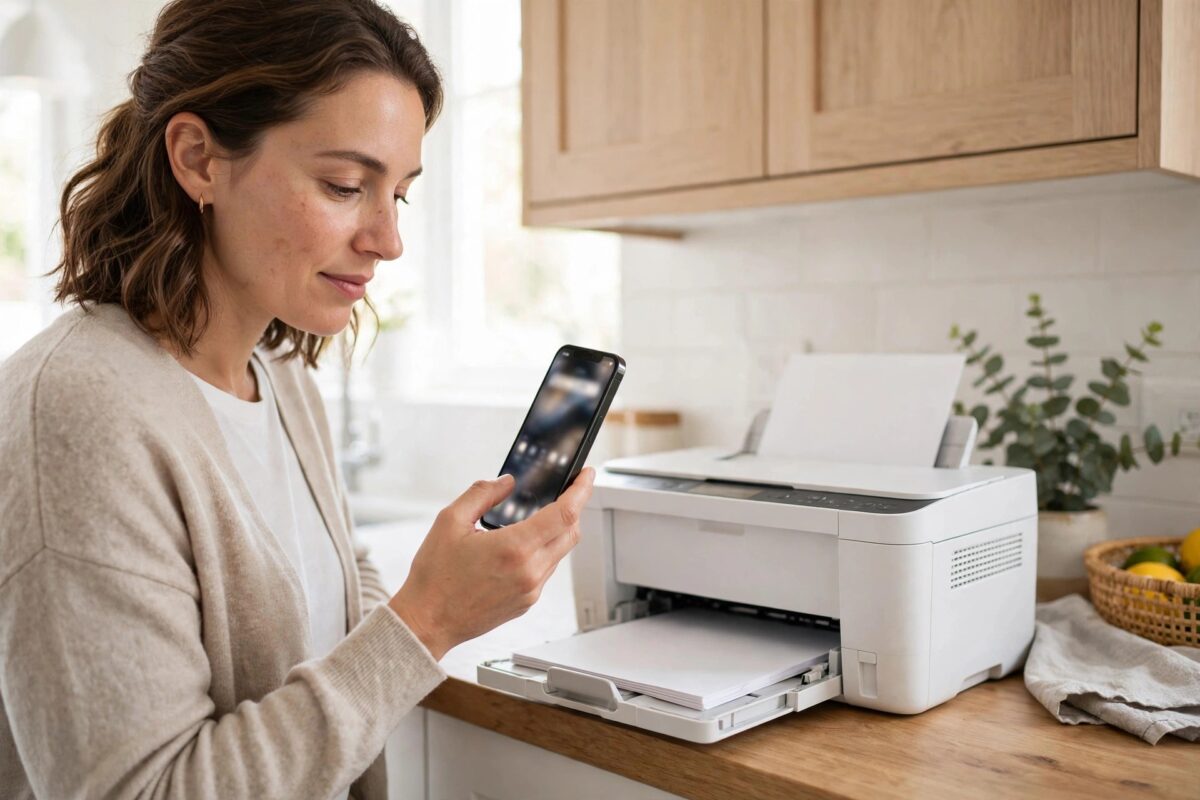
You open HP Smart, the printer is clearly switched on with its Wi-Fi light lit, and the app still insists the “printer is unavailable”. Printing from other apps may even work — it is just HP Smart refusing to see a printer that is right there. This mismatch is common because HP Smart checks status through HP’s cloud services and your HP account, not just your local network, so an account hiccup or a stale app entry can make a healthy printer look dead. This guide restores the connection step by step.
Quick Answer
If HP Smart says “printer unavailable” while the printer is on, refresh the app, make sure your phone or PC is on the same Wi-Fi network as the printer, and sign out of and back into your HP account in the app. If that fails, remove the printer from HP Smart and add it again. Also check that the printer shows as connected in its own network settings — a printer that dropped off Wi-Fi will be unavailable to the app even though its lights look normal.
Why HP Smart Loses Track of a Working Printer
- Cloud status lag: HP Smart talks to HP’s servers. If the printer’s web services connection has stalled, the app reports it unavailable even on a healthy local network.
- Different networks: Your phone may be on 5 GHz, mobile data, or a guest network while the printer sits on 2.4 GHz. Most routers bridge the bands, but some setups and VPNs isolate them.
- A stale printer entry: After a router change or IP address change, the app keeps an old record of the printer and cannot reach it.
- Account sign-in problems: An expired session in the app quietly breaks the printer status until you sign in again.
- The printer is genuinely asleep or offline: Its Wi-Fi light can look fine at a glance while the connection has actually dropped.
Step 1: Quick Checks First
- Wake the printer by pressing a button on its panel, and confirm the wireless light is solid, not blinking.
- Print a Network Configuration or Wireless Test page from the printer’s menu and check it says the printer is connected, with an IP address listed.
- Make sure your phone or PC is connected to the same network name as the printer. Turn off mobile data briefly on a phone to force it onto Wi-Fi, and disconnect any VPN.
- Fully close HP Smart and reopen it. On a phone, swipe it away from recent apps; on Windows, close it from the system tray as well.
If the network page shows the printer is not connected, the problem is the printer’s Wi-Fi, not the app — reconnect it to your network first, using our guide to fixing a printer that keeps showing offline if it drops repeatedly.
Step 2: Refresh the HP Account Session
- In HP Smart, tap your account icon and sign out.
- Close the app completely, wait ten seconds, and reopen it.
- Sign back in with your HP account.
- Wait a minute for the printer status to refresh — account-linked printers often flip back to Ready at this point.
Step 3: Remove and Re-Add the Printer in HP Smart
- Right-click (or long-press) the printer in HP Smart and choose Hide Printer or Forget this printer.
- Close and reopen the app.
- Tap the plus icon to add a printer. If the printer appears in the list, select it and complete setup.
- If it does not appear, choose the option to set up a printer using its IP address and enter the address from the network page you printed in Step 1.
- Once added, print a test page from within HP Smart to confirm two-way communication.
HP documents this re-adding process in its HP Smart troubleshooting guidance, and it is the single most effective fix for a phantom “unavailable” message.
Step 4: Restart Web Services on the Printer
If the app still cannot see a network-connected printer, the printer’s own cloud link may be wedged. Type the printer’s IP address into a browser to open its settings page, find Web Services, and note the status. Turning Web Services off and back on forces a fresh connection — be aware that this changes the printer’s HP ePrint email address and can affect an Instant Ink connection, so only do this if the earlier steps fail, and re-check your Instant Ink status afterwards.
Common Mistakes to Avoid
- Reinstalling the printer driver repeatedly — if only HP Smart complains and other printing works, the driver is not the problem.
- Ignoring the VPN — a work VPN on your laptop or phone is a classic hidden cause of “unavailable”.
- Adding the printer twice — duplicate entries confuse the app’s status; remove stale entries instead of piling on new ones.
- Resetting the printer’s network settings as a first step — it works, but it is overkill until you have ruled out the app and account side.
When the Printer Shows in HP Smart but Every Action Fails
A related state confuses many users: the printer appears in HP Smart with its name and picture, sometimes even showing ink levels, yet every scan or print attempt ends in “unavailable”. This half-connected state means the app is showing you cached information from the last successful contact, not a live connection. Treat it exactly like the full unavailable case — the cached display adds no useful information beyond confirming the printer was reachable once. One additional trick is worth trying in this state: switch the printer fully off at the wall for a minute while the app is open, watch the status change to offline as the app notices, then power the printer back on and let the app watch it rejoin. Forcing the app to observe a complete off-to-on cycle often rebuilds the status link that a simple refresh could not. If the app still clings to a dead entry afterwards, removing and re-adding the printer remains the reliable cure.
It is worth knowing that HP Smart’s status can lag reality by a minute or two even in a healthy setup — the app polls rather than listening continuously. After any change in this guide, give the app a full minute on the printer’s status screen before judging whether the step worked, or you may fix the problem and then undo the fix while it was still reporting in.
Conclusion
When HP Smart calls a switched-on printer “unavailable”, think app, account, and network — in that order. Refresh the app on the same network, renew your HP account sign-in, and re-add the printer if needed. Only if the printer’s own network page shows it disconnected should you troubleshoot the Wi-Fi itself. Most users are printing again within ten minutes.
Frequently Asked Questions
HP Smart says unavailable but Windows prints fine. Is something broken?
No — the local print path works; only the app’s cloud-based status check is failing. Work through the account and re-add steps in this guide.
Why did this start after I changed my router?
The printer joined a new network and likely got a new IP address, while HP Smart kept the old record. Removing and re-adding the printer in the app fixes it.
Does the printer need the internet for HP Smart to see it?
For full status and features, yes — HP Smart relies on HP’s cloud. Local printing through the driver can still work without internet, which is why the two can disagree.
I have two entries for the same printer in HP Smart. Which do I keep?
Remove both, then add the printer once, fresh. A single clean entry reports status far more reliably than duplicates.
Will re-adding the printer affect my Instant Ink subscription?
No. Instant Ink is tied to the printer and your account, not to the app entry. Just make sure you sign back into the same HP account.


Leave a Reply