
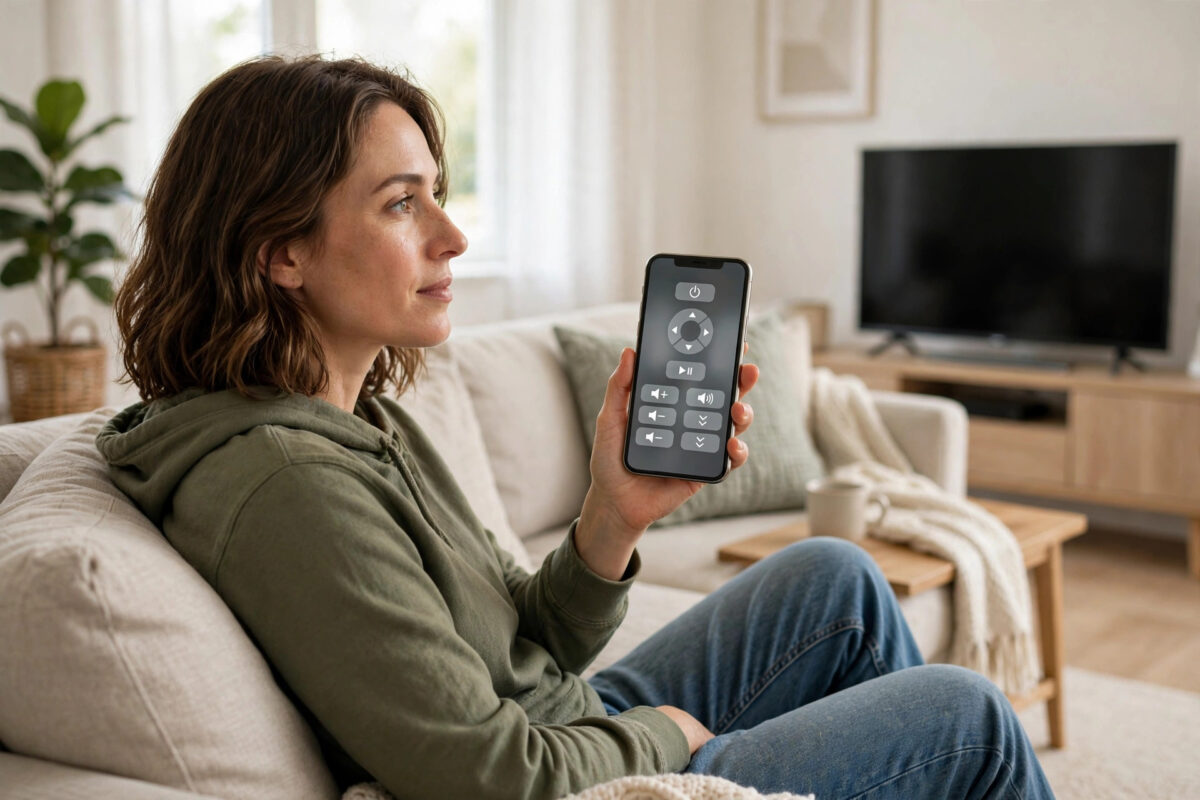
Losing the TV remote is one of those small household disasters everyone knows. It slips between sofa cushions, ends up in another room, or the batteries die at the worst moment. The channel still needs changing, though. Luckily, your phone can take over as a full remote control within minutes, often with extra features the original remote never had, such as a keyboard and voice search.
Quick Answer
Download the official app for your TV or streaming platform on your phone, such as Google TV, Samsung SmartThings, LG ThinQ, the Roku app, or Fire TV app. Connect your phone to the same Wi-Fi network as the TV. Open the app, select your TV from the list, and enter the code shown on the TV screen if asked. Your phone will then work as a remote with buttons, a touchpad, keyboard, and voice control.
What You Need Before You Start
- A smartphone connected to your home Wi-Fi. The TV and phone must be on the same network for most apps to find each other.
- The TV switched on. If the remote is lost, use the physical power button on the TV itself, usually under the front edge, on the back, or on the side.
- The correct app for your TV brand or streaming device.
- A few minutes of patience for the first connection. After setup, the app connects almost instantly.
If the TV is not connected to Wi-Fi and you have no remote at all, there are still options. Some TVs respond to a USB keyboard or mouse plugged into a USB port. Many also work with a game controller or with the buttons built into the TV. We cover these backup methods below.
Step 1: Choose the Right App for Your TV
Each platform has its own app, and they are all free:
- Google TV and Android TV: Use the Google TV app, or the remote built into Google Home and the Android quick settings panel.
- Samsung TVs: Use the SmartThings app, which includes a full TV remote after you add the TV.
- LG TVs: Use the LG ThinQ app, which offers remote control, a pointer, and app launching.
- Roku TVs and sticks: Use the official Roku app, which includes a remote, keyboard, voice search, and private listening through your phone.
- Fire TV: Use the Amazon Fire TV app, with navigation, keyboard, and Alexa voice control.
- Apple TV: iPhone users can use the Apple TV Remote built into the Control Centre, with no extra download needed.
The Google TV support pages explain the phone remote for Google TV, while the Roku support site covers its mobile app remote and private listening features. Download apps only from the official app store for your phone, and check the publisher name matches the brand.
Step 2: Connect the App to Your TV
- Switch the TV on using its physical button if needed.
- Make sure your phone is on the same Wi-Fi network as the TV, not mobile data or a guest network.
- Open the app and sign in if it asks. Some apps work without an account for basic remote control.
- Tap the option to add a device, connect a TV, or open the remote.
- Select your TV from the list of devices found on your network.
- If a code appears on the TV screen, type it into the phone to confirm the connection. This step stops neighbours from connecting to your TV by mistake.
- Test the volume and navigation buttons. You should see the TV respond straight away.
Once connected, explore the extras. Typing searches with the phone keyboard is far faster than the on-screen keyboard. Many apps also let you launch streaming apps directly from a list on your phone, cast photos, or use voice commands through the phone microphone.
What If the TV Is Not on Wi-Fi Yet?
This is the trickiest situation, because phone remotes need a shared network. Try these options in order:
- Use the buttons on the TV. Many TVs have a small joystick or a few buttons that can open menus and settings so you can join Wi-Fi manually.
- Plug in a USB keyboard or mouse. Most smart TVs accept them instantly. Navigate to network settings and connect to Wi-Fi, then set up the phone app.
- Use an ethernet cable. If your router is nearby, a wired connection gets the TV online without any menu hunting.
- Use infrared on your phone, if it has it. Some Android phones have an infrared blaster and a built-in remote app that works like a normal remote, with no Wi-Fi needed.
- Recreate your old network. If the TV remembers a previous Wi-Fi name and password, setting your phone hotspot to the same name and password can trick the TV into reconnecting.
Our detailed guide to connecting a TV to Wi-Fi without a remote walks through each of these backup methods step by step.
Making the Phone Remote Easier to Use Every Day
If the original remote stays lost, make the phone setup comfortable for daily use. Add the remote to your phone home screen or quick settings so it opens in one tap. On iPhone, add the Apple TV Remote to the Control Centre. On Android, add the TV remote tile to quick settings for Google TV devices.
Keep in mind that a phone remote depends on Wi-Fi and battery. If the router restarts, the app may need a moment to reconnect. And if your phone battery is empty, you have no remote at all. For that reason, many households use the phone app as a backup and still buy a cheap universal or replacement remote for everyday use. A replacement that matches your TV model will also restore Bluetooth voice features that a phone app may handle differently.
Common Mistakes to Avoid
- Downloading a random remote app. Many third-party apps are full of adverts or charges. Use the official app for your TV brand or platform.
- Being on the wrong network. If the app cannot find the TV, check for guest networks, Wi-Fi extenders with different names, and mobile data being active.
- Giving up when the TV is off. Most phone apps cannot switch a fully off TV on, because the TV’s Wi-Fi is asleep. Use the physical power button first.
- Skipping the pairing code. The code confirms you are connecting to your own TV. Never approve a code you did not request.
- Throwing away a found remote too soon. When the real remote turns up, keep the phone app installed. It is the perfect backup for next time.
Conclusion
A lost remote does not have to end your evening. The official app for your TV platform turns your phone into a remote with a keyboard, touchpad, and voice search, as long as both devices share the same Wi-Fi. Set it up once, add a shortcut to your home screen, and you may find you prefer it to the original remote. Just remember the physical power button on the TV for the times the TV is fully off, and keep a simple replacement remote in mind as a long-term backup.
Frequently Asked Questions
Can I turn my TV on with a phone remote app?
Sometimes. If the TV is in standby and has a feature often called network wake or remote start switched on, the app may wake it. If the TV is fully off at the wall or the feature is off, you will need the physical button on the TV.
Why does the app not find my TV?
The most common reasons are the phone and TV being on different Wi-Fi networks, the TV being off or in deep sleep, or a router setting that blocks devices from seeing each other. Reconnect both to the main network and try again.
Is a phone remote as good as the real remote?
For searching and typing it is better, thanks to the keyboard and voice input. For quick actions like changing volume while half asleep, physical buttons are easier. Many people end up using both.
Can two phones control the same TV?
Yes. Each person in the house can install the app and connect to the same TV. Just be prepared for jokes when someone changes the channel from another room.
What should I do if my TV has no smart features?
A phone app will not control a basic non-smart TV unless your phone has an infrared blaster. A cheap universal remote, or a streaming stick with its own app-controlled remote, is the best solution for older TVs.



Leave a Reply