
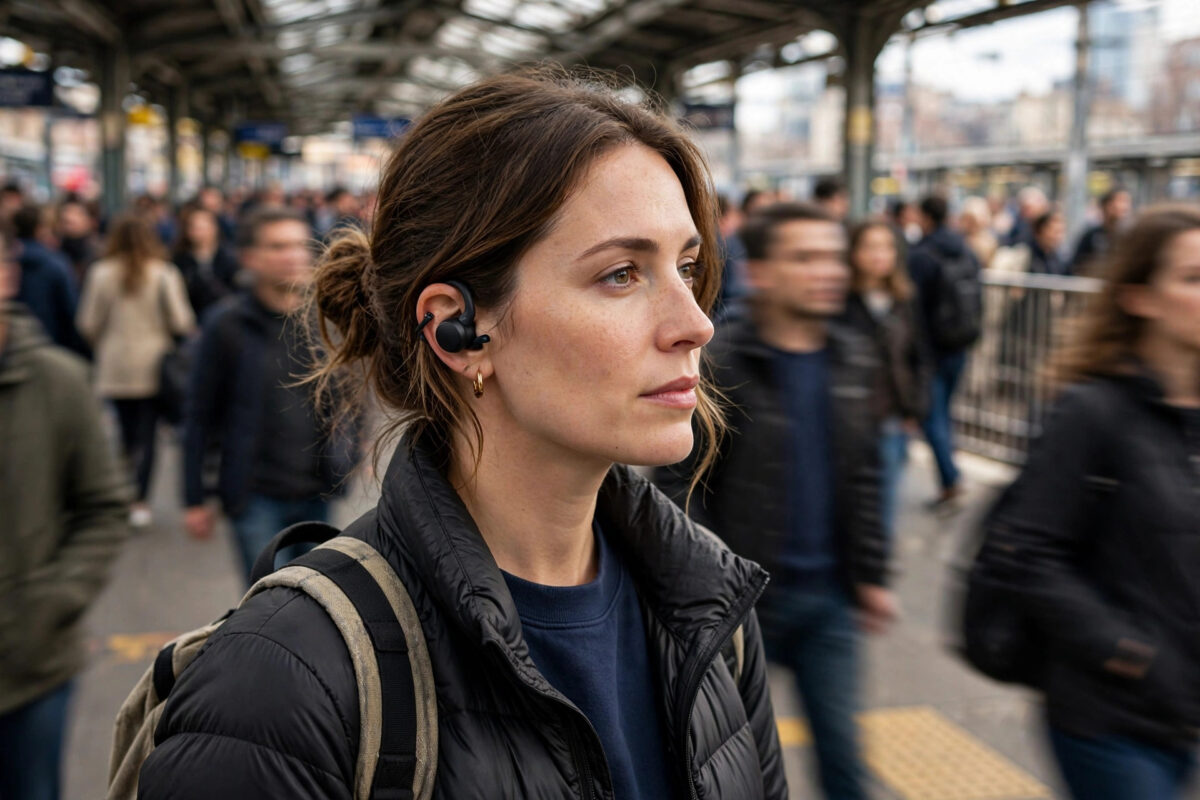
Walking from a quiet street into a roaring train station, your music seems to vanish. Then the train leaves, and suddenly it is blasting. Samsung’s Galaxy Buds On include a fix for exactly this: automatic volume adjustment, which listens to the noise around you and raises or lowers the volume so your audio stays at a comfortable level without you touching a thing.
It is switched off or buried for many owners. Here is how to find it, set it up sensibly, and understand its limits — including the hearing-safety side you should not ignore.
Quick Answer
To use automatic volume adjustment on Galaxy Buds On, open the Galaxy Wearable app while wearing the buds, go to Earbud settings, and turn on the adaptive volume feature (labelled “Adapt sound to surroundings”, “Adaptive volume”, or similar, depending on software version). Set your normal listening volume in a quiet place first — the feature treats that as your baseline and raises playback above it as ambient noise grows, then lowers it again when things quieten down. Keep the adjustment range moderate, and never use the feature as an excuse to listen at maximum in loud places: if noise is so high that you cannot hear at a safe volume, noise control matters more than turning things up.
How Automatic Volume Adjustment Works
The earbuds’ outward-facing microphones — the same ones used for calls and ambient modes — continuously sample the sound around you. When the environment gets louder, the system raises your media volume in steps; when it gets quieter, the volume drifts back down. The changes are gradual, over a few seconds, so you do not get a jolt every time a lorry passes.
Two design choices matter. First, the feature works from your baseline: the volume you chose in quiet surroundings is treated as “correct”, and adjustments are relative to it. Second, it has a ceiling. The buds will not chase unlimited noise to dangerous levels — and you should not override that judgment by setting a deafening baseline in the first place.
Step-by-Step Setup
- Wear both Galaxy Buds On and connect them to your Galaxy phone.
- In a quiet room, play music and set the volume to the level you genuinely enjoy — comfortable, conversational, not loud.
- Open the Galaxy Wearable app and tap your earbuds.
- Open Earbud settings and find the adaptive/automatic volume option. If it is missing, update the earbud firmware and the Wearable app first.
- Switch the feature on. If the app offers an adjustment range or sensitivity, start with the middle setting.
- Walk into a noisier environment — a busy street or a running shower room — and notice the volume stepping up over a few seconds.
- Return to quiet and confirm it settles back down. If the steps feel too aggressive or too lazy, adjust the sensitivity and test again.
Samsung’s official Galaxy Buds support pages list the current menu names for features like this, which shift between firmware versions; the setup logic — quiet baseline first — stays the same regardless of labels.
Making It Feel Natural, Not Annoying
The feature fails people in two predictable ways, both fixable:
- Pumping: volume rising and falling constantly in borderline noise. Lower the sensitivity, or accept a slightly higher quiet-room baseline so small noise changes stop triggering steps.
- Not enough lift: in genuinely loud places the steps top out before your music is clear. That ceiling is hearing protection, not a bug — and because the Buds On are an open, clip-on design, more outside sound reaches you than with sealed earbuds. In very loud settings, this feature plus a lower expectation beats cranking volume.
Give it three days of normal commuting before judging. Most people stop noticing the adjustments entirely once the sensitivity suits their route.
Hearing Safety: The Important Bit
Automatic volume exists inside a tension: it turns things up precisely when your surroundings are already loud. Prolonged listening at high volume damages hearing permanently, and the damage is painless while it happens. Practical rules:
- If you need to shout to be heard by someone beside you, your environment is too loud for safe earbud listening at any volume — take a break instead.
- Keep your quiet-room baseline honestly moderate. A loud baseline plus automatic lift is the worst combination.
- Use your phone’s volume-limit or hearing-protection settings as a hard cap underneath the feature.
- Ringing ears or muffled hearing after listening means it was too loud, full stop.
Used this way, automatic adjustment is actually a safety feature as much as a convenience: it stops the common habit of setting one high volume for the loudest part of a journey and enduring it for the whole trip. It pairs naturally with the other smart audio behaviours covered in our Galaxy Buds On tips and features guides — set them up together and the buds start feeling genuinely intelligent.
How It Compares With Simply Using Noise Modes
Owners sometimes ask why they should bother with volume adjustment when ambient and noise-control modes exist. The two solve different problems. Ambient modes change how much outside sound reaches you; automatic volume changes how loud your audio is relative to whatever still gets through. On a sealed pair of earbuds, strong noise control can make volume adjustment nearly unnecessary. On the open, clip-on Buds On — which are deliberately designed to let the world in — volume adjustment carries more of the load, and the two together give the most comfortable result: ambient awareness for safety, with your music riding at a steady, listenable level on top of it.
Common Mistakes and Useful Tips
Setting the baseline on a noisy train. The feature then treats “loud” as normal and barely adjusts anywhere. Always set the baseline somewhere quiet.
Judging it in the first five minutes. The steps are deliberately gradual. Judge it across a whole commute, not a doorway.
One bud in, one out. With a bud out, ambient sampling and the listening experience both change, and adjustments can feel wrong. The feature is designed for both buds in.
Expecting it to fix a bad fit. If a bud is sitting far from your ear, no volume logic will rescue the sound. Refit first, features second.
Conclusion
Automatic volume adjustment on Galaxy Buds On does one job quietly and well: your music stays present and comfortable as the world around you gets louder and quieter, without your thumb living on the volume button. Set an honest baseline in a quiet room, pick a moderate sensitivity, respect the safety ceiling — and then forget the feature exists, which is the highest compliment a smart feature can earn.
Frequently Asked Questions
Why does my volume keep changing by itself?
That is almost certainly this feature working: the earbuds are sampling ambient noise and adjusting. If the changes annoy you — constant stepping up and down — lower the sensitivity in the Galaxy Wearable app, or switch the feature off in Earbud settings.
Does automatic volume adjustment work for calls too?
On supported versions it applies to media playback, and call volume may be handled separately. Test with a call in a noisy place; if calls stay fixed, adjust call volume manually and look for a call-specific ambient setting in the same menu.
Will it make my music too loud without me noticing?
The adjustments are gradual and capped, and they return to your baseline in quiet. The risk comes from setting a loud baseline yourself. Keep the quiet-room volume moderate and check your phone’s hearing-protection or volume-limit settings for a hard maximum.
Does the feature use extra battery?
A little — the microphones sample the environment continuously. In practice the difference is small next to audio playback itself, and most users will not notice a change in daily battery life.
Why can I not find the automatic volume setting?
Feature names and placement change with firmware and app updates, and some regions receive features later. Update both the earbuds (through Galaxy Wearable) and the app itself, then look under Earbud settings for anything mentioning adaptive sound, ambient adjustment, or automatic volume.



Leave a Reply