
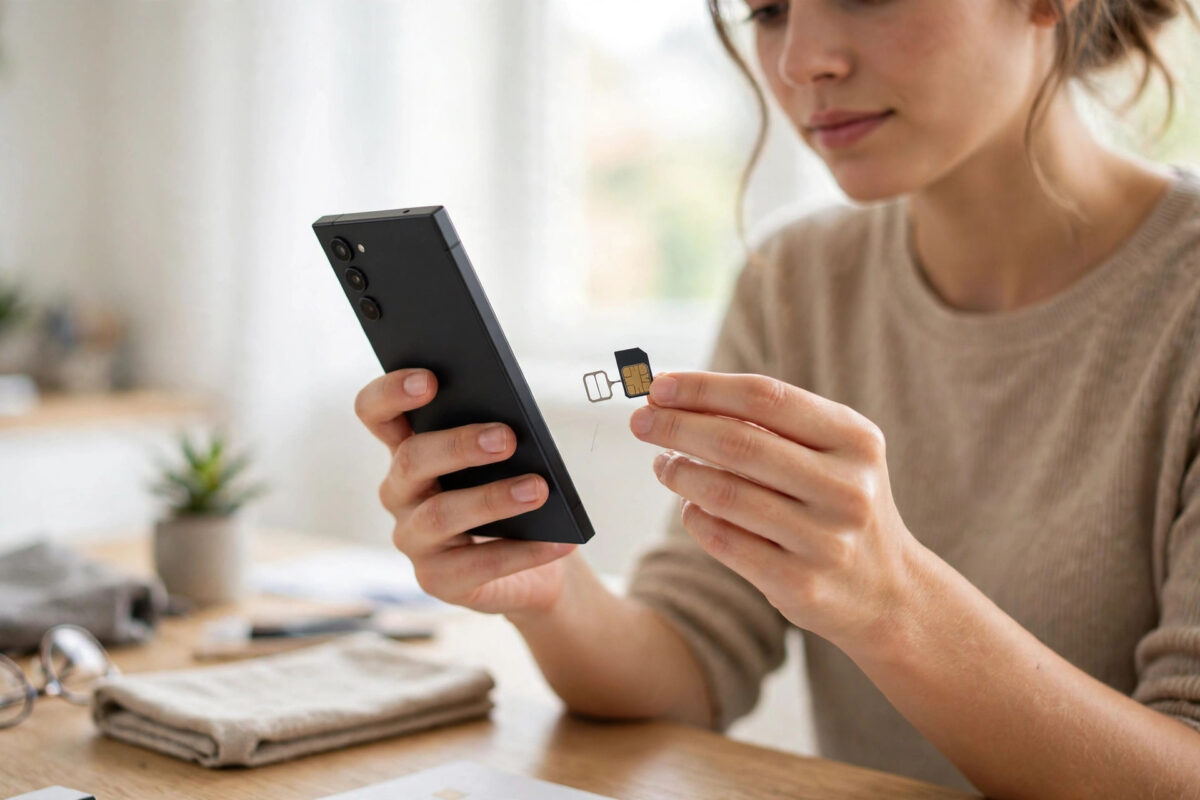
The iPhone Air continues Apple’s move toward eSIM-only phones, which means switching to one from an older phone with a physical SIM card involves a step people dread: converting your number to an eSIM. Done in the right order, it takes ten minutes and your number never stops working. Done carelessly, it ends with no service and a call to your carrier.
This guide covers the three conversion routes — transferring during setup, converting an existing SIM on your current phone, and using a carrier QR code — plus the checks to run before you retire the old phone.
Quick Answer
To set up an iPhone Air eSIM when switching from a physical SIM phone, the simplest route is eSIM Quick Transfer during setup: keep your old iPhone nearby, and when the new iPhone Air asks about your mobile plan, choose to transfer your number from the nearby iPhone and approve it on the old phone — your physical SIM converts to an eSIM automatically. If your carrier does not support Quick Transfer, use the carrier’s app or website to request an eSIM, then scan the QR code they provide under Settings, Mobile Data, Add eSIM on the iPhone Air. Never remove or discard your physical SIM until the new phone shows signal and makes a test call.
Before You Start: Three Checks
- Confirm your carrier supports eSIM and, ideally, eSIM Quick Transfer. Most major carriers do; some smaller or prepaid brands still require a QR code or a store visit. Five minutes on their website saves an hour of confusion.
- Unlock the situation: if your old phone is carrier-locked or the SIM belongs to a work account, sort permissions first — business accounts often need the account holder to approve a SIM change.
- Stay on Wi-Fi with both phones charged. eSIM activation downloads a profile; a dying battery mid-activation is a classic self-inflicted wound.
Method 1: eSIM Quick Transfer During Setup (Easiest)
- Begin setting up the iPhone Air with your old iPhone nearby and Bluetooth on.
- When the setup reaches the mobile plan step, choose Transfer from another iPhone (wording varies slightly).
- Unlock the old iPhone and approve the transfer prompt that appears on it.
- Wait while the number converts. The old physical SIM stops working at the moment the eSIM activates — that is expected.
- Finish setup, then confirm the iPhone Air shows your carrier name and signal bars.
- Make a test call and send a test message before doing anything else.
Method 2: Convert to eSIM on Your Current iPhone First
If your current phone is also an iPhone and you prefer to convert before the new phone arrives:
- On the current iPhone, open Settings, Mobile Data.
- Tap Convert to eSIM if your carrier offers it, and follow the prompts.
- Once the current phone runs on eSIM, the later transfer to the iPhone Air becomes a straightforward eSIM-to-eSIM move during setup.
Apple documents both conversion routes on Apple Support’s eSIM pages — worth opening on the old phone before you start, so the exact button names for your iOS version are in front of you.
Method 3: Carrier QR Code or App
If Quick Transfer is unavailable, your carrier will issue an eSIM directly:
- Log in to your carrier’s app or website and find the SIM/eSIM section — look for “Replace SIM”, “Get eSIM”, or “Move my number to a new device”.
- Request an eSIM for the iPhone Air. The carrier sends a QR code by screen, email, or post.
- On the iPhone Air, open Settings, Mobile Data, Add eSIM, choose “Use QR code”, and scan it. (You can also enter the details manually from the same screen.)
- Wait for activation — usually minutes, occasionally an hour at busy times.
- Test a call, a text, and mobile data with Wi-Fi off.
After Activation: The Sensible Checks
- iMessage and FaceTime: confirm they show your number, not just your email. If they lag, toggle them off and on in Settings.
- Two-factor texts: banking codes arriving proves your number truly moved. Some banks also flag a SIM change and pause codes for a period as an anti-fraud measure — annoying, but it means the system works.
- The physical SIM: once the eSIM works, the old SIM is dead plastic. Keep it for a week as evidence of the old setup, then destroy it rather than binning it whole.
- Travelling soon? An eSIM-only phone is actually a gift: you can add a local travel eSIM alongside your main line. The full move-in sequence pairs with our complete guide to transferring everything to a new iPhone if you are doing the whole switch in one sitting.
What If Something Goes Wrong Mid-Transfer?
Do not panic, and do not start deleting things. If the transfer stalls, first confirm both phones are still on Wi-Fi and charged, then restart the new phone and check whether the plan appears under Settings, Mobile Data — activations sometimes complete quietly in the background despite an error message. If the old SIM has stopped working but the new phone shows no service, you are in the gap carriers see every day: call them, explain that a conversion is half-complete, and have your account details and the new phone’s EID ready. They can push the activation through from their side. Your number is safe throughout — a stalled conversion never loses a number; it only delays it.
Common Mistakes and Useful Tips
Removing the SIM before transferring. Quick Transfer needs the old phone alive, signed in, and nearby. Leave everything exactly as it is until the new phone shows signal.
Setting up at midnight before a work trip. If activation stalls, carrier support lines are thinnest exactly when you need them. Convert during the carrier’s normal support hours.
Forgetting dual-SIM arrangements. If the old phone carried two lines, plan both: a physical second line needs its own conversion, and the iPhone Air can hold multiple eSIMs with two active at once.
Assuming no service means failure. Activation occasionally takes up to an hour. Restart the phone once, wait, and only then call the carrier — with your account details and the phone’s EID (in Settings, General, About) ready.
Conclusion
Converting from a physical SIM to the iPhone Air’s eSIM is a ten-minute job when your carrier supports Quick Transfer, and a straightforward QR-code scan when it does not. Prepare, transfer, and test — call, message, and data — before the old phone is wiped or its SIM discarded. Your number is the key to half your accounts; treat its move with the same care as the phone itself.
Frequently Asked Questions
Will I keep the same phone number with an eSIM?
Yes. Converting to eSIM changes the technology carrying your number, not the number itself. Your carrier moves your existing line onto the digital profile, and your contacts notice nothing.
What happens to my physical SIM after conversion?
It is deactivated the moment the eSIM activates and will never work again. Keep it briefly as a record, then destroy it — it contains no usable service but there is no reason to leave a SIM with your number printed on it lying around.
My carrier does not support eSIM Quick Transfer. What can I do?
Ask the carrier for an eSIM QR code through their app, website, or a store, then add it on the iPhone Air via Settings, Mobile Data, Add eSIM. If a carrier cannot offer eSIM at all, the iPhone Air simply cannot use that line — you would need to move the number to a carrier that supports eSIM.
Can I move my eSIM back to a physical SIM later?
Usually yes — carriers can issue a fresh physical SIM for your line if you switch to a phone without eSIM. Expect a small fee or a store visit with ID from some carriers. Your number stays the same throughout.
How many eSIMs can the iPhone Air store?
Modern eSIM iPhones store many profiles — typically eight or more — with two lines active at the same time. That makes an eSIM-only phone excellent for travel and for keeping work and personal numbers on one device.



Leave a Reply