
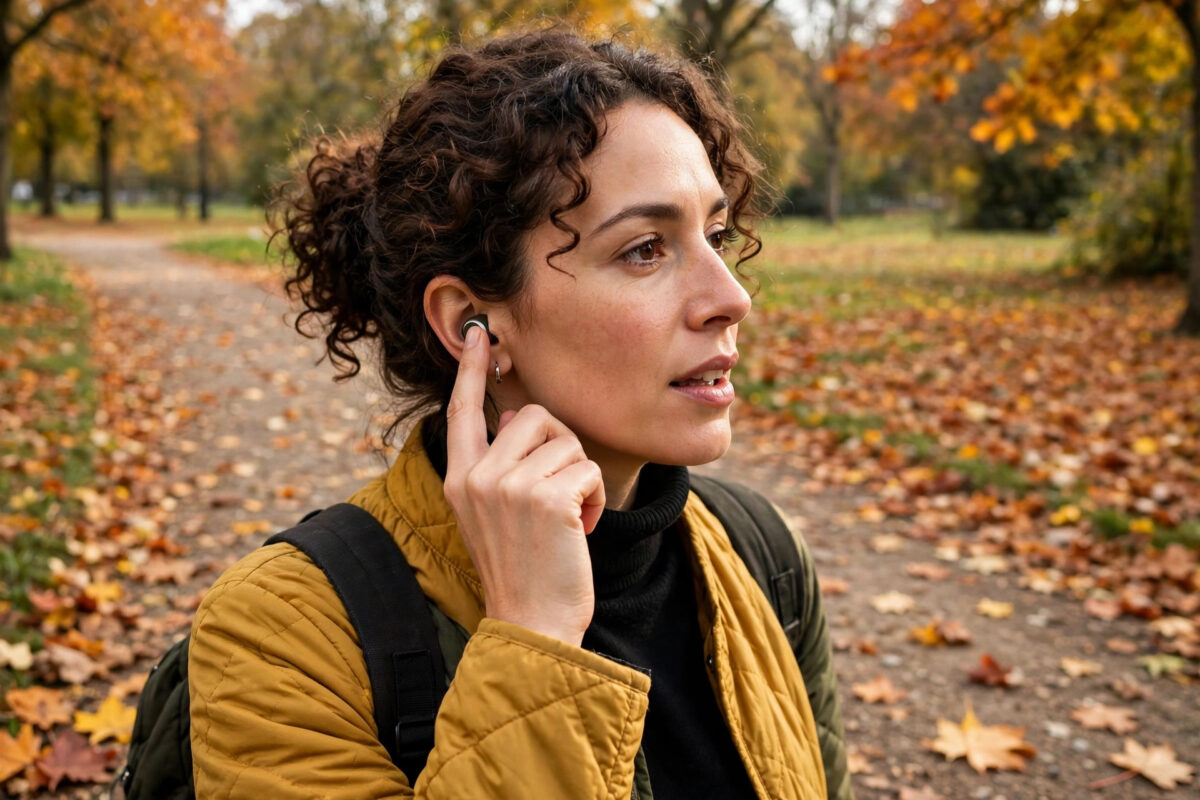
Ideas arrive at the worst times — mid-walk, mid-commute, mid-shower-thought. Samsung’s Galaxy Buds On can capture them instantly: set a long press on the earbud to start a voice memo, speak your thought, and find the recording waiting on your phone. No unlocking, no app hunting, no typing.
The feature needs a one-time setup in the Galaxy Wearable app, because the long-press slot may be assigned to something else by default. This guide covers the setup, the recording flow, and where your memos end up.
Quick Answer
To record a quick voice memo by long pressing Galaxy Buds On, open the Galaxy Wearable app, go to Earbud settings and touch controls, and set the touch-and-hold (long press) action for one or both earbuds to Voice recorder (or “Start voice recording”, depending on your software version). After that, wearing the buds, simply press and hold the chosen earbud: a tone confirms recording has started, speak your memo, and tap or long-press again to stop. The memo is saved in the Samsung Voice Recorder app on your phone, where you can play it back, rename it, or transcribe it.
Why Record Through the Earbuds?
The memo is recorded by your phone — but triggered and miked by the earbud. That combination matters:
- Speed: from thought to recording in about two seconds, phone still in your pocket
- Microphone position: the bud’s microphone sits near your face, giving clearer voice pickup than a phone in a bag
- Discretion: a quiet memo on a train beats typing a note or holding a phone conversation with yourself
- Hands-free: works while driving (where legal), cooking, walking the dog, or carrying anything
It is the same reason people love the voice features covered in our guide to starting Gemini Live by voice on Galaxy Buds On — the phone stays away, and the earbuds do the work.
Step-by-Step Setup
- Connect your Galaxy Buds On and open the Galaxy Wearable app.
- Tap Earbud settings, then find the touch controls section (labelled “Touch controls” or “Earbud controls” depending on version).
- Locate the touch-and-hold / long-press options for the left and right earbuds.
- Choose which side will record memos. Assigning one side keeps the other free for your voice assistant.
- Select Voice recorder (or “Voice memo” / “Start recording”) from the list of actions.
- Back out of the menus — the setting saves automatically.
- Test it: long-press the chosen bud, say a test sentence after the tone, long-press again to stop, then open the Voice Recorder app and play it back.
Recording a Memo, Start to Finish
- Wear at least the earbud you assigned (both buds give the clearest pickup).
- Press and hold the bud’s touch area for about a second, until you hear the confirmation tone or a short spoken prompt.
- Speak naturally, at normal volume, facing forward. The bud’s microphones are tuned for your voice at close range.
- Long-press again (or single tap, depending on your version) to stop. A second tone confirms the memo is saved.
- Later, open Voice Recorder on your phone: your memo is at the top of the list, named by date and time.
There is no strict time limit for a single memo in normal use, but the feature is designed for short notes — ideas, reminders, names, addresses. For a long interview or lecture, use the phone’s recorder app directly so you can see levels and storage.
Managing Your Memos Afterwards
Raw memos pile up fast. A light routine keeps them useful:
- Rename immediately: in Voice Recorder, rename “2026-10-21 09:42” to the actual idea while it is fresh.
- Transcribe: Samsung’s recorder app can convert speech to text on supported phones — perfect for turning a spoken idea into a note you can paste anywhere.
- Share or back up: send important memos to your notes app or cloud storage; earbuds-triggered recordings deserve the same backup habits as any file.
- Delete the duds: a weekly clean-out of test and duplicate memos keeps the list trustworthy.
Samsung explains the recorder app’s own options in its official Galaxy support pages, including transcription availability for your model.
What Makes a Good Voice Memo
Because recording is so effortless, the quality of your memos depends on a few small habits rather than on the hardware. Speak at the pace you would use for a voicemail, not the pace of your thoughts — ideas race, and a memo you cannot understand next week was not worth recording. Start each memo with its subject: “Idea for the kitchen shelf…”, “Reminder — call the dentist…”, “Song lyric…”. Those first three words become the memo’s identity when you scan the list later, and they make transcription and searching far more useful.
Environment matters more than people expect. The earbud microphone handles wind and traffic reasonably well, but turning your head away from the noise source while you speak improves clarity dramatically, and pausing a sentence when a lorry passes beats shouting through it. Keep memos focused: one idea per recording. A three-minute memo containing five ideas will be skipped forever; five thirty-second memos get actioned. Finally, if a memo contains something private — a password hint, a personal thought — move it out of the general list into a notes app with proper locking, and delete the audio. Convenience should never outrank privacy, and the recorder list is not a secure place.
Common Mistakes and Useful Tips
Long-pressing the wrong control. A long press is about a full second. Short taps trigger playback controls instead — if music pauses when you try to record, you tapped rather than held.
Recording with the bud in the case. The touch area only works when the bud is worn (or at least held against skin contact in some versions). If nothing happens, the bud is not registering touch.
Talking before the tone. Anything said before the confirmation tone is lost. Make “wait for the beep” a habit, like leaving a voicemail.
Never renaming memos. Ten recordings named by timestamp are a junk drawer. Fifteen seconds of renaming at the time is what makes the feature pay off later.
Conclusion
Assign the long press to the voice recorder once, and Galaxy Buds On become a notebook that is always open: hold, speak, hold, done. Your memos land in the Voice Recorder app ready to rename, transcribe, or share. It is the smallest feature in this earbud lineup — and for many owners it becomes the one they use every single day.
Frequently Asked Questions
Where are my voice memos saved?
In the Samsung Voice Recorder app on your phone, listed by date and time. From there you can play, rename, transcribe (on supported models), share, or delete them like any other recording.
Can I record a memo with just one earbud?
Yes, as long as the earbud you are wearing is the one with the long-press action assigned. If you regularly use a single bud, assign the recorder action to both sides so either works.
Does the voice memo record through the earbud or the phone?
The recording is captured using the earbud’s microphone and saved by the phone’s Voice Recorder app. That is why the audio sounds clear even when your phone is in a pocket or bag.
What if long press opens my voice assistant instead?
That means the touch-and-hold slot is still assigned to the assistant. Change it in Galaxy Wearable under earbud touch controls — you can keep the assistant on one side and the recorder on the other, which most people find ideal.
Is there a time limit on a voice memo?
For quick notes you will not hit a practical limit; recordings of many minutes are fine. Storage space on the phone is the real ceiling, and very long sessions are better handled in the recorder app itself, where you can watch the time and levels.



Leave a Reply